
WooCommerce sells things once. Renting them means the same item goes out, comes back, gets checked, and goes out again — sometimes fifty times a year. This guide walks through turning a standard WooCommerce store into an equipment rental store: what to install, how to configure a rentable product, and the three settings people most often get wrong.
Before you start: rental is not booking
This is the decision that determines everything else, and it is worth two minutes now rather than a rebuild in six months. Booking plugins sell time: an appointment, a class, a table. Rental means a physical object leaves your premises and has to return.
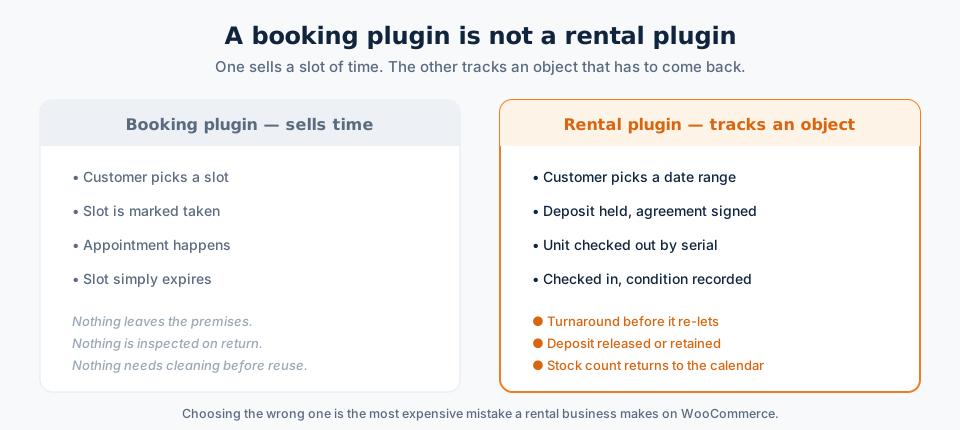
If your items come back, you need date-range availability, check-out and check-in, turnaround time, and usually deposits and a signed agreement. That is what the rest of this guide sets up.
Step 1: Install WooCommerce and a rental plugin
You need WordPress with WooCommerce active, then a rental plugin on top. Install the rental plugin from Plugins → Add New → Upload Plugin, activate it, and enter your licence key if it has one. Nothing about your existing catalogue changes — rental becomes an extra product type alongside your normal simple and variable products, so a store can sell some things and rent others.
Step 2: Turn a product into a rental
Edit any product and open the rental settings in the Product data panel. The four things to set are:
- Rental period. Hourly, daily, weekly or monthly — whichever unit you actually quote in. You can offer more than one, which is how a camera ends up at $40/day or $200/week.
- Quantity in stock. This is real inventory, not a WooCommerce stock number that only decrements on sale. Twelve laptops means twelve simultaneous hires on any given date.
- Minimum and maximum duration. Stops someone booking a marquee for two hours or a wetsuit for a year.
- Turnaround padding. Covered properly in the turnaround guide — but set it now, because it is the setting people forget.
Save, and the product page gains a date picker with live availability:
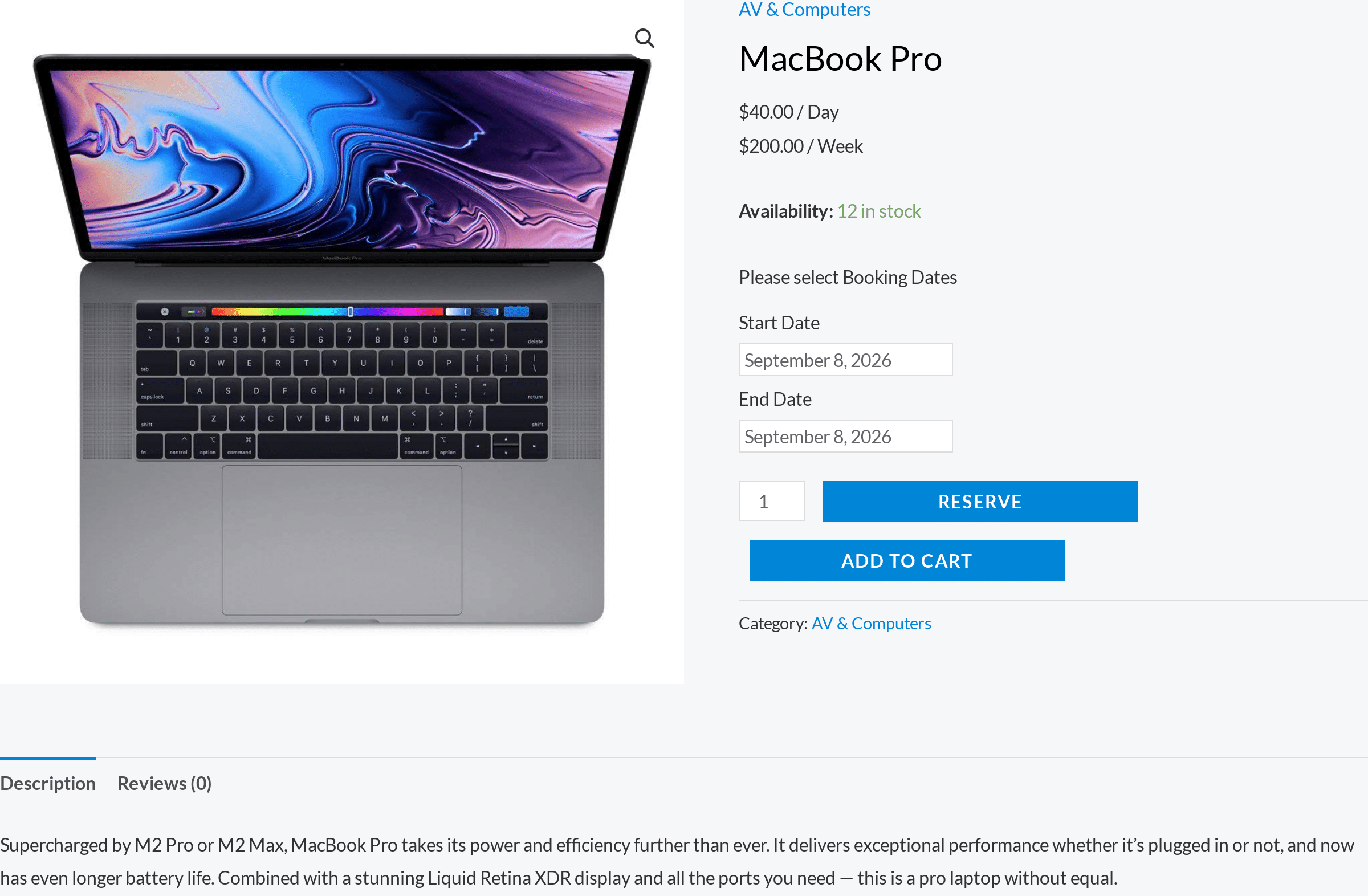
Note the “12 in stock” line. That number is date-aware: if eight of the twelve are already out next Tuesday, a customer choosing next Tuesday sees four.
Step 3: Price it the way you actually quote
Most equipment hire is not a flat daily rate. The common patterns, all of which should be configurable without code:
- Tiered by duration — $40 for a day, $200 for a week, so a seven-day hire is not seven times the day rate.
- Seasonal — peak summer rates on beach and ski equipment, off-season discounts to keep stock moving.
- Pro-rated — part-days charged proportionally rather than rounded up, where your market expects it.
- Add-ons per day — insurance, delivery, a second battery, priced per rental day rather than once.
Step 4: Check what is actually free
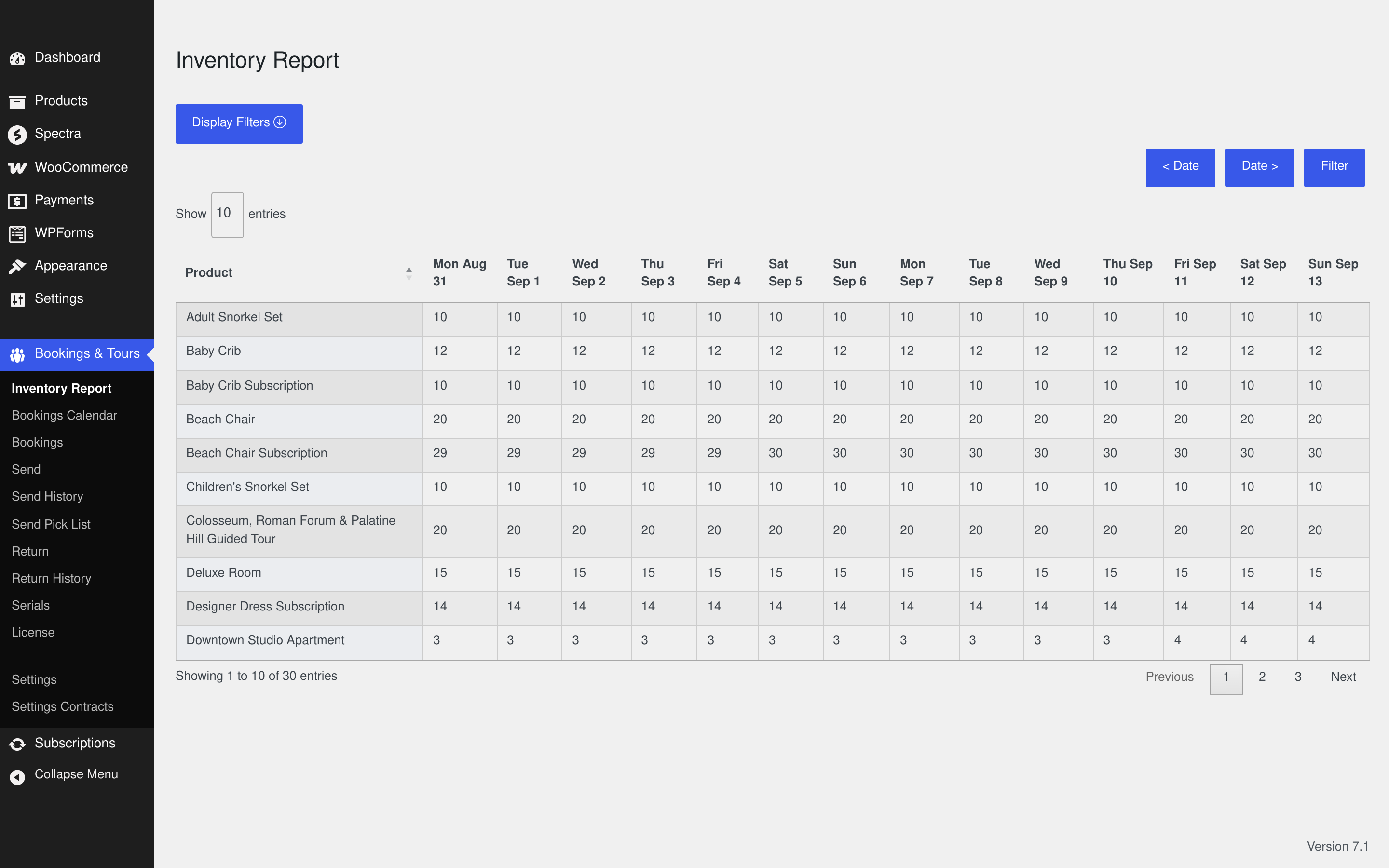
The report you will live in is the inventory report: every product down the side, dates across the top, and the number genuinely available in each cell.
The three things people get wrong
1. Using WooCommerce stock as rental stock
Standard WooCommerce stock decrements permanently on purchase. Rental stock has to come back. If you configure a rental product using plain stock management, your inventory drains to zero over a season and you start refusing bookings for items sitting in the warehouse.
2. Forgetting turnaround
If a wetsuit comes back Sunday evening and your calendar offers it for Monday morning, you will eventually hand someone a wet wetsuit. Set padding per product — see how to set up rental turnaround time.
3. No deposit and no signed agreement
The first time a $1,200 lens comes back with a cracked element, an emailed terms page is not much help. Take a refundable security deposit and have the hire agreement signed online before the item leaves.
Try it on a live store first
Reading about a date picker is less useful than using one. The free live demo is a real WooCommerce store with rental products configured — pick dates, watch availability change, and check an item back in from the admin side. Full features and pricing are on the WooCommerce rental plugin page.