
Let shoppers ask for a price, and pay the one you offer
Request a Quote & Hide Price adds Add to quote to WooCommerce. Shoppers collect products in a quote basket and send it to you; you answer from WooCommerce › Quotes with an offer; they accept and pay at your price. Hide prices and Add to Cart for the products, categories or customers you choose. It needs only WooCommerce.

Big orders don’t fit a fixed price
Trade buyers, event planners and anyone ordering in quantity want to agree a price first. Without a quote step, that conversation leaves your store and comes back as an order you build by hand.
Without a quote step
- Buyers email a product list and wait, and the thread lives in someone’s inbox
- Trade and made-to-order prices are shown to everyone, or the products stay off the store
- When you agree, someone builds the order and types the prices in by hand
- Nobody can see which requests are waiting, won or lost
With Request a Quote & Hide Price
- Shoppers build the request from your catalog, with a note on each item
- You answer from WooCommerce › Quotes with an offer, a PDF and an expiry date
- They accept and pay at your price, through your own checkout or a payment link
- Prices hidden from guests, by category or by customer, and products sold by quote only
From Add to quote to a paid order in six steps
The same steps for logged-in customers and guests, and for products you sell or rent.
Add to quote
From product pages and shop lists, the quick quote form, or Request a quote for this cart.
Send the request
A note per item, your own questions and files. Guests can ask too.
Price it in the quote editor
List price, a fixed price or percent off per item, a discount on the whole quote, shipping, fees and expiry.
Save and send
The “Quote ready” email, with the PDF and a link to the quote page.
The customer accepts
Or asks for changes, or declines. Every new offer is a new version they can compare.
The order
Paid at checkout or through a payment link, at your price. The quote is Ordered and the order names it.
It works on any WooCommerce store. Sales Igniter Rentals & Bookings is not needed; on a rental store, it adds dates and stock holds to quotes.
Add to quote wherever shoppers browse
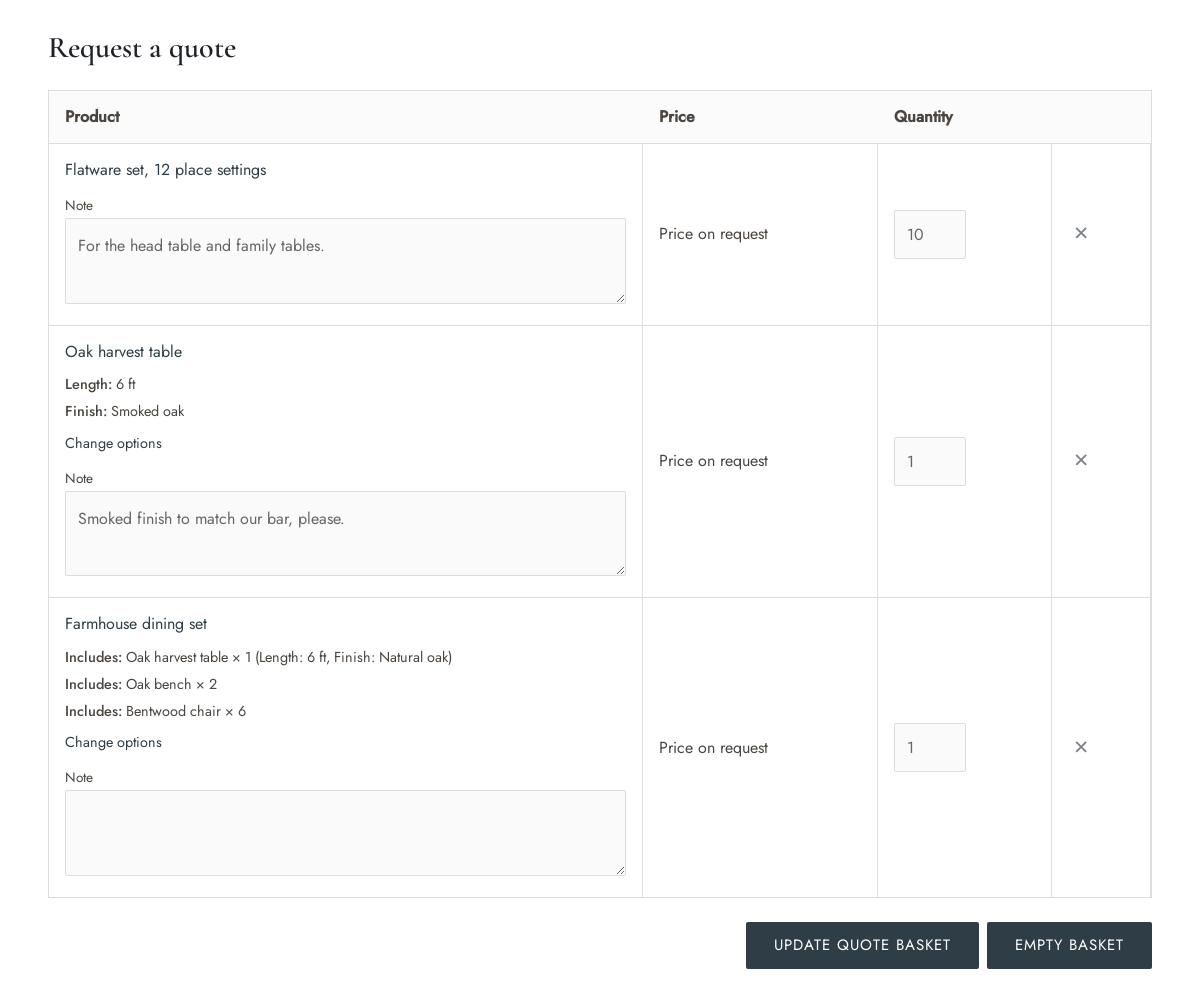
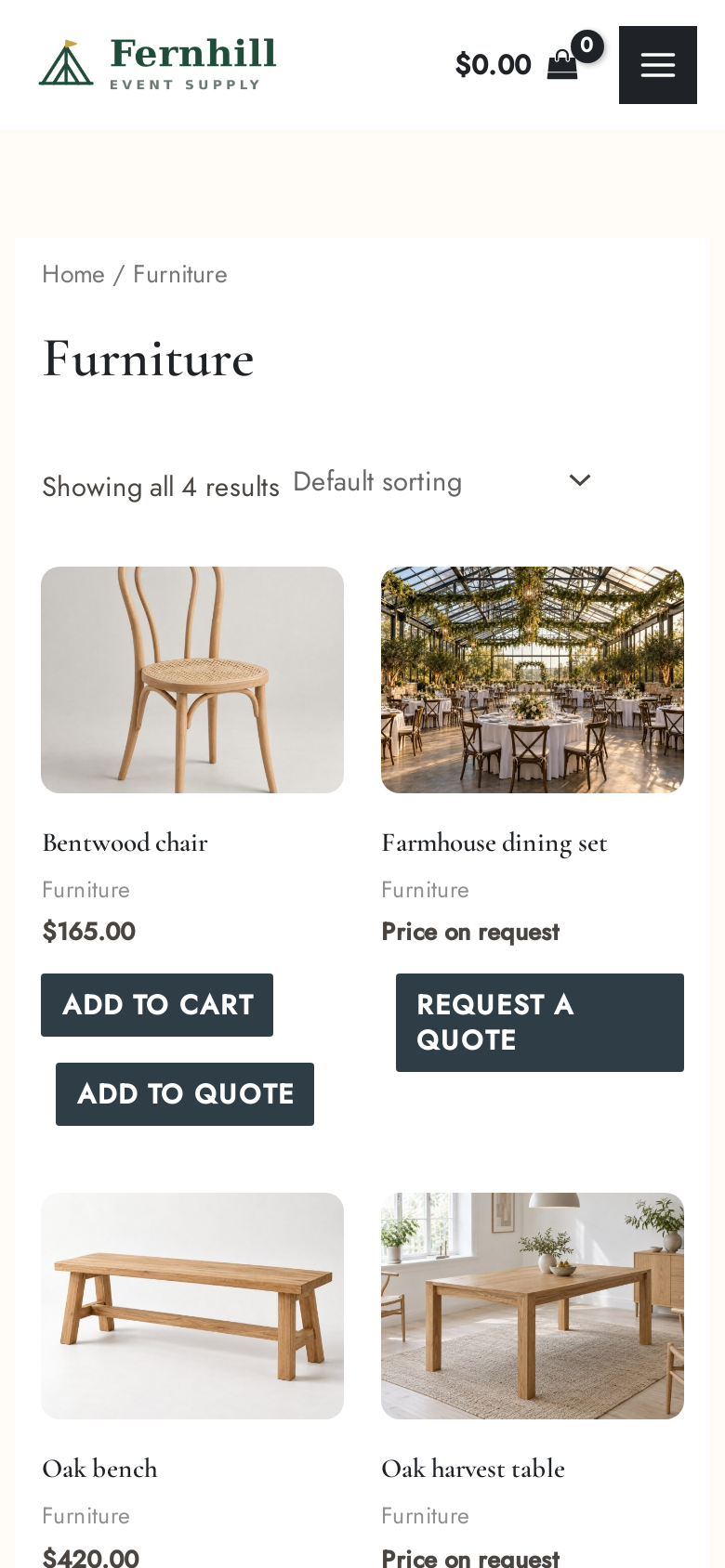
The button sits next to Add to Cart on product pages and in shop lists, and the quote basket works like a cart of its own: quantities, options and a note on every item.
Product pages and shop lists
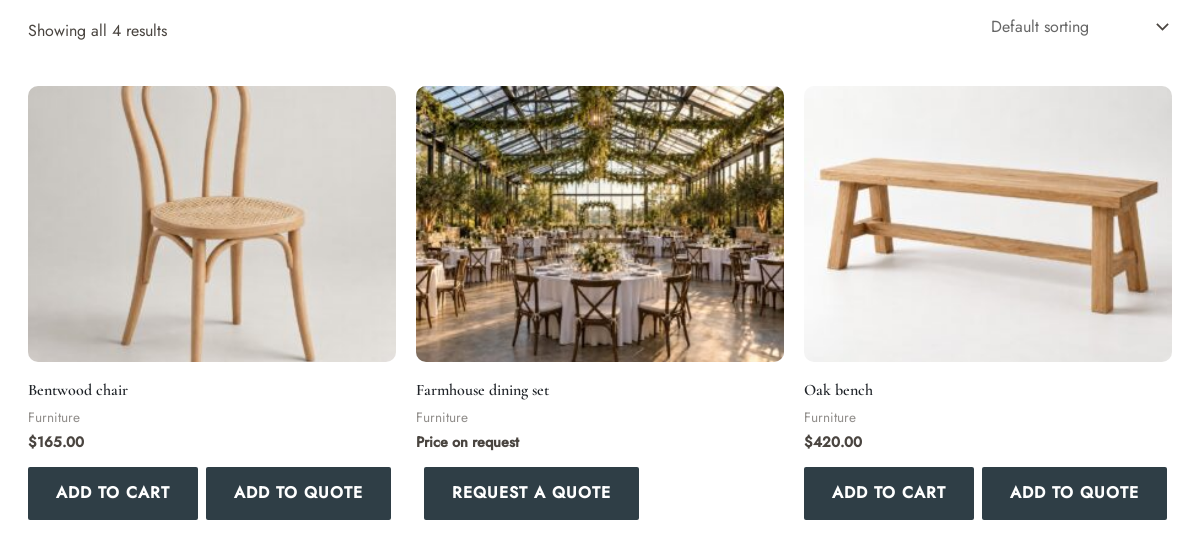
Add to quote next to Add to Cart. Simple products are added without leaving the list; products with options open their page first.
Request a quote for this cart
One button on the cart page copies everything that can be quoted into the quote basket, with its options.
A note on each item, and an optional suggested price
Shoppers can add a note to each item. If you switch on Suggested prices, they can also say what they would like to pay. Change options reopens the product with their choices set.
Your own questions and files
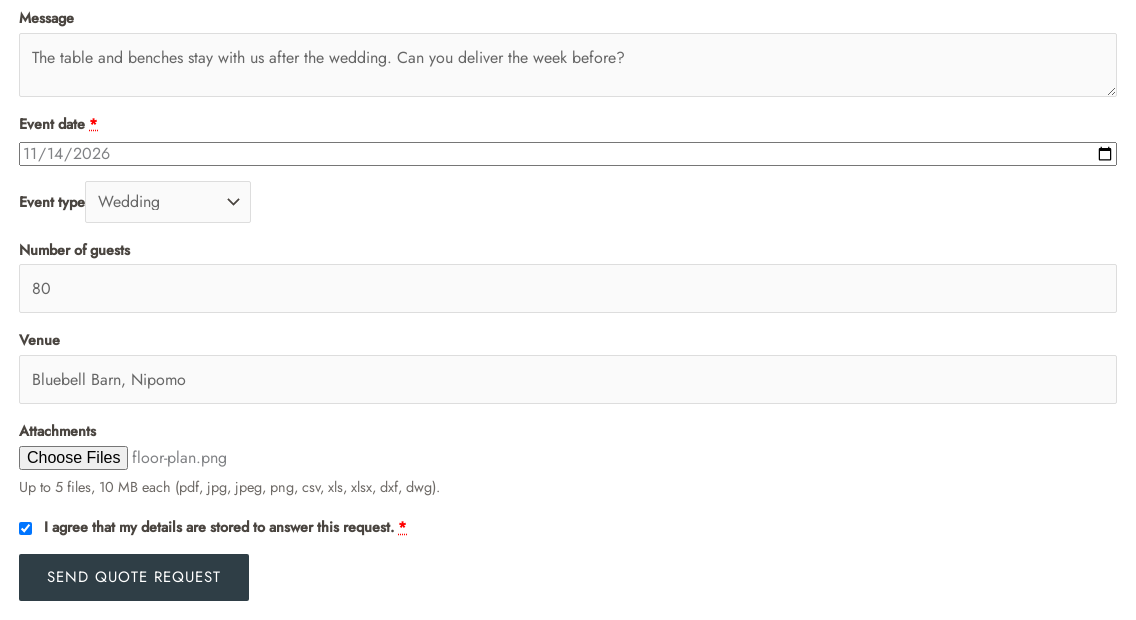
Eight field types, such as a date, a drop-down or a number, plus attachments, privacy consent, reCAPTCHA v3 or Cloudflare Turnstile, and minimums.
A quick quote form
Instead of the basket, the button can open a short form for one product, with the same questions.
Blocks and shortcodes
The Add to Quote Button and the Mini Quote Basket, whose item count updates without a page reload. A quote icon with a count badge can sit next to the cart icon in your header.
Hide prices, or sell by quote only
Hide price rules decide who sees prices and Add to Cart: by product, category, tag or stock, and for guests, roles or chosen customers. A product’s own Quote tab can override them. Hidden prices are removed on the server, not covered up with CSS.
| You want | Set | Shoppers see |
|---|---|---|
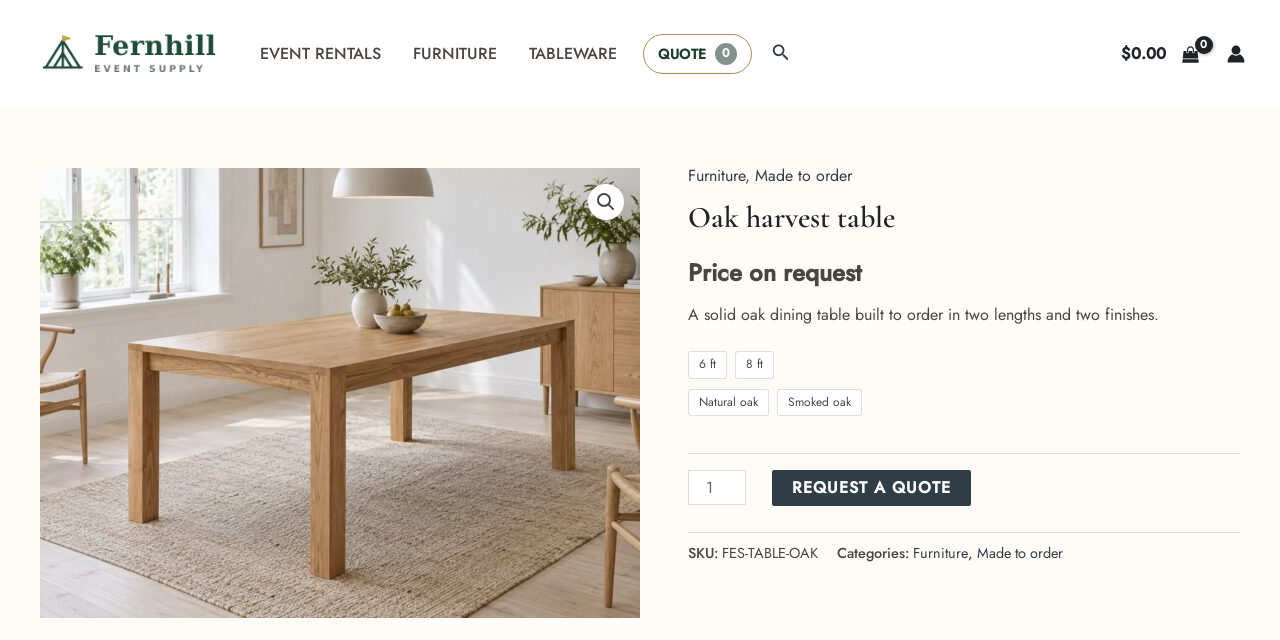
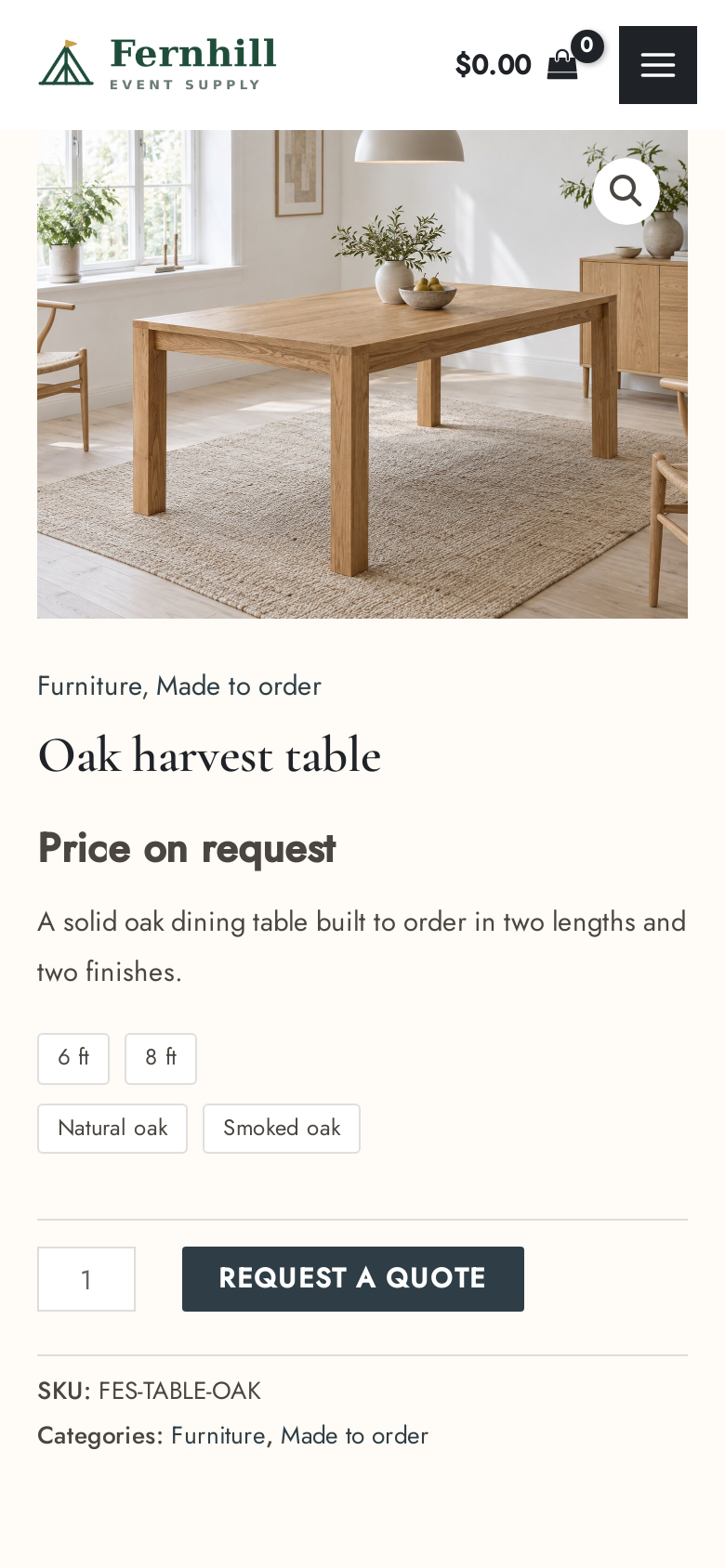
| Trade prices for logged-in customers only | A rule for All products and Guests (not logged in): Hide the price, and Replace with the quote button | “Price on request”, and Request a quote instead of Add to Cart |
| Made-to-order products | A rule for their category, with Quote only ticked | Request a quote; the products can’t be bought directly |
| Prices for some customers only | A rule for Customers with roles or Chosen customers, or the Always show prices to list | The price and Add to Cart if they are covered |
| A setting for one product | The product’s Quote tab: Price, Add to Cart button and Applies to | Whatever you set for that product |
| A quick question instead of a basket | What the button does: Open a quick quote form for the product | A short form that sends a request for that one product |
Removed on the server
Product pages, shop lists, blocks, the Store API, variation data and structured data leave the price out, and the cart refuses the product.
Sorting and search engines
Price sorting and filters are removed where they would give hidden prices away, and the price is left out of the tags written by Yoast SEO and Rank Math.
Staff still see everything
Prices stay visible in the admin and the quote editor. Once you send an offer, the customer sees your prices.
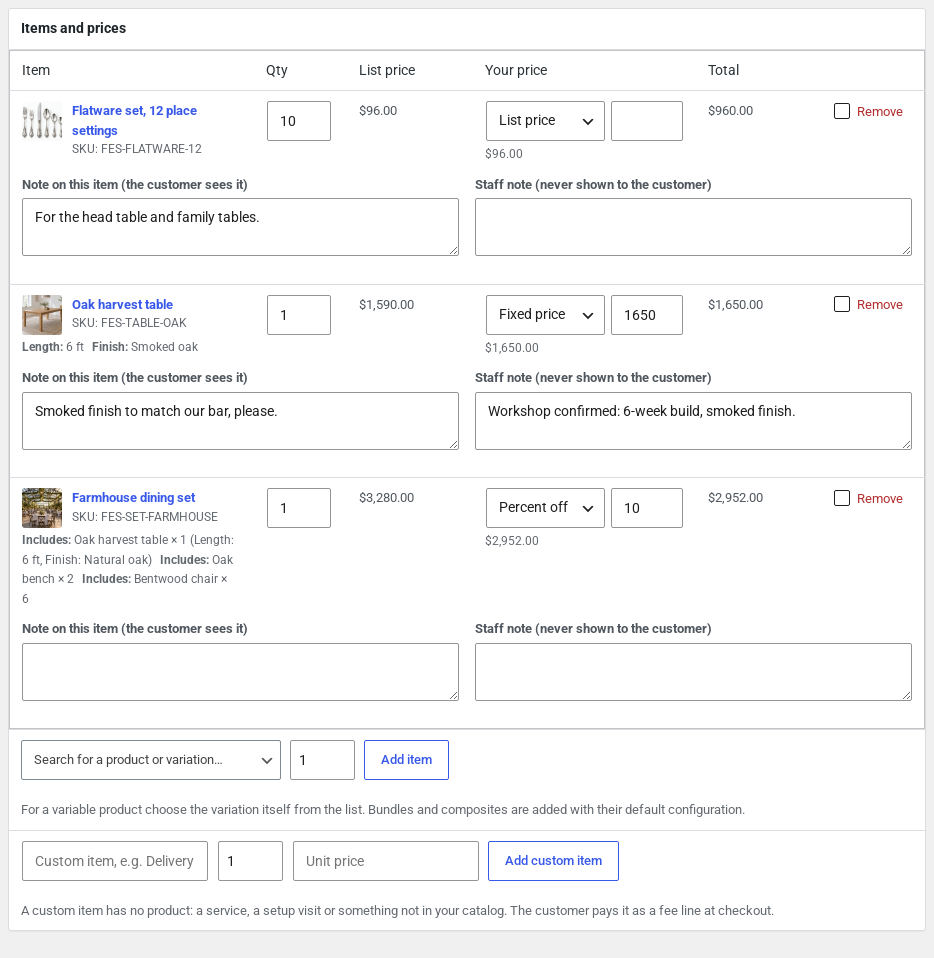
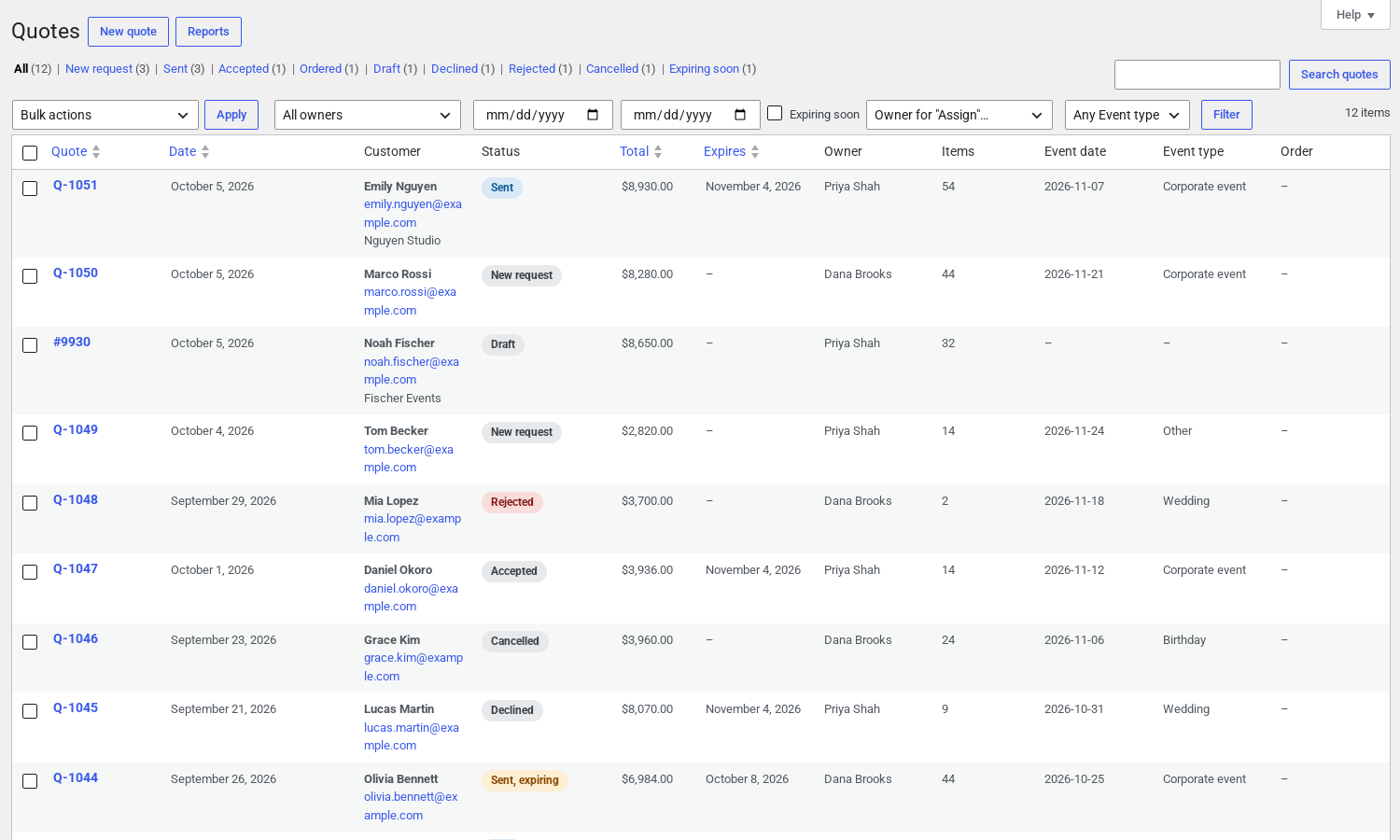
Answer every request from WooCommerce › Quotes
Quotes have their own list, right after Orders, with a count of the requests waiting for you. The quote editor puts the request, your prices and the offer on one screen, and nothing reaches the customer until you click Save and send.
A price per item
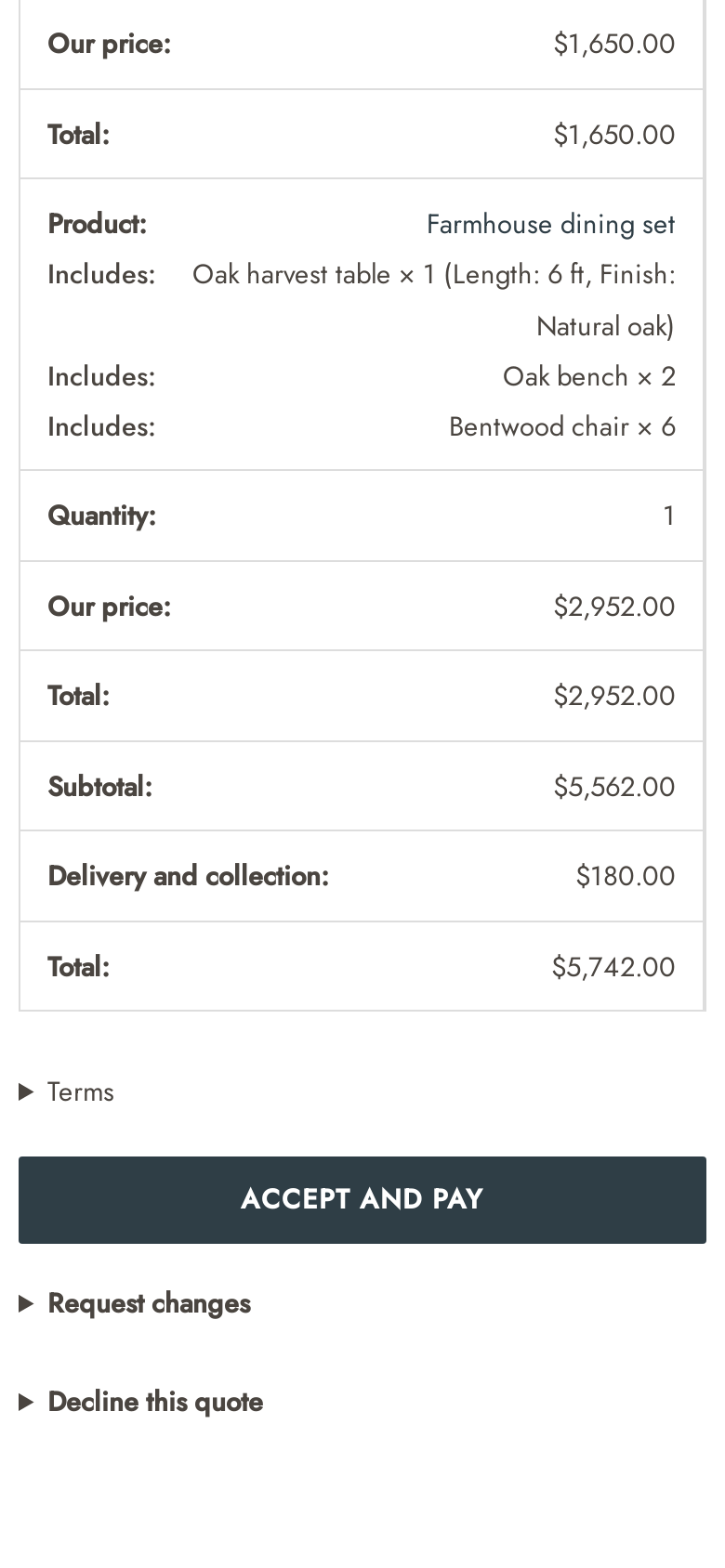
List price, a fixed price or percent off, with a note they see and a staff note they don’t.
Discount, shipping and fees
A discount on the whole quote (percent, amount or target total), a shipping fee, extra fees and an expiry date.
Versions and change requests
Every offer is a version you can compare. Copy a customer’s change request into your working copy with one click.
Owners and automatic approval
Hand new requests out by customer role or in turn, and send offers at your catalog price, or within a discount you set, without review.
Start a quote yourself
A new quote for a customer, from an existing order, or from the items in a customer’s saved cart.
Reports and CSV
Requests, offers sent, won, win rate and median first response, by status and by owner, plus a CSV export.
Every step is an email, and every offer is a PDF
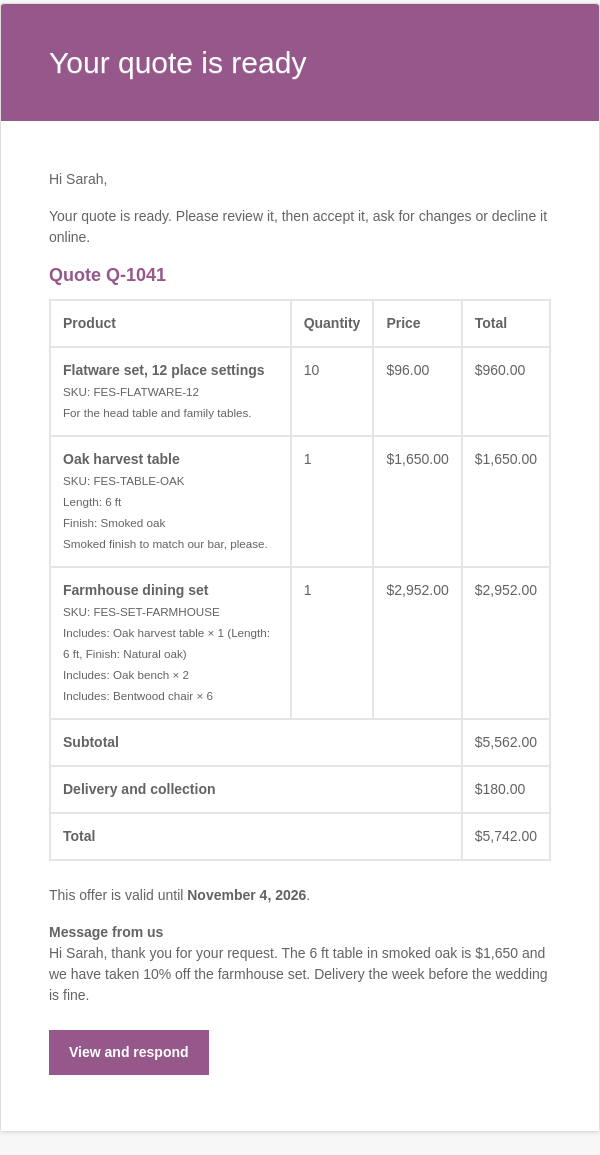
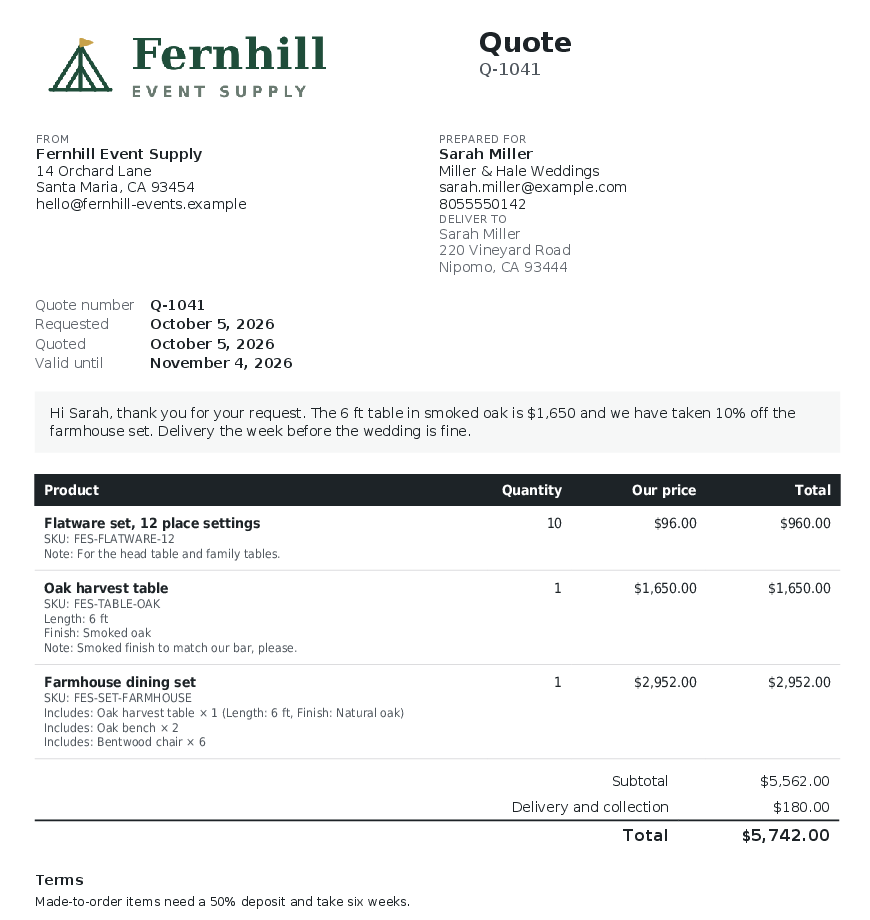
Fifteen WooCommerce emails keep customers and your team up to date. Edit them in WooCommerce › Settings › Emails like any other, with your store’s email styling. The offer goes out as a PDF with your logo.
| When | Customer gets | Your team gets |
|---|---|---|
| A request arrives | Quote request received | New quote request, and the daily summary if you switch it on |
| You send an offer | Quote ready, with the PDF | — |
| The offer is about to expire | Quote reminder, with the PDF | — |
| The customer accepts or declines | Quote accepted, with the payment link and deadline | Quote accepted, or Quote declined |
| The customer writes, asks for changes, edits or withdraws | Quote cancelled, when they withdraw | Customer activity |
| You write, reject or cancel | New message, Quote request closed or Quote cancelled | — |
| Time runs out | Quote expired | — |
Customers accept and pay at the price you offered
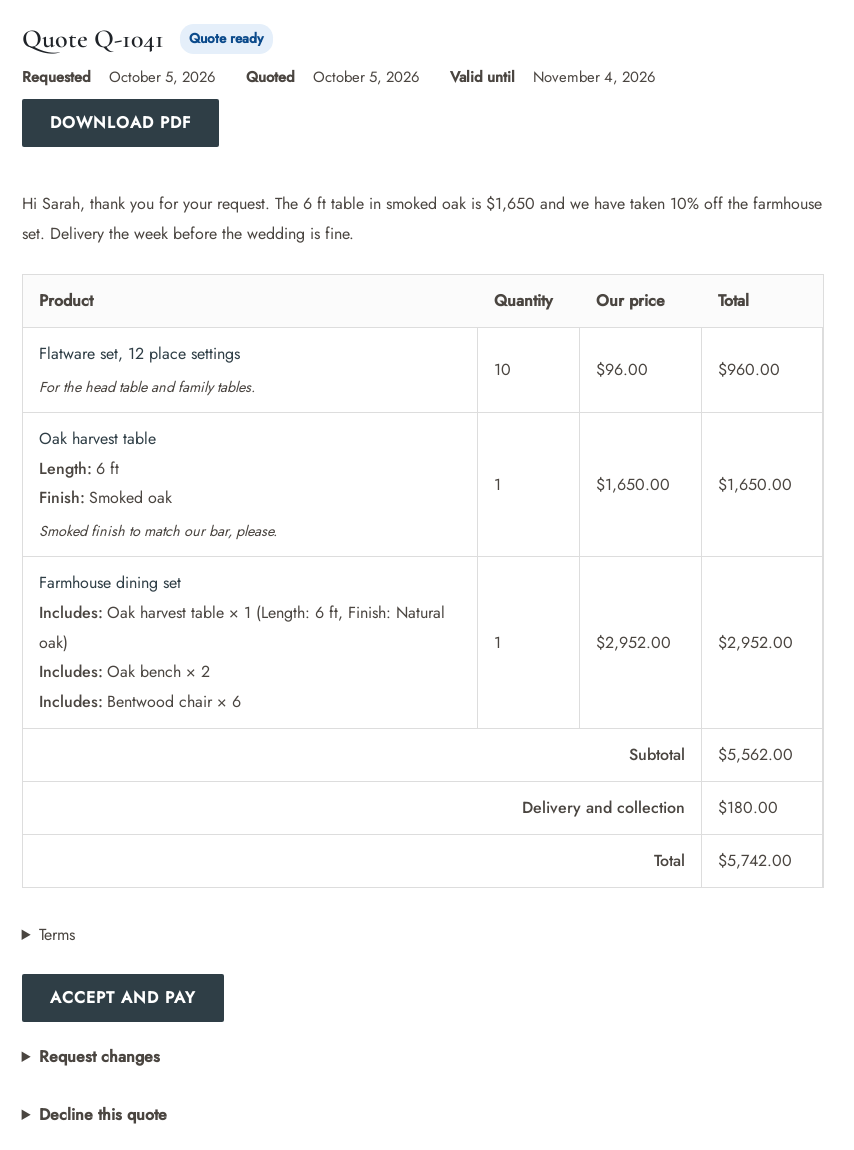
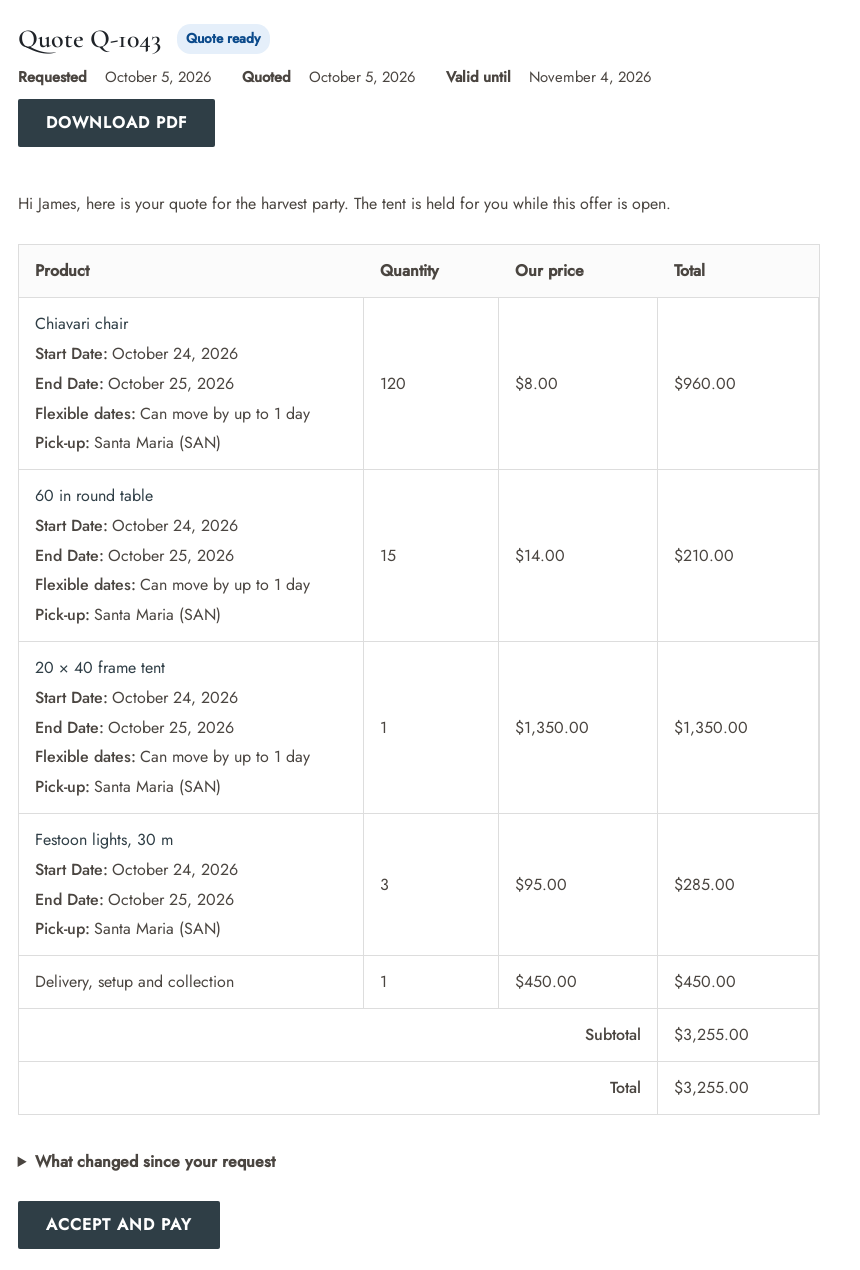
Customers open their quote from the email or from My Account › Quotes, see your offer, and accept, ask for changes or decline. Checkout follows the offer.
My Account › Quotes
Every quote with its status, total and valid-until date, a View button, and the PDF once you send an offer.
Guests too
A private link in each email opens the quote, no account needed. Guests can save the quote to their account later.
Request changes
A new quantity, a removal or a note per item. You answer with a new version, and they see what changed.
Your checkout, or a payment link
Accept and pay goes to your normal checkout at the quoted price, or to WooCommerce’s order payment page. Choose per quote.
Locked at the offer
Quoted prices and quantities can’t be changed in the cart, coupons stay off unless you allow them, and a quote is bought as a whole.
Messages on the quote
Customers and staff write to each other on the quote, and every message stays on its timeline.
Works with the products you already sell
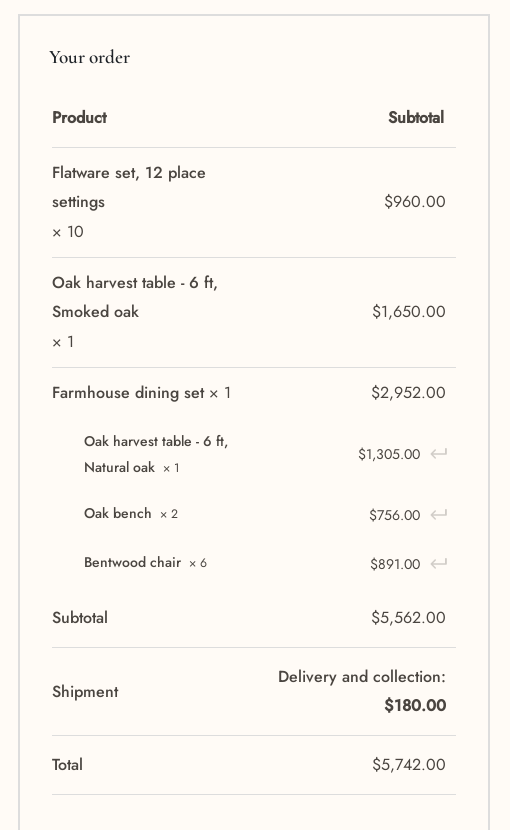
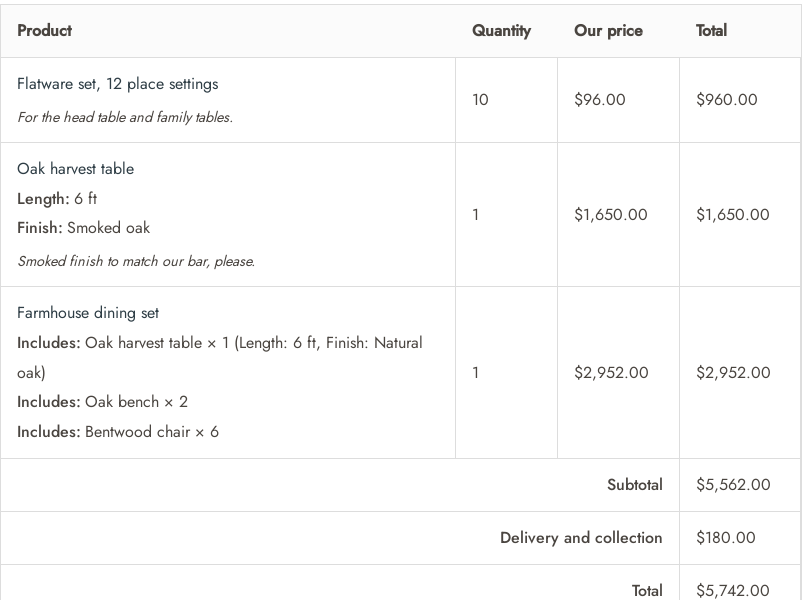
Each item keeps the options the shopper chose, from the quote basket all the way to the order.
Simple, virtual and downloadable
One item each, with the shopper’s price and note.
Variable products
Quoted as the variation the shopper chose, with its attributes under the name.
Grouped products
Each child product with a quantity becomes its own item.
Bundles
WooCommerce Product Bundles: one item with its configuration. At checkout the quoted price is split across the bundle’s items.
Composites
WooCommerce Composite Products: one item, with a row for each component the shopper chose.
Options from other plugins
Options kept as WooCommerce cart item data stay with the item, and their price adjustments count in its list price.
Read: Product types: variations, grouped, bundles and composites →
Ask, review and accept on a phone
The buttons, the quote basket, the request form and the quote page follow your theme on small screens. Every template can be copied into your theme to change it.
Rental quotes with dates, and stock held while they decide
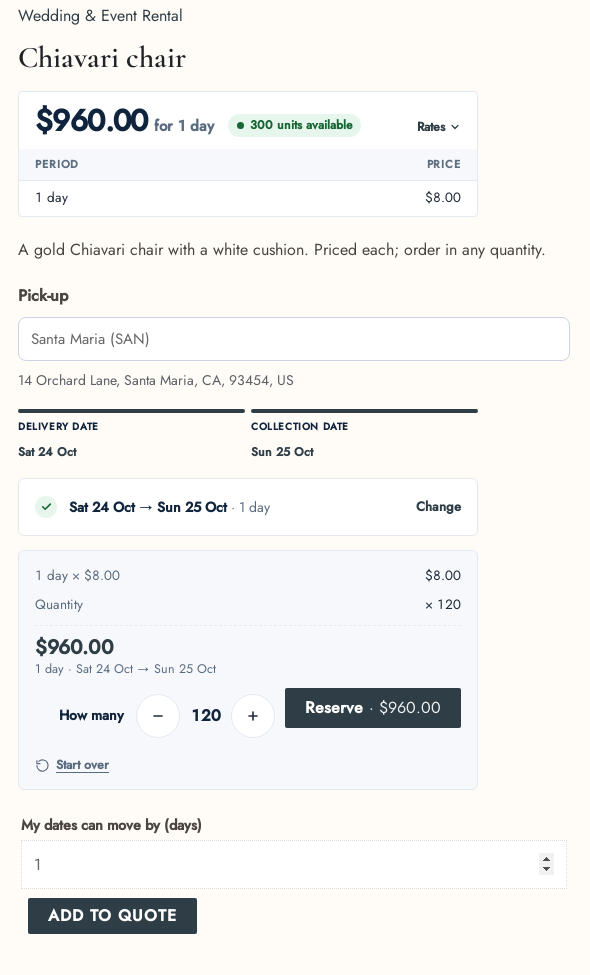
With Sales Igniter Rentals & Bookings on its latest version, shoppers pick dates before they click Add to quote, and the dates travel with the item to the offer, the PDF and the order. Rentals & Bookings needs Secure Custom Fields; Request a Quote & Hide Price on its own does not.
Dates on every rental item
The price starts from your rental pricing for those dates, and Change dates or options reopens the product on them.
Availability checked
Refuse a request for dates that are not available, or accept it and flag the item so you can suggest something else.
Stock held for the quote
Hold stock from Accept until the payment deadline, or from the moment you send the offer. Hold stock and Release hold by hand on any quote.
Change all dates
Move every rental item on a quote to new dates in one step, with availability and prices checked again.
Holds you can see
A Quote holds card on the rentals dashboard, and holds named “Quote Q-…” in the bookings lists.
Deposits and damage waivers
A refundable deposit shows as its own row after the total, never in it, and is collected at checkout or added to the payment-link order.
| Hold setting | Default | What it does |
|---|---|---|
| Hold when accepted | On | Holds each rental item from Accept until the payment deadline |
| Hold while the offer is open | Off | Holds from the moment you send the offer, for up to 7 days and never past the offer’s expiry |
| Hold stock and Release hold | — | By hand, on one quote, from its Rental panel |
A REST API, hooks and template overrides
What staff do in the quote editor is open to your own code too, and every template can be copied into your theme.
A REST API for staff
Namespace wc-sirfq/v1, with a WooCommerce REST API key. List, create and update quotes, send, reject, cancel and create the order, and manage hide price rules.
Hooks
Filters and actions that start with sirfq_: change a hide-price decision, add a check before a request is accepted, react when a quote changes status.
Template overrides
Copy the basket, the buttons, the quote page, the PDF or any email into yourtheme/sirfq/ and edit it.
# requests waiting for an offer
GET  /wp-json/wc-sirfq/v1/quotes?status=pending

# one quote, its versions and messages
GET  /wp-json/wc-sirfq/v1/quotes/{id}
GET  /wp-json/wc-sirfq/v1/quotes/{id}/versions
GET  /wp-json/wc-sirfq/v1/quotes/{id}/messages

# send the offer, then create the order
POST /wp-json/wc-sirfq/v1/quotes/{id}/send
POST /wp-json/wc-sirfq/v1/quotes/{id}/order

# hide price rules
GET /wp-json/wc-sirfq/v1/rulesFor stores that sell by the pallet, the project or the event
Anyone whose best customers want to agree a price before they order, with or without rentals.
B2B and wholesale
Prices for logged-in trade customers only, quantity quotes, and a PDF for the buyer’s purchasing office.
Hide price rulesMade to order
Furniture, signage, printing or anything priced by size and finish: quote only, with notes and files on each item.
Quote onlyEvent and party rental
Tents, tables and chairs quoted with dates, and stock held while the planner decides.
With Rentals & BookingsEquipment rental
Long rentals and large orders priced per project, with delivery and setup as items of their own.
With Rentals & BookingsCatering and hospitality supply
Big orders quoted with delivery and setup, next to everyday stock customers simply buy.
Quote and buyTeams who sell by phone
Start a quote for the customer yourself, from an order or from their saved cart, and send it with a payment link.
New quoteWooCommerce on its own, and with Request a Quote
| Capability | WooCommerce | + Request a Quote & Hide Price |
|---|---|---|
| Asking for a price | A contact form or an email | Add to quote, a quote basket and a request form with your own questions |
| Answering | An email, then an order you build by hand | An offer from the quote editor, with a PDF and an expiry date |
| Accepting | You create the order and send the customer its payment link | The customer accepts and pays at your price, at checkout or through a payment link |
| Hiding prices | Not built in | By product, category, tag or stock, for guests, roles or chosen customers, on the server |
| Quote-only products | Not built in | Request a quote instead of Add to Cart |
| Following up | Your own reminders | Expiry dates, a reminder email, versions and a timeline on every quote |
| Reports | — | Requests, offers, wins, win rate and first response time |
| Rentals | — | Dates and stock holds on quotes, with Sales Igniter Rentals & Bookings |
Questions about Request a Quote & Hide Price
Do I need Sales Igniter Rentals & Bookings?
No. Request a Quote & Hide Price needs only WooCommerce: WordPress 6.6, WooCommerce 8.0 and PHP 8.1 or newer. No other plugin is needed.
Rentals & Bookings is only needed for rental quotes with dates and stock holds, and it needs Secure Custom Fields.
Can guests ask for a quote?
Yes, by default. Every email about the quote carries a private link to it, so guests need no account. Untick Guests and shoppers see “Log in to request a quote” instead, or tick Guest accounts to create an account for each guest’s request.
Are hidden prices really hidden?
Yes. A hidden price is removed on the server: it is not on the product page, in shop lists, in blocks, in the Store API, in variation data or in structured data, and the product can’t be added to the cart. Price sorting and filters are removed where they would give it away.
How do customers pay an accepted quote?
Through your normal WooCommerce checkout, classic or block, at the quoted price, or through a payment link for an order created for them. Set the store default and change it on any quote.
For customers who shouldn’t pay online, Quote-only mode takes the Accept button away and you arrange the order with them.
Does it work with Product Bundles and Composite Products?
Yes. A bundle or composite is one quote item with the configuration the shopper chose. At checkout and on the order the quoted price is split across its items, so tax and stock stay correct while the customer sees one price.
Can I change the emails and the templates?
Yes. All fifteen are WooCommerce emails, edited in WooCommerce › Settings › Emails. The basket, buttons, quick quote form, quote page, My Account page, PDF and emails can be copied into yourtheme/sirfq/ and changed there.
I already use another quote plugin. What happens?
If another request-a-quote plugin is active, the Add to quote buttons stay off until you click Use both, so shoppers never see two quote buttons. Hiding prices works meanwhile.
Can it be translated?
Yes. Its text uses the sirfq text domain, and a wpml-config.xml registers the button labels, the hidden-price text, the consent text, the PDF footer and your custom fields for WPML String Translation.
What happens to quotes if I delete the plugin?
They are kept unless you tick Remove data in the plugin’s settings first. Closed quotes are deleted after 24 months by default, which you can change or switch off. Orders are never touched.
Request a Quote & Hide Price for WooCommerce
For stores with or without rentals.
Request a Quote & Hide Price
Everything on this page.
- Add to quote, the quote basket, the request form and guest quotes
- Hide price rules by product, category or customer, and quote-only products
- The quote editor, versions, owners, reports and the CSV export
- Fifteen WooCommerce emails and the PDF
- Rental quotes with dates and stock holds, with Sales Igniter Rentals & Bookings
Before you buy
What it needs.
- WordPress 6.6, WooCommerce 8.0 and PHP 8.1 or newer
- No other plugin: it needs only WooCommerce
- Rental quotes: Sales Igniter Rentals & Bookings on its latest version, which needs Secure Custom Fields
- Bundles and composites: WooCommerce Product Bundles or Composite Products, if you sell them
- Installs like any plugin: Plugins › Add Plugin › Upload Plugin
Read the guide before you buy
Eleven pages walk through setup and every feature, with screenshots from a working store.
Ready to take quote requests?
Add to quote appears next to Add to Cart as soon as you activate it. Prices stay as they are until you add a hide price rule.