
Request a Quote & Hide Price lets shoppers ask for a price instead of buying straight away. They collect products in a quote basket and send you the request (you can also let them suggest a price for each item). You answer from WooCommerce › Quotes with an offer: your prices, a discount, shipping, fees and an expiry date. The customer accepts it and pays through your normal checkout at the quoted price, or through a payment link. You can also hide prices and replace Add to Cart for chosen products, categories or customers.
The plugin needs only WooCommerce. If you also run Sales Igniter Rentals & Bookings, quotes can carry rental dates and hold stock: see Rental quotes: dates, availability and stock holds.
What you need #
| Item | Requirement |
|---|---|
| WordPress | 6.6 or newer |
| PHP | 8.1 or newer |
| WooCommerce | 8.0 or newer. WordPress won’t activate the plugin until WooCommerce is installed and active. |
| Other plugins | None. Sales Igniter Rentals & Bookings is only needed for rental quotes. |
Install and activate #
- Go to Plugins › Add Plugin › Upload Plugin and choose the plugin’s zip file.
- Click Install Now, then Activate Plugin.
On activation the plugin:
- creates its own database tables, so quotes are not stored as products or orders;
- gives the Administrator and Shop manager roles the quote capabilities;
- creates two pages: Request a quote (the quote basket and request form) and Your quote (where a customer opens a quote from an email link). Keep both pages.
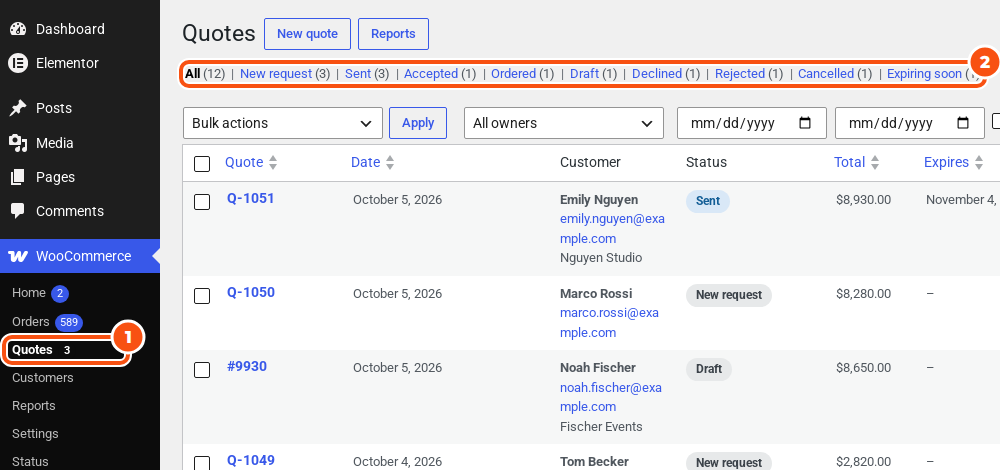
Quotes appear under WooCommerce › Quotes, right after Orders. The number bubble counts new requests plus quotes where the customer asked for changes.
The settings #
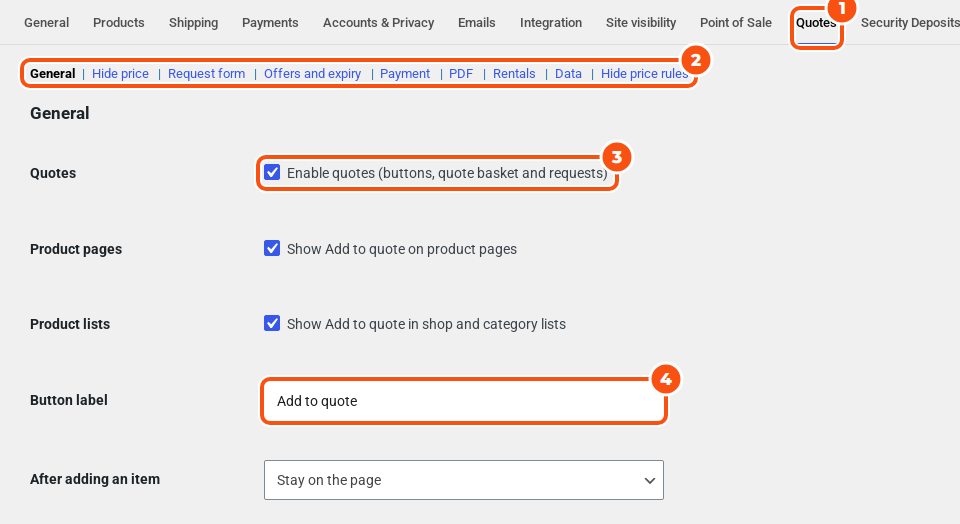
Go to WooCommerce › Settings › Quotes. The section links read General, Hide price, Request form, Offers and expiry, Payment, PDF, Rentals, Data and Hide price rules. Rentals only appears when Sales Igniter Rentals & Bookings is active.
| Section | What it holds |
|---|---|
| General | Turning quotes on, the Add to quote buttons, guests, the cart button, suggested prices and item notes, quote numbers, product types that cannot be quoted, quote-only mode, the mini basket in a menu and the quote icon in the header |
| Hide price | The text and button that replace a hidden price, price sorting, search engine data, Always show prices to, custom CSS |
| Request form | Address, phone and company fields, custom fields, attachments, privacy consent, CAPTCHA, minimums |
| Offers and expiry | Offer validity, reminders, automatic approval, owners, cost and margin, the daily summary |
| Payment | How a customer pays an accepted quote, the payment deadline, coupons, the invoice email, the quoted shipping label |
| PDF quotes, the email attachment, logo and footer text | |
| Rentals | Availability, stock holds and flexible dates for rental quotes |
| Data | How long closed quotes are kept, and what happens when the plugin is deleted |
| Hide price rules | The rules that decide who sees prices and Add to Cart |
Email wording and recipients are in WooCommerce › Settings › Emails: see Emails, privacy and developer notes.
Only users with the sirfq_manage_quote_settings capability see the Quotes tab. Administrators and Shop managers have it.
Your first quote in five steps #
- Hide prices where you need to. In Hide price rules click Add rule, choose the products and customers, tick Hide the price and set Add to Cart to Replace with the quote button. See Hiding prices and replacing Add to Cart.
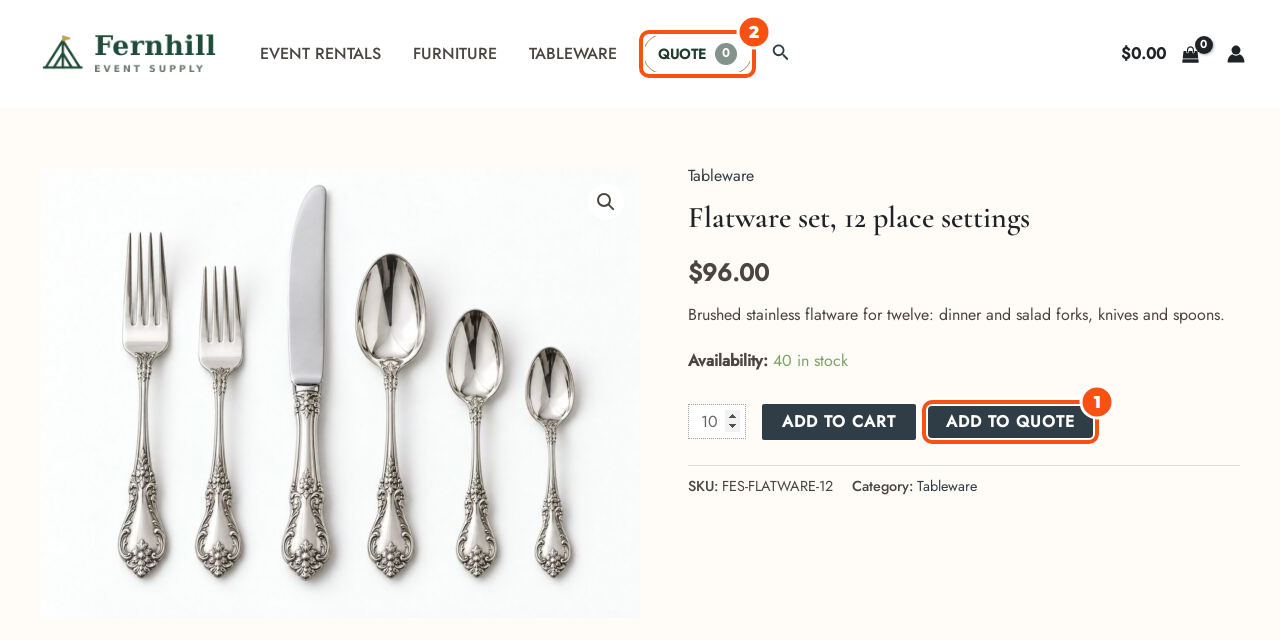
- Check the Add to quote button. It is on by default on product pages and in shop and category lists. Open a product and click Add to quote. See The quote basket and the request form.
- Send a test request. Open the Request a quote page, fill in your details and click Send quote request. Test while logged in, or with an email address that has no account: a guest who types the email of an existing account is asked to log in.
- Answer it. In WooCommerce › Quotes open the request (status New request), set your prices and click Save and send. See The quote editor and offers.
- Accept it as the customer. Open the “Quote ready” email, click View and respond, then Accept and pay. See From accepted quote to order.
What happens to a quote #
| Status | What it means |
|---|---|
| New request | The customer sent a request. It waits for you. |
| Draft | A quote you started yourself. Nothing has been sent yet. |
| Sent | You sent an offer. The customer can accept it, ask for changes or decline. |
| Changes requested | The customer asked for changes. Edit the offer and send it again. |
| Accepted | The customer accepted and has until the payment deadline to pay. |
| Ordered | The order was paid, or put on hold (for example a bank transfer). |
| Expired | The offer, or the payment deadline, passed. |
| Declined | The customer said no. |
| Rejected | You turned the request down. |
| Cancelled | The customer withdrew the request, or you cancelled the quote. |
Good to know #
- Quote numbers start with
Q-and count up from 1001. Change Quote number prefix and First quote number in General. - Guests can request quotes by default. Untick Guests in General and the button becomes “Log in to request a quote”.
- Another quote plugin. If another request-a-quote plugin is active, the Add to quote buttons stay off until you click Use both in the notice. That is the same switch as Other quote plugins in General. Hiding prices keeps working meanwhile.
- Product types that cannot be quoted: grouped, external/affiliate and subscription products by default. A grouped product is quoted through its child products. See Product types: variations, grouped, bundles and composites.
- Blocks and shortcodes: the Add to Quote Button block or
[sirfq_quote_button], and the Mini Quote Basket block or[sirfq_mini_quote](style="icon"for the icon look). Quote icon in the header in General puts the icon next to your cart icon: see The quote basket and the request form.


