
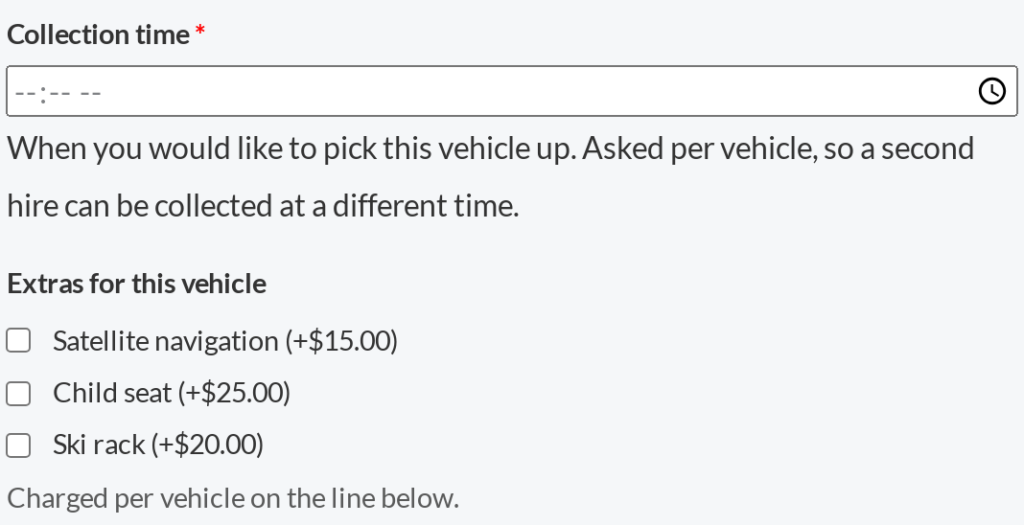
Most custom fields are asked once per order, at the checkout. A field set to the Product page location is different: it is asked on the product itself, above the add to cart button, and the custom fields data belongs to that one cart line.
Why per item matters #
- Hiring two cars can carry two different drivers, two different collection times, two different sets of extras.
- Adding the same product twice with different custom fields data gives you two cart lines, not one of quantity two. Identical data still merges into one line.
- A missing required field stops the add to cart, so an item can never reach the basket half-specified.
Where the custom fields data goes #
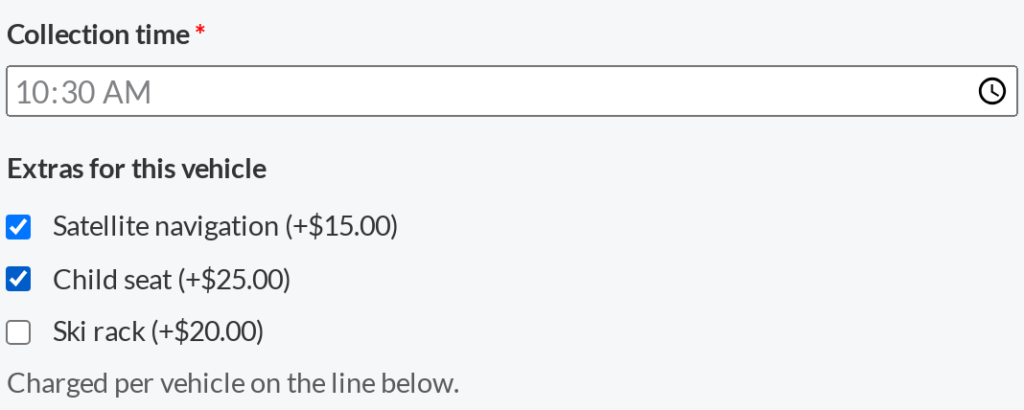
Custom fields data appears under the item name in the cart and on the checkout review, and are copied onto the order line item under the field’s own label — so they show on the admin order screen, the customer’s order and the order emails without any further setup.
Charging for a product page field #
A priced product page field adds a fee to that cart line. It is charged per unit, because the custom fields data belongs to those items — two hire cars with a child seat are two child seats. A percentage is read against that item’s own price rather than the whole cart.
A price can also be charged once per cart line, worked out per character, per rental day or by a formula. See Extra pricing for custom fields.
What each answer adds #
As the customer answers, the product page shows what each priced answer adds and an Options total, worked out by the store with the cart’s own arithmetic. A setting under Custom Fields settings, Show “+ options” after the price of a product with priced questions, adds a hint after the product price (off by default).
Changing answers from the cart #
An Edit link under each cart line with answers opens the product page with the answers filled in. Update cart checks them, changes the line and its prices, and goes back to the cart. The quantity and the rental dates stay as they are. This works on the classic cart and the Cart block.
Block themes #
Product page fields work on block themes, with WooCommerce’s add-to-cart form block and the “Add to Cart + Options” block: the fields show in the block’s form, a missing required answer stops the add to cart, and the answer and its price reach the cart line.
What to ask here, and what to ask at checkout #
| Ask on the product page | Ask at the checkout |
|---|---|
| Anything that differs per item: collection time, driver, size, per-item extras. | Anything that is true of the whole order: delivery instructions, a PO number, how they heard about you. |
File uploads on the product page #
Since version 1.0.10 a file field can be asked on the product page. The file uploads as soon as the customer picks it (with a Remove link), is checked by its contents against the field’s file types and maximum size, and is kept privately with the cart line and the order line. Staff download it from the order screen.
Uploads never added to the cart are deleted after 3 hours, and files on carts that never became orders after 30 days.


