
This page shows what your customers see once you have more than one location: how they choose a store, how the shop and product pages change, and how the location follows the rental into the cart.
Choosing a location #
Customers can choose a location in three places. The choice is remembered for 30 days and carried in the page address (for example ?sib_loc=tampa), so links and page caches show the right store.
The location picker #
Add the shortcode [sibooking_location_picker] to any page, or the Rental location picker block. The cards show each store’s name, how many items it offers and today’s opening hours. A hand-over point shows the store it is served from.
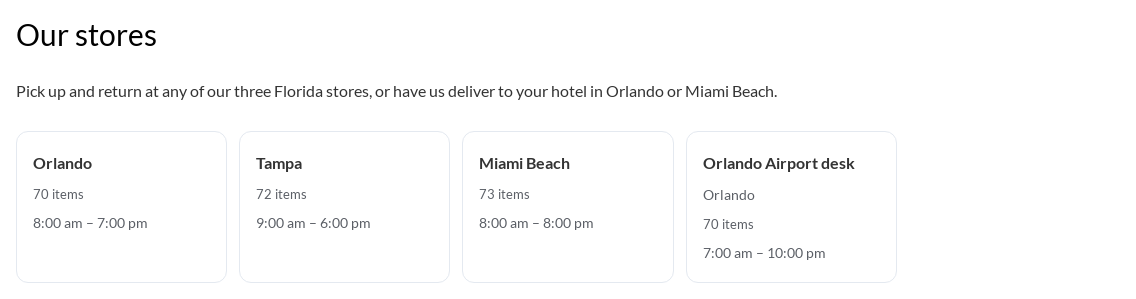
The picker can also be a list, a dropdown, or a “Where are you staying?” search. The search takes a hotel, an address or a postcode and sends the customer to the location whose delivery area covers it, or says “We don’t deliver there yet” and suggests the nearest. Use my location asks the browser for its position only when clicked. See Location Settings for the options.
“Shopping in” in the menu #
Under Location settings you can add a Shopping in dropdown to your theme’s menu. Customers can switch store from any page.

The shop, narrowed to one store #
With a location chosen, the shop, categories and search list only what that store offers. A bar above the products says where the customer is shopping, with Change and Show everything links.
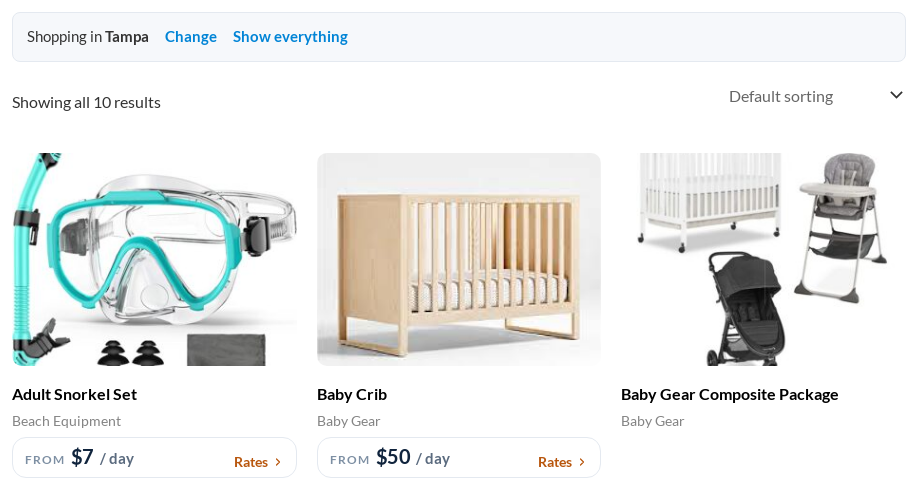
When a customer searches with dates, products that are fully booked at that store are marked or hidden, following the catalogue setting in Rentals & Bookings Regular.
The rental product page #
A rental offered at more than one location asks Pick-up at above the calendar. Each choice shows the store’s opening hours for today; a hand-over point shows as “Orlando Airport desk (from Orlando)”. If only one location offers the product, it is chosen for the customer.
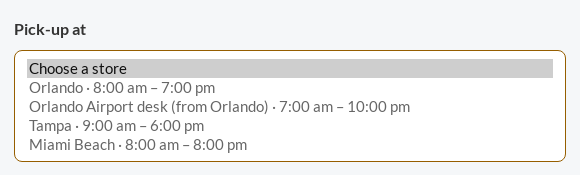
When a store is chosen:
- its address and instructions show under the choice;
- the calendar redraws with that store’s availability, closed days, opening hours and notice needed;
- the price follows that store’s price rules, with a line for the rule in the price breakdown.
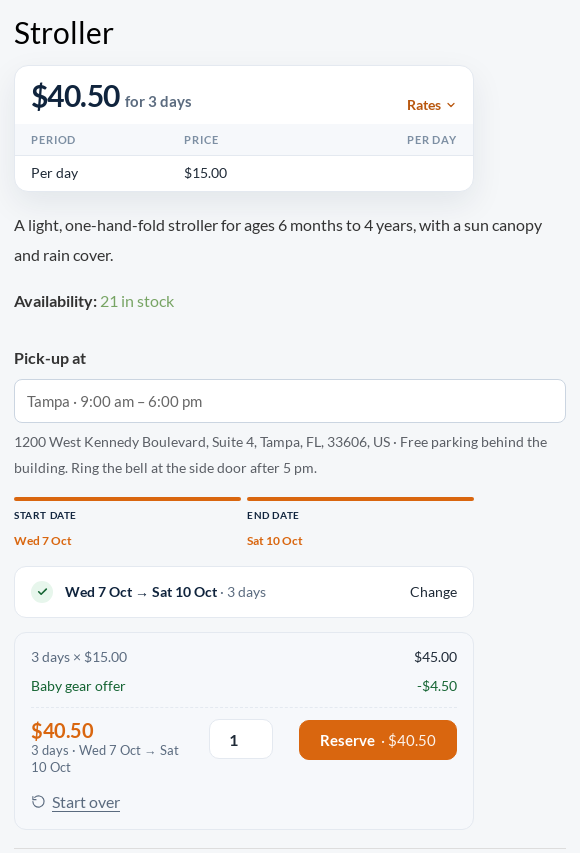
If a customer tries to add a rental without choosing, they are asked to choose where to pick up first. If a store is closed on the chosen day, or the rental is shorter than that store’s shortest rental, the message says so and names the store.
For a store in another time zone, a short note tells customers how the times on screen compare with the store’s own clock.
Returning somewhere else #
When one-way rentals are on, the product page also asks Return to. See One-Way Rentals and Fees.
Products you sell #
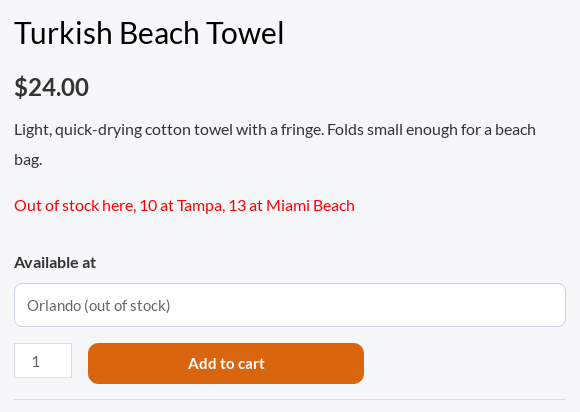
A product you sell outright, with stock split by location, shows Available at with the units at each store. The stock line under the price says how many the chosen store has.
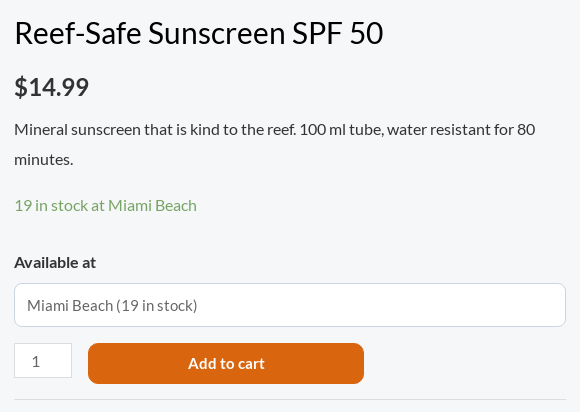
When the chosen store has none, the stock line says where else it is in stock.
The cart refuses more than the store has, counting what is already in the cart and what other customers are paying for. If the product allows backorders, it is not refused.
The cart and checkout #
Every rental line shows where it is picked up (and returned, for a one-way rental), and every sale line shows the store it comes from.
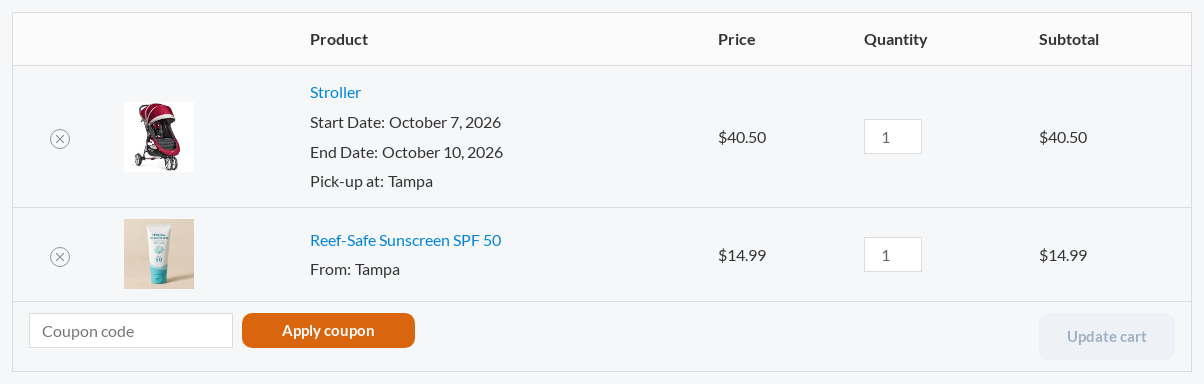
At checkout each line is checked again at its own location, so two customers cannot book the last unit at the same store at the same time. The location then appears on the order confirmation, the customer’s emails and their account. If you use One location per order, a cart can only hold items from one store.
Location pages for search engines #
Each location can have its own page (see Setting Up Locations). The page carries the store’s details as LocalBusiness structured data, which helps search engines show its address and hours. A depot that only delivers never publishes its address or map pin. Shop pages narrowed to a location are marked “noindex, follow” so they do not compete with your main shop pages.


