
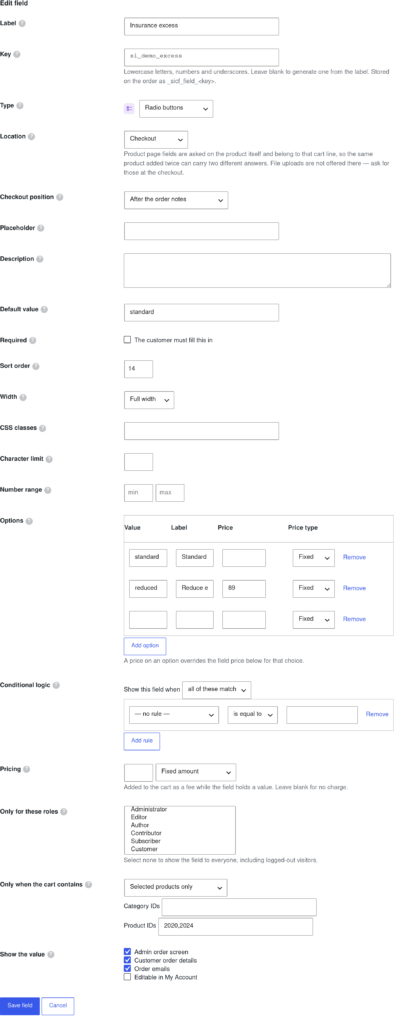
A custom field is one question you ask the customer. Go to Rentals › Settings › Custom Fields and click Add field. Every setting on the form has a help tooltip explaining what it does and where the value ends up.
Since version 1.0.10 the Preview column beside the form shows each change on a real page of your store as you type, before you save. See Live preview.
The essentials #
| Setting | What it does |
|---|---|
| Label | What the customer sees above the input, and the name the custom fields data is stored under on the order. Write it the way you want to read it back months later. |
| Key | The internal name used in exports and order meta. Leave it blank to have one generated from the label. |
| Type | What kind of control is shown — see the table below. |
| Location | Where the question is asked: the checkout, the product page, the registration form or the My Account area. |
| Required | Blocks the order — or, for a product page field, the add to cart — until it is answered. |
Field types #
Each type carries its own icon in the admin, tinted by family, so a long list of fields can be read at a glance.
| Family | Types |
|---|---|
| Text & numbers | Text, Text area, Email, Phone, URL, Number, Password, VAT / tax number |
| Choices | Select (dropdown), Multi-select, Radio buttons, Checkbox, Checkbox group |
| Date & time | Date, Time |
| Uploads & pickers | File upload, Colour |
| Layout | Heading, Message / HTML — these display text and store no data |
Choices and their prices #
The choice types read the Options list. Each option has a stored value, a label the customer reads, and optionally a price. A price on an option overrides the field price for that choice, so one dropdown can offer “Basic cover” free and “Full cover” at £40.
Prices can also be worked out from the answer: per character typed, per number entered, per rental day or by a formula, and charged once per cart line instead of per item. See Extra pricing for custom fields.
How choices look #
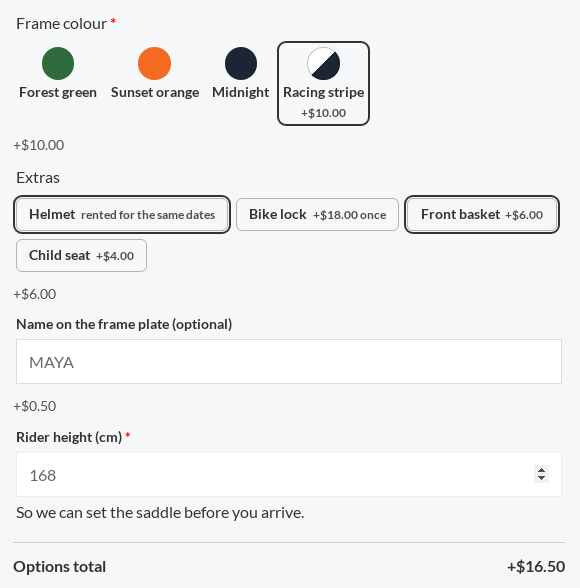
The Display setting of a choice question decides how its options are drawn on the product page and the classic checkout:
| Display | What the customer sees |
|---|---|
| Dropdown or List | A dropdown, or every option visible as radio buttons or tick boxes. A dropdown question can be shown as a list. |
| Buttons | Every option as a button, side by side. |
| Colour swatches | A coloured circle per option. Give each option one colour, or two for a split swatch. |
| Image swatches | A small picture per option, from the Media Library. |
| Image cards (image, label and price) | A larger picture with the option’s label and price under it. |
Pick a size and a number of columns, and whether to Show the label under the swatch. Customers can pick tiles with the keyboard (Tab, the arrow keys and Space), and screen readers read each choice with its price. The cart, the order and the emails show the option’s label as before.
Options that add a product #
On a product page question, an option can add a real product to the cart as its own line, at its own price: “Add a helmet” adds your Helmet product. Set it in the options table’s Linked product column. See Options that add a product.
Conditional logic #
Any field can be shown only when other fields hold particular values — ask for a second driver’s licence number only when “Add a second driver” is ticked. A field hidden by these rules is never required, never charged for and never stored, so a customer cannot be billed for something they could not see.
On a variable product, a condition can also read the variation the customer picked: Variation ID is one of a list, or Variation attribute (like Size) is a value. The question shows and hides as the customer changes the variation, and the store checks it again when the product is added to the cart.
Who sees it, and when #
- Only for these roles restricts a field to particular user roles. Select none to show it to everyone, logged-out visitors included.
- Only when the cart contains limits the field to carts holding matching products. For more than one or two fields, field groups are the easier way to do this.
- Width and Sort order control the layout, so two half-width fields sit side by side.
- Customer can edit the answer on the order lets the customer change this answer from My account until the order is completed. It is never offered for a priced answer. See Viewing custom fields from customers.
Export and import #
The Import / export tab copies your fields and groups to another site (also to a Shopify store), as JSON or as a CSV for spreadsheets, checks every import before it changes anything, and keeps a backup before each import. See Import, export, templates and backups.


