
The queue #
Every order, refund and cancellation goes into a queue and posts from there, a moment later, in the background. Your checkout never waits for QuickBooks.
The Overview tab shows the connection and how many items are Waiting to post, Need attention and Posted. Pause syncing stops posting until you press Resume syncing; orders keep queuing meanwhile.
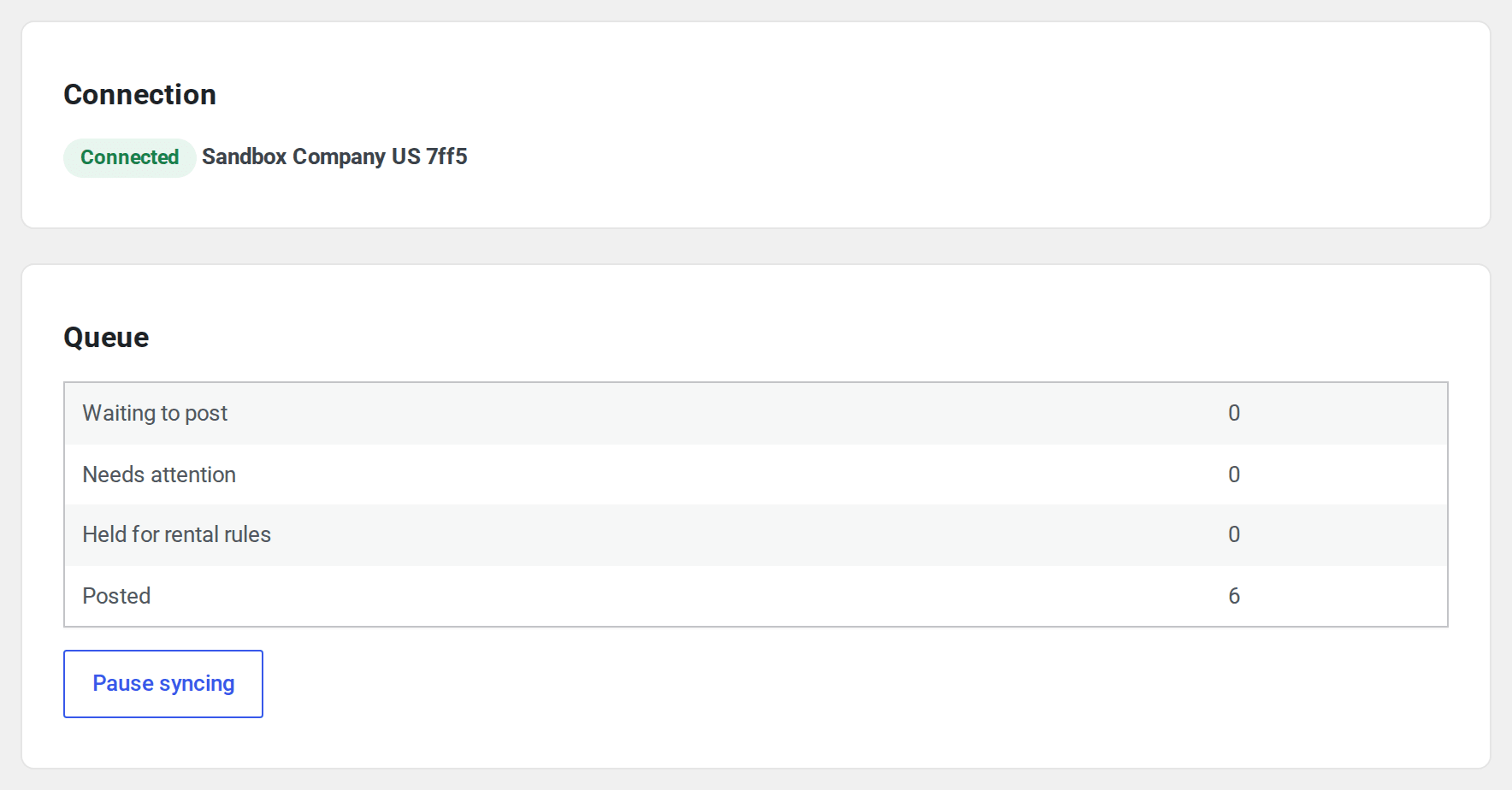
When QuickBooks doesn’t answer, an item tries again by itself after 1 minute, 5 minutes, 30 minutes, 2 hours and 12 hours, then moves to Needs attention. When the problem is one only you can fix, such as a missing setting, it goes there straight away. When the connection is lost, the whole queue pauses until you reconnect. Each document is sent with a key QuickBooks recognises, so an answer lost on the way never posts an order twice.
The Activity tab #
Needs attention lists each order that couldn’t post, with what to do. Fix it in QuickBooks or under Settings, then press Retry, or Retry all. Post again sends a document you deleted in QuickBooks once more.

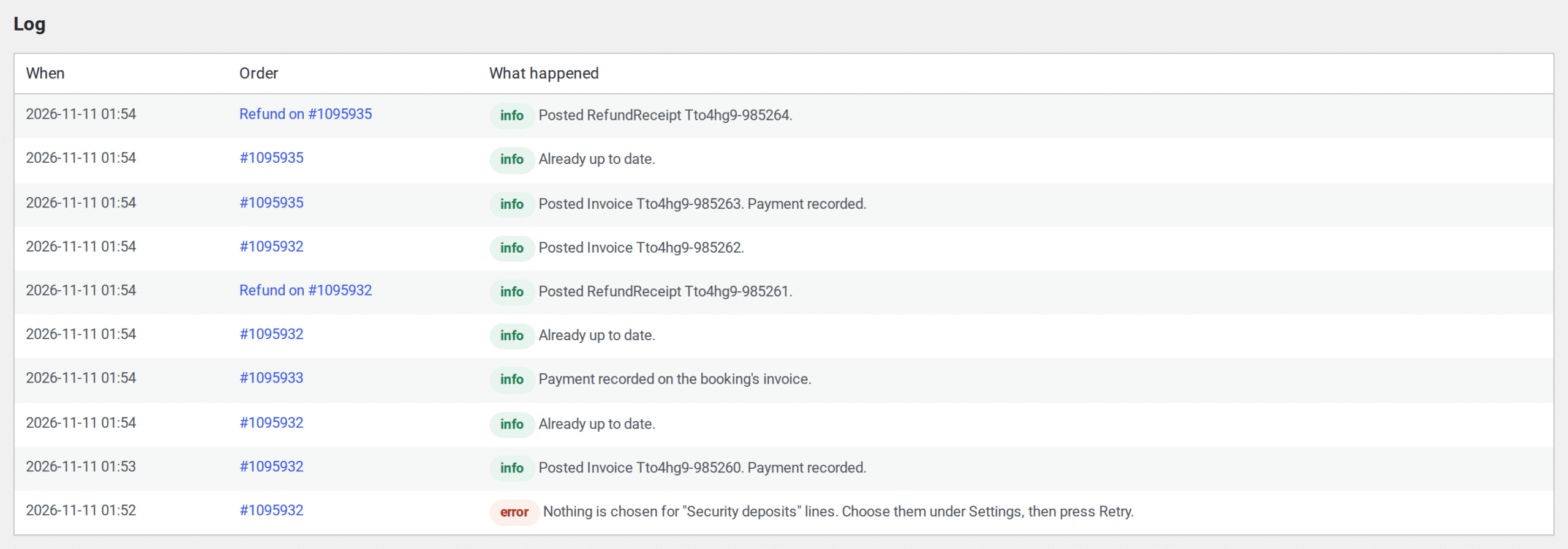
The Log below says what happened to each order, refund and payment, when, with the details.
On the order screen #
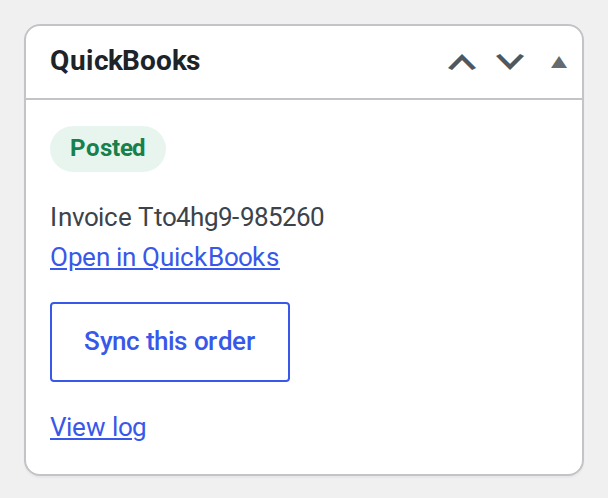
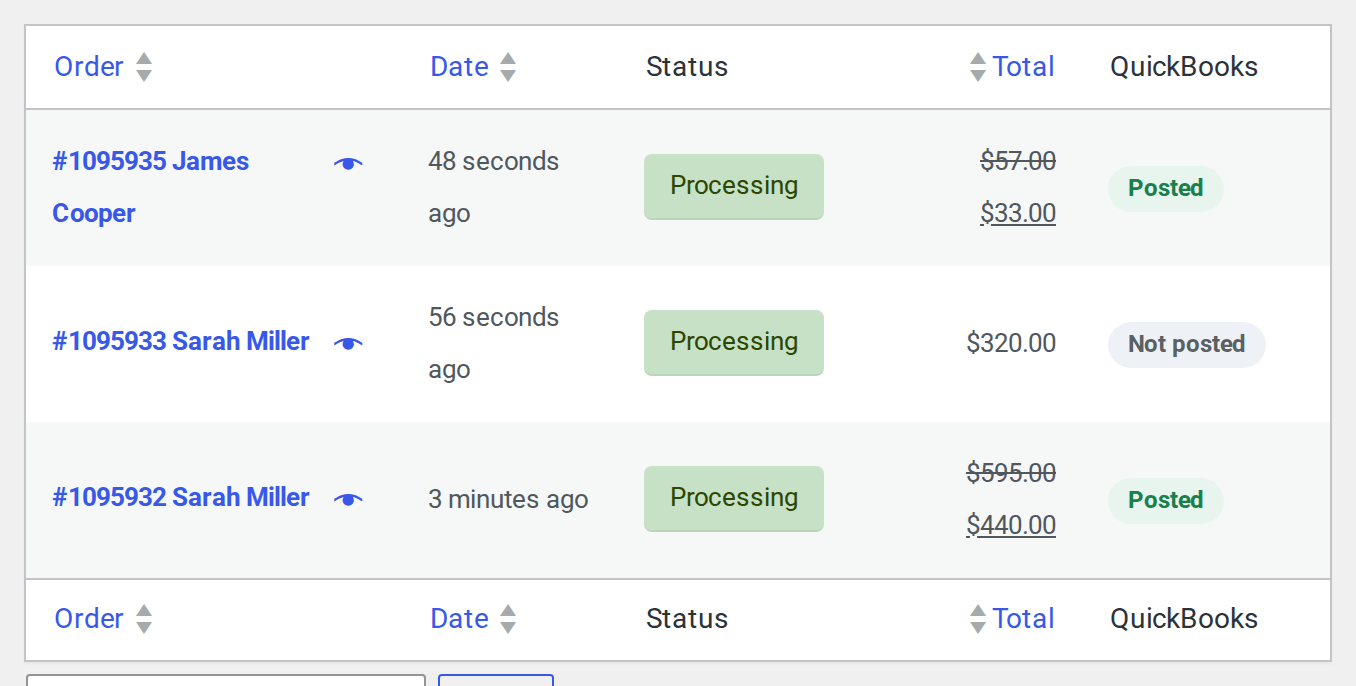
Each order has a QuickBooks box: its state (Posted, Waiting, Needs attention, Voided, Removed in the books or Not posted), Open in QuickBooks, Sync this order and View log. The orders list has a QuickBooks column with the same state, and the bulk menu has Send to QuickBooks for the orders you select.
Past orders #
Orders from before you connected never post on their own. They only post from the Import tab, and only when you press Start.
- Choose a From and To date.
- Press Dry run. Nothing is sent. You see how many orders are in the range, how many are ready to post, how many are already linked, the refunds and the order totals.
- Press Start posting. Past orders post oldest first, behind new orders, with progress on the screen. Pause import and Resume import stop and carry on.
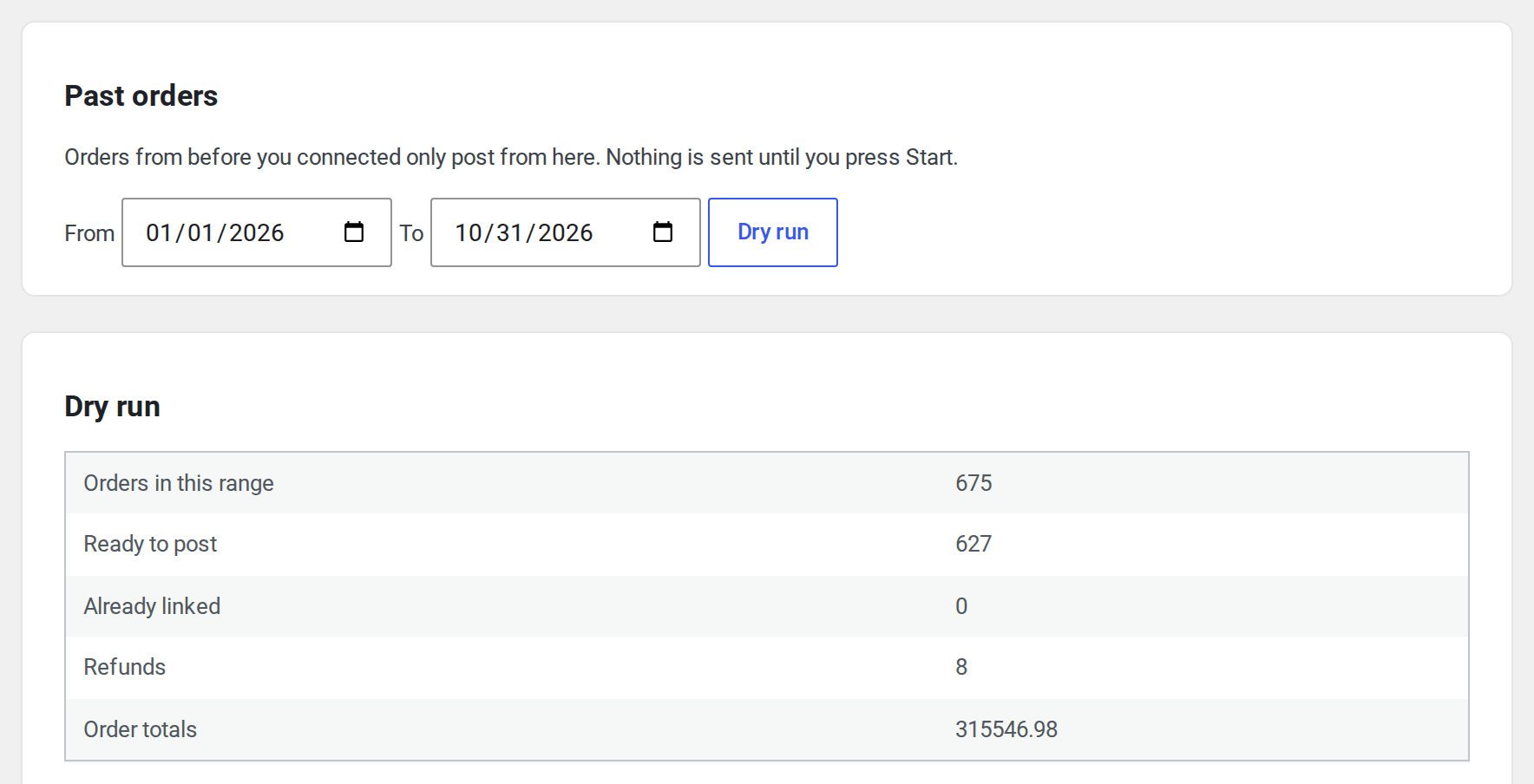
If those orders are already in your books, entered by hand or by another tool, press These are already in my books: link only. Each order is matched to its QuickBooks document by number and linked, and nothing is posted. An order whose number isn’t found isn’t linked, and the log says so, so you can post it instead.
The dry run on the screen reads up to 2,000 orders of a range. WP-CLI reads them all.
WP-CLI #
wp siaccountingqb statusshows the connection and the queue.wp siaccountingqb sync <order id>posts one order now.wp siaccountingqb drainruns the queue once.wp siaccountingqb import --from=2026-01-01 --to=2026-03-31queues past orders. Add--dry-runto check only, or--link-onlyto link orders already in your books.


