
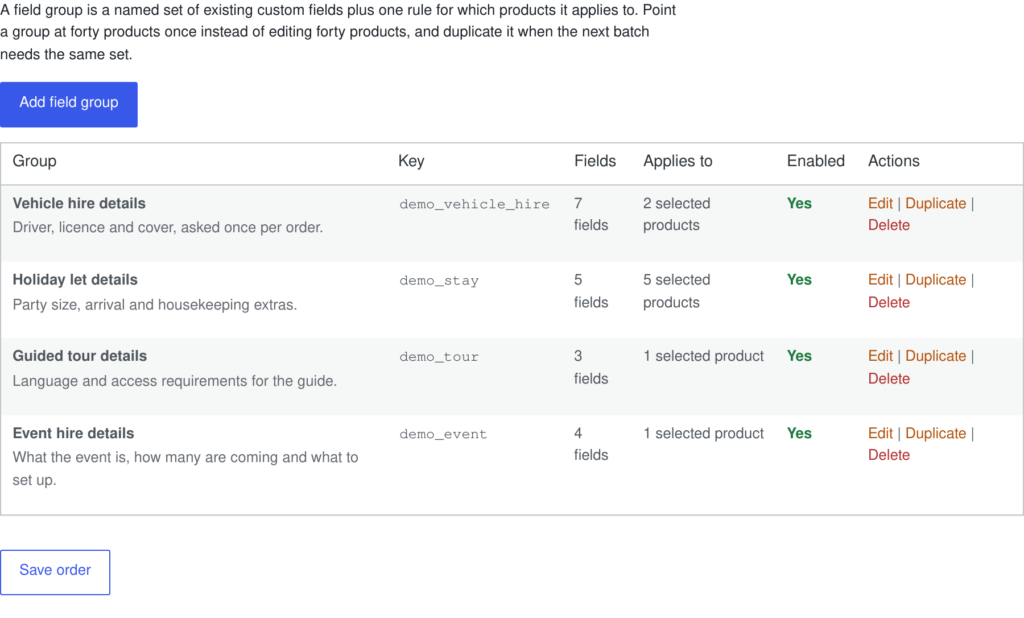
A field group is a named, reusable set of existing fields plus one rule for which products it applies to. It exists so that asking six questions about forty products is one saved rule rather than forty product edits.
Creating a group #
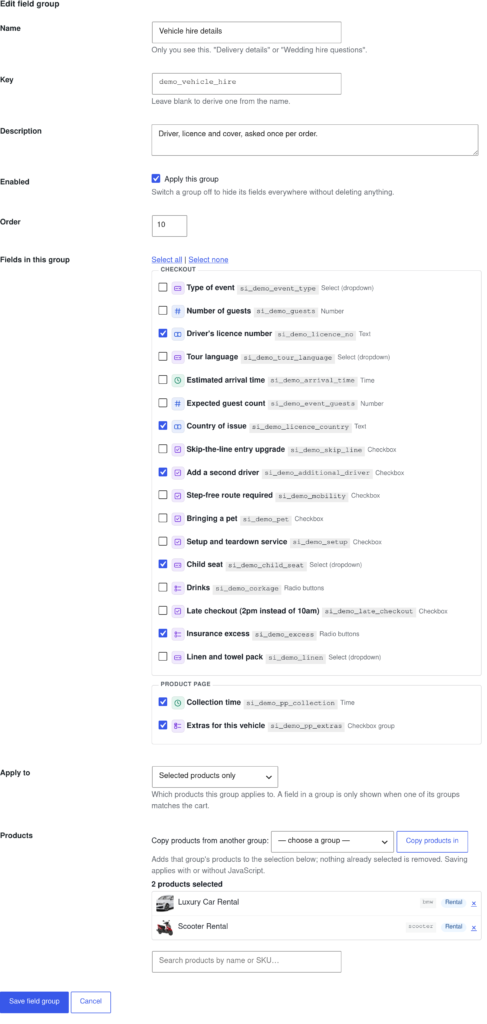
- Go to Rentals › Settings › Field Groups and click Add field group.
- Give it a name — “Vehicle hire details”, “Holiday let details”.
- Tick the fields it contains. They are grouped by where each one is asked.
- Choose what it applies to, then save.
The Preview column beside the group editor shows the group’s questions on a product page as you tick them. See Live preview.
What a group can apply to #
| Applies to | Meaning |
|---|---|
| All products | Every product in the shop. |
| Rental products only | Products with booking switched on. Needs Sales Igniter Rentals & Bookings. |
| Products in selected categories | Choosing a parent category also covers everything beneath it. |
| Selected products only | A hand-picked list, searchable by name or SKU. |
| Nothing — off | The group matches nothing. Use it to park a group without deleting it. |
How groups interact with a field’s own rules #
Group membership is a second gate on top of each field’s own “only when the cart contains” setting. A field in no group behaves exactly as it did before groups existed. A field in one or more groups is shown only when at least one of those groups applies — so a group can narrow what a field matches, never widen it. A group switched off matches nothing at all.
Reusing a group #
- Duplicate copies a whole group, product list included, so you can swap the products and keep the field selection.
- History keeps the last 10 versions of each group, with its fields. Restore one from the Field Groups tab.
- Templates: twelve ready-made groups (engraving, gift message, driver details, helmet size and more) on the Import / export tab. They arrive turned off.
- Copy products from another group pulls one group’s product list into another, so a different set of fields can be pointed at the same forty products.
Note: Deleting a group removes only the grouping. The fields it held are definitions in their own right and are left untouched.


