
Each product’s stock per location is set in one place: the Stock by location grid on the product’s Inventory tab, under WooCommerce’s stock fields. It works the same way for rental products and for products you sell outright.
Every location, or each location on its own #
Every product starts with Every location, one shared stock. Nothing changes: WooCommerce’s Quantity field is the product’s stock, and every location offers it from that one count.
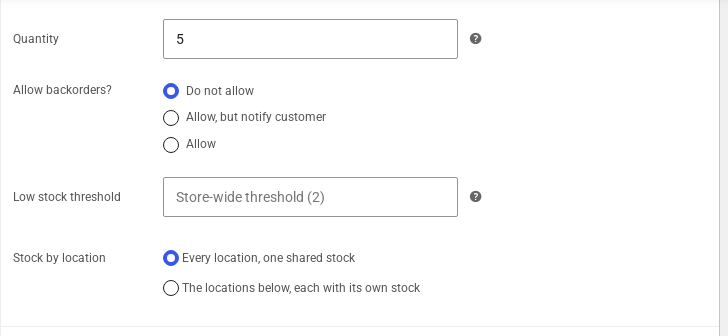
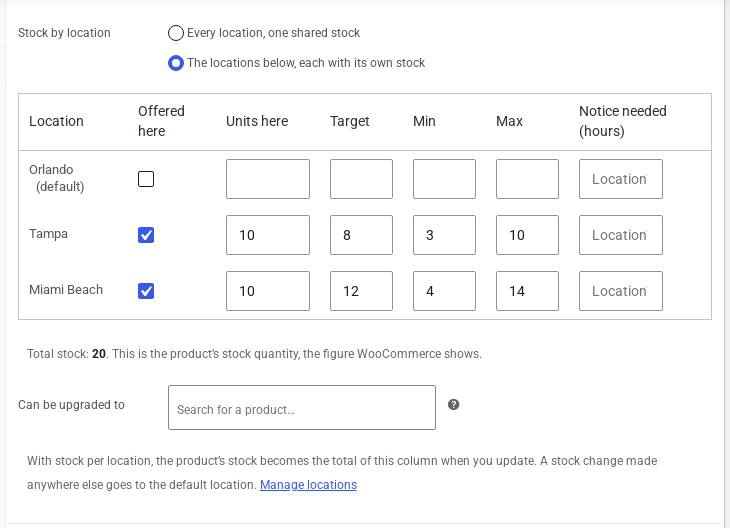
Choose The locations below, each with its own stock to split it. WooCommerce’s quantity field is replaced by the grid, and the product’s stock becomes the total of the grid.
To split a product:
- Open the product and click the Inventory tab.
- Make sure Track stock quantity for this product is ticked.
- Under Stock by location, choose The locations below, each with its own stock.
- Tick the locations that offer it and enter the units at each one.
- Click Update.
The grid for rental products #
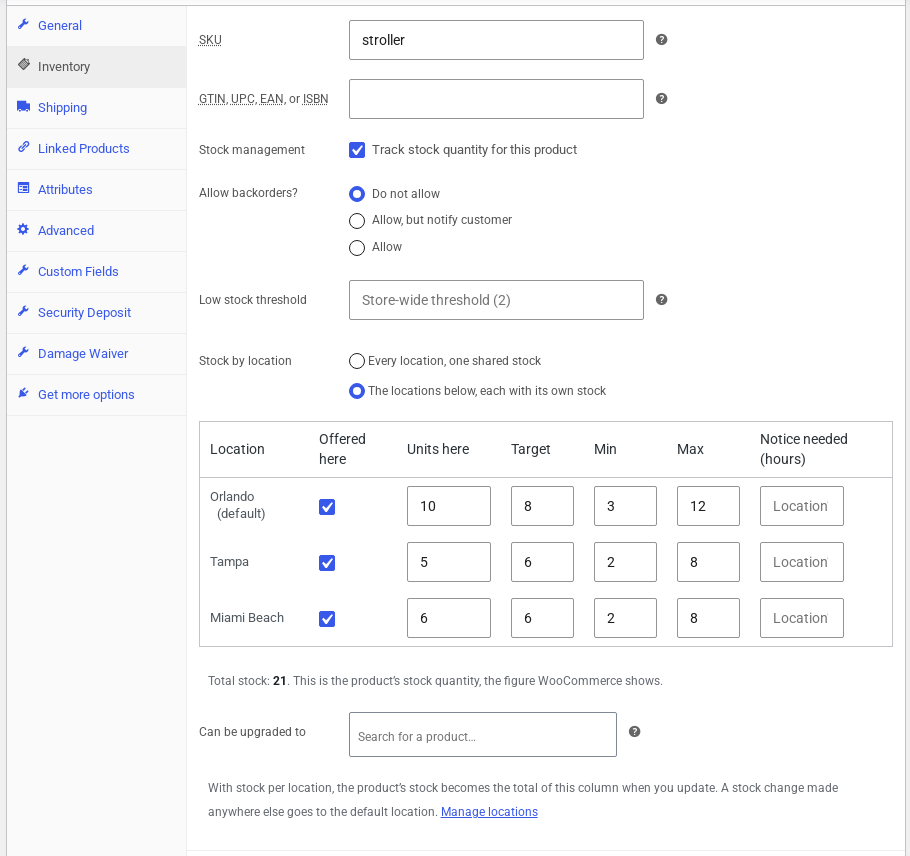
| Column | What it means |
|---|---|
| Offered here | Customers can rent it from this location. |
| Units here | The units at this location now. |
| Target | The number you like to keep here. Stock by location suggests transfers to bring a location back to its target. |
| Min and Max | Stock by location marks a location that falls below its minimum or rises above its maximum. |
| Notice needed (hours) | How much notice this product needs at this location. Left empty, the location’s own Notice needed applies. |
| Takes returns | Shown only when one-way rentals are on: whether a rental may be returned here. |
Under the grid:
- Total stock is the product’s stock in WooCommerce, the figure your reports and WooCommerce itself show. With one-way rentals on, units out on hire are included.
- Can be upgraded to: another product that can stand in when this one runs short at a location, such as a bigger stroller. It is only a suggestion: it shows on Stock by location and in shortage alert emails, and nothing swaps a booking by itself.
The grid for products you sell #
For a product that is not a rental, the grid has sale columns instead.
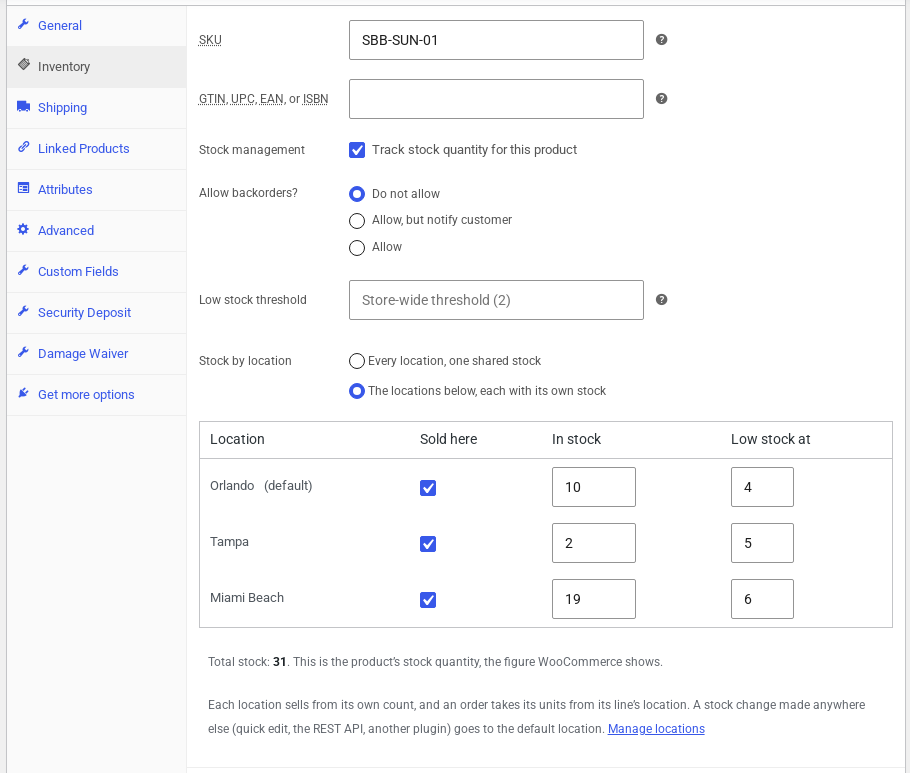
| Column | What it means |
|---|---|
| Sold here | Customers can buy it from this location. |
| In stock | The units at this location. |
| Low stock at | When the count here falls to this number, the location’s staff get a low stock email. Left empty, the product’s low stock threshold applies (or the store’s). |
Each location sells from its own count. An order takes its units from the order line’s location, and a cancellation or a refund that restocks puts them back there. WooCommerce’s own low stock email for the product’s total still works as before.
The grid follows the product’s Enable Booking switch as you change it, so a product that becomes a rental shows the rental columns straight away.
Locations that do not offer the product #
Once a product is offered at some locations, the other locations are tucked away behind Add another location.
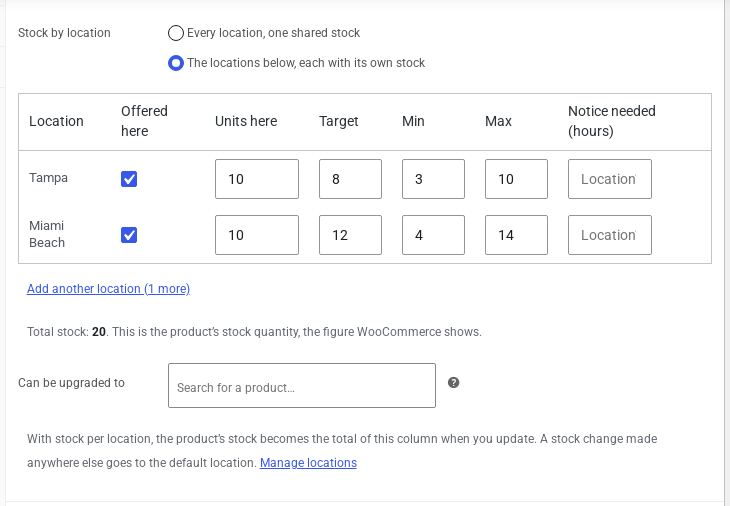
Click it to show the rest, tick Offered here and enter the units.
Setting a store’s units in one place #
To count or correct the stock of one store, open the location under Locations > Locations and click its Stock tab. It lists every split product at that location with its units, target, minimum and maximum. Add a product puts another split product on the list with a starting number of units.
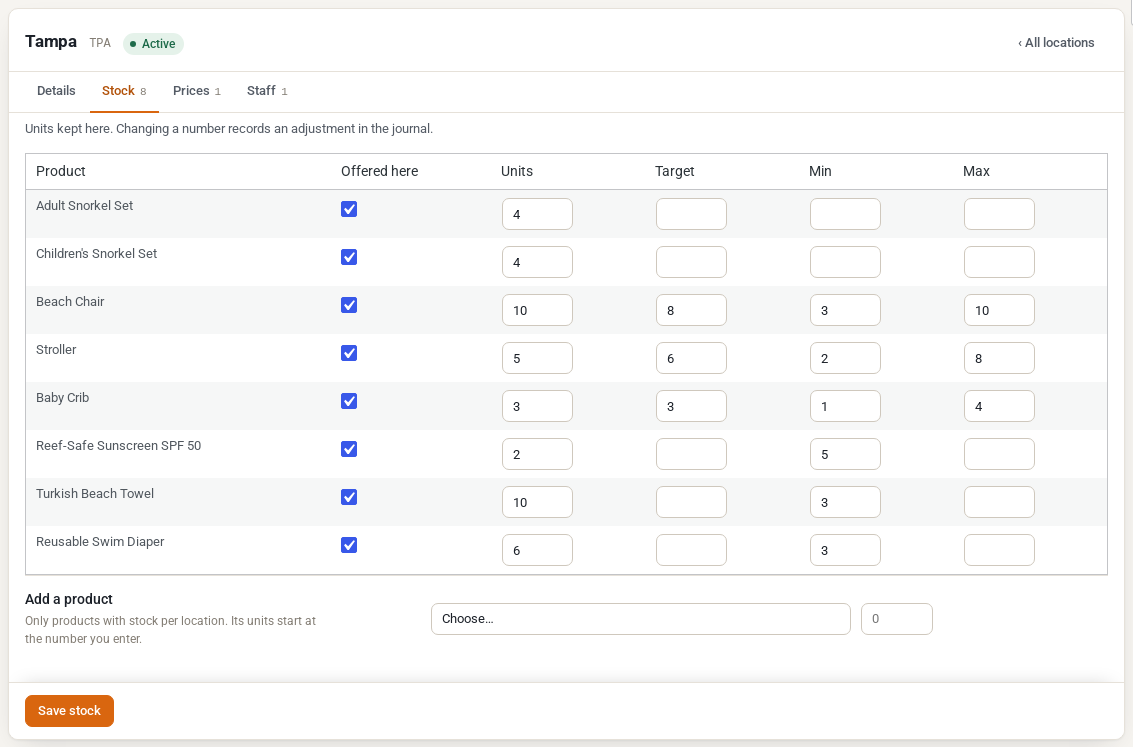
Every change you make to units, in the grid or on the Stock tab, is recorded in the stock journal as an adjustment. See Location Reports and the Stock Journal.
Things to know #
- Stock changed elsewhere goes to the default location. A change that names no location, such as WooCommerce’s quick edit, the WooCommerce REST API, an import or another plugin, is recorded as an adjustment at the default location (or the product’s first location if the default does not carry it). Order lines always change the stock of their own location.
- Splitting a product that already has bookings. Bookings made while the stock was shared stay at the default location. If the default location cannot cover them with the units you give it, the product screen warns you, and new rentals are refused wherever total stock would not cover every booking.
- Variable products. A variation you sell that manages its own stock gets the same grid in its variation panel. A variable product’s parent cannot be split, and neither can rental variations: rent each model as its own simple product instead.
- Bundles and composite products. The parts of a bundle or composite product you sell come from one location, the one the customer chose for the bundle.
- Who changes the counts. Shop managers and administrators edit every row. Location managers and location staff do not edit products or counts: they see their store on Stock by location and move units with transfers. A franchise owner edits their own locations’ rows (on the product and on their location’s Stock tab), and sees the other rows read-only.


