
A security deposit is held on the order as a fee line until it is refunded. Refunds are real WooCommerce refunds: they appear in the order’s refund list, reduce the net payment, and – when the payment gateway supports it – are sent back to the customer’s card or account. This page covers manual refunds from the order screen, automatic refunds on completion, and what happens on the customer side.
The order screen #
Open the order under WooCommerce > Orders. Every line item that has a deposit shows the deposit amount, its status and a Refund Security Deposit button. The per-order (cart) deposit shows the same under its fee line further down:
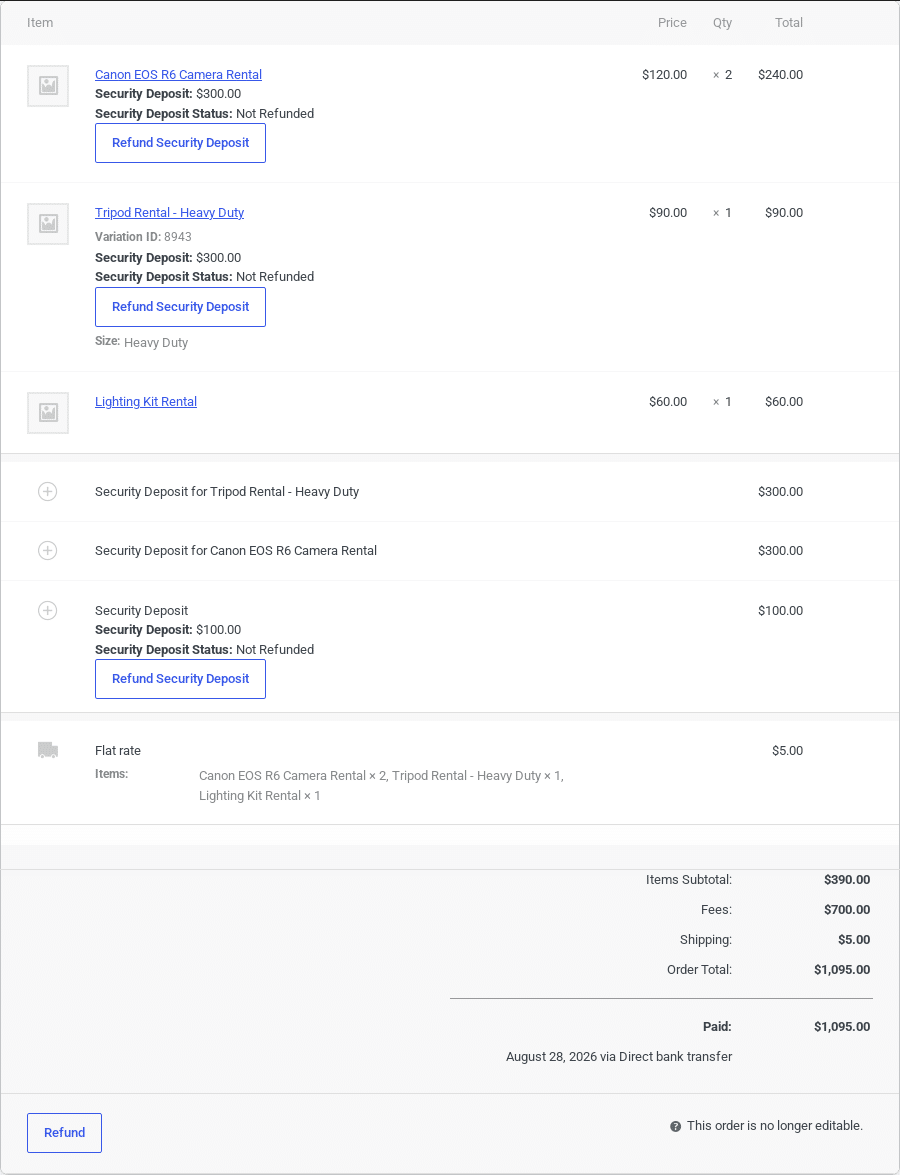
| Status | Meaning |
|---|---|
| Not Refunded | The full deposit is still held. |
| Partially Refunded | Part of the deposit has been refunded (for example a deduction for damage was kept – see below). The button refunds the remainder. |
| Fully Refunded | Nothing is left to refund; the button disappears. |
Refund buttons are only shown once the order has been paid (statuses such as Processing or Completed); a pending, failed or cancelled order has no deposit to give back.
Security Deposits Summary #
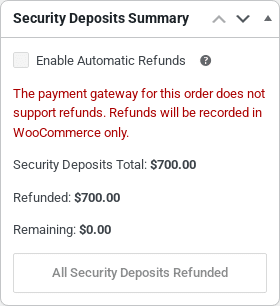
The sidebar box totals all deposits on the order and tells you whether refunds will reach the customer automatically:
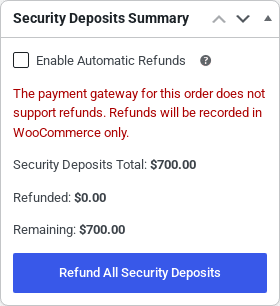
- Enable Automatic Refunds – this order’s own switch. It starts out following the global setting; tick or untick it and click Update to decide for this order alone whether its deposits are refunded automatically on completion.
- Gateway message – green when the order’s payment gateway supports refunds (Stripe, PayPal, Braintree, Authorize.net…), so the money is returned to the customer’s payment method. Red when it does not (Bank Transfer, Check, Cash on Delivery, or an order with no gateway): the refund is still recorded on the order, but you must return the money yourself.
- Total / Refunded / Remaining – the deposits held, what has been given back, and what is still outstanding.
- Refund All Security Deposits – refunds everything outstanding in one go.
Refunding one deposit #
- Click Refund Security Deposit under the item (or under the cart deposit fee).
- Confirm the prompt. The remaining amount of that deposit is refunded – through the gateway when supported – and the page reloads.
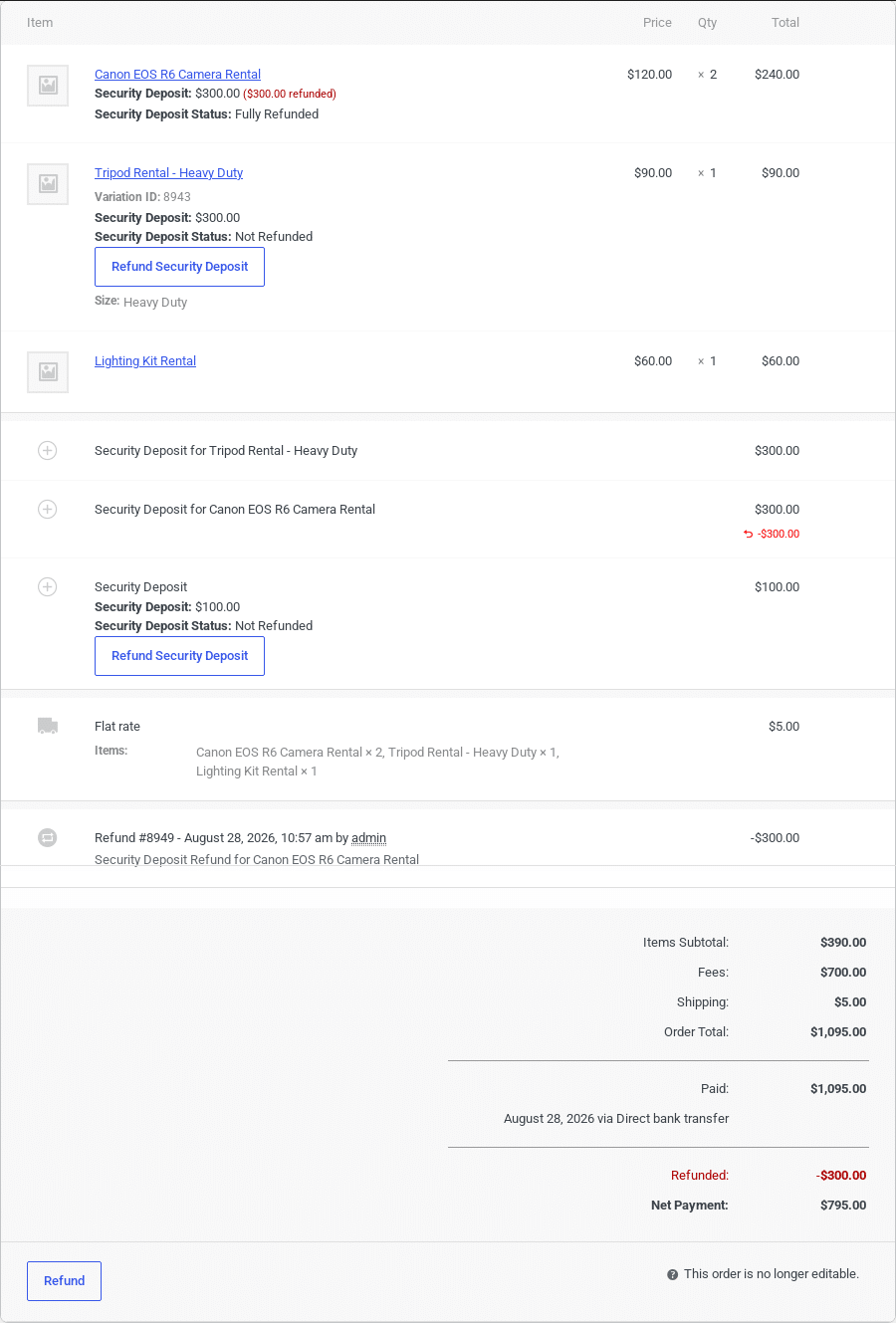
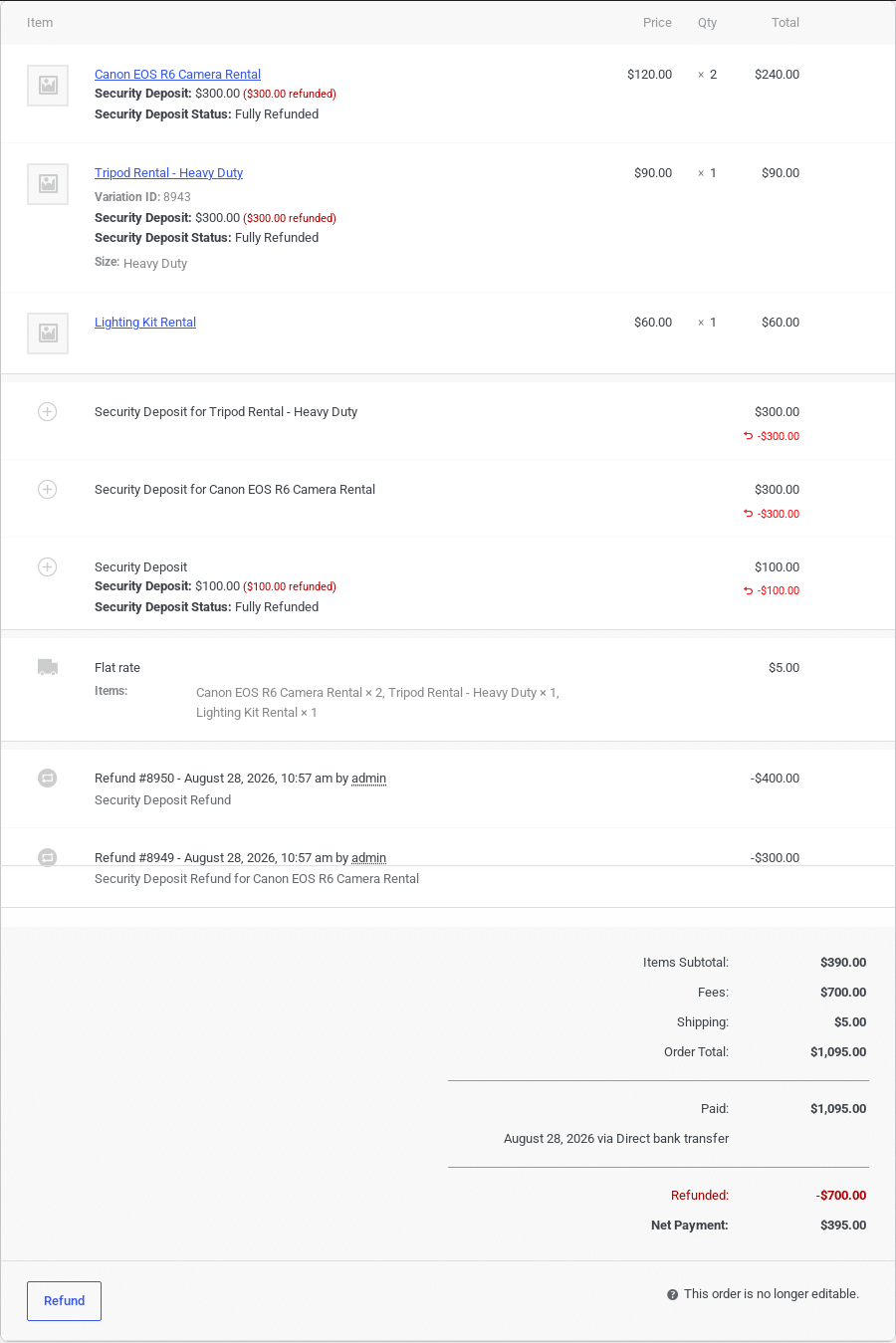
The item now reads Fully Refunded with the refunded amount in red, the fee line shows the refund, and a refund entry appears above the totals:
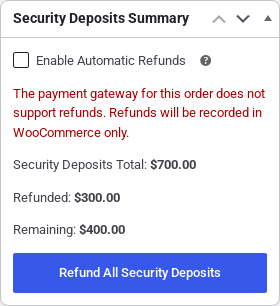
The summary box updates to show what is still held:
Refunding everything #
Click Refund All Security Deposits in the summary box and confirm. Every deposit with an outstanding amount is refunded in a single WooCommerce refund named Security Deposit Refund. When all deposits are back with the customer the button is replaced by All Security Deposits Refunded:
Keeping part of a deposit (damage, late fees) #
To return only part of a deposit, use WooCommerce’s normal Refund button at the bottom of the items box: enter the amount to give back in the Refund amount field of the deposit fee line and refund it. The deposit then shows as Partially Refunded. If you later decide to return the rest, the Refund Security Deposit button refunds exactly the remaining amount. The part you keep simply stays as paid revenue on the order.
Automatic refunds #
With Enable Automatic Refunds ticked (globally under WooCommerce > Settings > Security Deposits, or for a single order in its summary box), all outstanding deposits are refunded on their own when the order is marked Completed:
- Days to delay automatic refunds = 0 – the refund happens the moment the order becomes Completed, whether you change the status by hand, in bulk, or a gateway/plugin completes it.
- Days to delay > 0 – nothing happens at completion. A background task runs twice a day, finds completed orders with unrefunded deposits whose completion date is at least that many days old, and refunds them. This gives you time to inspect returned items; if you want to keep part of a deposit, make the partial refund before the delay runs out and untick the order’s Enable Automatic Refunds.
Automatic refunds are skipped for orders that have already been fully refunded and while Disable Security Deposits is on.
What the customer sees #
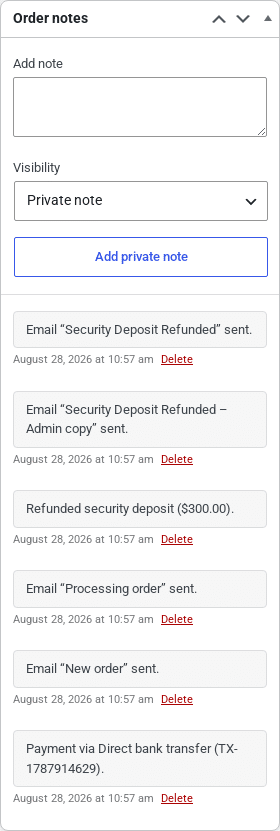
Every deposit refund sends the Security Deposit Refunded email to the customer (and the admin copy to you), and is logged in the order notes:
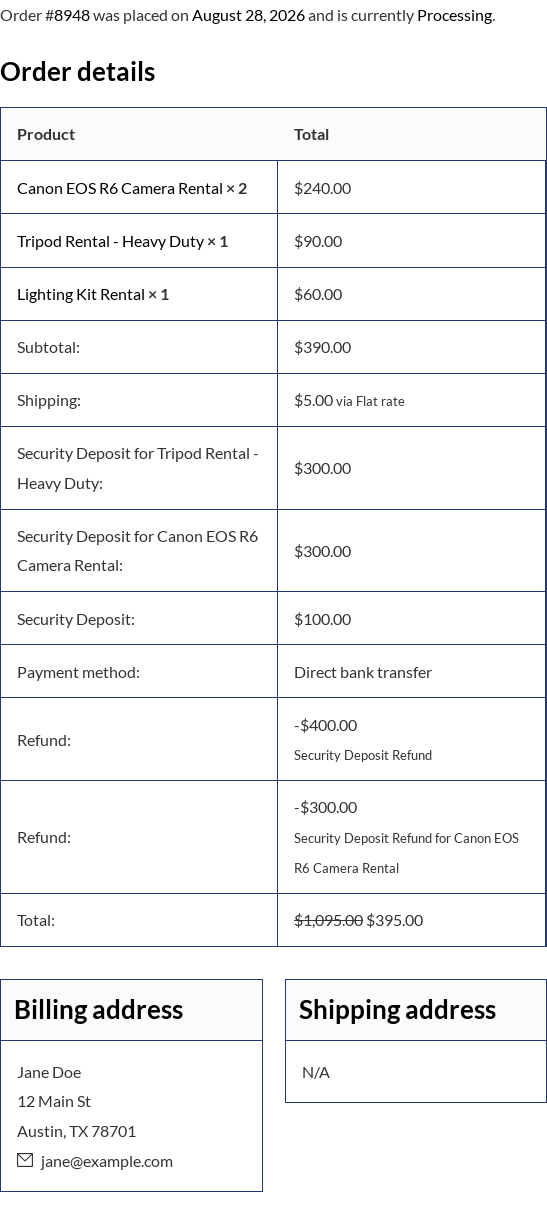
In My Account > Orders the order shows the deposit lines and each refund against them:
Troubleshooting #
| Problem | What to check |
|---|---|
| “The security deposit refund failed” alert | The gateway rejected the refund. The reason is added as an order note (for example the charge is not settled yet – Authorize.net can only refund settled transactions, usually the next business day – or the gateway credentials are wrong). Fix the cause and click the button again; nothing was marked refunded. |
| No refund buttons on the order | The order is not paid yet (Pending payment, Failed, Cancelled), or it has no deposits – deposits are only collected on orders placed while the product had Collect security deposit enabled. |
| Customer says the money never arrived | Look at the gateway message in the summary box. If it is red, the refund was recorded in WooCommerce only and has to be returned manually (bank transfer, cash, etc.). |
| Delayed automatic refund never ran | WP-Cron must be running. Check Days to delay automatic refunds, and that the order is Completed with a completion date old enough. |


