
Every order line remembers its location. This page shows where the location appears on an order, how to move a line to another store, who gets the order emails, and how Send and Return work per location.
The location on the order #
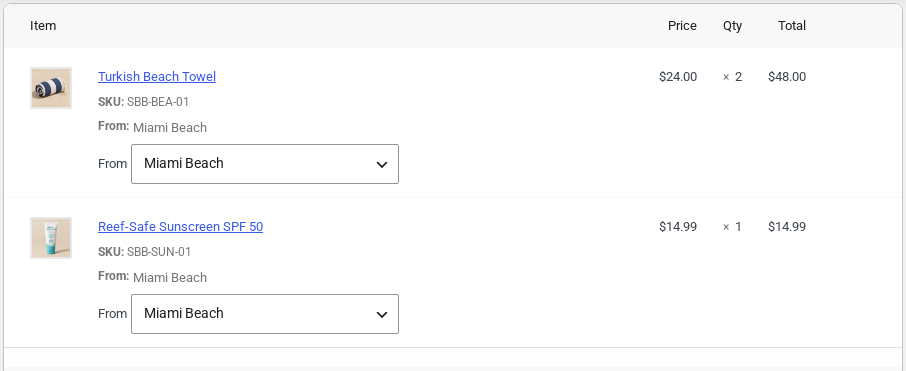
Open the order under WooCommerce > Orders. Each rental line shows where it is picked up (and returned, if that is somewhere else). Each line sold from a store’s stock shows From and the store.
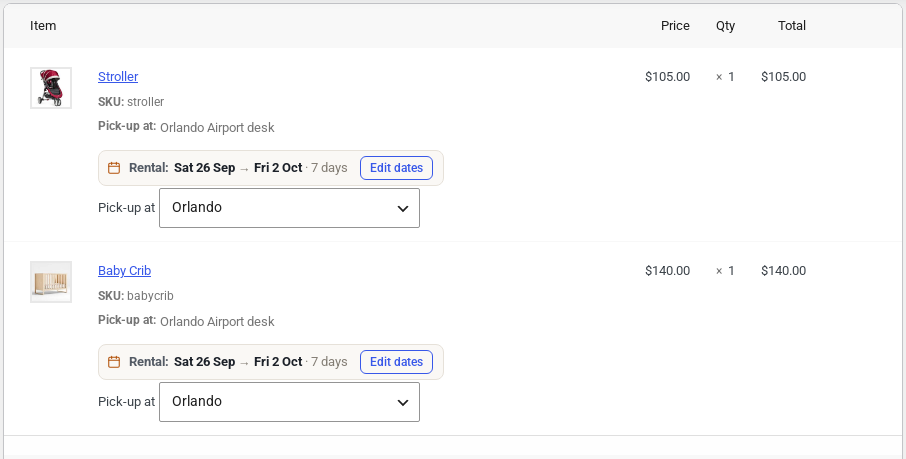
For a hand-over point, the line shows the point the customer chose (here the airport desk). The stock, the staff and the booking belong to the store it is served from, which is why the dropdown under the line says Orlando.
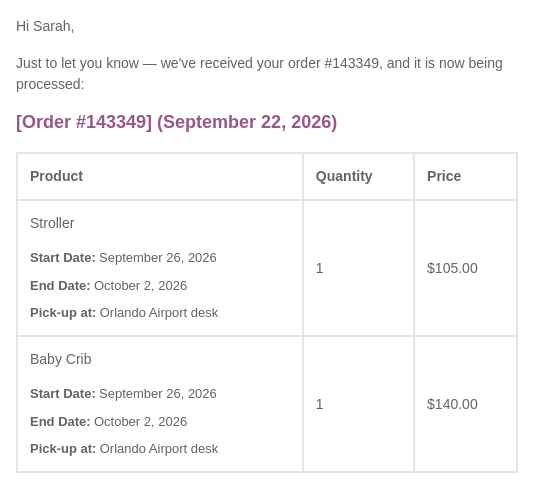
The customer sees the same on their order confirmation, in their account and in the order emails.
Move a line to another location #
Staff can move a rental, or an item sold from a store’s stock, to another location. For example, when a store is short and another one will hand the rental over instead.
- Open the order.
- Under the line, choose the new location in the Pick-up at (or From) dropdown.
- Click Update.
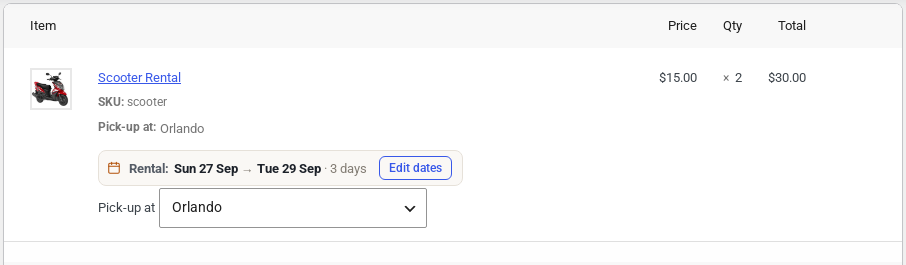
The booking moves with the line, and a note on the order records who moved it and from where.
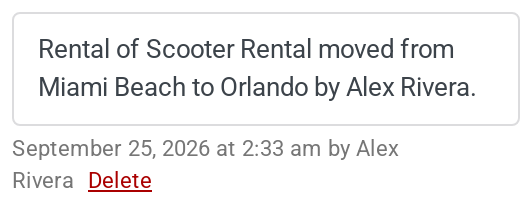
A move is never refused. If the new location does not have enough units for those dates, the note says how many were free, so someone can sort it out, for example with a transfer. For an item sold from stock, the units go back at the old store and are taken at the new one, so the total does not change.
Order emails for each location #
Each location has its own Email addresses and a setting for WooCommerce’s New order, Cancelled order and Failed order emails (see Setting Up Locations):
| Setting | Who gets the email |
|---|---|
| Send to the location as well as the store admin | The store admin and the location |
| Send to the location instead of the store admin | Only the location, when every location on the order says so and every line has a location. Otherwise the store admin is kept too. |
| Do not send to the location | Only the store admin, as before |
An order with lines at two locations goes to both. An order is never emailed to nobody.
Reminder emails and texts #
Rentals & Bookings reminder emails, and the text messages in Regular, can name the location. Use these merge tags in your templates:
| Tag | What it gives |
|---|---|
{pickup_location} and {return_location} | The location’s name |
{pickup_address} and {return_address} | Its address |
{pickup_phone} and {return_phone} | Its phone |
{pickup_hours} and {return_hours} | Its opening hours today |
{pickup_instructions} and {return_instructions} | The instructions for customers |
{pickup_map_link} and {return_map_link} | A link to the location on a map |
The existing {store_address}, {map_link} and {shop_phone} tags become the pick-up location’s when all the rentals in the email share one pick-up location, so templates you wrote before adding locations work without changes. Pick-up reminders speak about the pick-up location, return and overdue reminders about the return location.
A location’s Quiet hours for texts hold text reminders about its rentals until the quiet hours end.
Send and Return per location #
The Send and Return screens of Rentals & Bookings Regular get a row of location buttons. Choose a store to see only the rentals going out from it, or coming back to it.
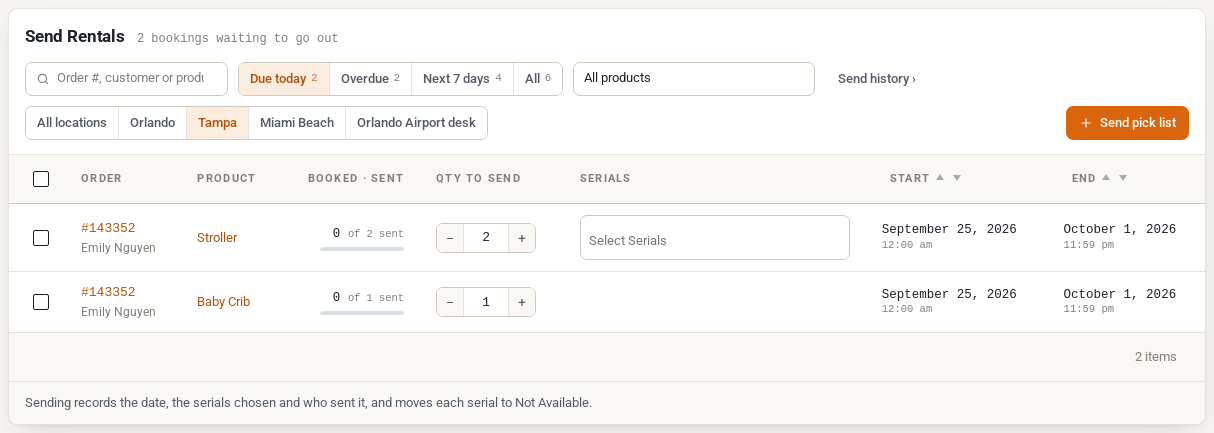
When staff send or return a rental, the hand-over is recorded at the location chosen on the screen. That is how each store knows what it has on its shelves. If a rental comes back to a different store than booked, the order gets a note for a manager to decide, or it is just recorded, depending on Returned to the wrong location in Location Settings.
Staff who work at one location only see their own store’s rentals here. See Location Staff and Permissions.
Shipped rentals: the shop picks the location #
If you ship rentals by courier and switch on Shipped rentals in Location Settings, customers do not choose a location for products that every location offering them only ships. The shop picks the location that can transport the rental in time: the fewest days in transport first (each location’s Days in transport), then the most units free. The days in transport each way are held as turnover. The cart and the order then say Ships from and the location, and staff can still move the line.


