
AI connections let AI assistants such as Claude, ChatGPT and Copilot look up your rentals for the people who use them. A shopper can ask an assistant “Is the red kayak free the first weekend of June, and what would it cost?” and get an answer from your own shop: the rental, the free dates, the exact price and a link to book.
The assistants connect with MCP, the standard way AI apps talk to websites. You do not need to know how it works. You switch it on and give the assistant one address.
It is off until you switch it on.
Where it is #
Rentals > Settings > AI connections. It is in the Advanced group, after the Advanced tab. You need the permission to change rental settings to see it.
Turn it on #
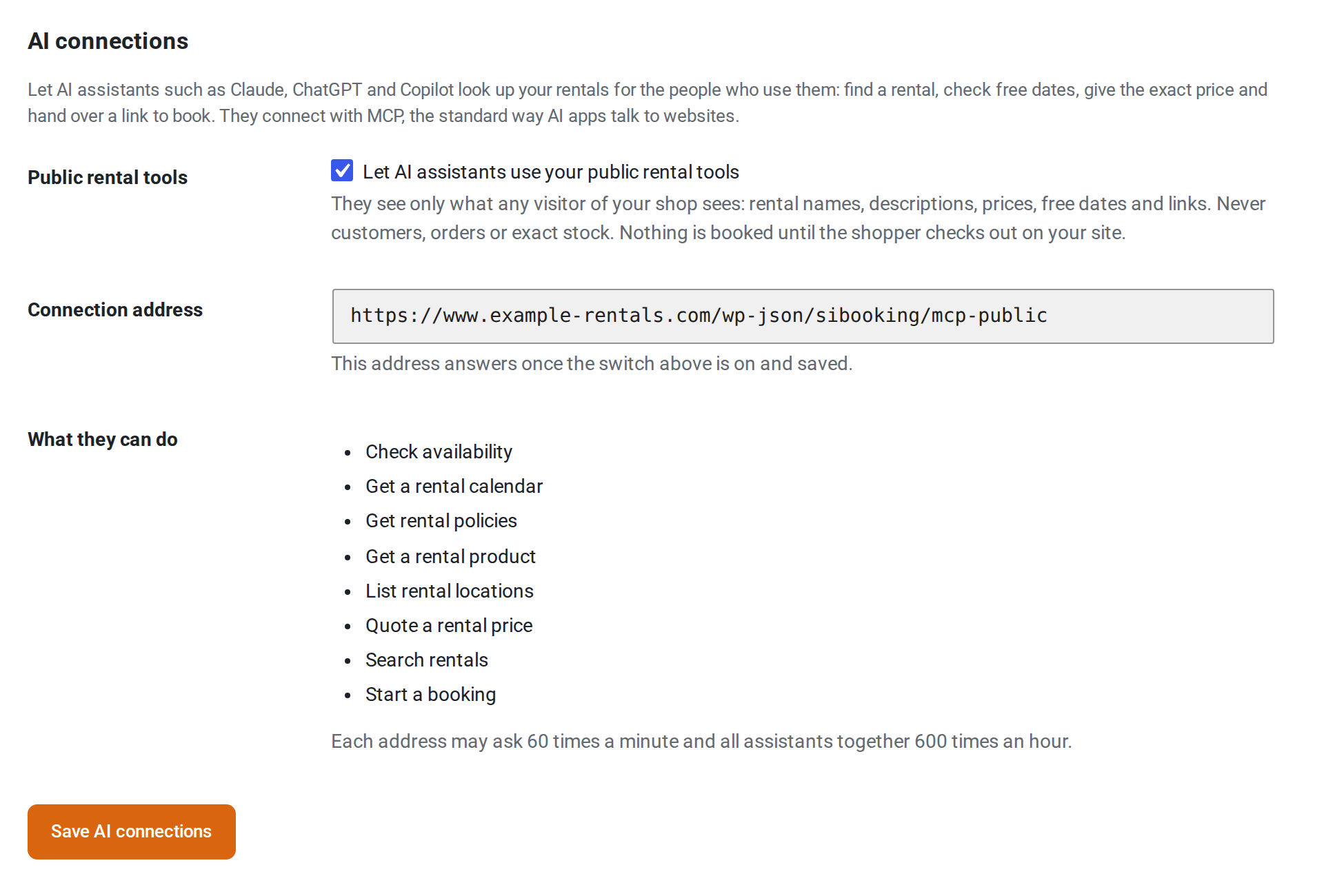
- Tick Let AI assistants use your public rental tools.
- Click Save AI connections. This tab has its own save button.
- Copy the Connection address. It is the web address of your shop’s connection, for example
https://your-shop.example/wp-json/sibooking/mcp-public. - In the AI app, add a custom connector (an “MCP server”) and paste the address. No sign-in is needed.
While the switch is off the address does not answer. The page says so: “This address answers once the switch above is on and saved.”
What assistants can see #
Only what any visitor to your shop can see: rental names, descriptions, prices, free dates and links. Never customers, orders or exact stock. An assistant can learn that only a few are left, but not how many.
Nothing is booked until the shopper checks out on your site. The booking link an assistant hands over only opens your shop with the rental, the dates and the quantity filled in. The shopper still checks the dates, adds to the cart and pays.
Text from your shop (names, descriptions, policies) is passed on as shop text, so an assistant can tell it from its own instructions.
What assistants can do #
The tab lists the tools. Each does one thing and says yes only where adding to the cart would say yes:
| Tool | What it does |
|---|---|
| Search rentals | Find rentals by words, optionally only the ones free for given dates. Each result has a “from” price. |
| Get a rental product | One rental: how it is booked (type, shortest and longest rental), its price list, deposit, guests and pick-up places. |
| Check availability | Whether a rental is free for the dates, times and quantity asked. If not, it says why (closed day, too short, not enough stock) and may suggest the next free period. |
| Get a rental calendar | Day by day, which days in a window are free, nearly full, booked or closed. At most 92 days a call. |
| Quote a rental price | The exact price the cart would charge for the dates and quantity, with its lines. Prices only: it does not check stock. |
| Get rental policies | Your rental rules from your settings, such as time zone, how far ahead and how soon someone can book, and the pick-up and return notes. |
| Start a booking | A link that opens your shop with the rental, dates and quantity filled in. It takes no payment and books nothing. |
| List rental locations | The places where rentals are picked up and returned, with opening hours. Only offered when your shop has separate locations. |
Limits #
Each address may ask 60 times a minute. All assistants together may ask 600 times an hour. An assistant that goes over is told to wait.
The booking link #
The link from Start a booking is an ordinary product link with the dates added, for example https://your-shop.example/product/kayak/?sib_from=2027-05-01&sib_to=2027-05-03. You can write the same kind of link by hand in an email or a post: sib_from and sib_to for the dates, sib_from_time and sib_to_time for times, sib_qty for the quantity. Dates that are not real, in the past or in the wrong order are ignored.
Turning it off #
Untick the box and save. The address stops answering at once, so assistants that were connected get no data.
For WordPress 6.9 and later #
On WordPress 6.9 or later, each tool is also registered as a WordPress ability (named sibooking/<tool-name>, in the category “Rentals”), so WordPress’s own AI tools and other plugins can use them inside your site. They are not shown in the REST API, and they follow the same rules and limits.
Good to know #
- Every request from an assistant is public. There is no sign-in, which is why the tools show only public information.
- For developers: filters let other plugins change the tools’ answers (
sibooking_mcp_rate_limits,sibooking_mcp_allowed_origins,sibooking_mcp_policies,sibooking_mcp_booking_urland others).


