
Moving to Rentals & Bookings from another rental or booking plugin? The importer moves your rental products, their settings and the bookings still to come, so you don’t have to set them up again by hand. It reads from:
- WooCommerce Bookings
- YITH Booking (YITH WooCommerce Booking and Appointment)
- Kestrel Rental Products (formerly Rental Products for WooCommerce)
- WpRently (Booking and Rental Manager by MagePeople)
- RnB (WooCommerce Booking & Rental System by RedQ)
- PluginHive Bookings and Appointments For WooCommerce
- Bookings for WooCommerce by Plugin Republic
You start with a dry run. It changes nothing in your shop and shows what would be imported, what is skipped and why, and what has to be done by hand. The other plugin and its data are left exactly as they are, so it can stay installed, active or not, until you are happy.
The importer came in Rentals & Bookings Regular 1.0.93 and is in every higher package (Pro and Ultimate). It isn’t in Lite.
Each plugin has its own page with what moves over and what doesn’t: WooCommerce Bookings, YITH Booking, Kestrel Rental Products, WpRently, RnB, PluginHive and Bookings for WooCommerce by Plugin Republic.
Before you start #
- Take a backup of your site. The import can be rolled back, but a backup is the safe way to undo anything.
- Keep the other plugin installed. It may be active or deactivated: its data is read from the database either way. Don’t delete it before the import, because some plugins remove their data when they are deleted.
- Leave your orders as they are. The bookings are added to the orders you already have; no new orders are made.
Where to find it #
Go to Rentals › Setup › Tools and open Import from another plugin.

The screen lists every plugin it can read that has rental products on your site, with the number of rental products, bookings still to come and past bookings. Under the name it says whether the plugin is active, and its version.
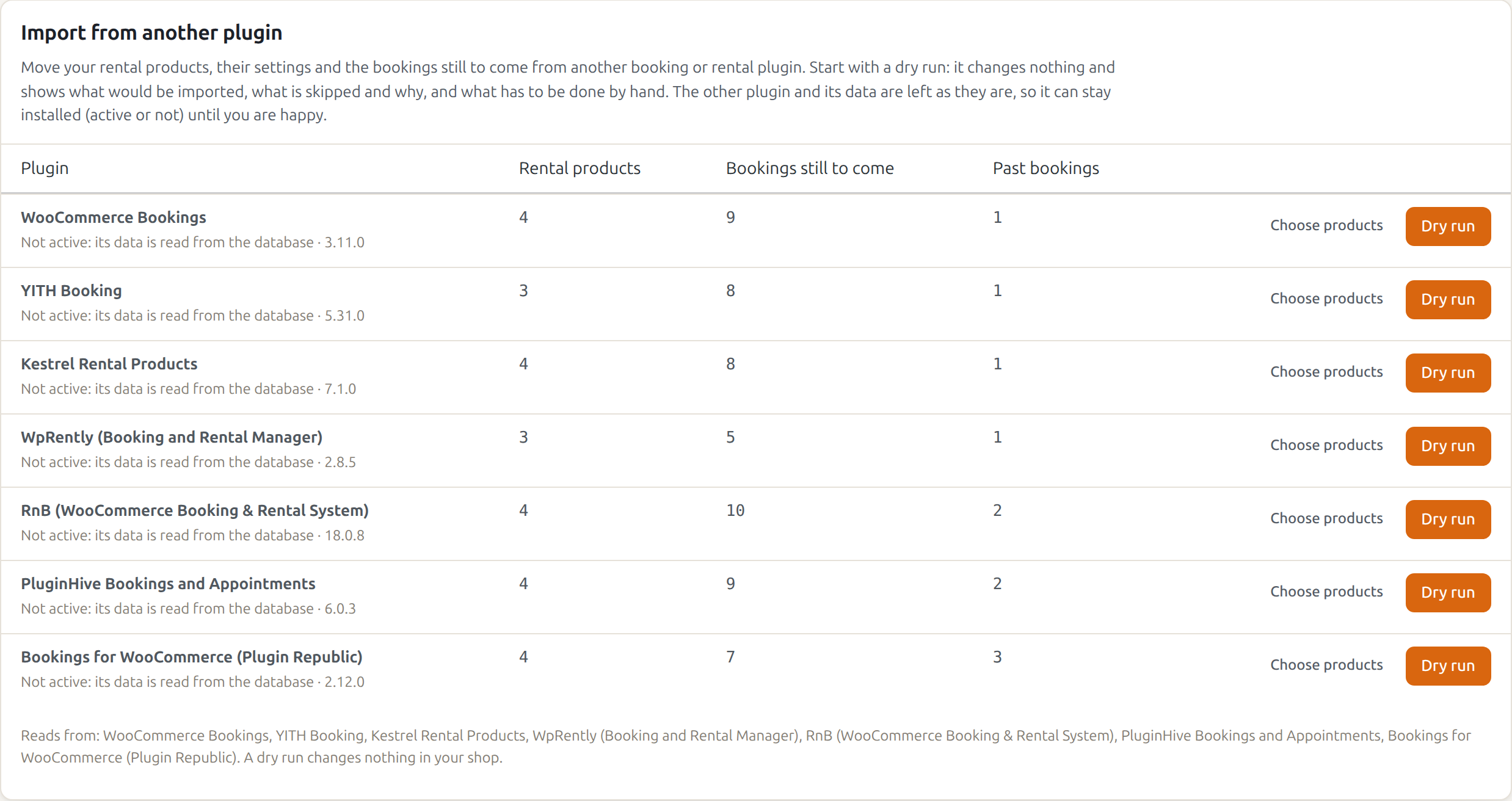
If no plugin is listed, the screen says “No rental products from another plugin were found on this site.”
Choose the products (optional) #
By default the importer takes all of a plugin’s rental products. To import only some of them:
- Click Choose products next to the plugin.
- Untick All of them.
- Tick the products you want.
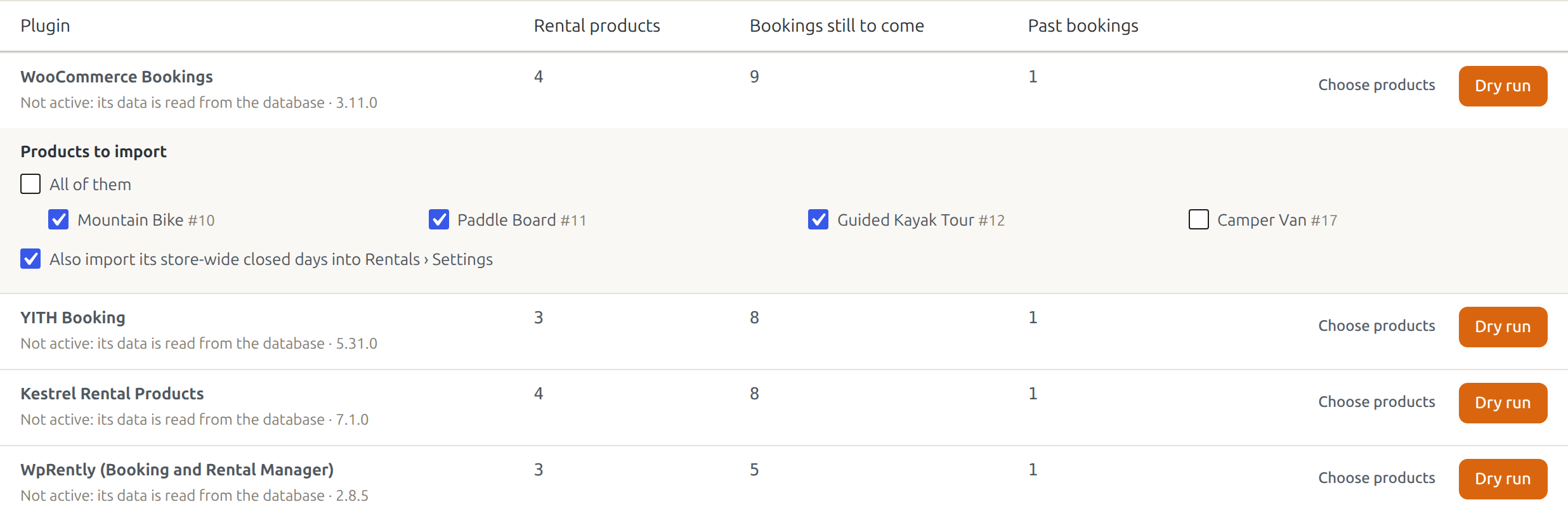
Under the products there is Also import its store-wide closed days into Rentals › Settings, ticked by default. It adds the closed days the other plugin keeps for the whole store (WooCommerce Bookings, YITH Booking, Kestrel Rental Products, RnB and PluginHive have them). Untick it to keep only your own closed days.
You can import the other products later: a second import adds what the first one left out.
Do a dry run #
Click Dry run. The dry run changes nothing in your shop. It builds the full plan and shows it as a report, which is kept under Runs so far at the bottom of the screen.
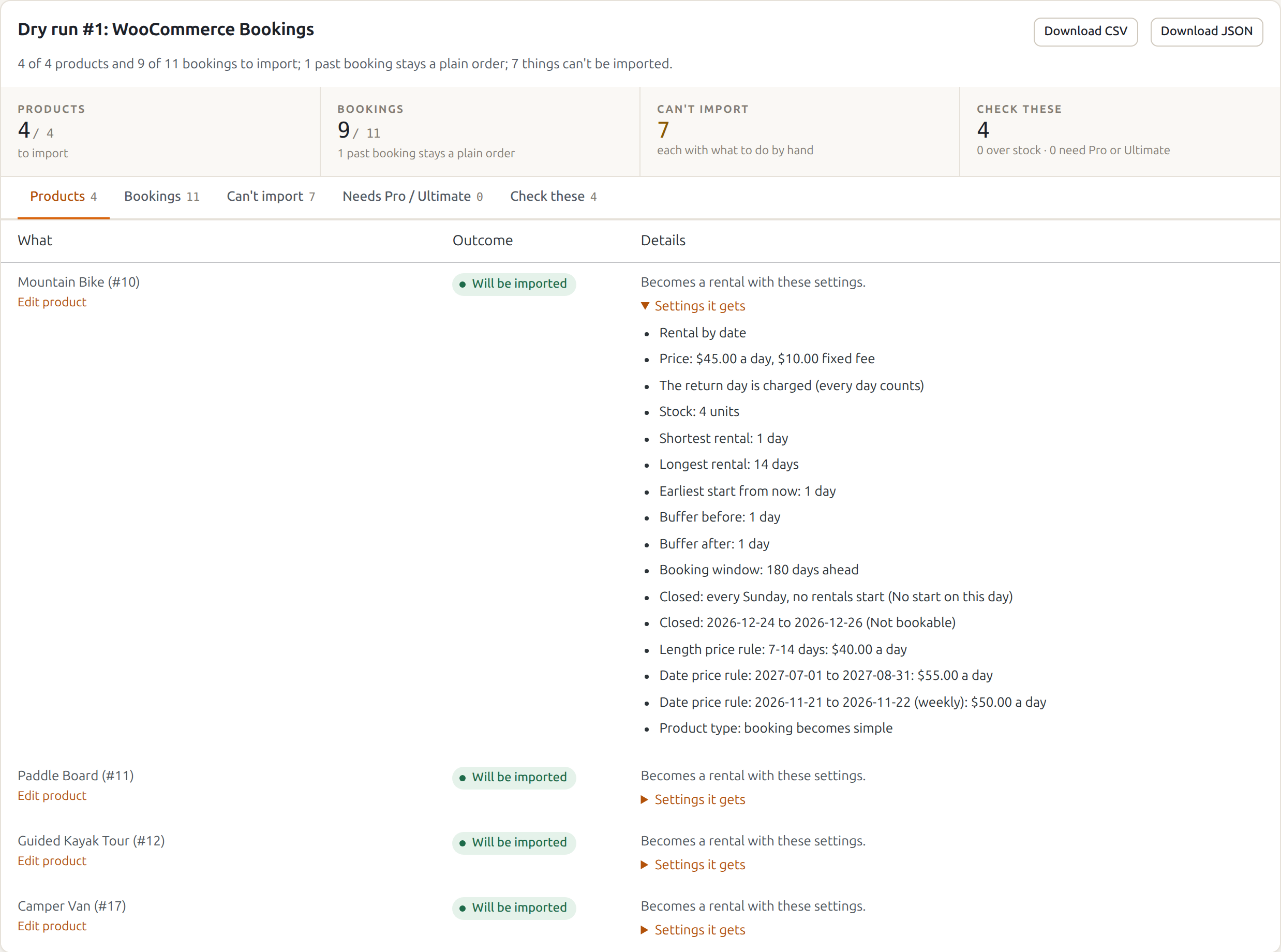
The line under the title sums it up, for example “4 of 4 products and 9 of 11 bookings to import; 1 past booking stays a plain order; 7 things can’t be imported.” The four boxes count the products, the bookings, what can’t be imported and what to check. Each tab lists the rows behind one of them.
Products #
Every product that will become a rental. Open Settings it gets to see what it will be set to: rental by date or by time, the prices, stock, shortest and longest rental, how far ahead it can start, buffers, the booking window, closed days, and price rules by length or by date.
Bookable products of WooCommerce Bookings and YITH Booking become simple products, so they keep their name, photos, description, categories and reviews.
Bookings #
Every booking of those products, with its order, dates, quantity and customer.
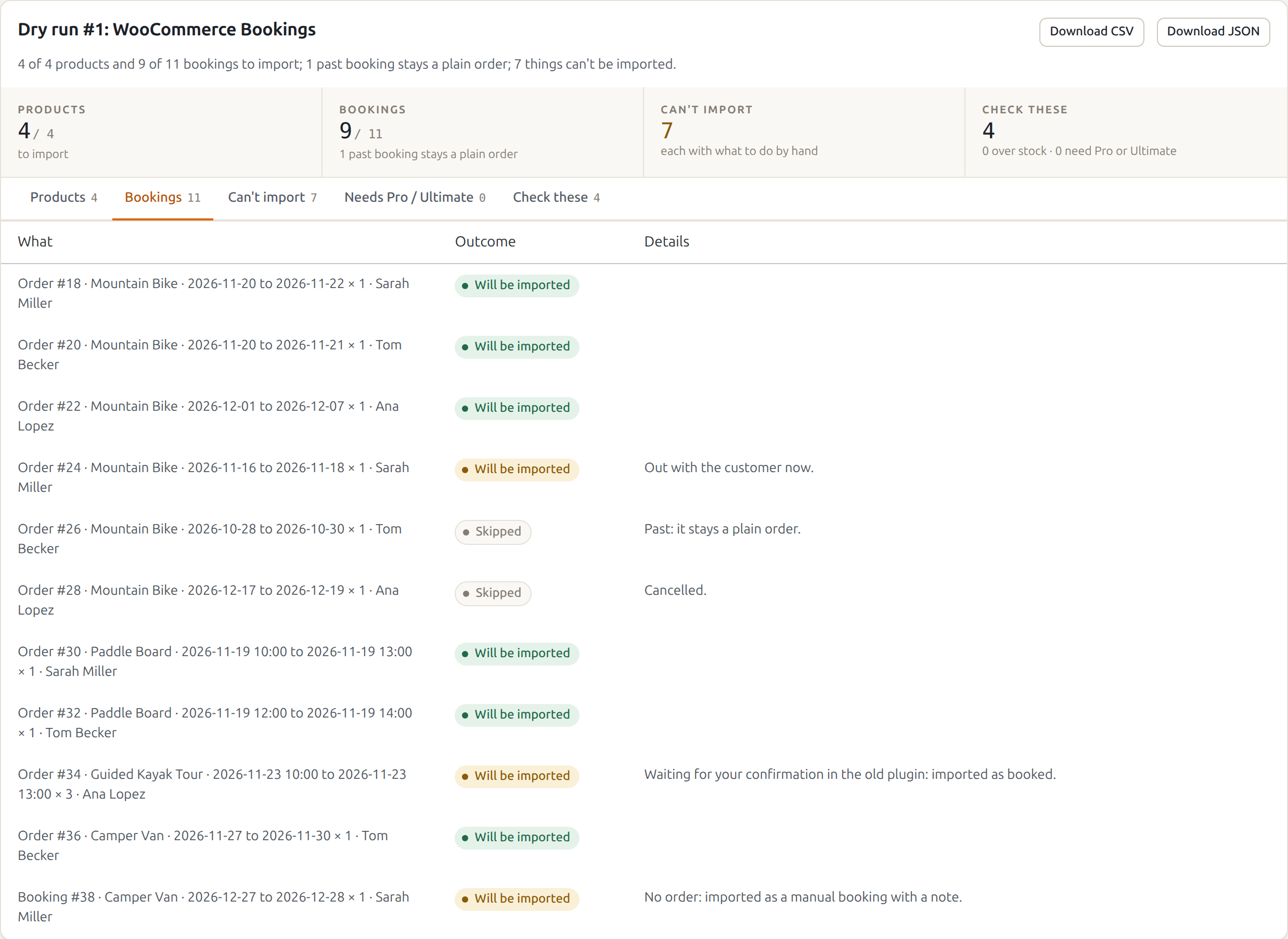
- Bookings still to come, and the ones going on now, are imported. Their dates are blocked at once, so nobody can book the same units on the website.
- A booking that was already picked up shows “Out with the customer now” and is imported as sent. One that was already brought back is imported as returned.
- Past bookings are skipped: they stay plain WooCommerce orders, and your sales reports still count them.
- Cancelled bookings are skipped.
- A booking without an order (a booking made by hand in the old plugin) is imported as a manual booking, with the customer’s name in a note.
Can’t import #
What the importer can’t move over, each with the reason and what to do by hand. For example, a plugin’s bookable hours become your store’s opening hours under Rentals › Settings, so the report asks you to set them there.
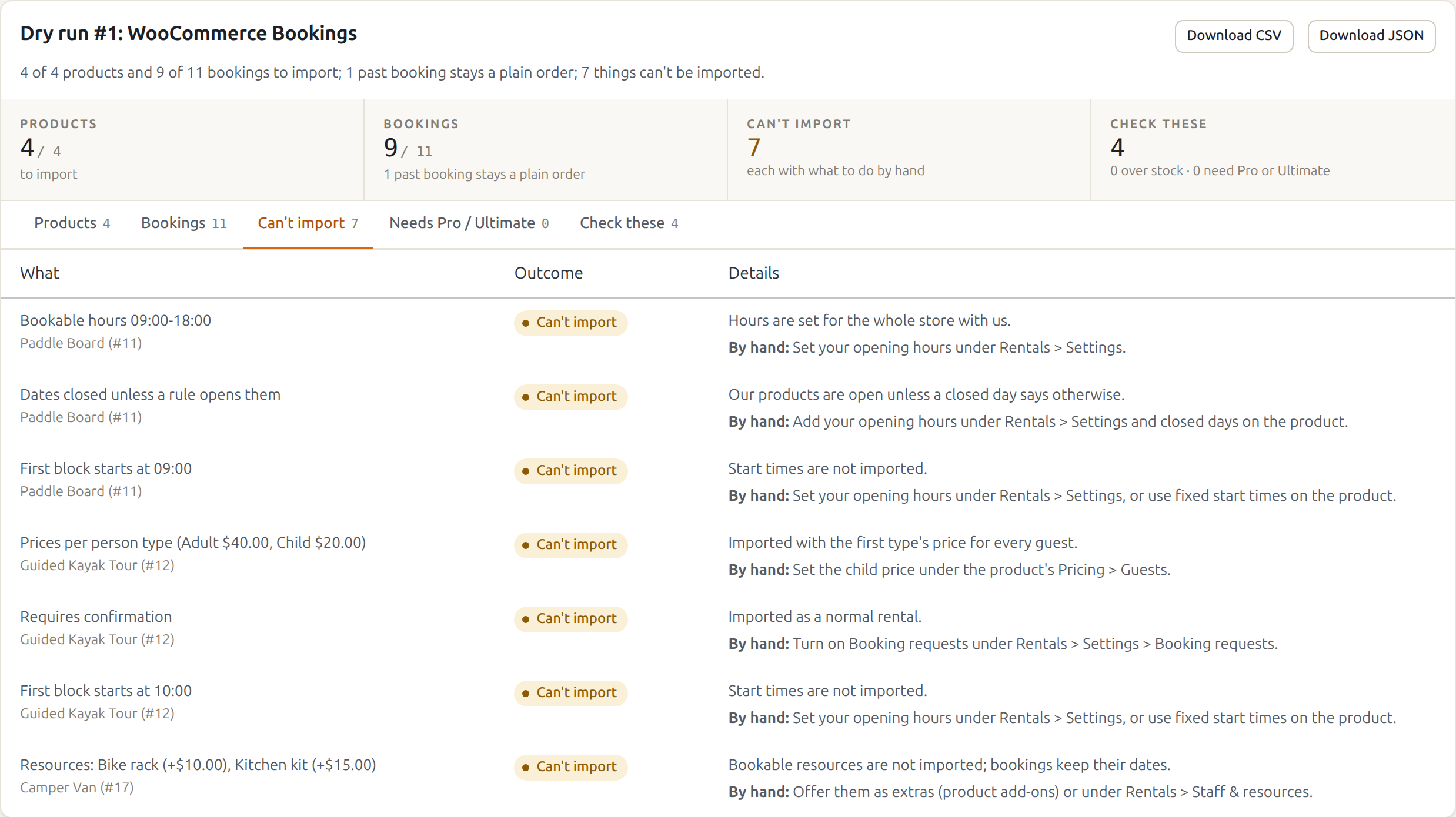
Nothing on this tab stops the import: the rest of the product is still imported.
Needs Pro / Ultimate #
What needs a plugin from a higher package, for example a security deposit when Security Deposits isn’t active. It is left out and listed; everything else is imported. See “What needs Pro or Ultimate” below.
Check these #
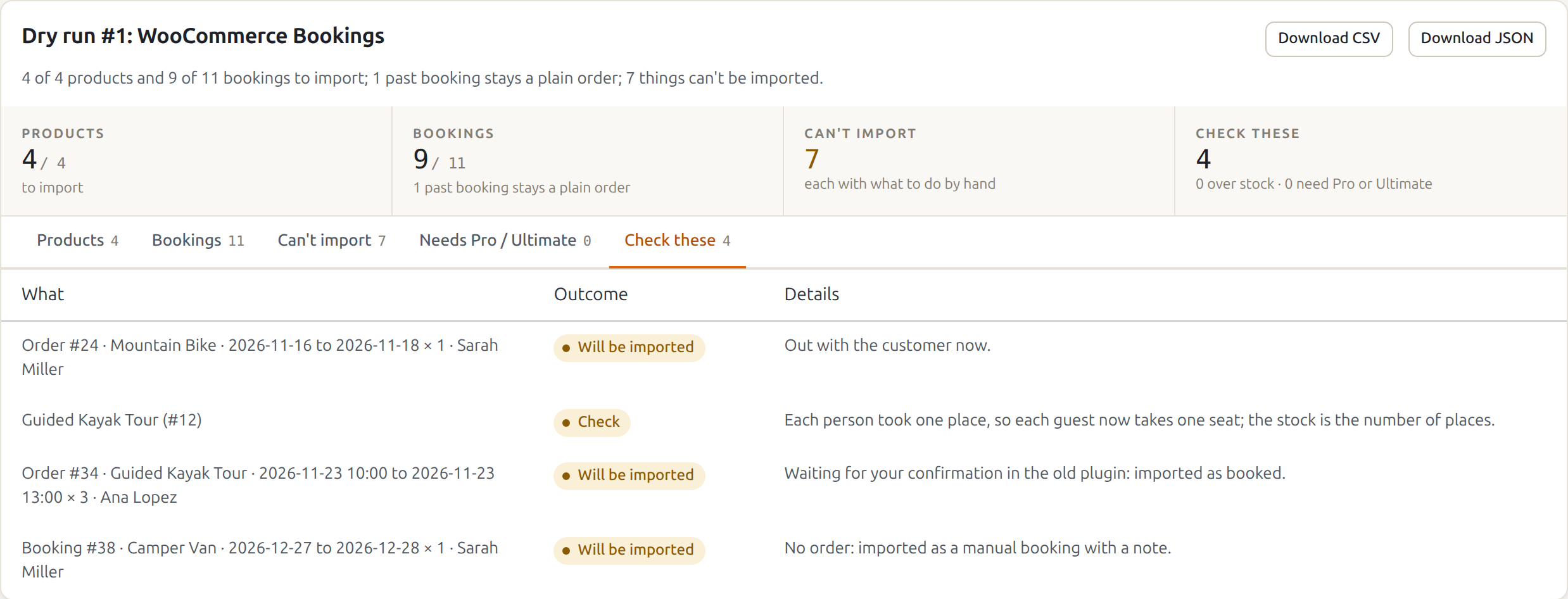
Bookings and products worth a look after the import:
- Over stock: more units booked on a day than the product will have, for example “4 units booked on 2026-11-22 and the product has 3”. The bookings are imported anyway, so move or cancel one of them.
- An order that isn’t paid yet: its dates are held, as the old plugin held them.
- A booking waiting for your confirmation in the old plugin: it is imported as booked.
- A booking going on now, and a booking without an order.
Download the report #
Download CSV and Download JSON at the top of every report save it, for example to work through the “Can’t import” list in a spreadsheet.
Run the import #
When the dry run looks right:
- Tick I have a backup of my site.
- Click Run the import.

The import uses the same choices as the dry run (the plugin, the products, the closed days), worked out again as it starts, so a booking that came in since the dry run is included too. The report shows how far it has got.
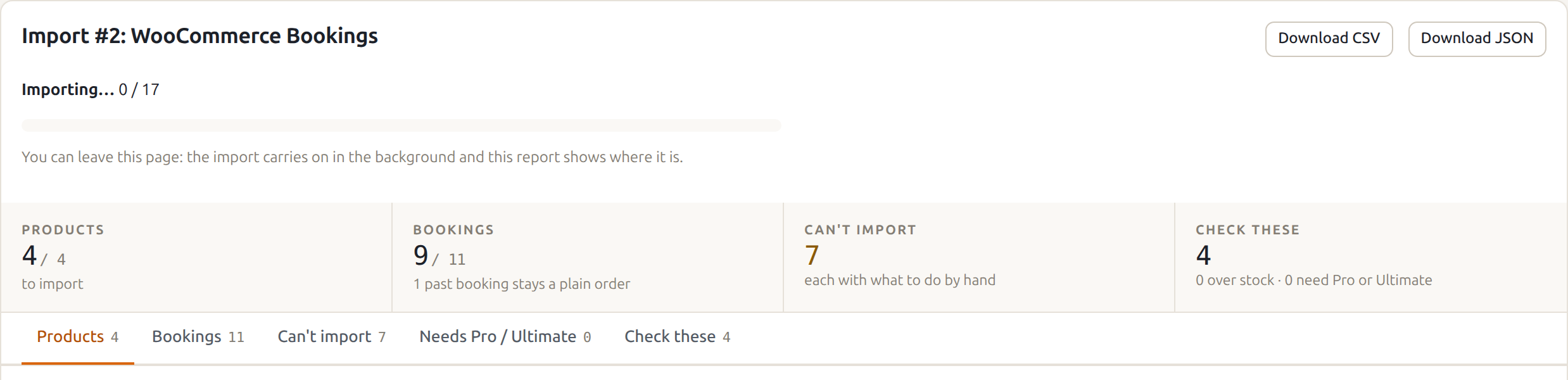
You can leave the page: the import carries on in the background, and the report under Runs so far shows where it is. A big shop is imported in small batches.
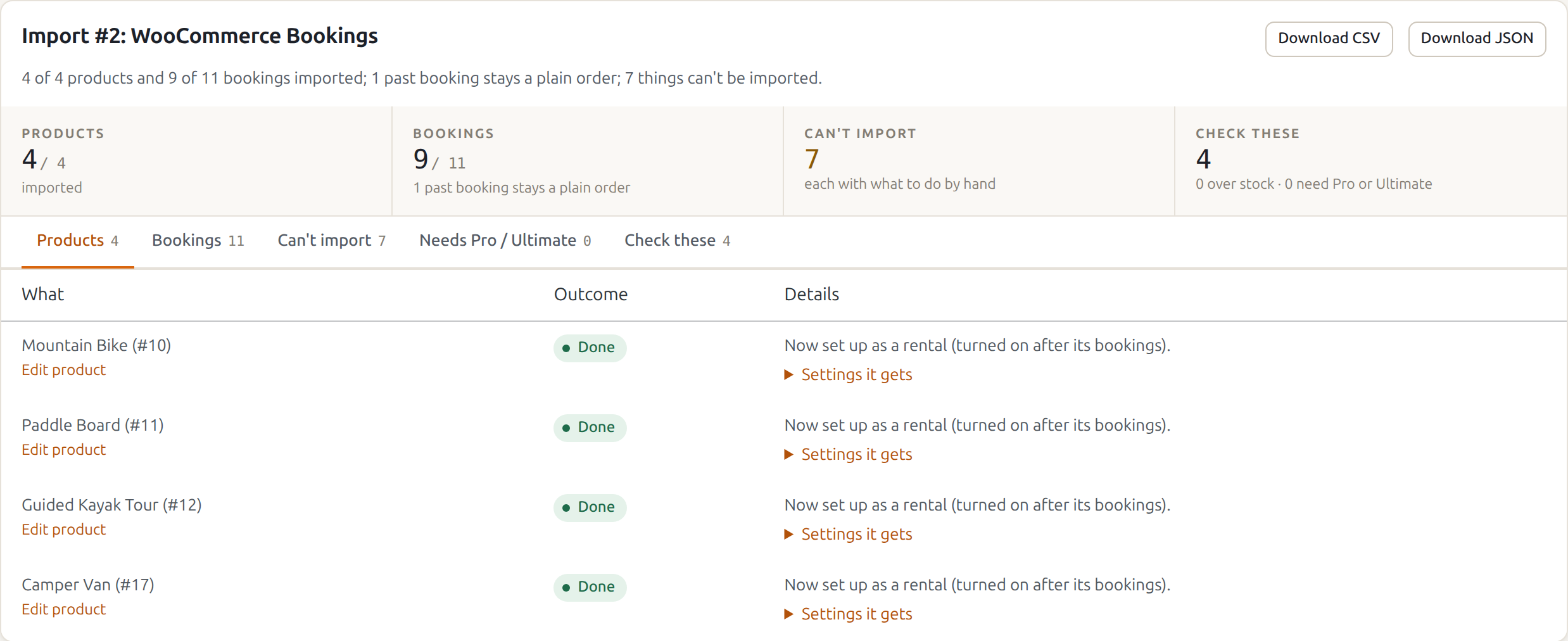
When it is done, the products say Done and the summary says what was imported.
What the import changes #
- Each product becomes a rental with the settings from the report. The rental is switched on after its bookings are in, so its dates are never shown free in between.
- Each booking still to come is added to its order item, with the rental dates. The order itself isn’t saved again: its status, totals and payment stay as they are, and no emails go to your customers.
- The other plugin and its data aren’t touched.
After the import #
- Open an imported product on your site and check the calendar: booked dates are blocked, closed days are closed.
- Work through the Can’t import and Check these tabs of the report.
- Set your opening hours and other store-wide settings under Rentals › Settings if the report asks for them.
- When you are happy, deactivate the other plugin. Keep it installed for a while if you like: the import doesn’t need it any more.
While the other plugin stays active, imported products show only the Rentals & Bookings calendar. The page for each plugin says how.
Run it again #
You can run a dry run and an import again at any time, for example when new bookings came in through the old plugin after your import. The new run picks up only what changed: new bookings, and products you hadn’t imported yet. Products and bookings that are already imported and unchanged are left alone.
Roll back an import #
The report of an import has a Roll back button.

Rolling back puts every product back as it was before the import and removes the bookings the import added; the orders are as they were. Then you can import again.
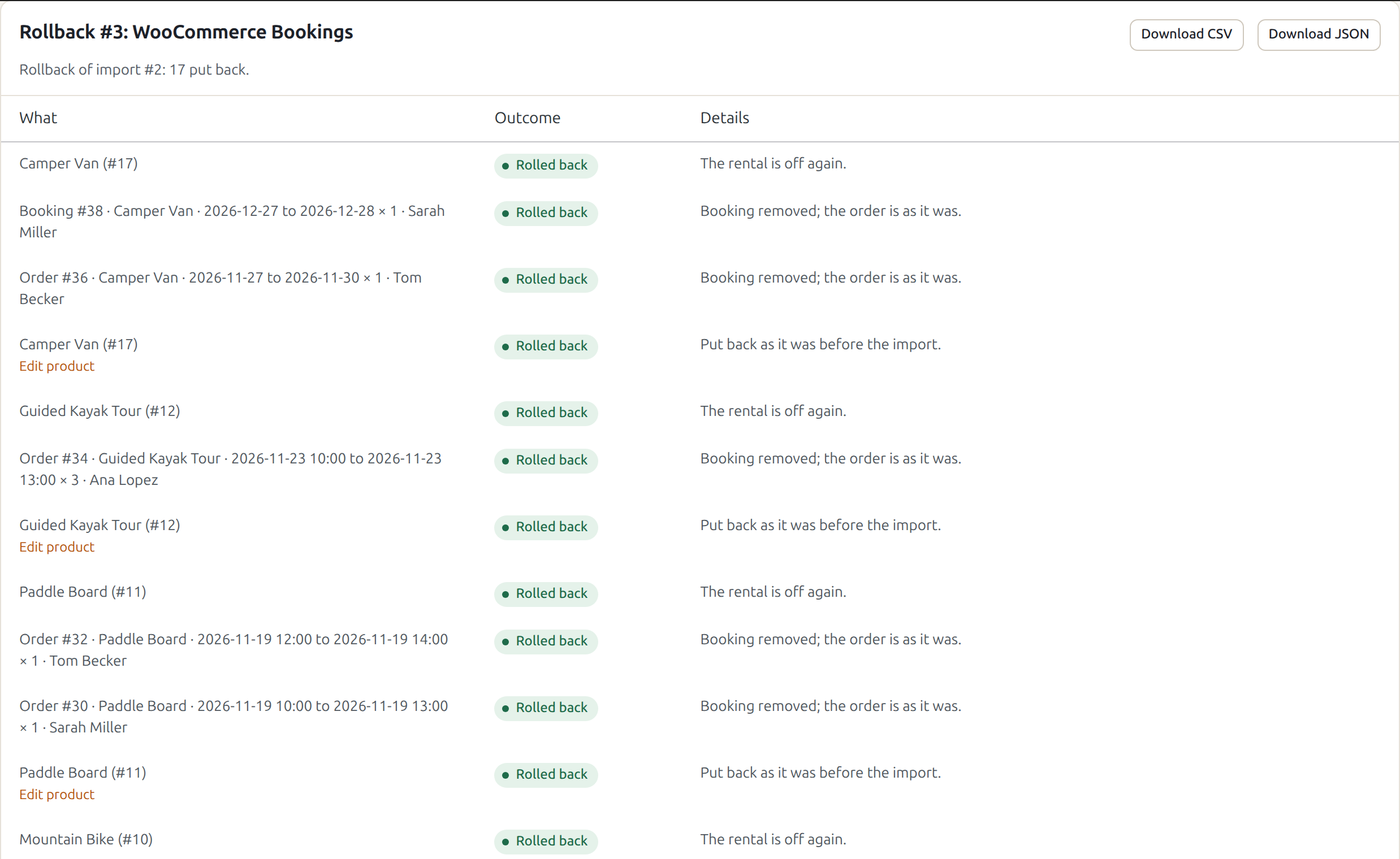
A product you changed after the import, or one with a booking you sent or took back since, is kept as it is, with its bookings, and listed as kept. That way a rollback never undoes work you did after the import.
When a later import changed the same products, roll that one back first. The screen says which, for example “Import run #5 changed the same products later: roll that one back first.”
Runs so far #
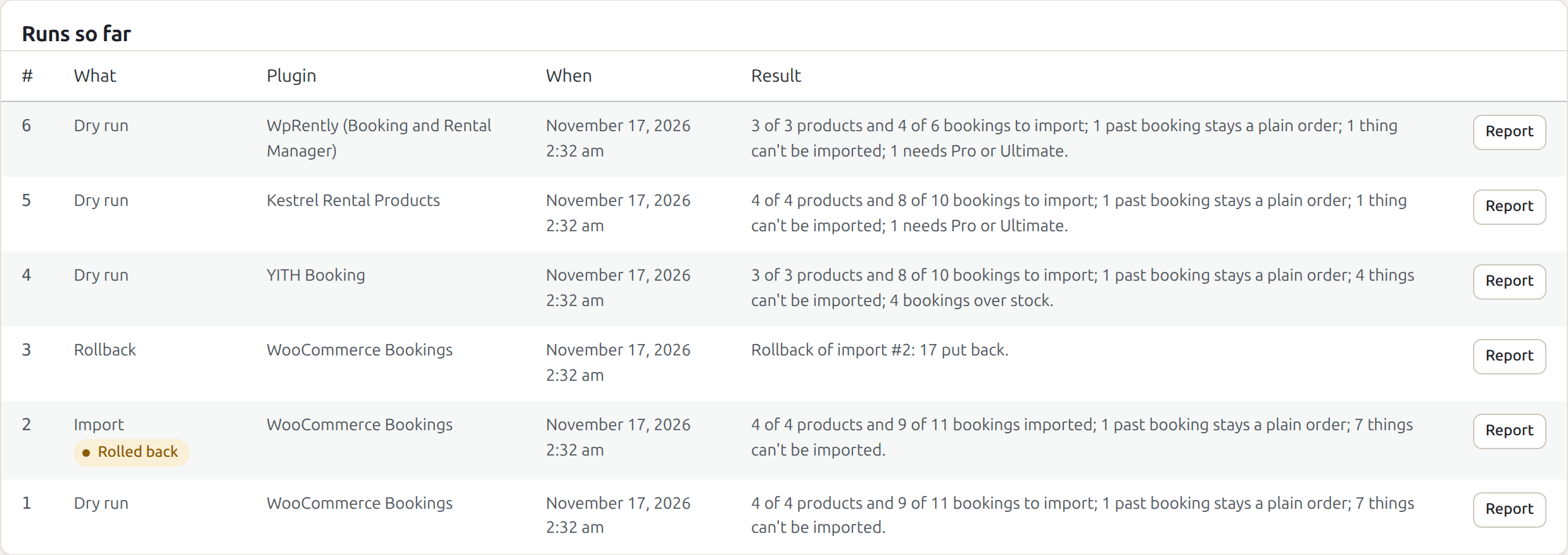
Every dry run, import and rollback is listed at the bottom of the screen, newest first, with its result. Report opens it again. An import that was rolled back says Rolled back.
What needs Pro or Ultimate #
The importer never blocks an import for a missing package. What a higher package would hold is listed on the Needs Pro / Ultimate tab and left out; the rest of the product is imported.
| From the other plugin | Needs | With it active |
|---|---|---|
| Security deposit (Kestrel Rental Products, WpRently, RnB) | Security Deposits, in Pro and Ultimate | Imported onto the product |
| Stock per location (WpRently) | Multi Location Inventory, in Ultimate | Listed; set the stock per location by hand |
If you activate Security Deposits later, roll the import back and run it again, or set the deposit on the product by hand.
With WP-CLI #
The same import runs on the command line, which suits a big shop or a staging site:
wp sibooking import detect
wp sibooking import dry-run --source=wcb
wp sibooking import run --source=wcb --yes
wp sibooking import runs
wp sibooking import report 12 --format=csv > report.csv
wp sibooking import rollback 12 --yes
The sources are wcb (WooCommerce Bookings), yith, kestrel and wprently. --products=10,11 imports only those products (the other plugin’s product ids), and --no-settings leaves the store-wide closed days out. run asks about the backup unless you add --yes. An interrupted run carries on with wp sibooking import resume <run>.


