
Multi Location Inventory is a separate add-on for Sales Igniter Rentals & Bookings for WooCommerce. This page covers what it needs, how to install it, how to enter your licence key, and what happens if you switch it off.
Requirements #
| What | Version |
|---|---|
| Sales Igniter Rentals & Bookings for WooCommerce Regular | 1.0.74 or newer (it includes Lite 1.0.10) |
| WooCommerce | 8.0 or newer |
| WordPress | 6.6 or newer |
| PHP | 8.1 or newer |
Multi Location Inventory builds on Regular’s product locations, maps, address lookup and catalogue search, so it does not run on the free Lite plugin alone. High-Performance Order Storage and the older order storage both work.
Install the plugin #
- Download the Multi Location Inventory zip from your account on rentalbookingsoftware.com.
- In your WordPress admin go to Plugins > Add New > Upload Plugin, choose the zip and click Install Now.
- Click Activate.
- Go to Locations > Locations and answer the question at the top of the screen. See Setting Up Locations.

If activation is refused #
The add-on checks for the Regular edition when you activate it. If Regular is missing, inactive or too old, the add-on switches itself off again and shows one message:
- “Sales Igniter Multi Location Inventory was not activated.” Activate the Regular edition first, then activate Multi Location Inventory again.
- “Sales Igniter Multi Location Inventory is not running yet.” Regular is installed but older than 1.0.74, or its base plugin is too old. Update Regular (it updates the base plugin with it), and Multi Location Inventory starts by itself.
Enter your licence key #
The licence panel is at the bottom of Locations > Locations > Settings. Only administrators see it.
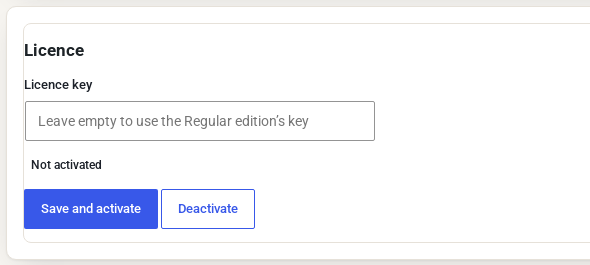
- Paste the key from your account on rentalbookingsoftware.com into Licence key.
- Click Save and activate. The status changes to Active, and updates then arrive in Dashboard > Updates with your other Sales Igniter plugins.
Bought it in a bundle? Leave the field empty. The add-on then uses the key you entered in the Regular edition, so one bundle key covers both.
To move the licence to another site, click Deactivate on the old site first.
Where everything is after installing #
| Menu item | What it is |
|---|---|
| Locations > Locations | Your locations, the settings link and the licence |
| Locations > Stock by location | Units and spares for every product at every location, with alerts |
| Locations > Transfers | Moving units between locations |
| Locations > Reports | Usage, one-way flows, transfers and days at each location |
| Locations > Franchises | Franchise owners and their locations (only if you use franchises) |
| Product Inventory tab | The Stock by location grid for each product |
Stock by location, Transfers and Location reports appear once you have two active locations that hold stock.
Switching it off #
- Deactivating the add-on puts the shop back to one shared stock per product. Your locations, the stock at each location and the location on every booking and order line are kept, and come back when you activate it again.
- Deleting the plugin also keeps that data in the database, so a reinstall finds it.


