
This page is for staff. It covers finding quotes, starting one yourself and measuring how your quotes perform. Pricing and sending an offer are in The quote editor and offers.
The quotes list #
Go to WooCommerce › Quotes. The status links across the top count the quotes in each status: All, New request, Changes requested, Sent, Accepted, Ordered, Draft, Expired, Declined, Rejected and Cancelled. A status with no quotes is hidden. Expiring soon lists sent offers that expire within three days; their status reads “Sent, expiring”.
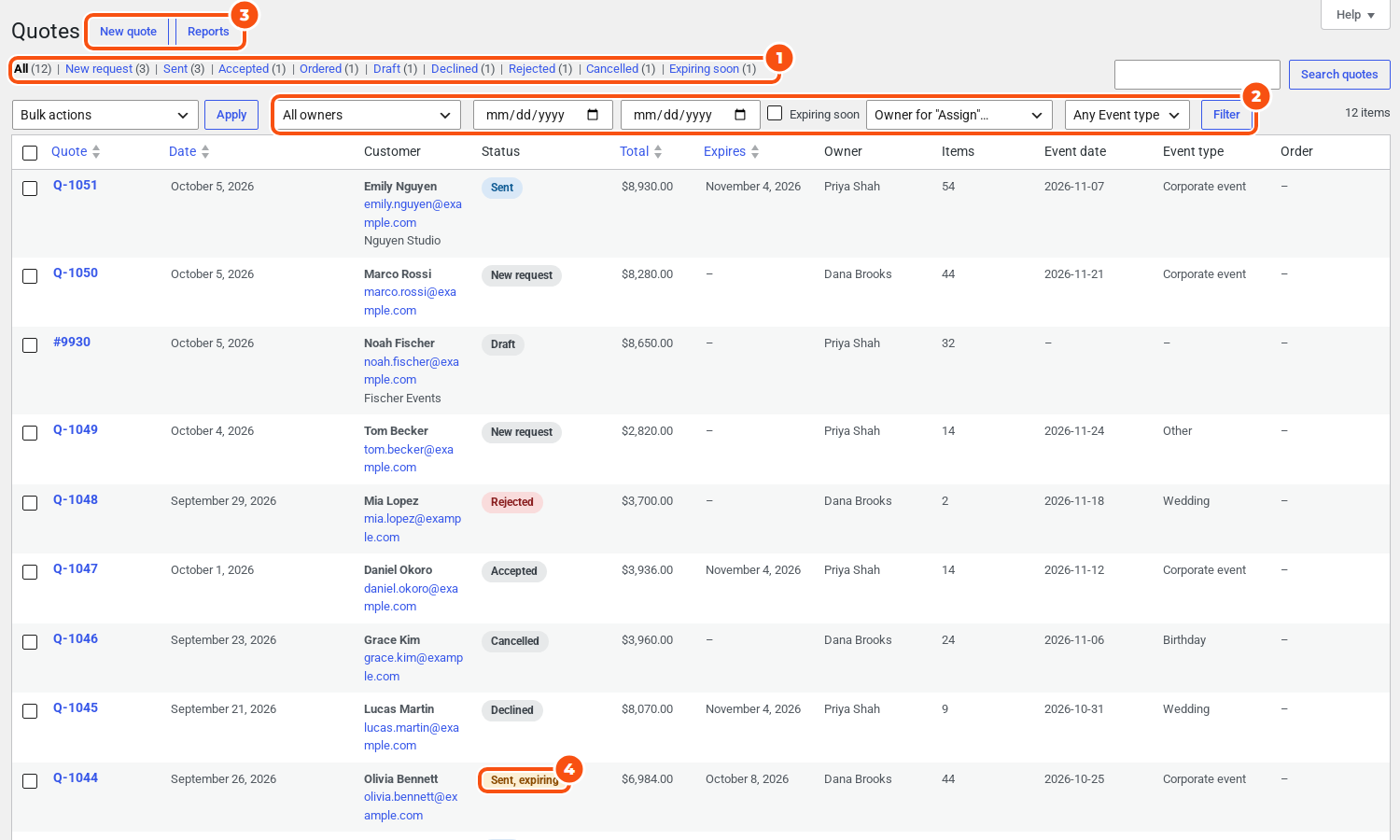
The columns are Quote, Date, Customer, Status, Total, Expires, Owner and Items, then any custom field you marked Show on the quotes list, then Order. You can sort by Quote, Date, Total and Expires. The Items column shows the total quantity.
Above the table:
- Search quotes finds quotes by number, customer name, email or company, item name or SKU, and custom-field answers.
- Pick an owner (All owners, My quotes, Unassigned, or a named person if you can see all quotes), a date range, tick Expiring soon, then click Filter. The dates filter on the day the quote was created.
- Drop-down and Checkbox custom fields shown on the quotes list add a filter of their own (“Any Event type”, for example).
Bulk actions #
Tick quotes, choose an action and click Apply:
- Send offers: only for new requests, drafts and change requests. Items without a price of yours go at their catalog price, and each customer gets the “Quote ready” email. A quote with an item that has no catalog price is not sent, and the list tells you which one.
- Extend expiry: sent quotes get a new expiry (the offer validity from today); accepted quotes get a new payment deadline (the payment deadline hours from now).
- Cancel: cancels the quotes without emailing the customers. Cancel from the quote editor to email them.
- Assign to the owner chosen above: first pick the person in the Owner for “Assign”… list beside the filters, or Nobody (unassign). Only staff who can see all quotes have this action.
- Delete drafts: deletes drafts only. Sent and closed quotes are your history and are kept (“… is not a draft and was kept.”); cancel them instead.
- Export to CSV: downloads quotes-YYYY-MM-DD.csv with the columns Quote, Status, Submitted (UTC), Name, Email, Company, Phone, Total, Currency, Expires (UTC), Owner, Order and Source, then one column per request-form field.
Starting a quote yourself #
New quote #
Click New quote next to the Quotes heading.
- Under Existing customer, search for the customer. Or type a Name and Email, plus Company and Phone if you like.
- If the customer left items in their cart while logged in, you can tick Start with the items in the customer’s saved cart. Prices start at today’s catalog prices.
- Click Create quote. You add the items and prices on the next screen.
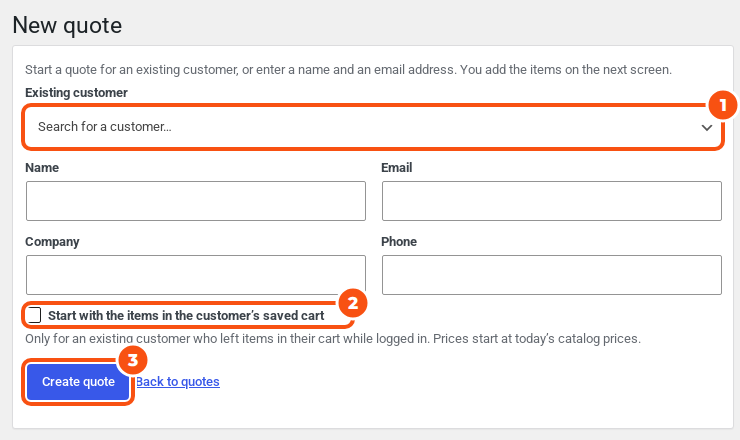
A quote you start yourself is a Draft and you are its owner. The automatic owner rules only apply to requests that customers send.
From an order #
- On an order, choose the order action Start a quote from this order.
- In the orders list, tick orders and choose the bulk action Start quotes from these orders (up to 20 at a time).
Each draft copies the order’s customer and items at today’s catalog prices, not the order’s prices, and the order gets the note “Quote … was started from this order.” Check the items and prices, then send the offer.
Reports #
Go to WooCommerce › Quotes and click Reports. Choose Last 7 days, Last 30 days (the default), Last 90 days or Last 365 days, or pick two dates and click Show.
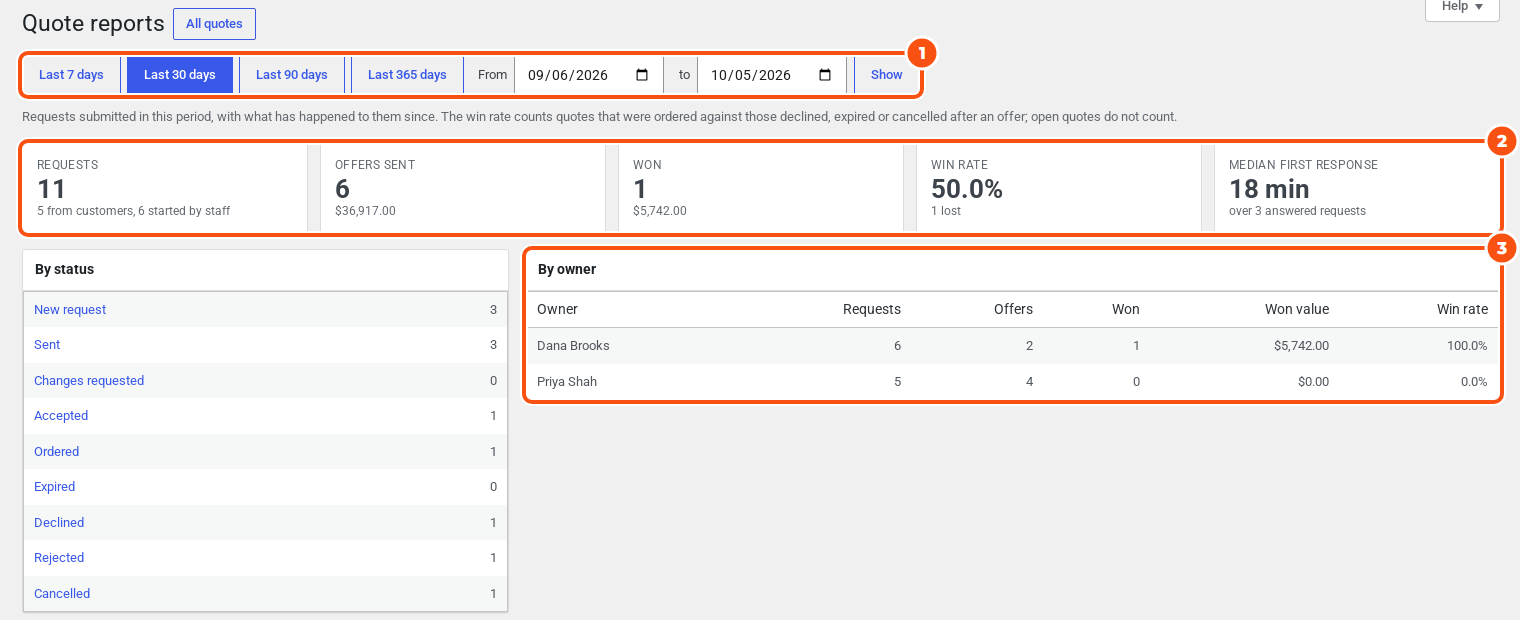
| Card | What it counts |
|---|---|
| Requests | Requests submitted in the period, split into those from customers and those started by staff |
| Offers sent | How many of them got an offer, and the offers’ value |
| Won | How many were ordered, and their value |
| Win rate | Won against lost (declined, expired or cancelled after an offer). Open and rejected quotes don’t count. |
| Median first response | For customer requests: the time to your first offer or first message to the customer |
Below the cards, By status and By owner break the same quotes down. Only quotes submitted in the period count, and a quote you started yourself counts once it is sent. Staff who cannot see all quotes see only their own and unassigned quotes. Values in different currencies are simply added together.
Good to know #
- The Quotes menu bubble counts new requests and change requests.
- Who sees which quotes, and the capabilities behind it: Emails, privacy and developer notes.


