
Some rentals should not be paid before you have looked at them: a bouncy castle on a short notice, a big wedding order, a delivery far out of town, a customer you have never rented to. With booking requests the customer goes through the normal checkout, but nothing is charged. You look at the request, then approve it (the customer gets a link to pay) or decline it with a reason.
Booking requests are in Rentals & Bookings Regular and every plan above it.
Turn it on #
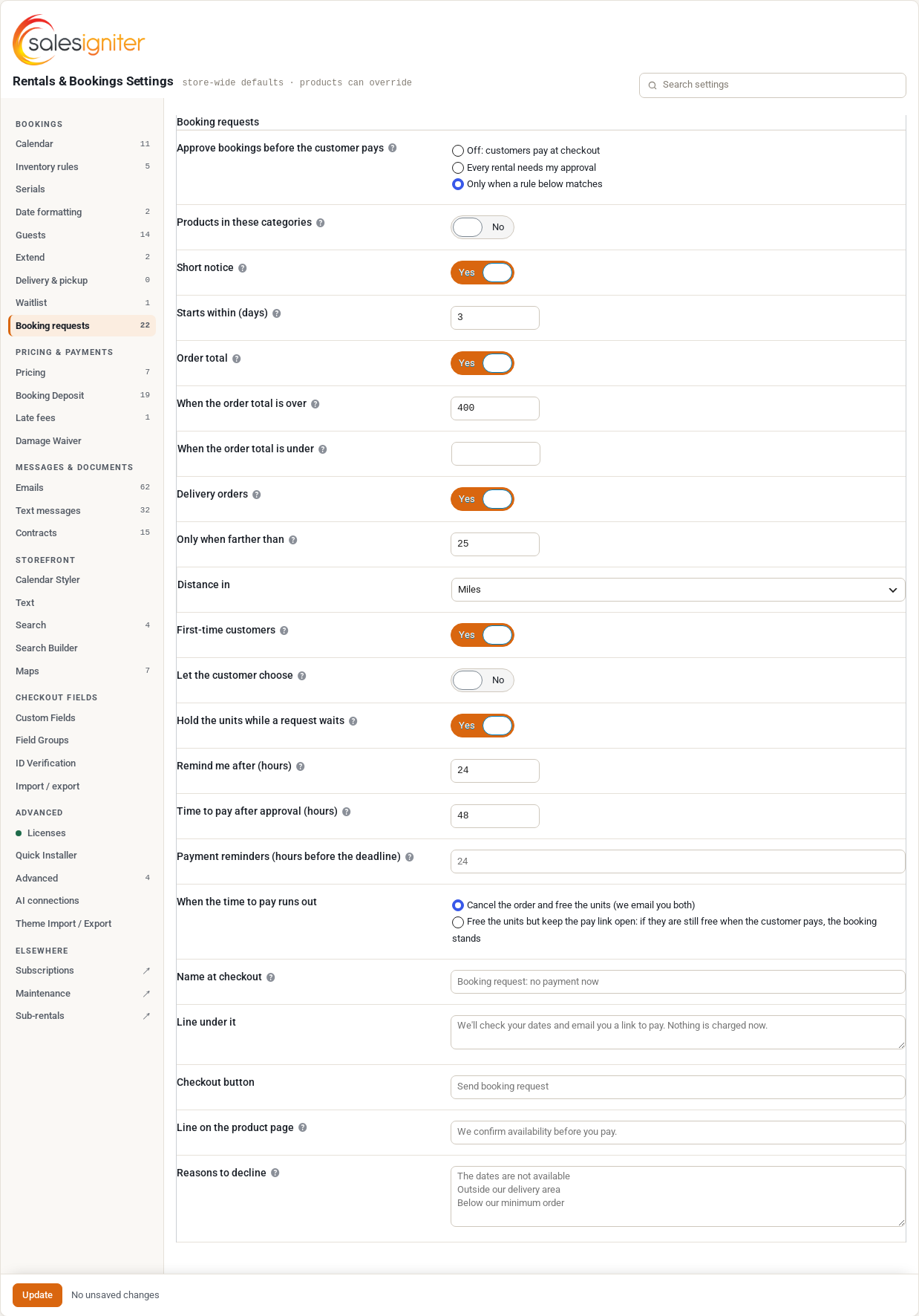
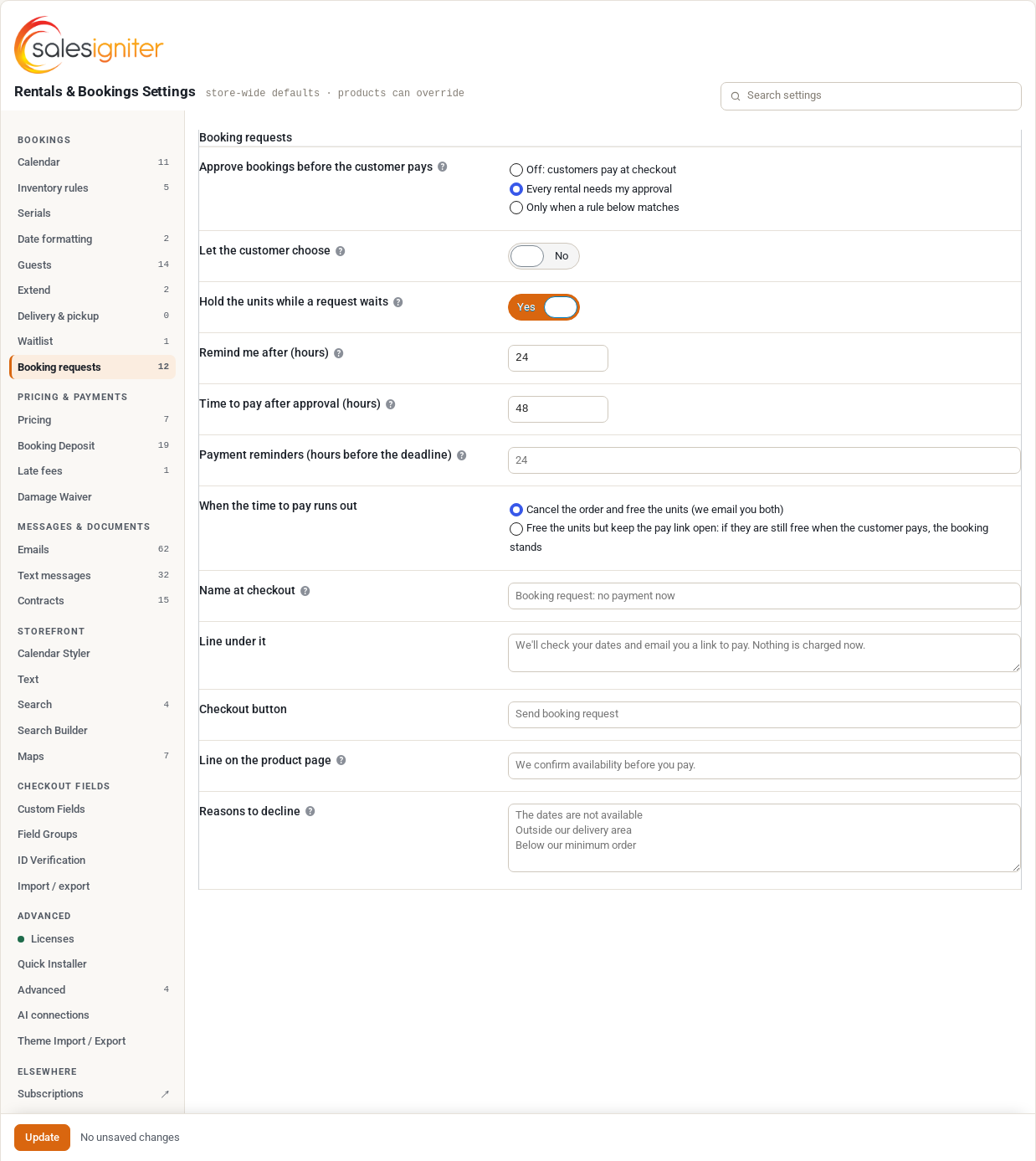
Go to Rentals > Settings > Booking requests and pick when orders need your approval:
- Off: customers pay at checkout (the default).
- Every rental needs my approval.
- Only when a rule below matches. Tick the rules you want. When any ticked rule matches, the whole order becomes a request:
- Products in these categories: rentals from the categories you pick.
- Short notice: the rental starts within the number of days you set (0 = today).
- Order total: over an amount, under an amount, or both.
- Delivery orders: every delivery, or only farther than a distance (the distance needs Delivery by Distance).
- First-time customers: the account or email has no paid order with you yet.
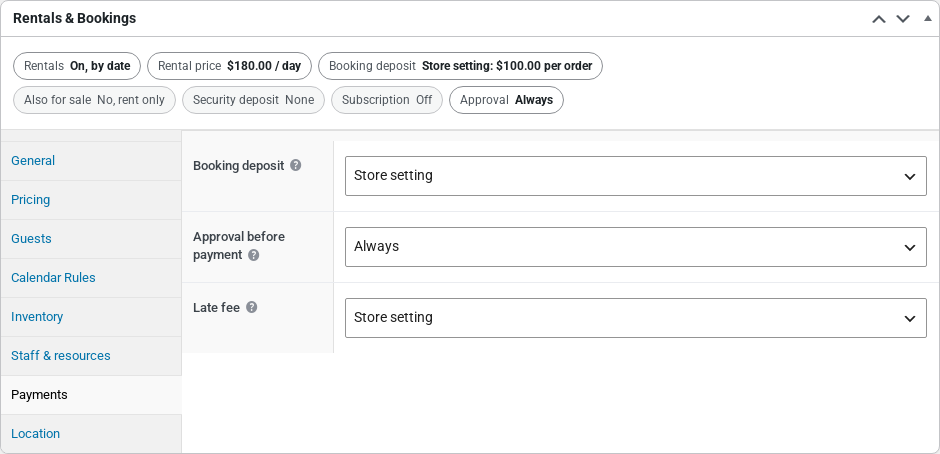
One product can have its own answer. Open the product, Payments tab, Approval before payment: Store setting, Always (any order with it is a request, even under “Only when a rule matches”) or Never (it never needs approval).
More settings #
- Let the customer choose (off by default): the request shows as one more way to pay, “Send booking request, pay after we confirm”, next to your normal ones. The customer can still pay now and reserve straight away.
- Hold the units while a request waits (on by default): nobody else can book them until you answer. Off: several customers can ask for the same units and the first request you approve gets them.
- Remind me after (hours): a request still waiting this long is in a reminder email to you, then once a day.
- Time to pay after approval (hours): the pay link says “Pay by” this moment.
- Payment reminders: hours before the deadline, such as “24, 2”.
- When the time to pay runs out: cancel the order and free the units, or free the units but keep the pay link open.
- The words at checkout, the button, the line on the product page and your Reasons to decline.
What the customer sees #
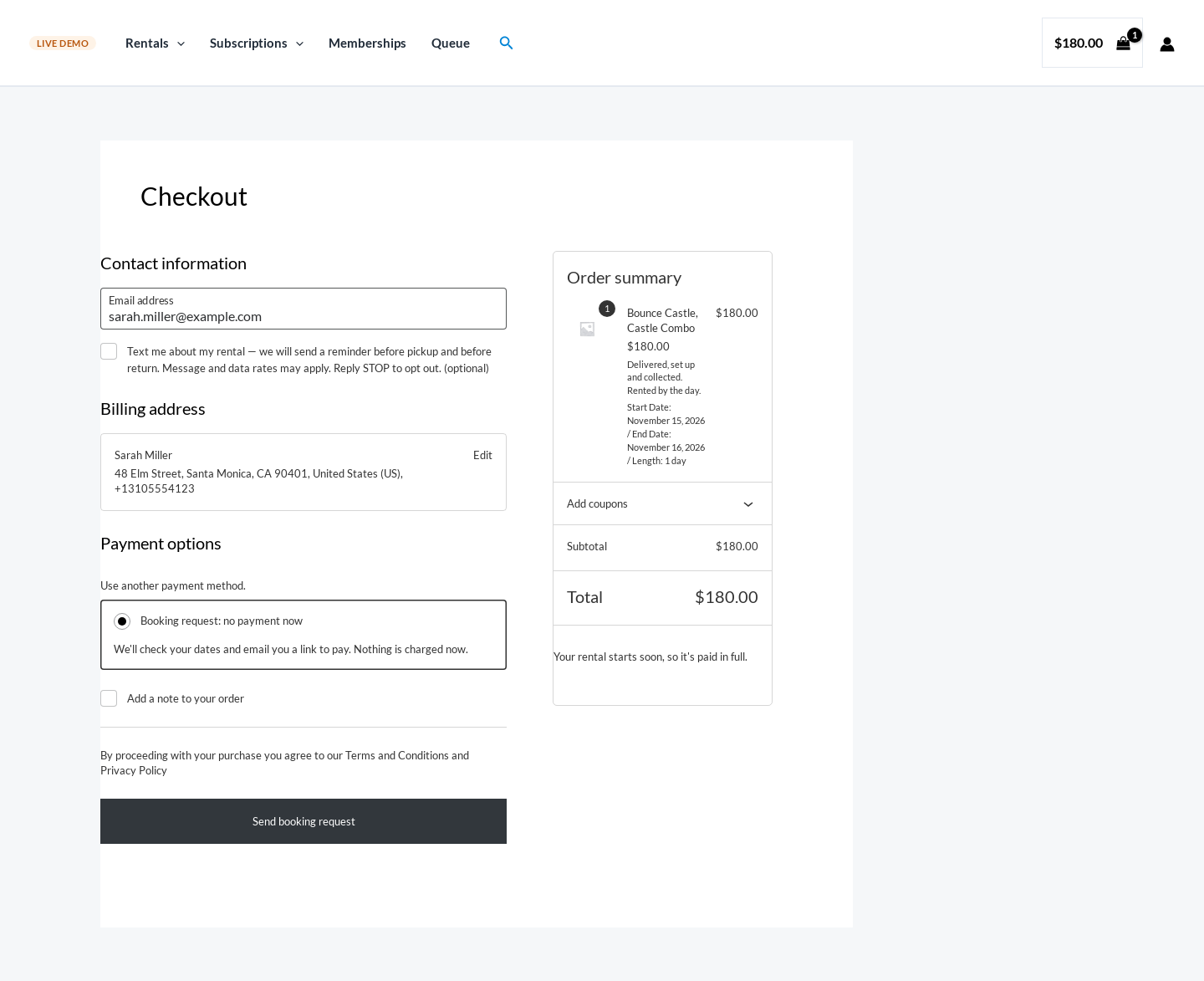
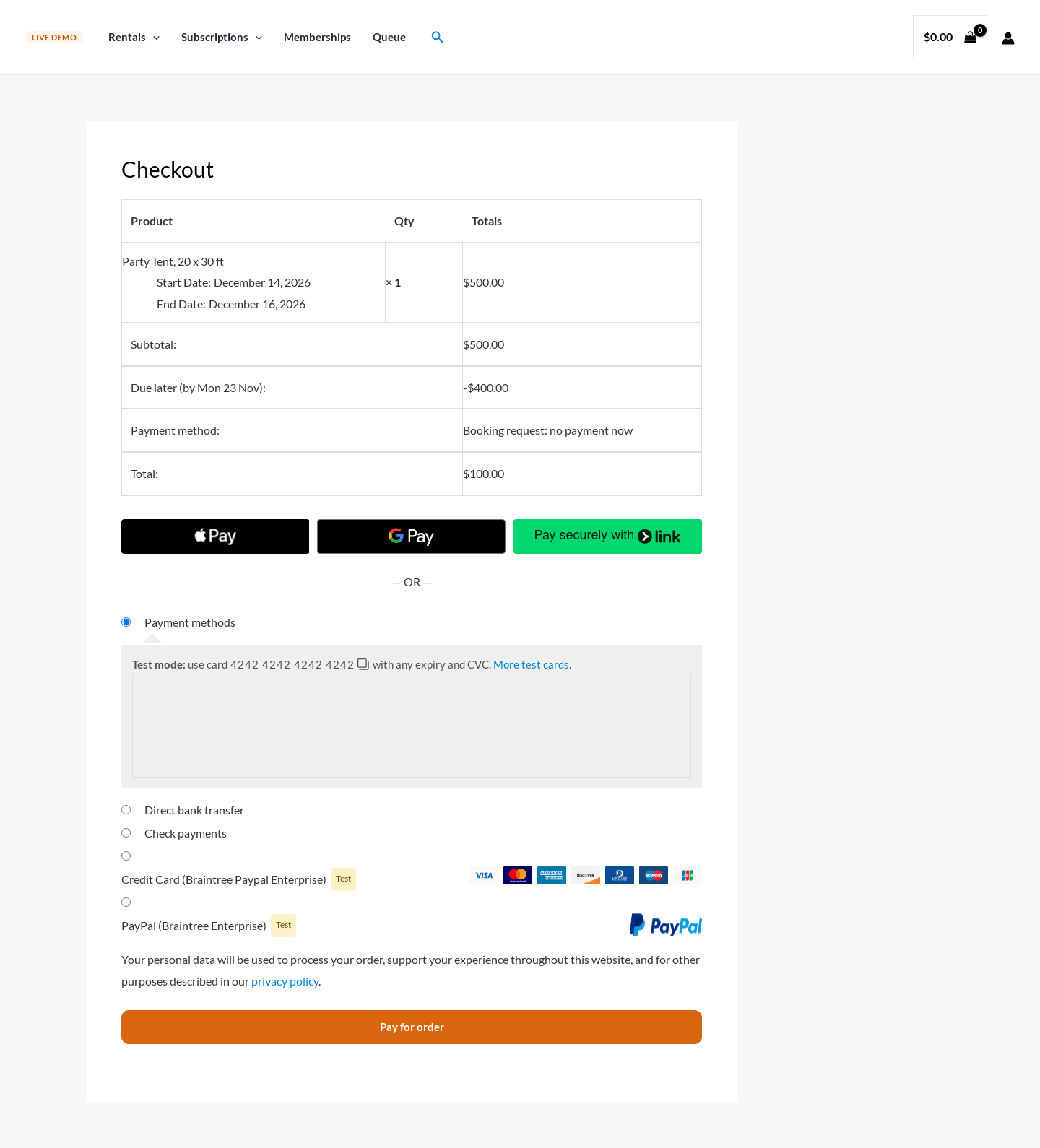
At checkout the request is the way to pay (“Booking request: no payment now”) and the button says “Send booking request”. Express buttons (Apple Pay, Google Pay, PayPal) are hidden for these carts, because nothing may be charged yet (with “Let the customer choose” they stay, since paying now is allowed). The thank-you page and the email say the request was received, that nothing was charged and that the dates are held while you check.
Approve or decline #
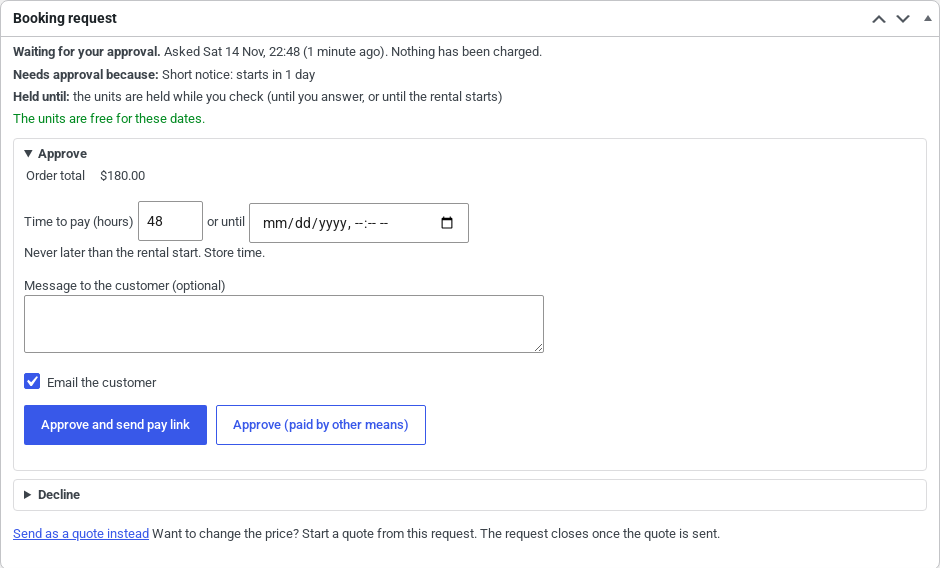
Requests wait under WooCommerce > Orders with the status Awaiting approval, and on the Rentals dashboard under “Needs you”. Open one: the Booking request box says why it needs approval (for example “Short notice: starts in 1 day”), until when the units are held, and whether they are still free.
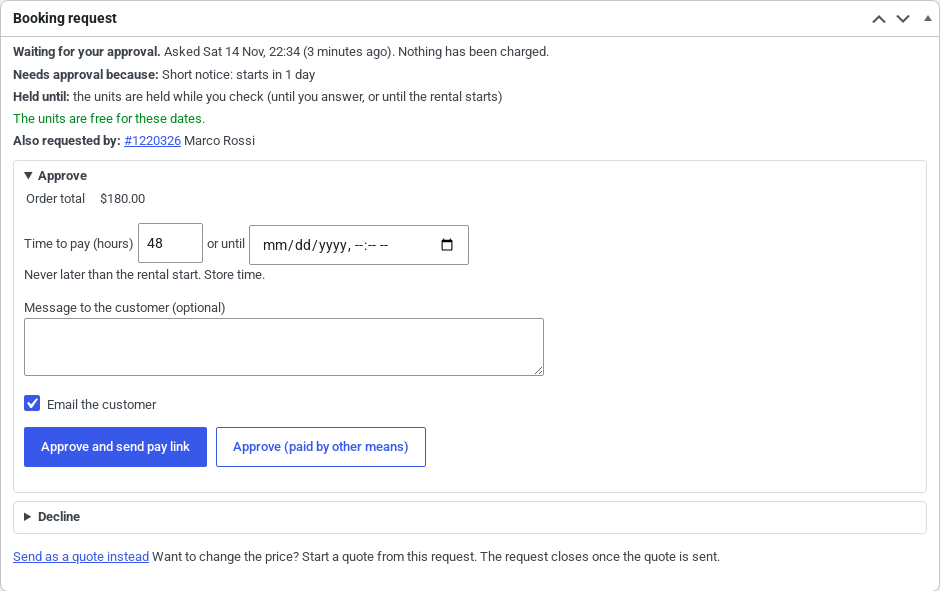
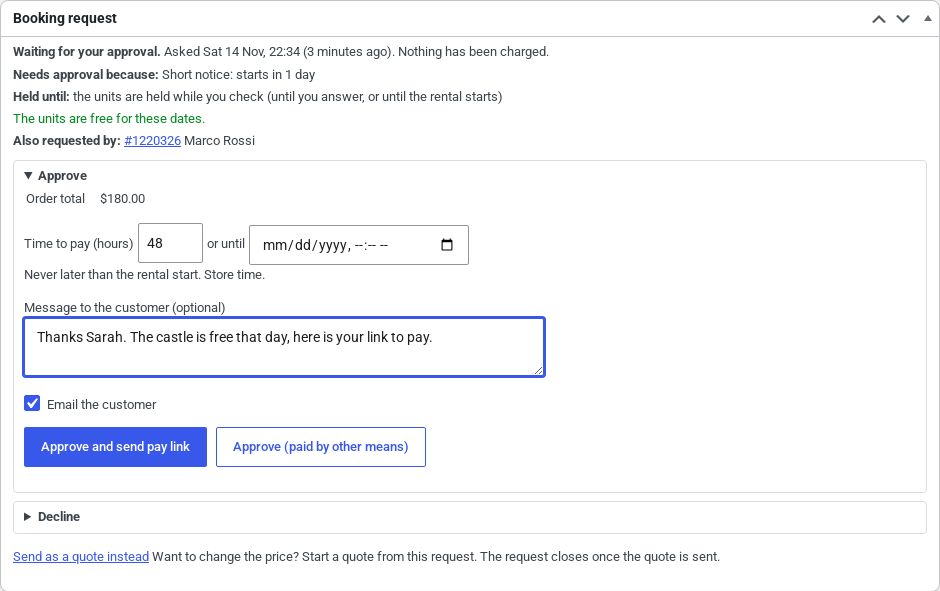
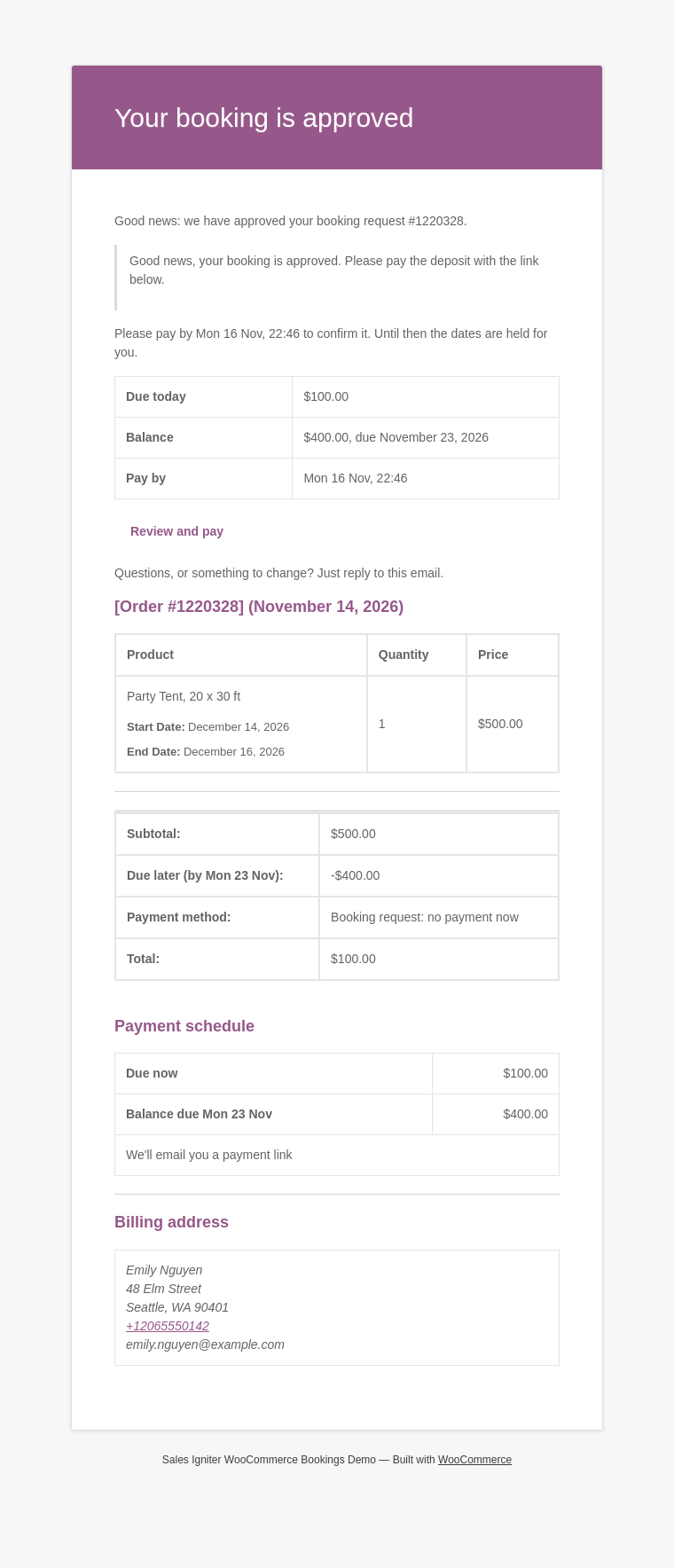
- Approve and send pay link: you can change the time to pay and add a message. The customer gets “Your booking is approved” with a Review and pay button. With a booking deposit, the email and the pay page show only the deposit as Due today and the balance with its date.
- Approve (paid by other means): for cash, bank transfer or payment at pickup. The order goes On hold and keeps its units.
- Decline: pick a reason (and add your own words if you like). The customer gets the reason by email and the units are free again.
- Send as a quote instead: with Request a Quote & Hide Price, start a quote from the request to change the price. The request closes once you send the quote.
From the Orders list you can also approve or decline several requests at once (bulk actions).
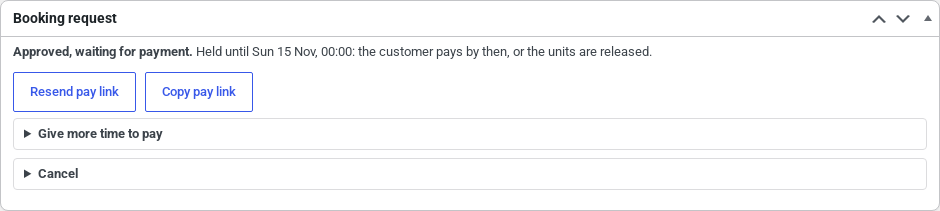
After approval the box lets you resend or copy the pay link, give more time to pay, or cancel.
Timers #
- A request nobody answers closes by itself when its rental starts, and the customer is told.
- An approved request not paid by its “Pay by” moment is cancelled (you both get an email), or, with “keep the pay link open”, its units are freed and the booking stands if they are still free when the customer pays.
- A guest opens the pay link straight from the email; a customer with an account signs in, as usual.
Emails #
Eight emails, each with its own switch, subject and heading under WooCommerce > Settings > Emails: request received (customer), new booking request (store), booking approved, payment reminder, request declined or closed, booking released (customer), approved booking released (store), and the store’s daily list of requests still waiting.
Booking requests or Request a Quote? #
The two answer different questions. Request a Quote is about the price; booking requests are about whether you can take the booking.
| Request a Quote (add-on) | Booking requests | |
|---|---|---|
| Question it answers | “What will this cost?” | “Can I take this booking?” |
| Price | Prices can be hidden. The customer asks, and you set or change prices per line, add fees, and send a quote. | Your normal listed price. You don’t change it. |
| Customer path | Asks for a quote, accepts it, then pays the quoted price (at checkout or through a payment link). | Normal checkout, but nothing is charged. |
| Your action | Write the quote. | Approve (the customer gets a pay link), approve as paid by other means, or decline with a reason. |
| Which orders | Products and customers you choose with rules (product, category, tag, role, guest). | Every order, or only when a rule matches (categories, short notice, order total, delivery distance, first-time customers). Each product can also be set to Always or Never. |
| Package | Separate add-on (Request a Quote & Hide Price). | In Regular and every plan above it. |
“Send as a quote instead” joins the two. It turns a request into a quote when the price needs to change, and needs Request a Quote.
When to add Request a Quote #
Add Request a Quote & Hide Price (as well as booking requests, or instead of them) when:
- your prices change per job: events, setup and delivery priced per site, long or custom rental periods;
- business customers need a written quote before they order;
- you want to show products without a price;
- big orders get a discount or extra fees from you;
- you quote several items together, including bundles and variable products.
Booking requests alone are enough when your prices are fixed and you only need to check the dates, the customer or the logistics.
For developers #
REST (staff only): POST /wp-json/wc-sibooking/v1/orders/{id}/approve, /decline and /extend. Filters: sibooking_request_mode, sibooking_request_rules, sibooking_request_holds, sibooking_request_notify and more in the plugin’s hooks list.


