
How a bundle’s stock is counted, what the cart checks, and how several listings can share one stock.
Stock of the items #
A bundle is available when every required item can supply its minimum quantity. The page shows “In stock”, “Only N left in stock” or “N in stock”, counted from the scarcest required item.
Each item line in an order reduces the stock of its own product.
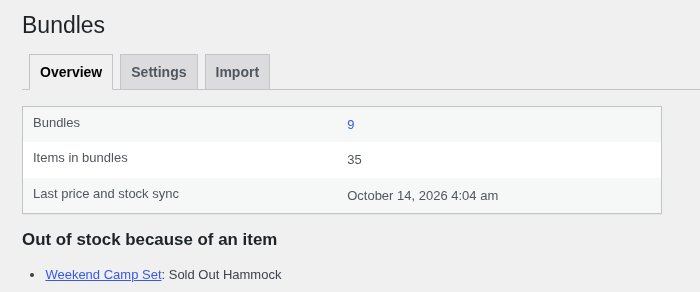
When an item’s stock, status or backorder setting changes, the bundles that use it are re-counted in the background. The Overview tab shows the last sync and any bundle that is out of stock because of an item.
The bundle’s own stock #
Tick Manage stock in the Inventory tab to limit sales on top of the items. Leave it off to let the items decide.
Backorders #
Backorders on an item are respected.
Low stock notices #
The usual low stock and no stock notices go out when a bundle’s count crosses the threshold.
What the cart checks #
The product page and the cart check, on the server:
- required items are chosen;
- each item is in stock, counting what the cart already holds;
- the size limit is met;
- quantities are within the limits;
- the picks agree with the rules.
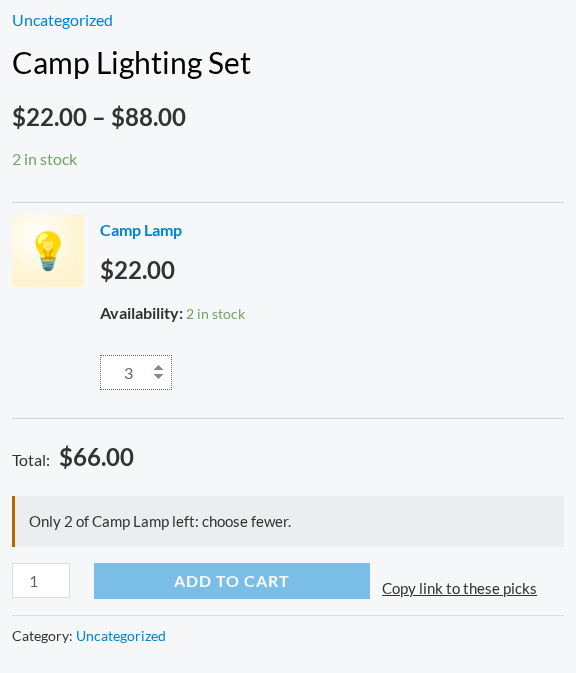
The messages say what is wrong, for example “Choose at least 3 items.” or “Only 2 of Lamp left: choose fewer.”
The same stock on several listings #
You can sell one stock under several product pages, each with its own name, price and text. The recipe uses one product that holds the stock and one bundle per listing.
The example: a firm owns ten skips and wants two pages, “Green waste skip hire” and “General waste skip hire”.
- Add a product “4.5m³ skip” with stock 10. Set its catalog visibility to Hidden if you do not want it listed on its own.
- Add a bundle “Green waste skip hire”. Add the skip as its only item, quantity 1.
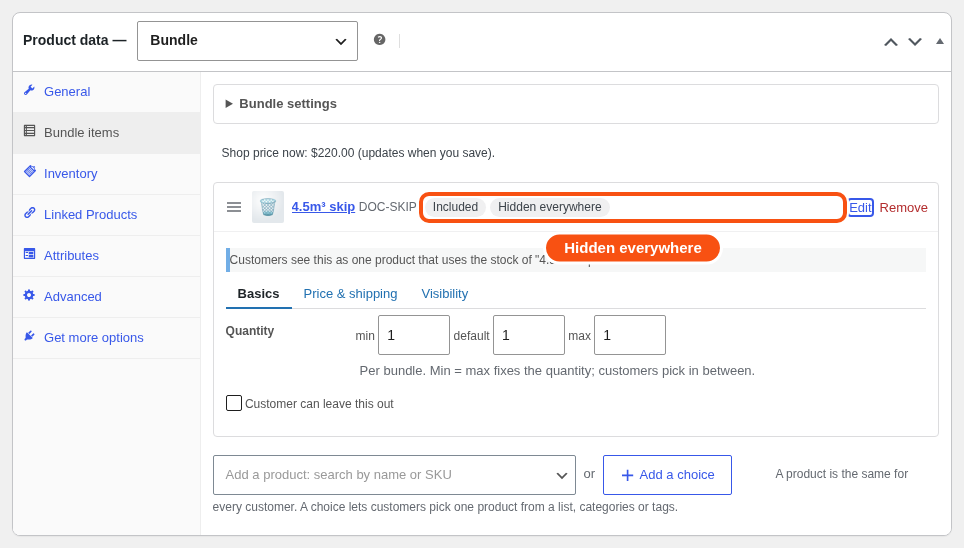
- Open the card, go to Visibility and switch the item off in all three places. The card says “Hidden everywhere”.
- Optionally type a short label such as “Green waste skip” in Title. It is a label for the item; customers do not see a hidden item.
- Leave the price on “Included in the bundle price”. Set the bundle’s own price on the General tab.
- Do not turn on Manage stock for the bundle. If you do, the card warns: “This bundle also manages its own stock, which limits this listing on top of the shared stock.”
- Repeat for “General waste skip hire” with the same skip.
The card shows: “Customers see this as one product that uses the stock of ‘4.5m³ skip’.”
Both listings now draw on the same ten skips. When ten are out on a date, both pages show it as sold out.
For rental stores, rates, calendar, turnover and serial numbers work the same way. See “Rental bundles”.


