
- The first question
- Your first location already exists
- Add a location
- The location section
- Address and contact
- Opening hours, closed days and special hours
- Outside opening hours, turnover and messages
- Delivery area and windows
- Public page and calendar feeds
- The other tabs
- Closing, archiving or deleting a location
Every store, depot or pick-up desk is a location. You set them up under Locations > Locations. This page walks through the first question, adding a location, and every section of the location screen.
The first question #
The first time you open Locations > Locations, it asks “How do your customers get their rentals?”. Pick the answer closest to your business:
- Counters, round trip: they collect and return at one of your stores.
- Delivery: you deliver and collect afterwards.
- Shipping: you send rentals by courier from the nearest branch.
- Car and van or Bikes and scooters: they may return somewhere else.
- Franchise: each store is owned by a franchisee.
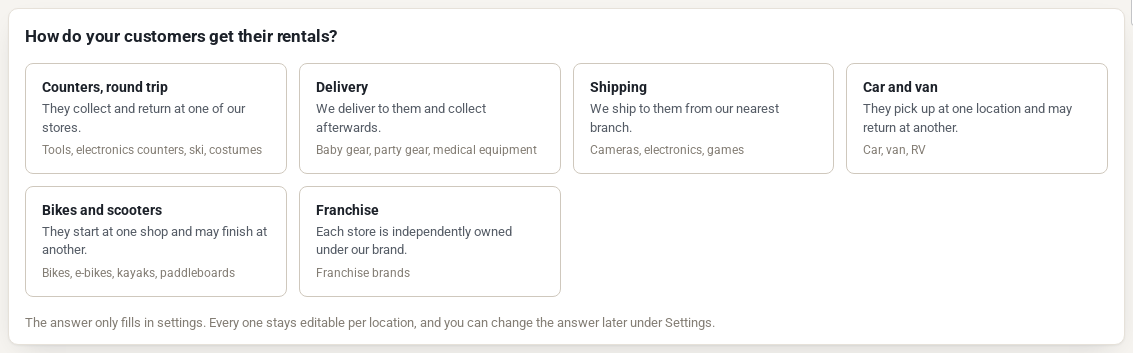
The answer only fills in starting settings: how new locations hand over rentals, the words customers read (for example “Store” and “Pick-up at”), the picker style and whether one-way returns are on. You can change the answer later under Location settings, and every setting stays editable.
Your first location already exists #
The add-on creates a default location from your WooCommerce store address. Everything that has no location of its own counts there: your stock and bookings from before, and any stock change made outside the location screens. Open it and give it a proper name, such as the city or the store.
You can make another location the default from the list (hover over it and click Make default). The default location cannot be archived or deleted.
Add a location #
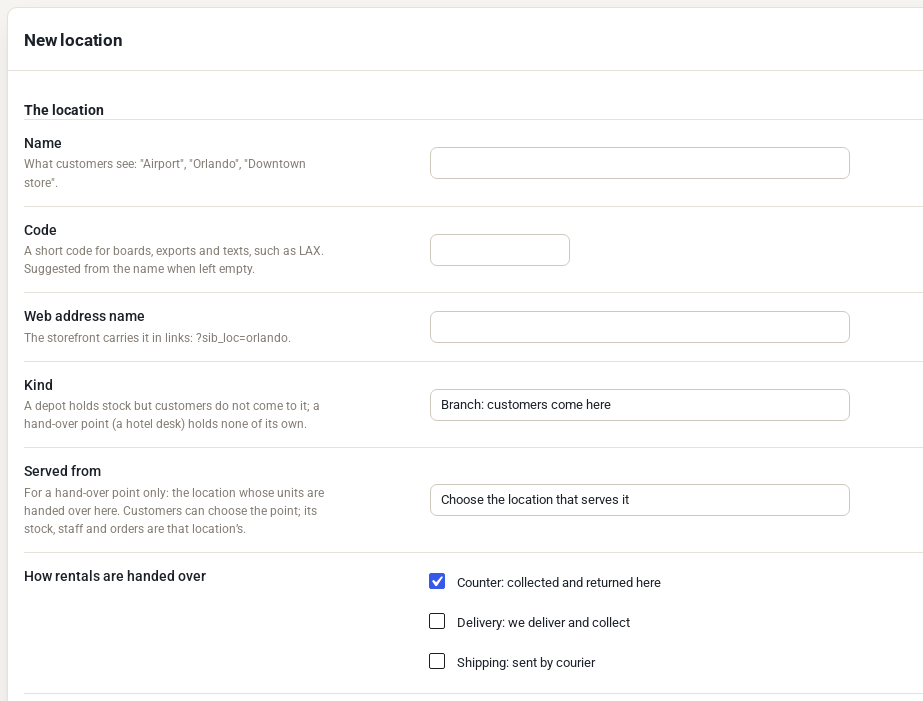
- Go to Locations > Locations and click Add location.
- Enter the Name customers will see, such as “Tampa” or “Downtown store”.
- Choose the Kind and how rentals are handed over.
- Fill in the address, contact details and opening hours (see below).
- Click Add location.
The location section #
| Field | What it does |
|---|---|
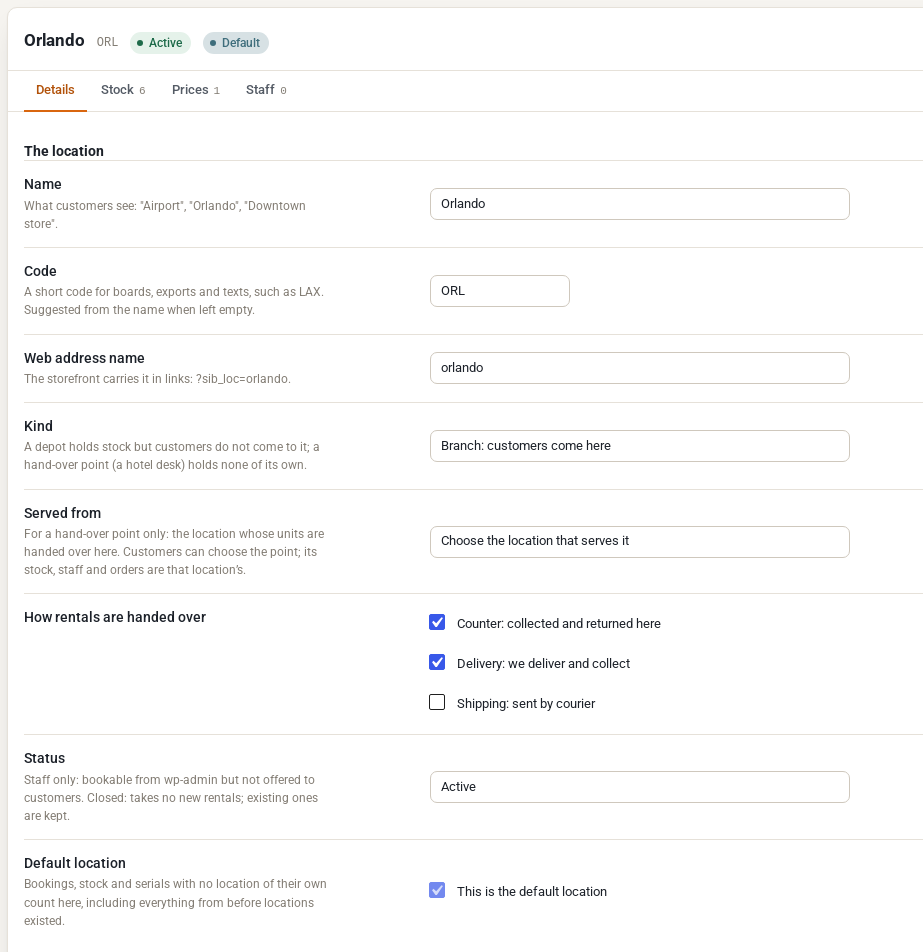
| Name | What customers see, in the picker, on the product page, in the cart and in emails. |
| Code | A short code such as TPA, used on staff screens, exports and texts. Left empty, it is suggested from the name. |
| Web address name | The store’s name in links, such as ?sib_loc=tampa. |
| Kind | Branch: customers come here. Depot: holds stock but customers do not visit; it delivers. Hand-over point: a desk with no stock of its own. |
| Served from | For a hand-over point only: the store whose units are handed over there. |
| How rentals are handed over | Counter (collected and returned here), Delivery (you deliver and collect) and Shipping (sent by courier). Tick all that apply. |
| Status | Active; Staff only (staff can book it from the admin, customers cannot); Closed (takes no new rentals, keeps the ones it has); Archived (retired). |
| Default location | Where everything with no location of its own counts. |
Hand-over points #
A hand-over point is a place where customers collect and return, such as an airport desk, a hotel lobby or a marina, served from one of your stores. It has its own address, hours and instructions, but no stock: availability, staff and orders belong to the store it is served from. On the product page customers see it under that store, for example “Orlando Airport desk (from Orlando)”.
To add one, set Kind to Hand-over point and choose the store in Served from.
Address and contact #
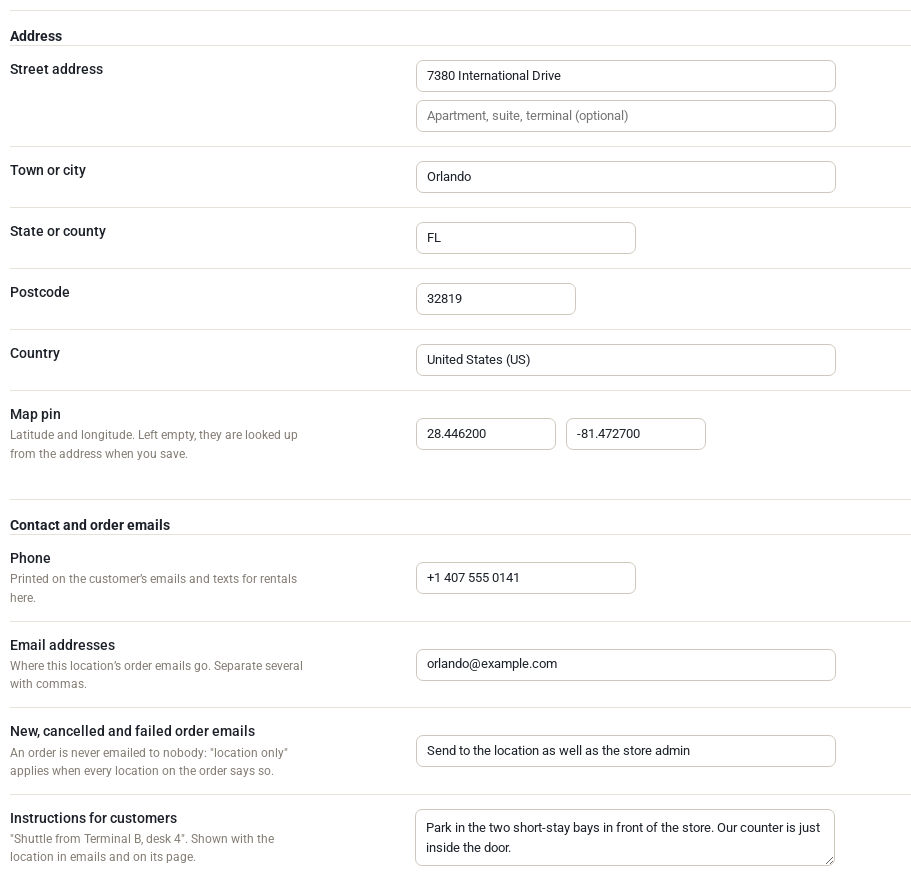
- Address: shown to customers with the location, on the product page, in emails and on the location page.
- Map pin: latitude and longitude. Leave them empty and they are looked up from the address when you save, using the map service set in Rentals & Bookings Regular.
- Phone: printed on customers’ emails and texts about rentals here.
- Email addresses: where this location’s order emails go. Separate several with commas.
- New, cancelled and failed order emails: send them to the location as well as the store admin, instead of the store admin, or not at all. An order is never emailed to nobody.
- Instructions for customers: such as parking or where to find the desk. Shown with the location in emails and on its page.
Opening hours, closed days and special hours #
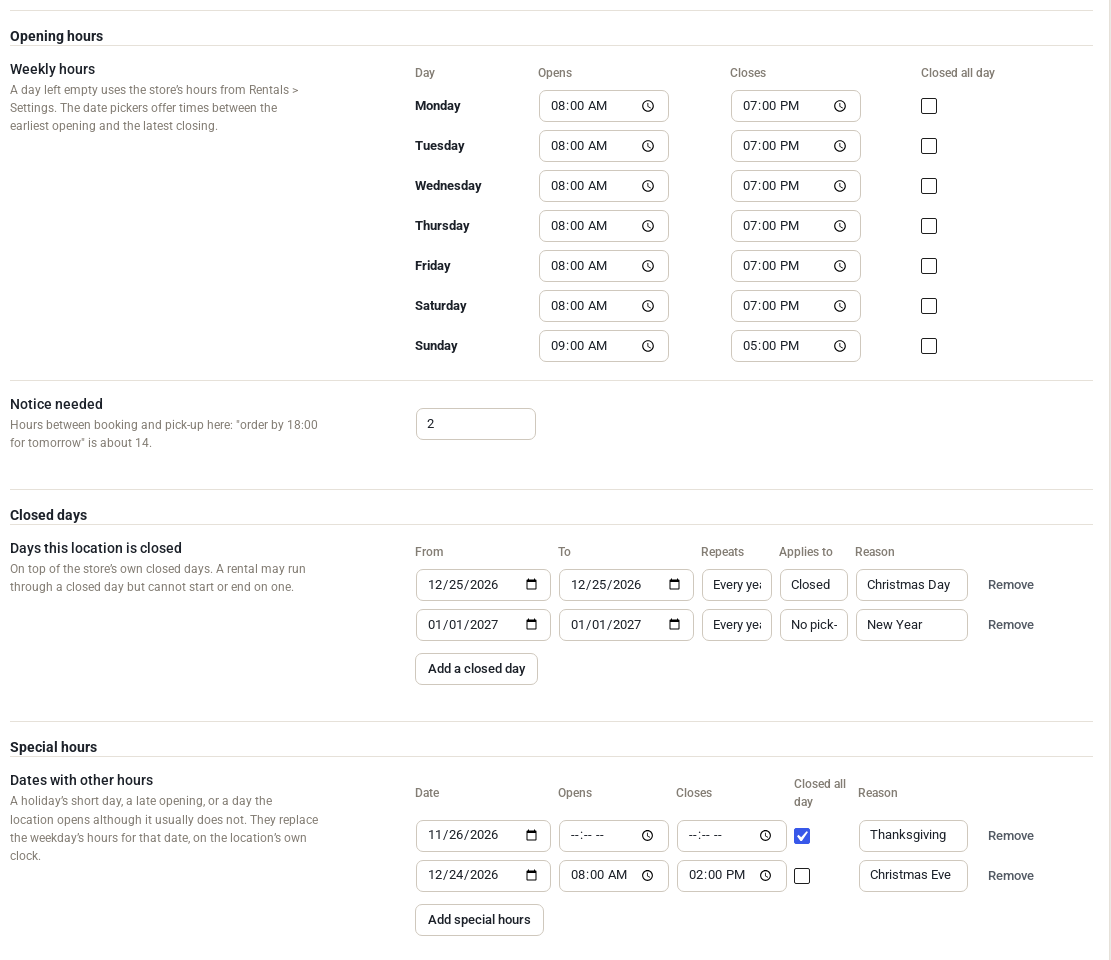
- Weekly hours: when the location is open each day. Tick Closed all day for a day it does not open. A day left empty uses the shop’s hours from Rentals > Settings.
- Notice needed: the hours between booking and pick-up here. “Order by 6 pm for tomorrow” is about 14.
- Closed days: dates when the location is closed, once or every week, month or year. Applies to can be Closed, No pick-ups or No returns. A rental can run through a closed day but cannot start or end on one.
- Special hours: a date with other hours, such as a short Christmas Eve, or a holiday it opens although it usually does not. They replace that weekday’s hours for that date.
A rental must be picked up while its pick-up location is open and returned while its return location is open. If a customer picks a time outside them, adding to the cart is refused with a message that names that day’s hours.
Outside opening hours, turnover and messages #
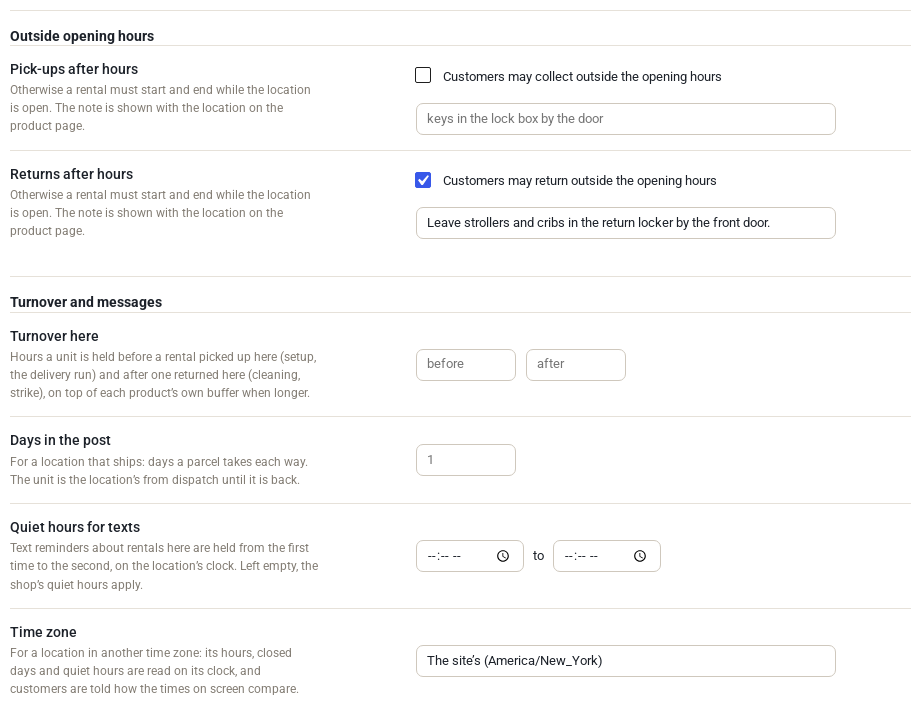
- Pick-ups after hours and Returns after hours: let customers collect or return outside the opening hours, with a note such as “Leave strollers and cribs in the return locker”. The note shows with the location on the product page.
- Turnover here: hours a unit is held before a rental picked up here (setup, the delivery run) and after one returned here (cleaning). It applies when it is longer than the product’s own buffer.
- Days in transport: for a location that ships, the days a parcel takes each way.
- Quiet hours for texts: text reminders about rentals here are held between these times.
- Time zone: for a location in another time zone. Its hours, closed days and quiet hours are read on its own clock, and customers are told how the times on screen compare. Rental times themselves stay on your site’s clock.
Delivery area and windows #
This section shows when Delivery is ticked.
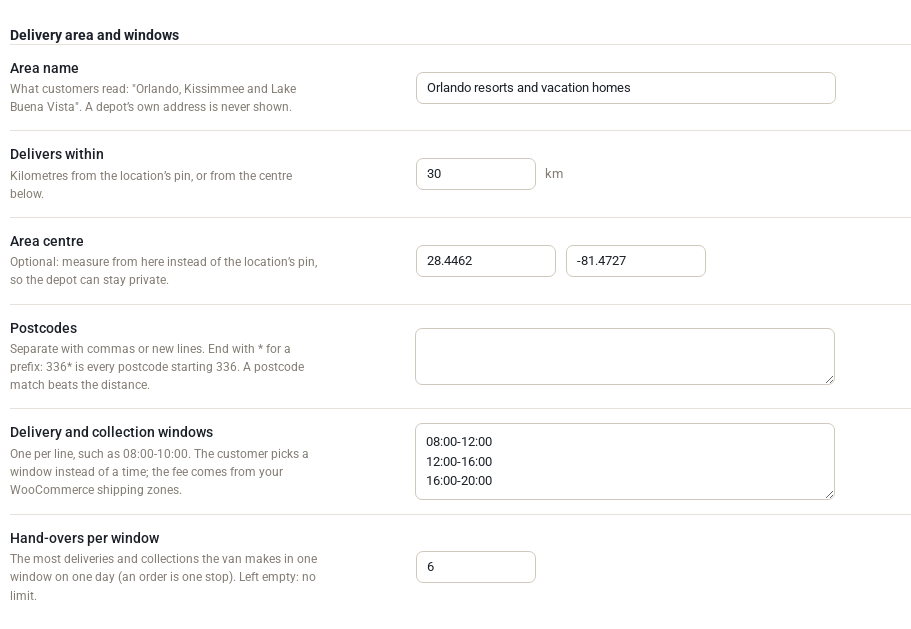
- Area name: what customers read, such as “Orlando resorts and vacation homes”.
- Delivers within: the distance from the location’s pin, or from the Area centre if you set one (so a depot’s own address can stay private).
- Postcodes: a list of postcodes it serves. End with an asterisk for a prefix. A postcode match beats the distance.
- Delivery and collection windows: one per line, such as 08:00-12:00. The customer picks a window instead of a time. The delivery fee still comes from your WooCommerce shipping zones.
- Hand-overs per window: the most deliveries and collections the van makes in one window on one day. An order is one stop. Left empty, there is no limit.
Public page and calendar feeds #
- Landing page: link an ordinary WordPress page to the location, such as “Baby gear rental in Orlando”, or click Create a page for this location to start a draft. Visiting the page sets the customer’s shopping location.
- Calendar feeds: addresses you can subscribe to in a calendar app. The staff feed lists every pick-up and return at the location with the customer’s name and phone, so give it to staff only. Each product split per location also gets an availability feed for channel managers. New addresses stops the old ones working.
The other tabs #
- Stock: the units of every split product at this location, in one table. See Stock by Location on the Product Inventory Tab.
- Prices: this location’s price rules and shortest rental. See Pricing by Location.
- Staff: who works here. See Location Staff and Permissions.
Closing, archiving or deleting a location #
- Set Status to Closed to stop new rentals while keeping the ones already booked.
- Set it to Archived when the location is gone for good.
- Delete (at the bottom of the location) is refused while the location holds stock or has bookings to come. Move them first, or archive it instead.


