
Table of Contents
The shop-wide Multi Location Inventory settings are under Locations > Locations, Settings link. This page explains each one. Settings for a single store (its hours, emails, delivery area and so on) are on the location itself: see Setting Up Locations.
The storefront #
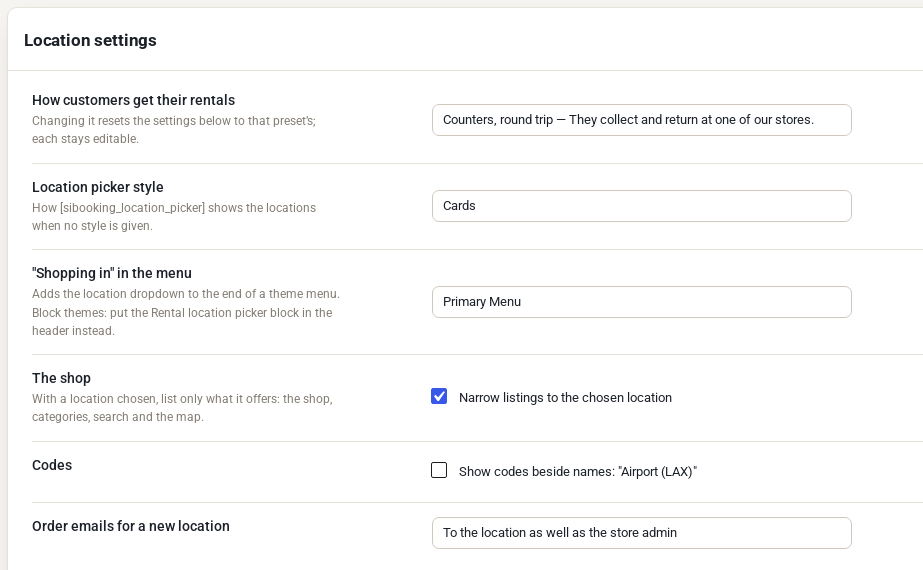
| Setting | What it does |
|---|---|
| How customers get their rentals | The answer to the first question on the Locations screen. Changing it resets the settings below to that answer’s starting values; each stays editable. |
| Location picker style | How the [sibooking_location_picker] shortcode shows your locations when no style is given: Cards, List, Dropdown or a “Where are you staying?” search. |
| “Shopping in” in the menu | Adds a location dropdown to the end of a theme menu. With a block theme, put the Rental location picker block in the header instead. |
| The shop | With Narrow listings to the chosen location ticked, the shop, categories, search and the map list only what the chosen location offers. |
| Codes | Shows each location’s code beside its name, such as “Airport (LAX)”. |
| Order emails for a new location | The order email setting new locations start with: to the location as well as the store admin, instead of the store admin, or not to the location. |
The location picker shortcode #
Put the picker on any page:
[sibooking_location_picker]
It takes these options:
style="cards","list","dropdown"or"search".category="baby-gear"to list only the locations offering that product category.after="shop"(the default: go to the shop, narrowed to the location),after="page"(go to the location’s own page) orafter="stay"(stay on the same page).counts="false"to hide the number of items at each location.
[sibooking_locations] shows every location as cards that open the location’s page, and [sibooking_location slug="tampa"] shows one location’s details.
One-way rentals and hand-overs #
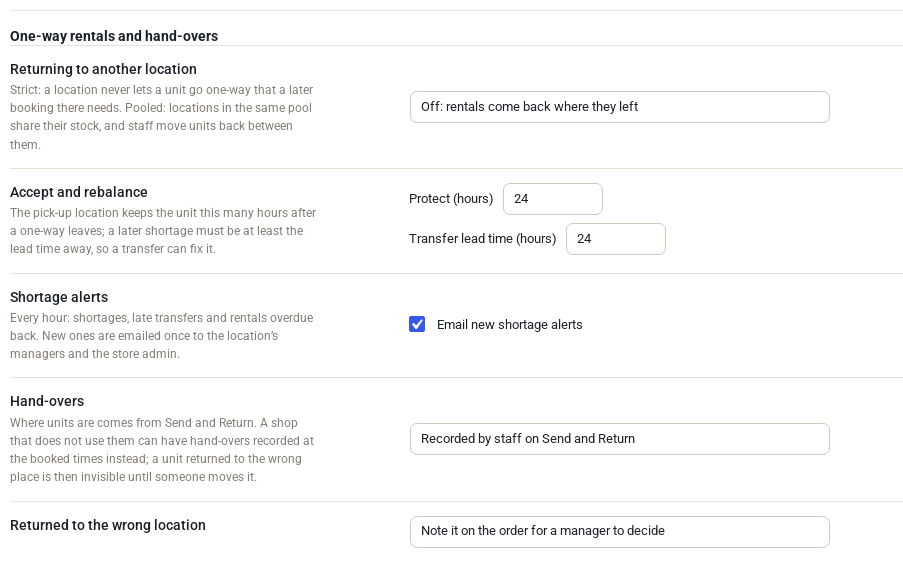
| Setting | What it does |
|---|---|
| Returning to another location | Off: rentals come back where they left. Strict, Pooled or Accept and rebalance allow one-way rentals. See One-Way Rentals and Fees. |
| Accept and rebalance | For that one-way option only: how long the pick-up location keeps the unit after a one-way leaves, and how much notice a transfer needs. |
| Shortage alerts | Every hour the shop checks for shortages, late transfers and rentals overdue back, and emails new ones once to the location’s managers and the store admin. Untick to stop the emails; the alerts still show on Stock by location. |
| Hand-overs | Recorded by staff on Send and Return (units move when staff send and return them), or Automatic, at the booked times for shops that do not use Send and Return. With automatic hand-overs, a unit returned to the wrong place stays invisible until someone moves it. |
| Returned to the wrong location | Note it on the order for a manager to decide, or Just record where it came back. |
Tax and orders #
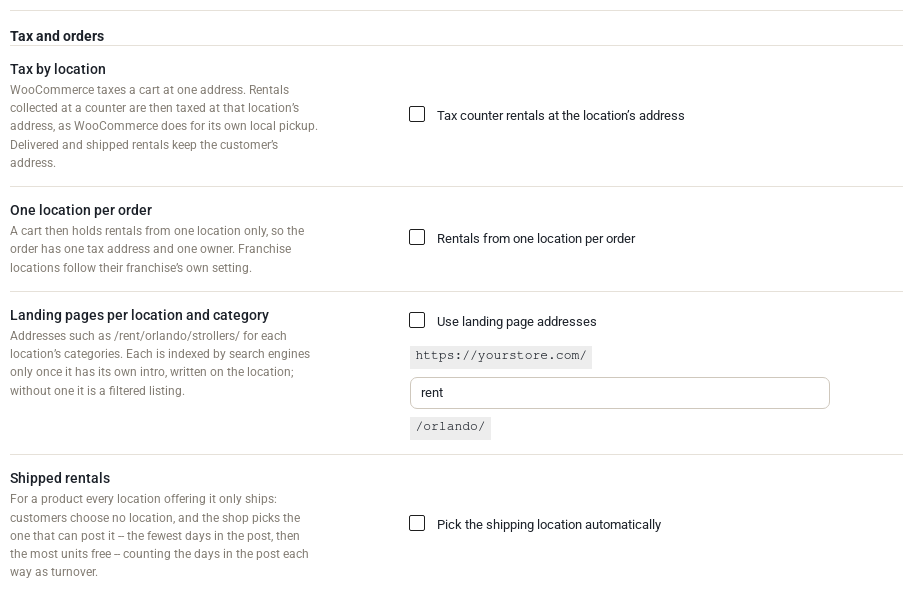
| Setting | What it does |
|---|---|
| Tax by location | Rentals collected at a counter are taxed at that location’s address, as WooCommerce does for local pickup. Delivered and shipped rentals keep the customer’s address. |
| One location per order | A cart then holds rentals from one location only, so the order has one tax address and one owner. Adding from a second location is refused with a message naming the first. |
| Landing pages per location and category | Turns on addresses such as /rent/orlando/strollers/. Each is indexed by search engines only once it has its own intro, written on the location. The first part of the address (rent) can be changed. |
| Shipped rentals | For a product that every location offering it only ships, customers choose no location: the shop picks the one that can transport it in time, with the fewest days in transport and then the most units free. |
Words #

- A location is a: the word customers read for a location, such as Store, Branch or City.
- Pick-up label and Return label: the labels above the location choices on the product page, such as “Pick-up at” and “Return to”.
- What staff call the stock: the word on staff screens, as in “Stock by location”. A shop can use its own word, such as Gear, and the menu then reads “Gear by location”.
Leave a field empty to use the words of your answer to “How customers get their rentals”.
Licence #
The licence panel is at the bottom of this screen. See Installing and Licensing Multi Location Inventory.


