
Staff who work at one store should see that store’s bookings, hand-overs and orders, and nothing of the others. Multi Location Inventory adds three roles and an access level per location to do that.
The roles #
| Role | What they can do |
|---|---|
| Location manager | At their locations: bookings, Send and Return, transfers, serial numbers, Stock by location, location reports, and the WooCommerce orders of their locations |
| Location staff | At their locations: bookings, Send and Return, transfers and Stock by location. No WooCommerce orders: they see a read-only order instead |
| Inventory manager | A location manager at every location |
Administrators and shop managers keep full access to everything. The franchise roles (Franchise owner and Franchise accountant) are explained in Franchises and Settlement.
The shop-wide screens stay with administrators and shop managers: Reports (Inventory and Usage), the Calendar, Serials, the Rentals dashboard, Reminders and Settings.
Give someone a location #
There are two ways.
From the location’s Staff tab #
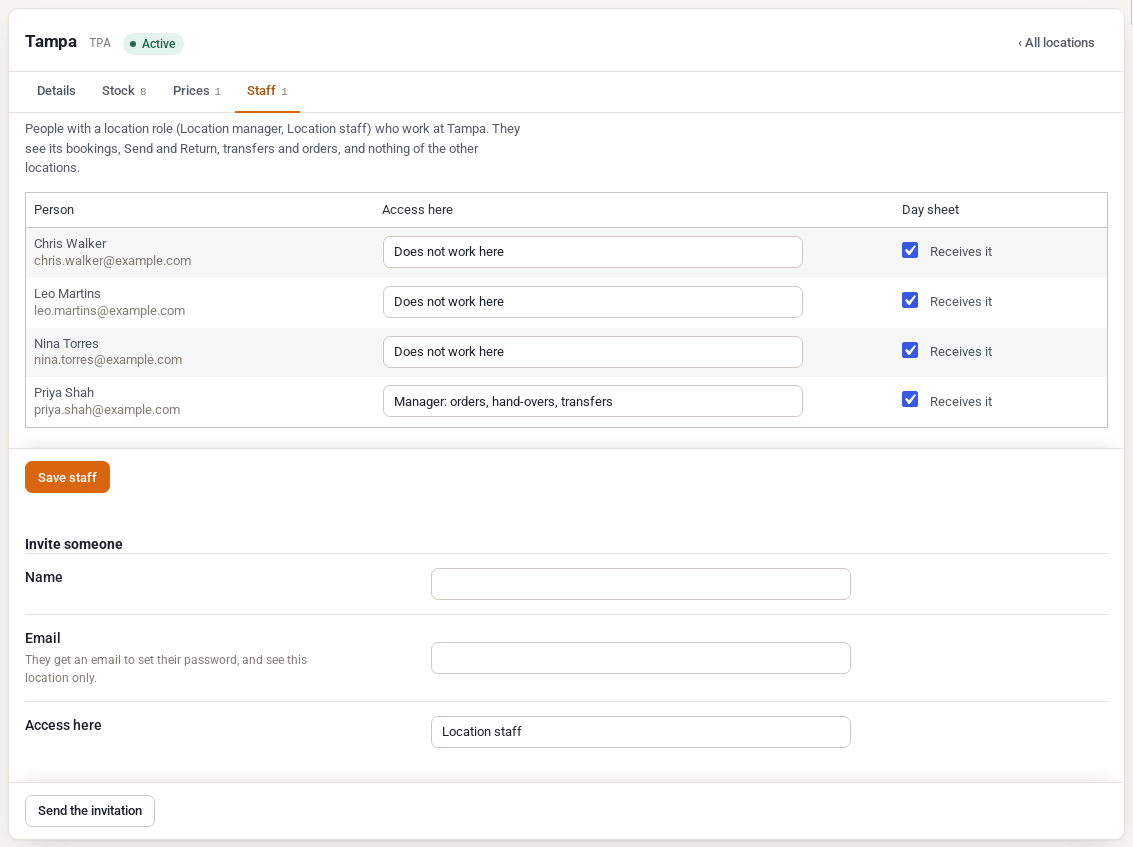
- Go to Locations > Locations, open the location and click the Staff tab.
- For each person with a location role, choose their Access here and whether they get the day sheet, then click Save staff.
- To add someone new, fill in Invite someone (name, email and Location staff or Location manager) and click Send the invitation. They get WordPress’s email to set a password, and see this location only.
From the person’s profile #
Go to Users, edit the person, set their Role to Location manager, Location staff or Inventory manager, and use the Locations box further down the profile to choose their access at each location.
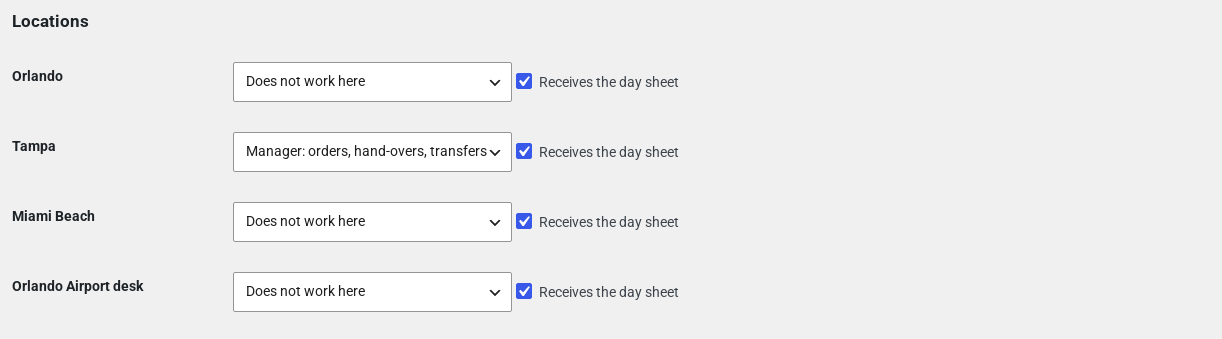
The access levels are:
- Manager: orders, hand-overs and transfers.
- Staff: hand-overs and transfers.
- Viewer: sees the location, changes nothing.
- Does not work here.
A person can work at several locations with a different level at each.
What a location manager sees #
A location manager at Tampa gets a short Rentals menu: Bookings, Send, Return, Stock by location, Transfers and Location reports. Every list shows Tampa only.
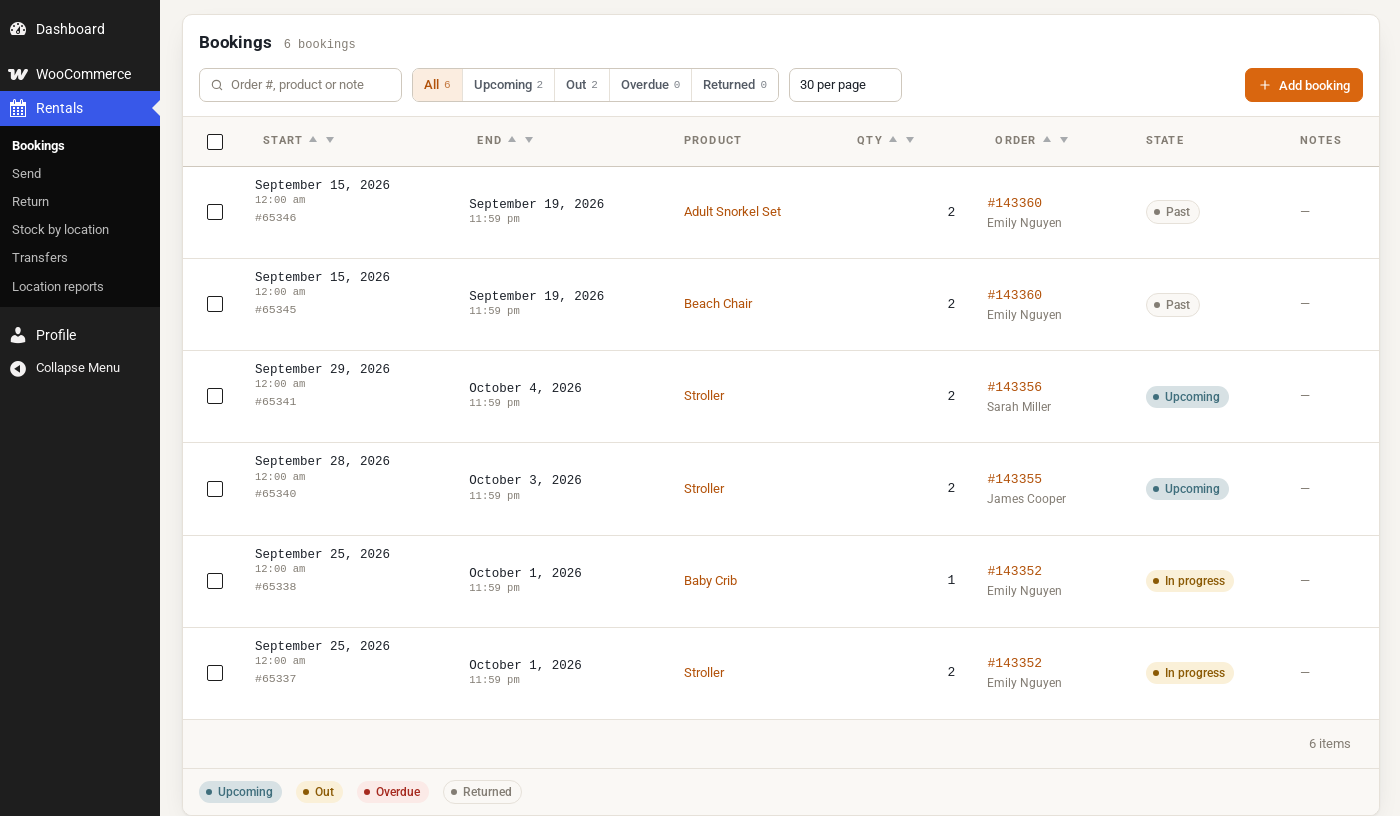
- Bookings, Send and Return list the rentals picked up at or returned to their locations. Sending or returning someone else’s rental is refused.
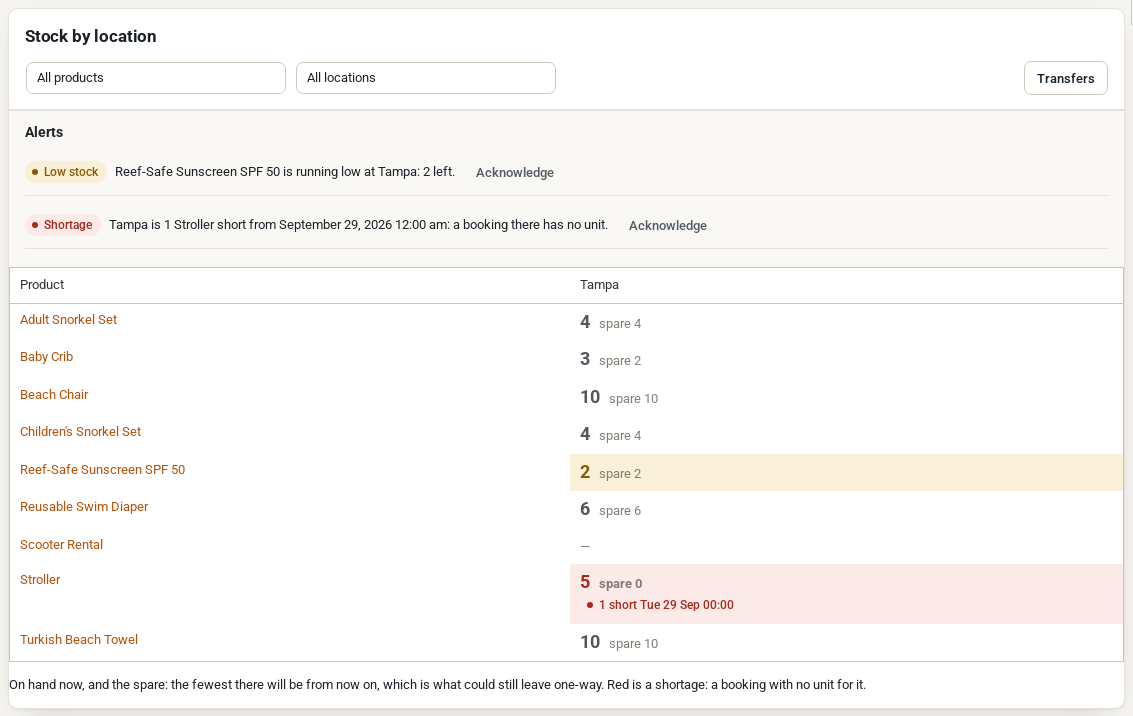
- Stock by location shows their locations’ columns only.
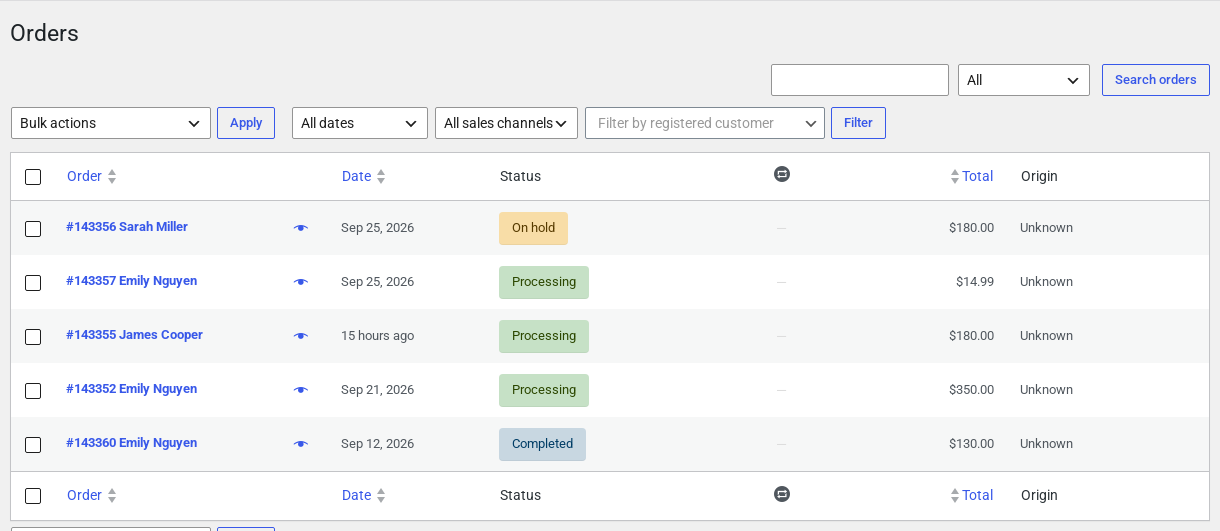
- WooCommerce > Orders lists only orders with a line at their locations. They can open an order that touches one of their locations, and edit it only when every location on it is theirs as a manager. Store-wide order counts are hidden.
- Transfers: they can plan, change or cancel a transfer to or from their locations, dispatch only from their locations, and receive only at them.
What location staff see #
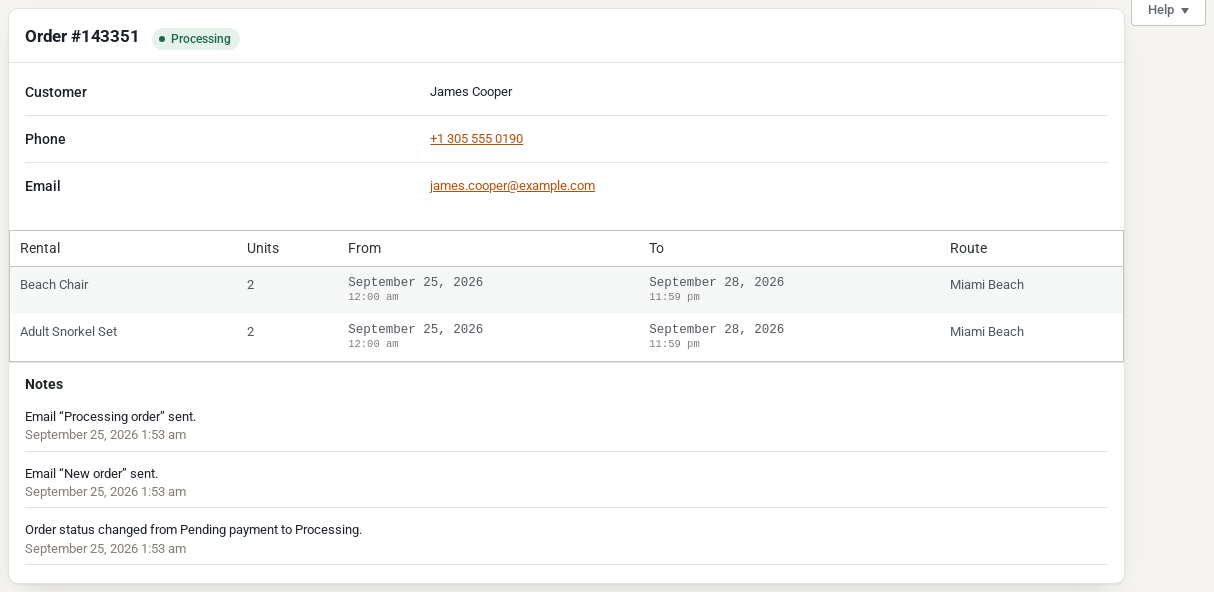
Location staff have no WooCommerce order access. Order links on their Rentals screens open a read-only order instead: the customer’s name, phone and email, their rentals with dates and route, and the order notes. Prices are not shown.
The day sheet #
Every morning at 6:00 (site time), each person who has Receives the day sheet ticked gets an email with today’s pick-ups and returns at their locations, with one-way rentals named. Untick the box to stop it for a person and location.
Things to know #
- A person with a location role but no location sees a message saying they are not assigned to a location, and nothing else.
- Location roles do not include editing products or stock counts. Shop managers set the units; location staff move them with transfers. See Stock by Location on the Product Inventory Tab.
- Customer accounts are shared by all locations: a customer is not tied to one store.
- The Multi Location Inventory REST API is for administrators and shop managers only.


