
Delivery areas say where you deliver and on what terms. Each area has its postcodes or a radius, its own delivery days and time slots, a fee per stop, a minimum order, an amount over which delivery is free and a limit of stops per day. Without any area, every address gets the Delivery way’s fee (see Delivery & pickup: getting started).
The list of areas #
Go to Rentals › Settings › Delivery & pickup and click Manage delivery areas in the Delivery box.
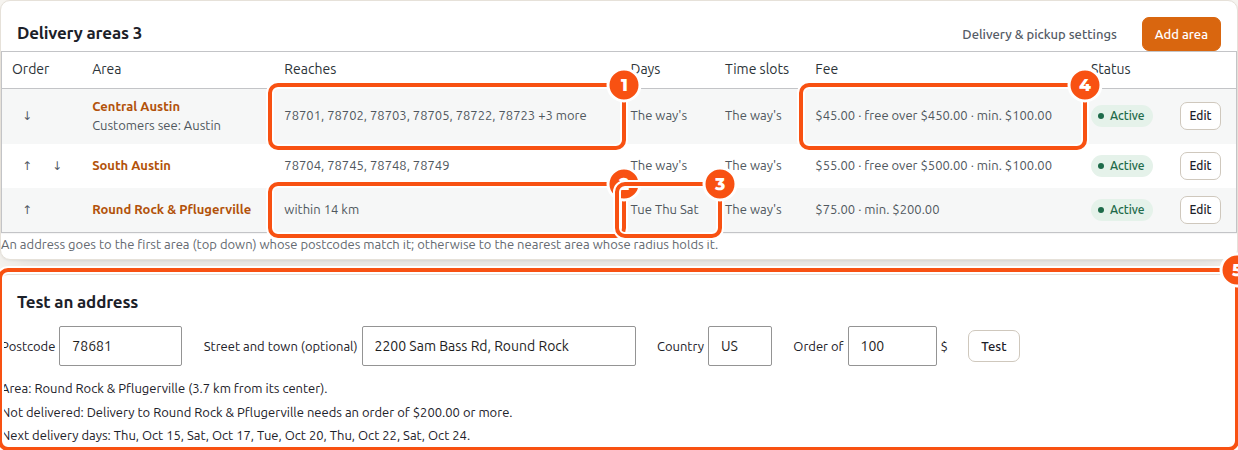
The list shows, for each area, Reaches (its postcodes or “within 14 km”), Delivered from (with Multi Location Inventory), Days, Time slots (“The way’s” when it uses the Delivery way’s), Fee and Status (Active or Off).
An address goes to the first area (top down) whose postcodes match it; otherwise to the nearest area whose radius holds it. Use the arrows to change the order.
Test an address #
Under the list, Test an address answers the way checkout would: enter a Postcode, optionally the Street and town, the Country and an order amount, then click Test. It tells you the area (and how far the address is from its center), the delivery fee for that order, or why it isn’t delivered (“Delivery to Round Rock & Pflugerville needs an order of $200.00 or more.”), and the next delivery days.
Add or edit an area #
Click Add area, or Edit on a row.
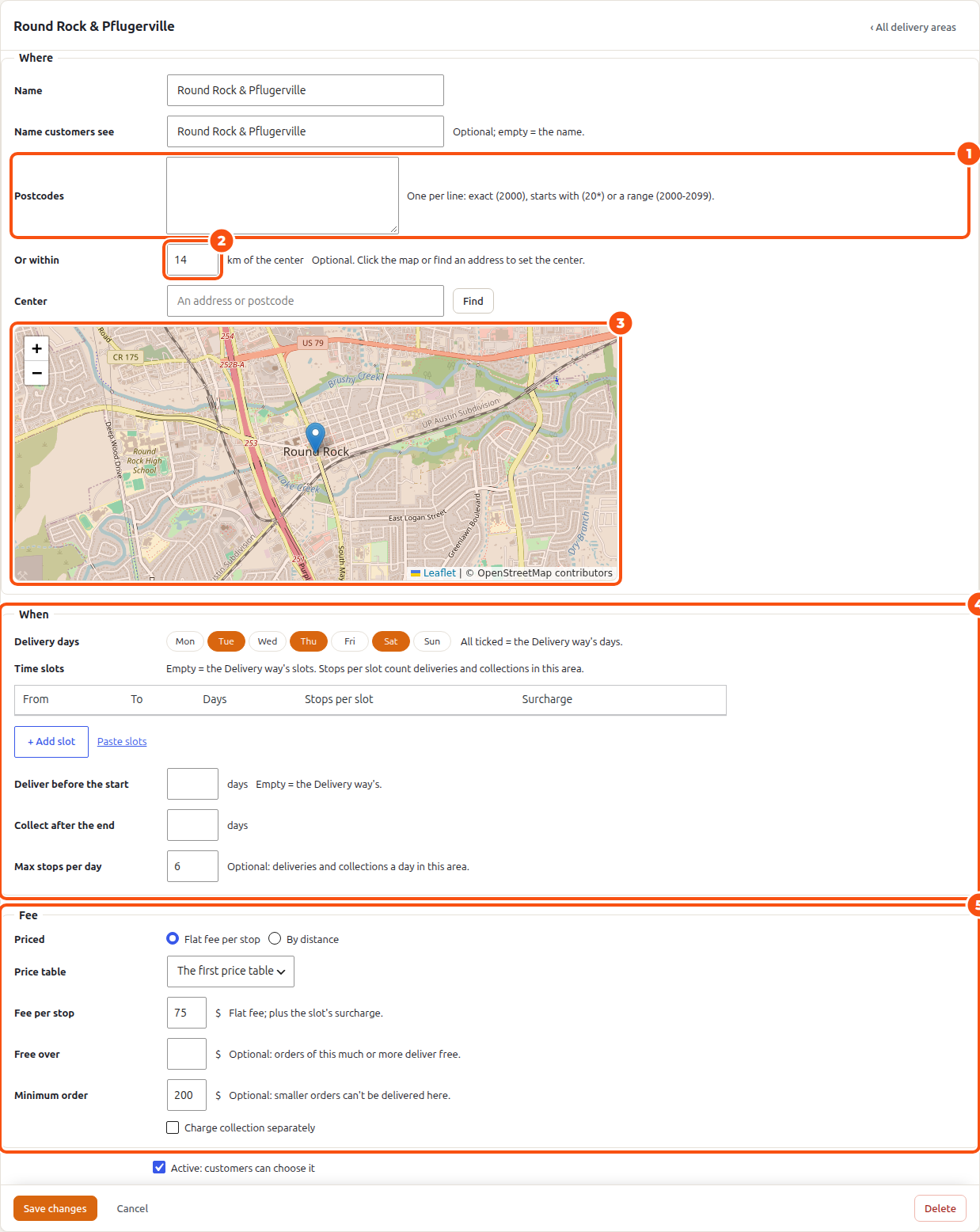
Where
- Name (what you see) and Name customers see (optional; empty = the name).
- Postcodes: one per line, exact (
78701), starts with (787*) or a range (78701-78799). - Or within … km of the center: a radius. Click the map or Find an address to set the Center.
When
- Delivery days: the days this area gets deliveries. All ticked = the Delivery way’s days.
- Time slots: this area’s own slots (From, To, Days, Stops per slot, Surcharge). Empty = the Delivery way’s slots. Stops per slot count deliveries and collections in this area.
- Any time: when the Delivery way’s Customers may choose “Any time” is ticked (see Delivery & pickup: getting started), Any time comes first on every day that has slots, this area’s own slots too.
- Deliver before the start and Collect after the end: this area’s days on the road (a far-away area delivered the day before, say). Empty = the Delivery way’s.
- Max stops per day: deliveries and collections a day in this area.
Fee
- Priced: Flat fee per stop, or By distance with one of your Delivery by Distance price tables (needs the Delivery by Distance add-on).
- Fee per stop: plus the slot’s surcharge.
- Free over: orders of this much or more deliver free.
- Minimum order: smaller orders can’t be delivered here.
- Charge collection separately: the collection is a second stop with its own fee.
Tick Active: customers can choose it and click Save changes. Delete removes the area; bookings keep its name.
What customers see #
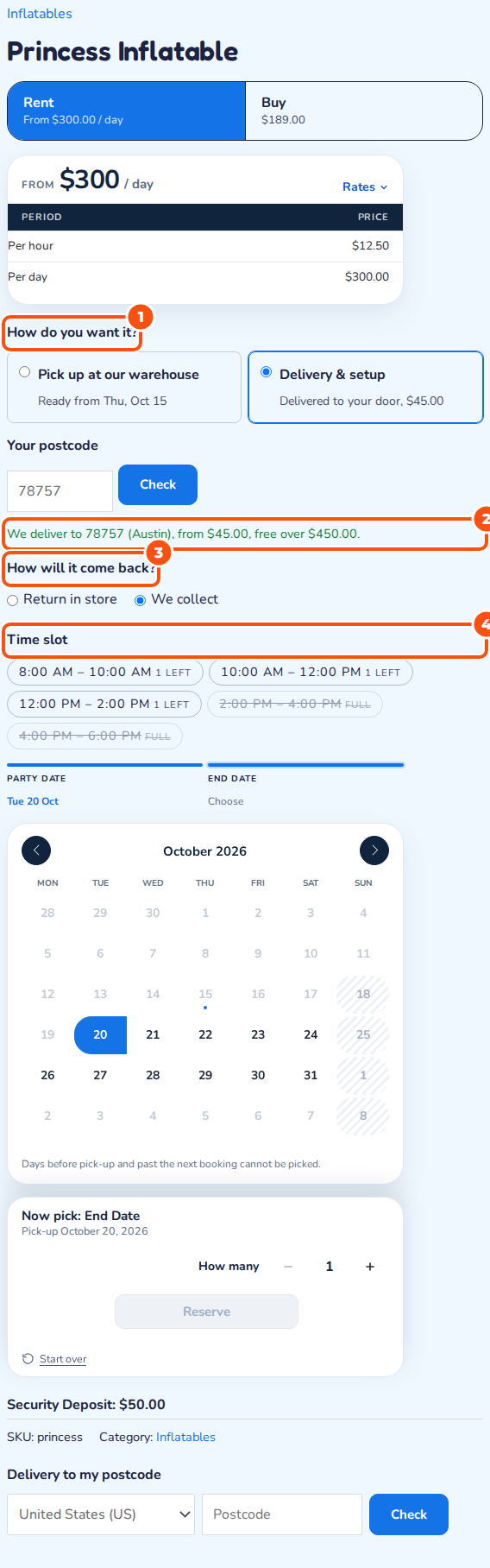
The product page asks for the postcode before the dates and offers only that area’s days and slots. At checkout the delivery address decides the area: each area is its own shipping option (“Delivery (Austin) · Fri, Oct 23, 10:00 am – 12:00 pm”), and an address outside every area is refused with the reason. When you arrange the day of orders you sell (We arrange the day), the checkout asks for no day: the address still decides the area and its fee, and the order waits for you to give it a day.
Capacity: stops per slot and per day #
Three limits keep you from booking more than your vehicles can do:
- Stops per slot on a time slot (the way’s or the area’s).
- Max stops per day on an area.
- Max stops per day on the Delivery way, for every area together.
A stop with no slot (Any time, or an order you gave a day yourself) counts toward the day’s limits only, never a slot’s Stops per slot. With Any time on, a day whose slots are all full stays open for Any time while the day has room.
A slot or day that is full is greyed in the calendar; a slot with few places left shows “1 left”. The places are held while the customer checks out, so two customers can’t take the last place at once. With Smart Routing, staff can still add a stop to a full slot from the Schedule (“That time slot is full. Book anyway?”), and give an order a full day (“That day is full. Book anyway?”).
With Multi Location Inventory #
With Multi Location Inventory each delivering location’s area (postcodes, distance, windows and hand-overs per window) is copied once into the delivery areas, delivered from that location; change it here from then on. Its windows become its time slots, each taking the hand-overs per window as its stops. The areas (and Smart Routing’s Schedule) list your locations, and each location’s routes start from its address.


