
Your hosted store starts on its own address, like yourstore.rent-manager.com. You can connect a domain you own, like yourstore.com, and make it your store’s main address. Your rent-manager.com address keeps working and sends visitors on to your main address.
Every hosted plan can have up to 3 domains per store. Domains are not available on a free trial. You can add one once your store is on a paid plan.
Before you start #
- You need a domain from a registrar such as GoDaddy, Namecheap or Squarespace Domains, and the login for that registrar. We don’t sell domains.
- Already have email on that domain, for example with Google Workspace or Microsoft 365? It keeps working. We read your current email records and leave them alone.
- Does the domain show an old website now? It switches to your store once you change the records below.
1. Add the domain on My store #
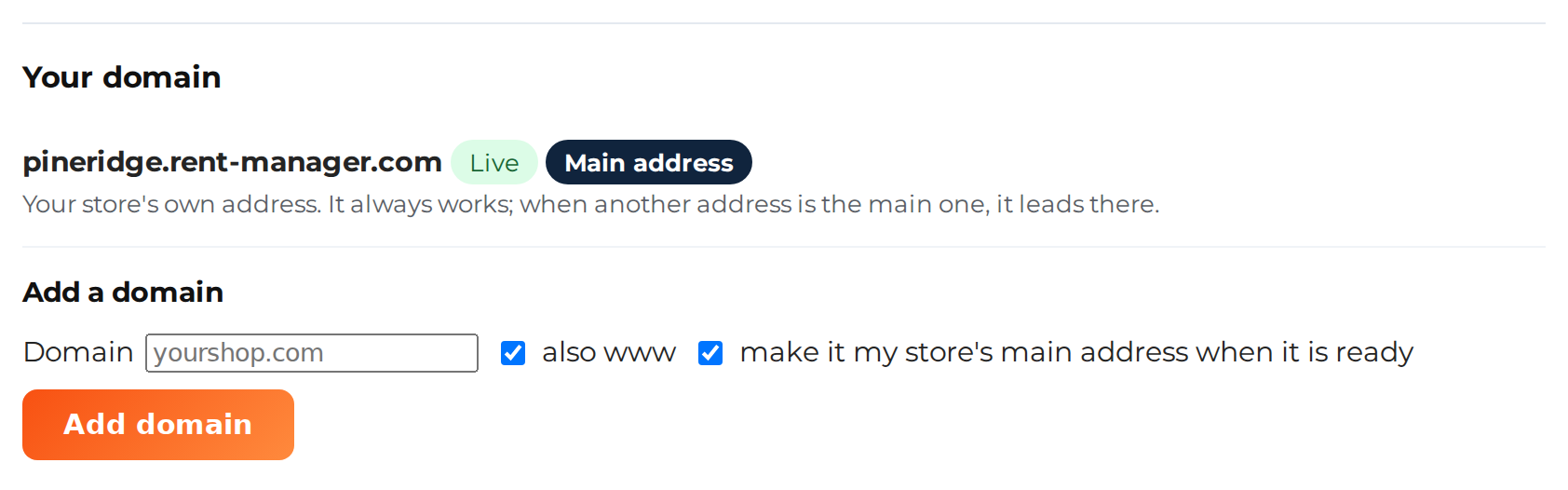
Go to My Account > My store. Under Your domain, find Add a domain:
- Type your domain like
yourstore.com, without https:// or www. - Leave also www ticked so that
www.yourstore.comworks too. It sends visitors on toyourstore.com. - Leave make it my store’s main address when it is ready ticked if you want your store to move to the new domain by itself.
- Press Add domain. In a minute or two, the page shows the DNS records to set.
2. Set the DNS records where you bought the domain #
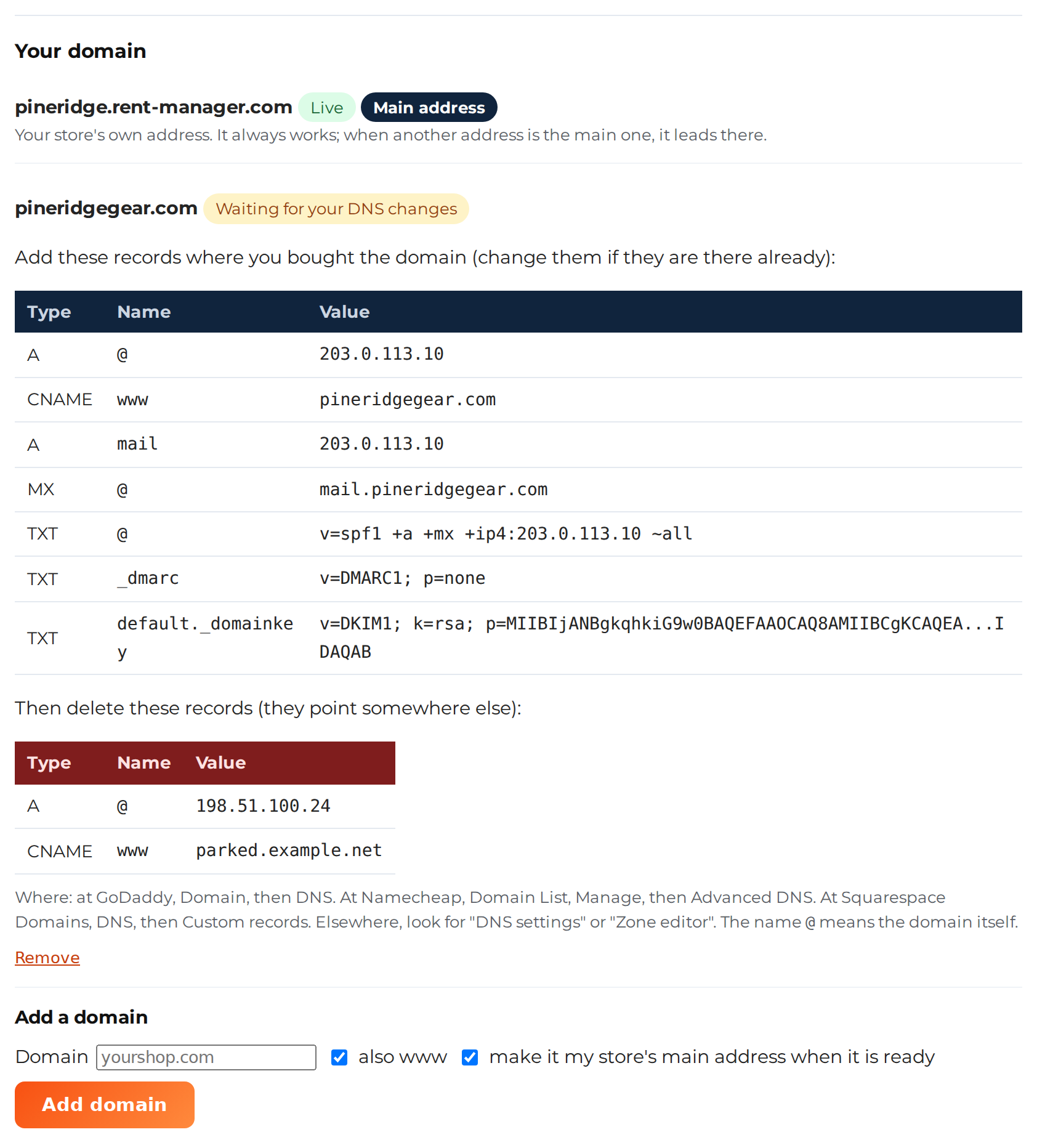
My store lists the records to add. It may also list records to delete, because they point somewhere else. Sign in at your registrar, open the domain’s DNS settings, and copy the values from My store exactly:
- GoDaddy: Domain, then DNS.
- Namecheap: Domain List, Manage, then Advanced DNS.
- Squarespace Domains: DNS, then Custom records.
- Anywhere else: look for “DNS settings”, “DNS records” or “Zone editor”.
A few tips:
- The name
@means the domain itself. Some registrars want this name left empty instead. - If a record with the same type and name is already there, change it rather than adding a second one.
- For the MX record, use priority 10.
- A domain can have only one SPF record: the TXT record that starts with
v=spf1. If you already had one, My store gives you a combined record. Replace your old one with it.
What each record does:
| Record | What it does | When you get it |
|---|---|---|
A @ and CNAME www | Point your domain, and www, to your store | Always |
A mail and MX @ | Deliver email for your domain to mailboxes with us | Only when your domain has no email yet |
TXT @ (v=spf1 …) | Allows our server to send your store’s emails | Always (combined with your old SPF record if you had one) |
TXT _dmarc | Tells mail providers how to treat mail from your domain | Only when you don’t have one |
TXT default._domainkey | Signs your store’s emails (DKIM) | Always |
3. Wait for the check #
We check your domain every few minutes. Most registrars publish changes within an hour, but some take a day or two. On My store, your domain moves through these steps:
| Status on My store | What it means |
|---|---|
| We are adding it | We are setting the domain up on our side. This usually takes a few minutes. |
| Waiting for your DNS changes | We haven’t seen your new records yet. If this lasts more than a day, check them at your registrar. |
| Connected; the security certificate is on the way | Your records are right. The certificate for https usually follows within minutes. |
| Live | Your store opens on the domain, with https. |
| Not connected | We didn’t see the right records within 14 days. Check the records, then press Remove and add the domain again. |
If My store says Your email stays with your current provider, we kept your existing email set-up.
4. Make it your main address #
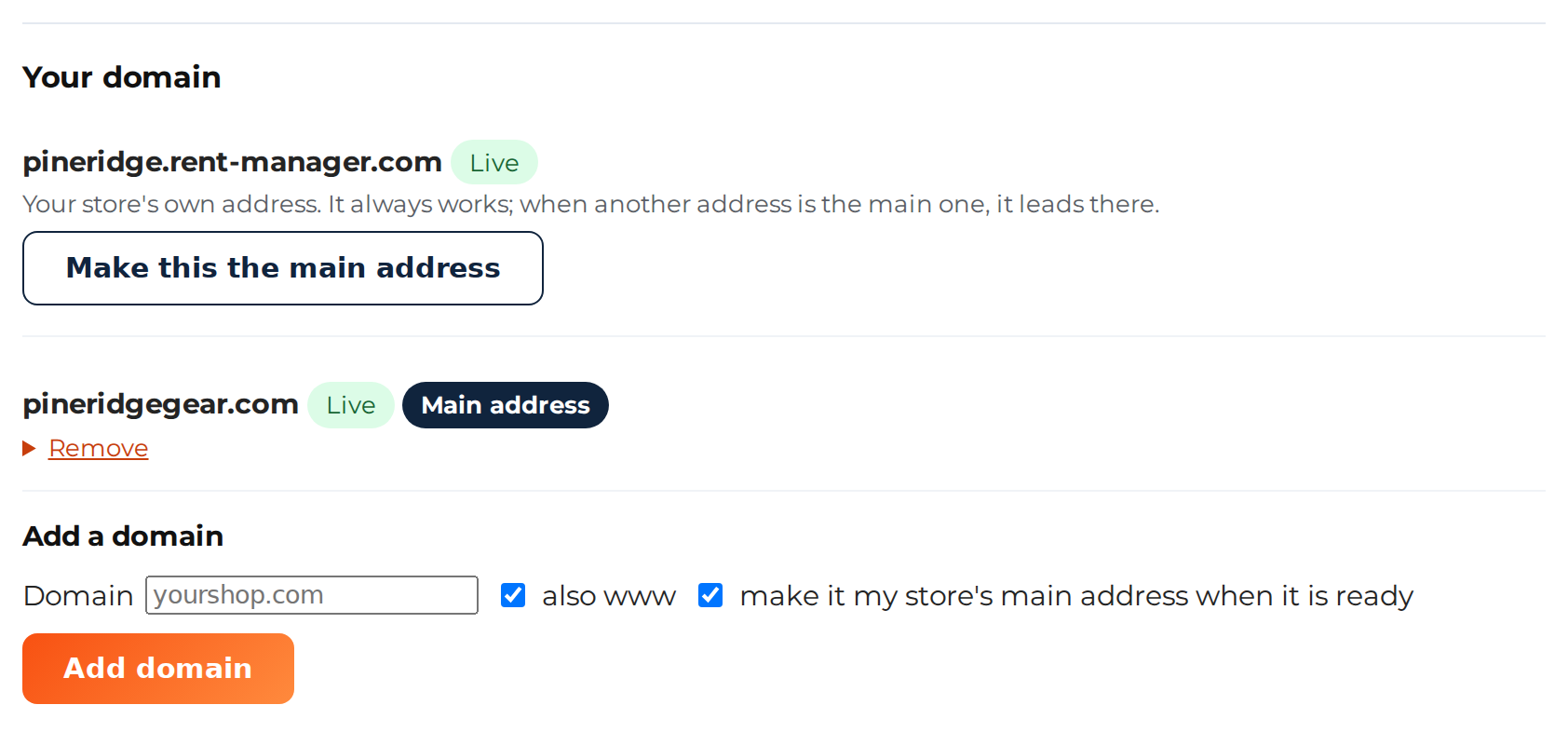
If you left make it my store’s main address when it is ready ticked, your store moves to the domain by itself once the domain shows Live. Otherwise, press Make this the main address next to the domain. The move takes a few minutes. Afterwards, your store’s links use the new domain, and your rent-manager.com address and www send visitors on to it. To switch back, press Make this the main address next to your rent-manager.com address.
If you use Google Search Console or other tools that know your store’s address, add the new domain there too.
Remove a domain #
Press Remove next to the domain. If it is your main address, open Remove, tick the box and press Remove the main address. Your store then moves back to its rent-manager.com address. Once the domain is gone from My store, you can delete its records at your registrar.
If something doesn’t work #
- “That domain is already connected to another store or account on our server”: if the domain is yours, contact us and we will sort it out.
- “Your store already has the most domains it can have (3)”: remove a domain first.
- Still waiting after two days: compare each record at your registrar with My store, then contact us.
Mailboxes on your domain: see Email and DNS. Everything else about My store: see Getting started with your hosted store.


