
A shift is the time one cash drawer is in use, from the cash you start with to the cash you count at the end. Every register has at most one open shift. The Counter needs an open shift before it takes payments or gives cash back, and it keeps a record of every cash movement so the drawer can be checked at the end.
Open a shift #
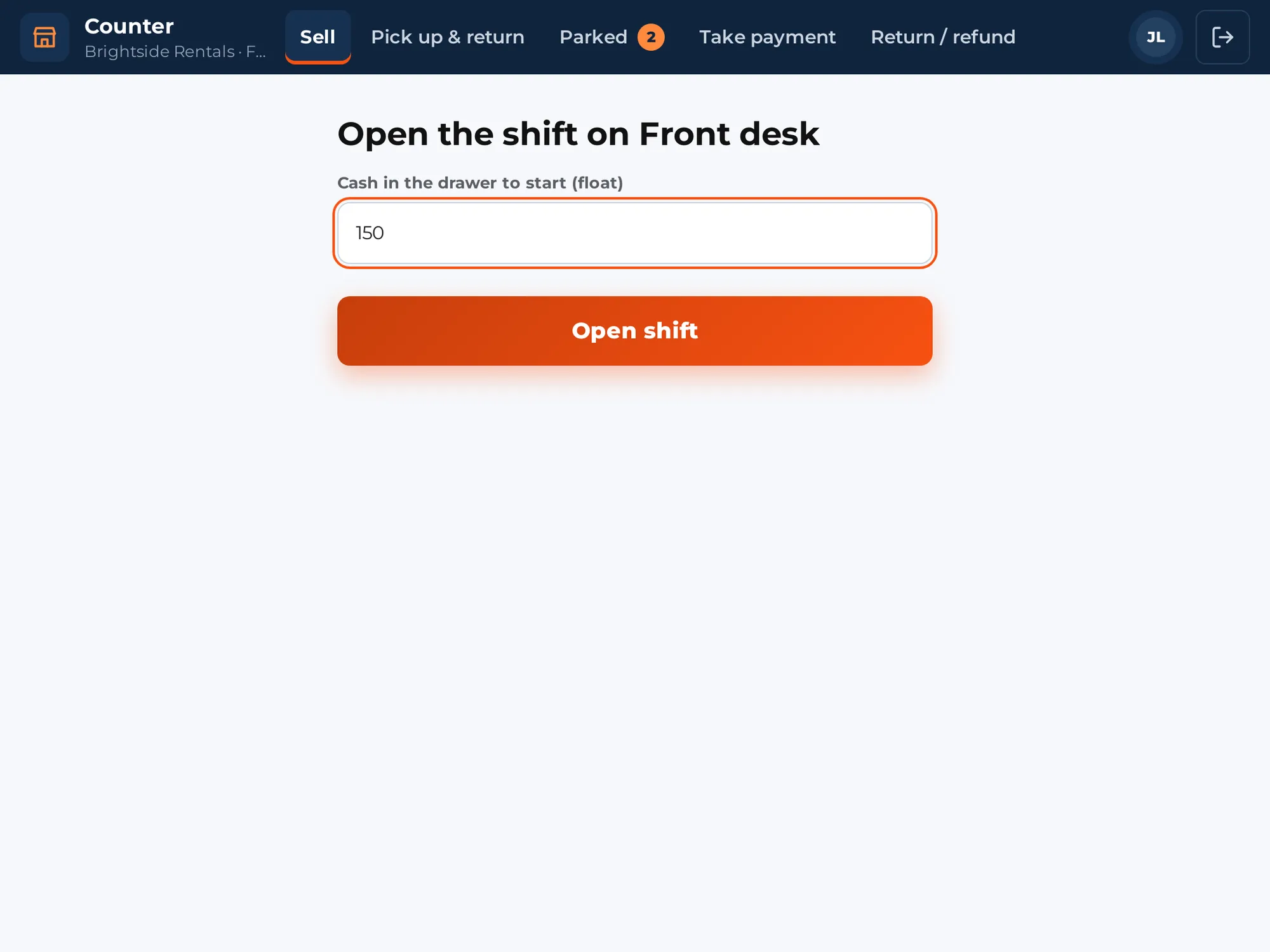
When you choose a register that has no open shift, the screen says Open the shift on followed by the register name.
- Type the cash already in the drawer in Cash in the drawer to start (float). Type 0 for an empty drawer.
- Tap Open shift. A message says “Shift open”.
If the store has more than one register, Other register takes you back to the register picker. If the register already has an open shift, you see “This register already has an open shift. Close it first.”
The Shift sheet #
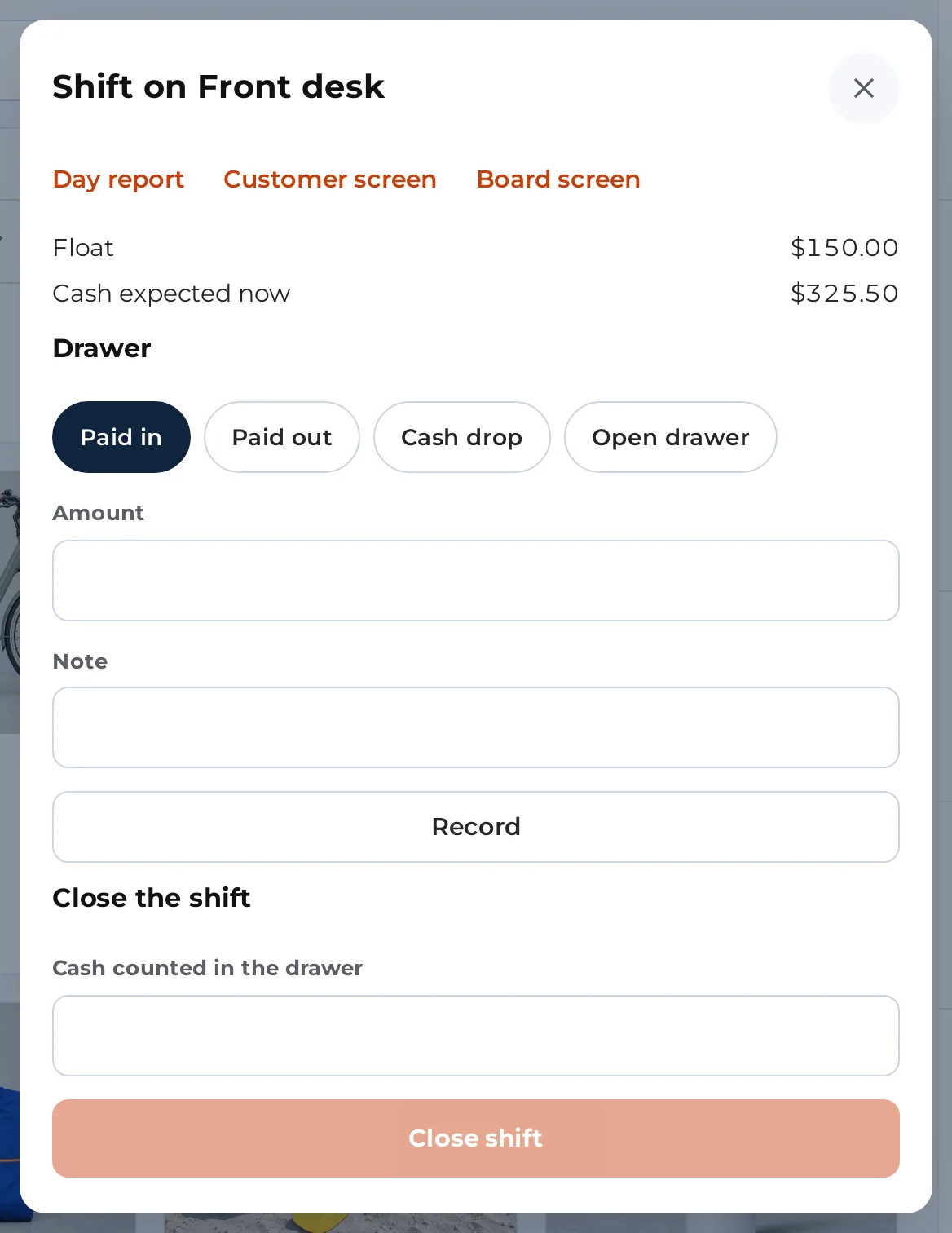
Once a shift is open, the header shows the register name and “shift open”, and a Shift button. Tap it to open the Shift on sheet. It shows:
- Float: what you started with.
- Cash expected now: what should be in the drawer at this moment.
- Day report, for staff who may see it (see below).
- Test printer, when the register has a receipt printer connected straight to it.
- Customer screen, to show the customer the sale on a second screen.
Cash in, cash out and drops #
In the Drawer part of the sheet, choose what happened:
- Paid in: cash you add to the drawer, for example more change.
- Paid out: cash you take out for a purchase, for example milk for the staff kitchen.
- Cash drop: cash you move to the safe.
- Open drawer: opens the drawer with no money moving.
For the first three, type the Amount. Add a Note if you like, then tap Record. The drawer opens if the register has one connected to its printer. Each move is saved with the time and who did it, and cannot be edited.
Drawer moves need the drawer permission. Without it the Drawer part is hidden. See Who can do what.
How expected cash is worked out #
Cash expected now is:
- the float,
- plus the cash taken for sales (after any cash rounding),
- minus the cash given back in refunds,
- plus paid in,
- minus paid out,
- minus cash drops.
Card payments, pay links and payments made in the WooCommerce app never go into the drawer, so they are left out. The change you give is already taken off, because only the amount of the sale counts.
Set Round cash to on WooCommerce > Counter to round cash payments to your smallest coin. The rounding is part of the cash figure and is shown in the order’s note.
Close the shift #
- Count the cash in the drawer.
- On the Shift sheet, type it in Cash counted in the drawer.
- Tap Close shift and confirm. The Counter asks “Close this shift? It cannot be changed afterwards.”
The sheet then says Shift closed with a closure number, and shows Expected cash, Counted and Difference. A difference other than zero is shown in red. Tap Day report to see the whole day, or Done.
A shift can be closed by the person who opened it, or by a manager. A manager can close any shift. A register cannot be archived while its shift is open.
End of day report #
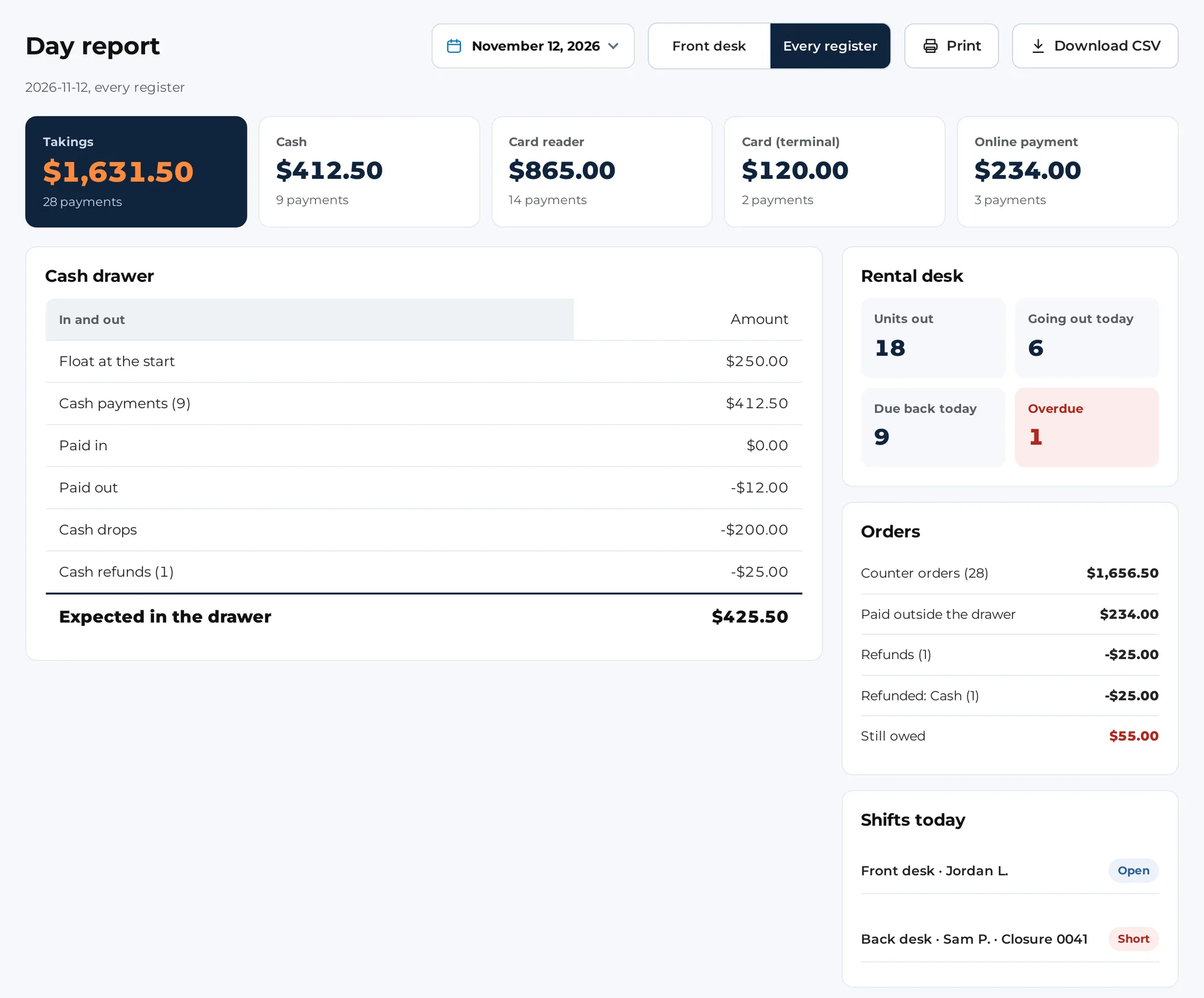
Staff with the drawer permission and managers can open Day report from the Shift sheet (or from the sheet that appears when a shift closes). Choose the day with the date box, and tick Every register to include all of them, or leave it for the current register.
The report lists:
- what was taken by each way of paying, with the count: Cash, Card (terminal), Card reader, WooCommerce app, Card (online payment) and Exchange credit,
- Paid in, Paid out, Cash drops and Cash refunds,
- Refunds, with how each refund went back,
- Cash difference, in red when it is not zero,
- Orders: how many counter orders and their total, Paid outside the drawer, and Still owed,
- when Sales Igniter Rentals & Bookings is active with its fuller edition: Units out, Due back today, Overdue and Going out today,
- the security deposits held, when the deposit plugin reports them,
- each shift of the day, with its float, takings, Expected cash, Counted and Difference. Open the shift’s row to see them.
Tap Print to print it on the register’s paper, or Download CSV.
Download the CSV from WordPress #
Managers can download the same report without the Counter. Go to WooCommerce > Counter, scroll to Day report, pick the Day, choose a Register (or Every register), and click Download CSV. The file is named counter-day- followed by the date. It has three columns, section, label and value, so it opens in any spreadsheet. The day follows your store’s time zone.



