
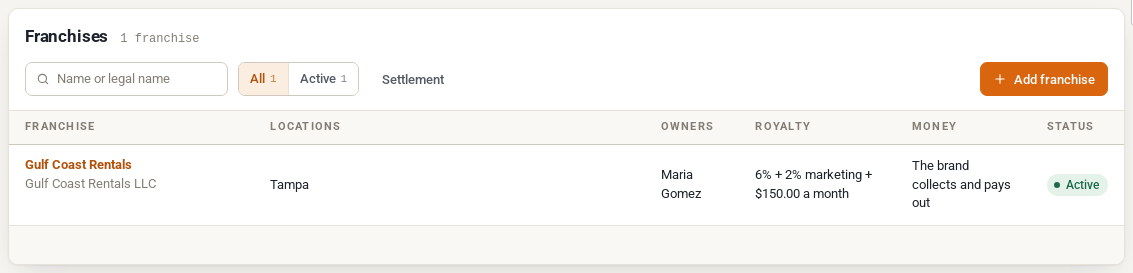
If some of your stores are owned by franchisees, Multi Location Inventory lets each franchise run its own locations, products, pages and staff under your brand, and works out what each one owes you every month. This page covers setting up a franchise, what its people can do, and the settlement report.
If all your stores are your own, you can skip this page.
Add a franchise #
- Go to Locations > Franchises and click Add franchise.
- On the Details tab, enter the franchisee’s trading Name, Legal name, Tax number, Email addresses and Phone, and fill in the royalty, money, branding and order settings (below). Click Save changes.
- On the Locations tab, hand over one of your locations, or open a new one for the franchise. Then copy a range of products to it.
- On the People tab, invite the owner.
At the top of the franchise, a five-step checklist shows what is done and links to where each step happens: details, royalty and payout; its locations; range and stock; owner invited; location pages. Before its first customer, check the delivery shipping zones and the tax class of its locations, and place a test order.

Royalty and money #
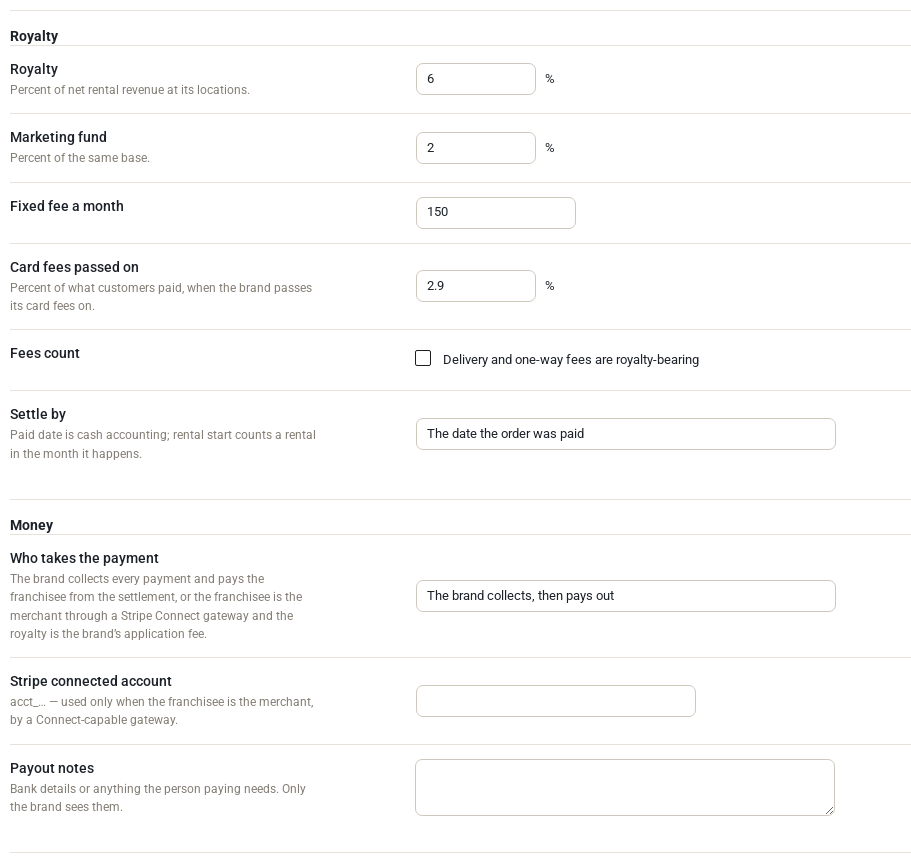
| Setting | What it means |
|---|---|
| Royalty | Percent of net rental revenue at its locations |
| Marketing fund | Percent of the same base |
| Fixed fee a month | A fixed amount for each calendar month the period touches |
| Card fees passed on | Percent of what customers paid, when you pass your card fees on |
| Fees count | Whether delivery and one-way fees count in the royalty base |
| Settle by | The date the order was paid (cash accounting) or the rental’s start date |
| Who takes the payment | The brand collects, then pays out from the settlement, or the franchisee is the merchant through a Stripe Connect gateway and the royalty is your application fee |
| Stripe connected account and Payout notes | The franchisee’s account id (for Stripe Connect) and bank details for whoever pays out. Only the brand sees them. |
Multi Location Inventory provides the hooks a Stripe Connect gateway needs to charge on a franchisee’s behalf; the gateway itself is a separate plugin.
Branding and orders #
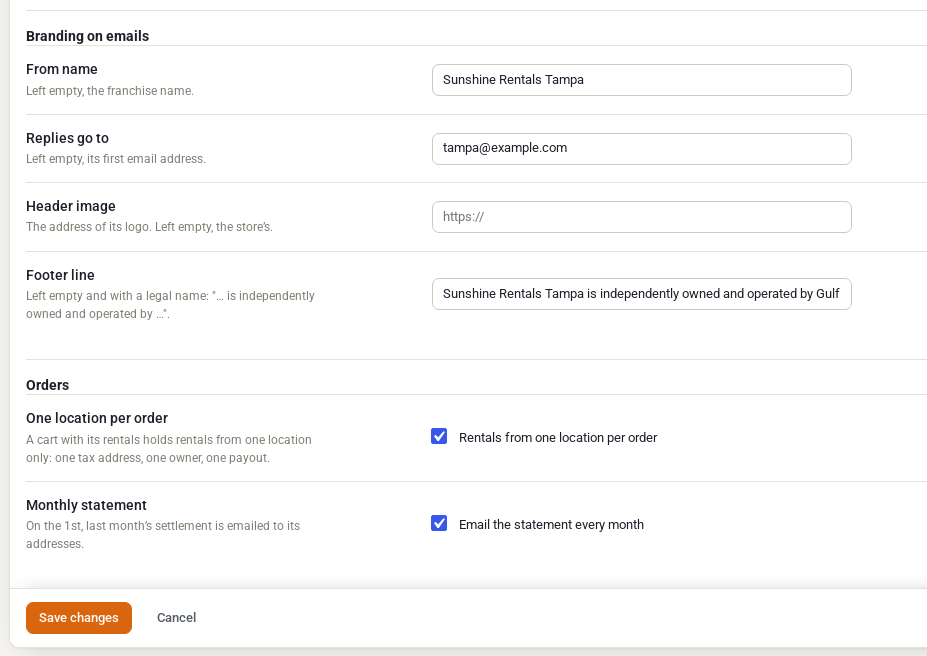
- Branding on emails: emails about the franchise’s orders go out with its From name, its Replies go to address (customer emails), its Header image and a Footer line, such as “independently owned and operated by Gulf Coast Rentals LLC”. The franchise’s email addresses also receive its locations’ order emails.
- One location per order: a cart with the franchise’s rentals holds one location only, so each order has one tax address, one owner and one payout. It is on for new franchises.
- Monthly statement: on the 1st, last month’s settlement is emailed to the franchise’s addresses.
Merge tags {franchise_name}, {franchise_legal_name}, {franchise_phone}, {franchise_email} and {franchise_footer} can be used in reminder emails and texts, and in WooCommerce email subjects.
People #
The People tab invites the franchise’s Owner and Accountant. A new account gets WordPress’s email to set a password; an existing account keeps its password and gains the access.
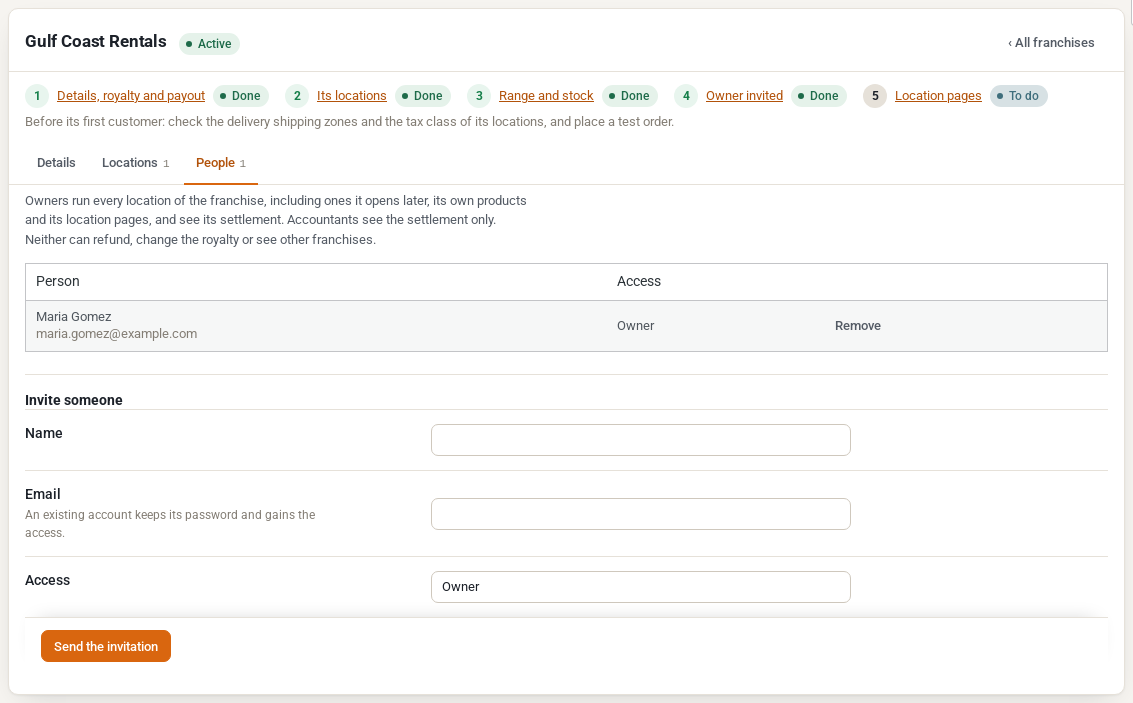
- A Franchise owner runs every location of the franchise, including ones it opens later: bookings, Send and Return, transfers, Stock by location, reports, orders, the franchise’s own products and its location pages, and its staff. On their locations they can change everything except the code, web address name, default, pool, franchise and archiving.
- A Franchise accountant sees the settlement only.
- Neither can refund an order, change the royalty or see other franchises.
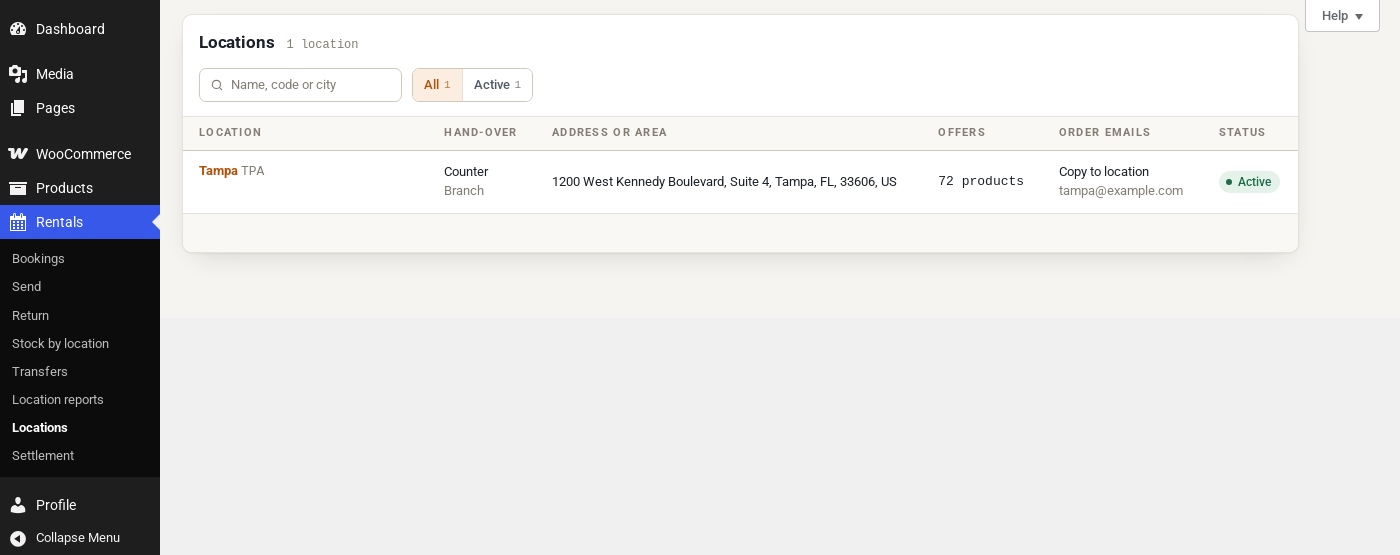
Owners invite their own staff from their location’s Staff tab. See Location Staff and Permissions.
Stock stays with its owner #
A franchise’s stock never moves to a location with another owner. A transfer between the brand’s locations and a franchise’s is refused: that would be a sale or a loan between businesses, not a transfer. On a product’s Stock by location grid, a franchise owner edits their own locations’ rows and sees the others read-only.
The settlement #
Locations > Settlement (it appears once you have a franchise) shows, for each franchise and period, the royalty base, the royalty, the marketing fund, the fees, and what is due to the franchisee (or transferred to them, with Stripe Connect).
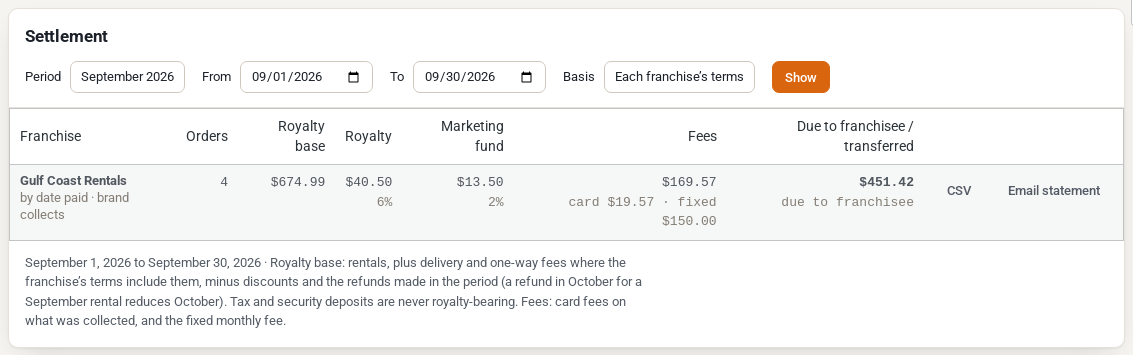
- Royalty base: the franchise’s rental lines (and, when settling by the date paid, the lines it sold outright), plus delivery and one-way fees if its terms include them, less discounts and the refunds made in the period. Tax and security deposits are never royalty-bearing.
- Fees: card fees on what was collected, and the fixed monthly fee.
- Due to franchisee: the franchise’s takings (tax and deposits stay with you), less the royalty, the marketing fund and the fees. A month with more refunds than sales can be negative.
- Orders count for the franchise that owned the location when they were placed, even if the location changes hands later.
Choose a Period or dates and a Basis, then click Show. CSV downloads the lines behind a row. Email statement sends it to the franchise now.
Things to know #
- Suspending or ending a franchise does not close its locations: close them for new rentals on each location. Bookings already made are honoured. An ended franchise brands nothing and gets no emails.
- The franchise screens and the settlement are also available in the REST API for administrators and shop managers. There are no API keys limited to one franchise.


