
Sales Igniter Subscriptions adds recurring billing, memberships and rental queues to Sales Igniter Rentals & Bookings. This page covers what you need before installing, how to install and license the plugin, and what changes on your site once it is active.
Requirements #
- WordPress and WooCommerce (the plugin declares compatibility with WooCommerce’s High-Performance Order Storage, so either order storage mode works).
- Sales Igniter Rentals & Bookings must be installed and active. Subscriptions is an add-on: it refuses to activate without it and will show an admin notice explaining why.
- A payment gateway that can store a payment method and charge it later if you want renewals to be charged automatically. The following gateways are supported for automatic renewals: WooCommerce Stripe Gateway, WooCommerce PayPal Payments, Braintree for WooCommerce, and Authorize.net for WooCommerce. Manual gateways (Check, Bank Transfer, Cash on Delivery) still work, but their renewal orders are created On hold for you to collect payment by hand.
- A working WordPress cron. Renewals are processed by a daily scheduled event; see Renewal cron below.
Install the plugin #
- Download the
sisubscriptions.zipfile from your account on rentalbookingsoftware.com. - In your WordPress admin go to Plugins > Add New > Upload Plugin, choose the zip file and click Install Now.
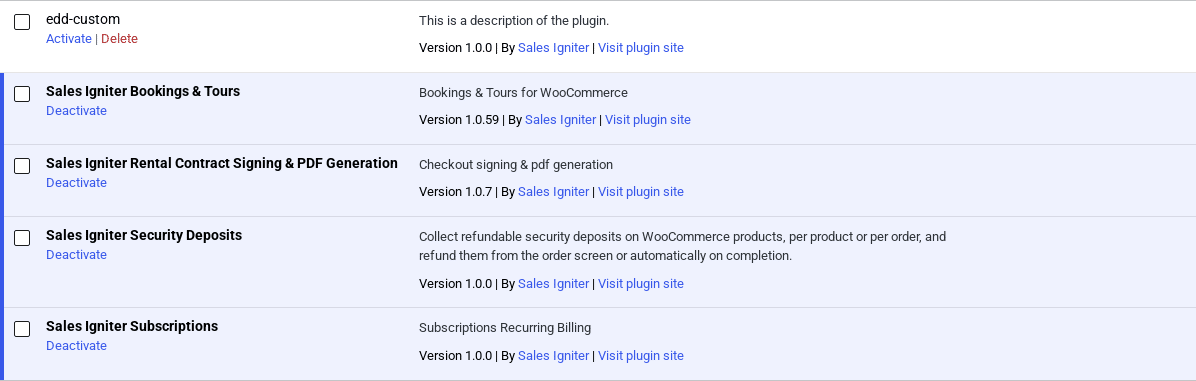
- Click Activate. You should now see Sales Igniter Subscriptions in the plugins list next to Rentals & Bookings.
License #
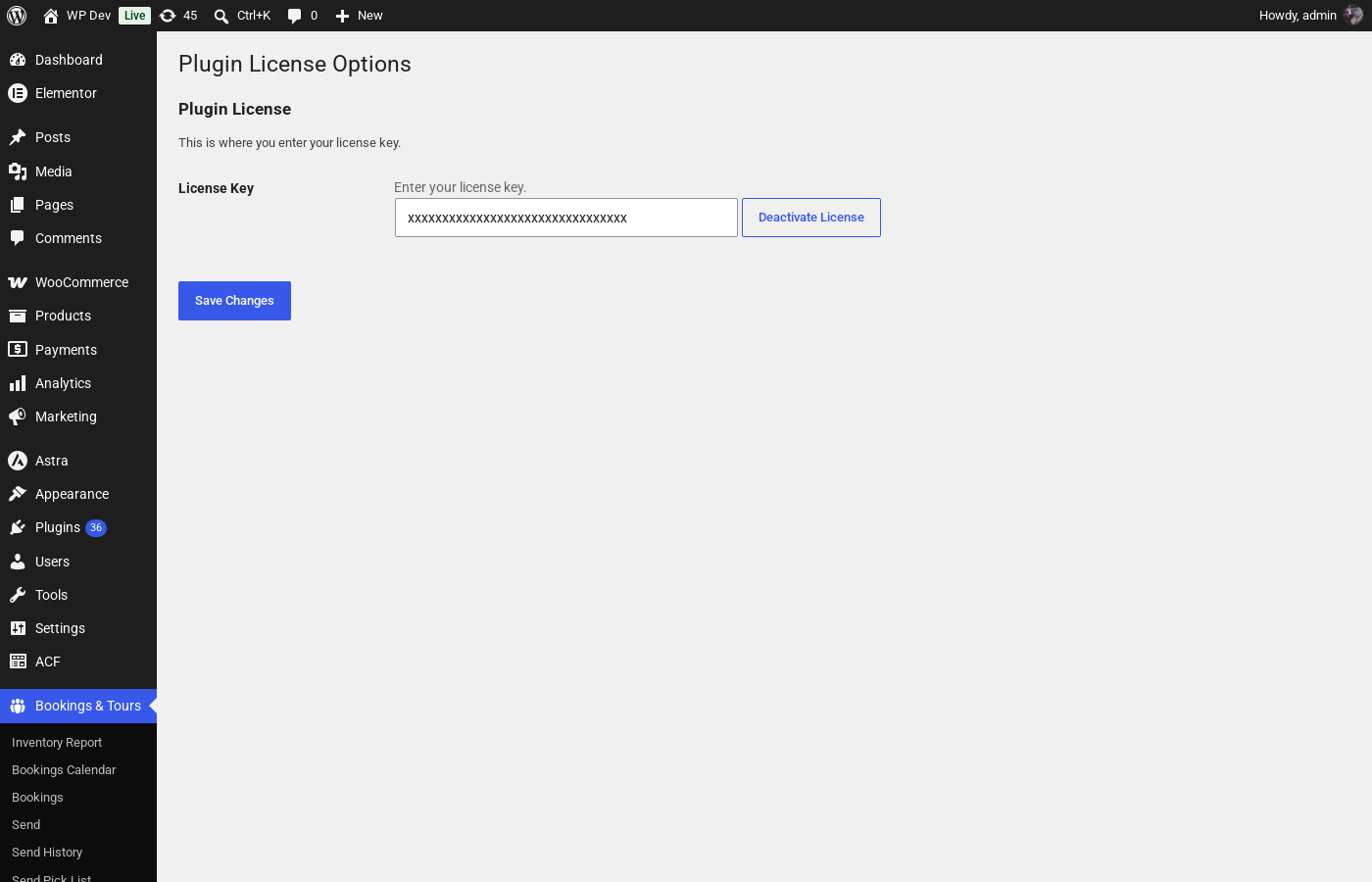
Subscriptions uses the same license key as Rentals & Bookings, so there is no separate license screen. Make sure your key is entered and activated under Rentals > License; this is what enables automatic updates for both plugins.
What activation adds #
A new top-level Subscriptions menu appears in the admin sidebar. Everything the plugin does is managed from here:
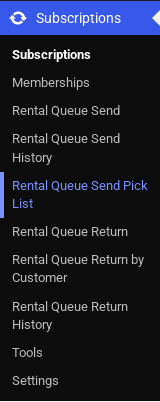
- Subscriptions – every recurring subscription, its status, renewal counts and links to its orders.
- Memberships – store credit and rental queue memberships.
- Rental queue – checking rental queue items out to customers and back in. Its tabs are Send, Pick list, Return, By customer and History.
- Renewals – the Manual processing and Log tabs.
- Tools – a list of the other pages, each with what it is for.
- Settings – the global subscription defaults.
On the product edit screen, every product gets a Subscriptions & Memberships box with three tabs: Subscription, Membership and Rental Queue. These are covered in Setting up Subscriptions and Setting up Memberships.
Emails #
Three customer emails are registered under WooCommerce > Settings > Emails. Each can be enabled or disabled and have its subject, heading and extra content edited like any other WooCommerce email:
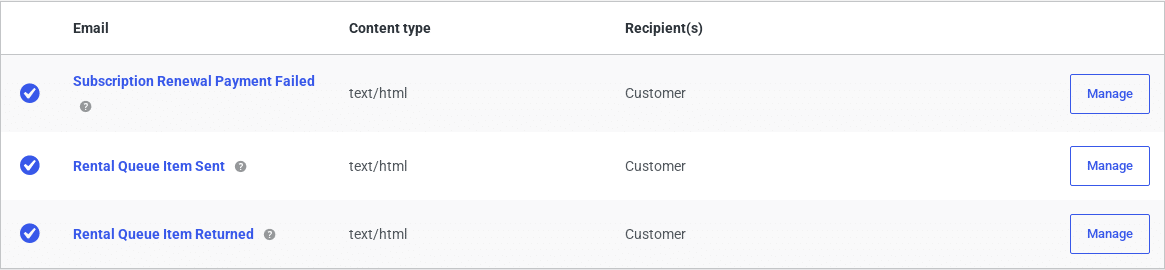
- Subscription Renewal Payment Failed – sent when a renewal could not be charged, so the customer can update their payment method.
- Rental Queue Item Sent – sent when a rental queue product is checked out to the customer.
- Rental Queue Item Returned – sent when a returned rental queue product is checked back in.
My Account pages #
Customers get four new sections in My Account: Subscriptions, Rental Queue, Rental Queue History and Memberships.
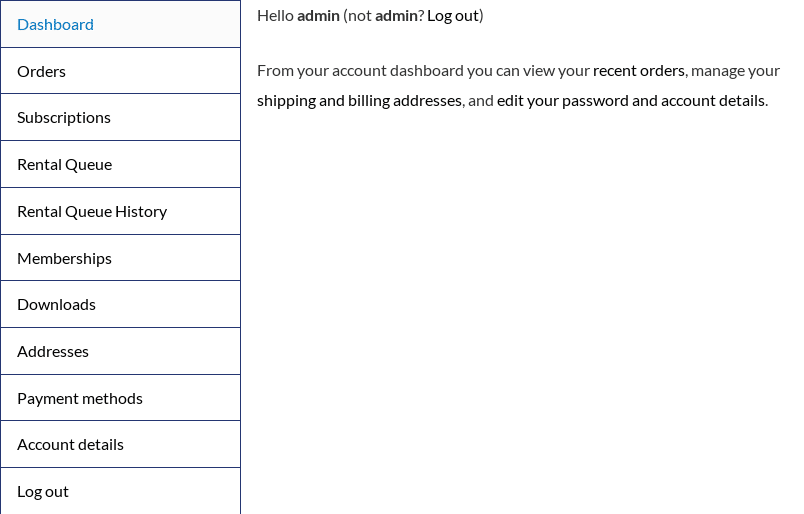
These are WooCommerce account endpoints. If they return a “page not found” error right after activation, go to Settings > Permalinks and click Save Changes once to refresh the rewrite rules.
The same content can be placed on any page with these shortcodes:
| Shortcode | Shows |
|---|---|
[sisubscriptions_customer_subscriptions] | The logged-in customer’s subscriptions with pause / cancel / payment method actions |
[sisubscriptions_customer_memberships] | The customer’s memberships, credit balance and rentals out |
[sisubscriptions_rental_queue] | The customer’s drag-and-drop rental queue |
[sisubscriptions_rental_queue_history] | Rentals currently checked out plus the send history |
Renewal cron #
On activation the plugin schedules a daily WordPress cron event (sisubscriptions_process_renewals) that finds subscriptions whose next payment date has arrived, creates their renewal orders and charges the saved payment method. A weekly event cleans up old processing records.
WordPress cron only runs when somebody visits the site. On a low-traffic store, or if you have disabled WP-Cron, set up a real server cron job that requests https://your-site.com/wp-cron.php?doing_wp_cron at least once a day so renewals are never late. You can check that the event is scheduled, and run renewals by hand at any time, from Subscriptions > Renewals > Manual processing (see Managing Subscriptions).
Next steps #
- Set your global defaults under Subscriptions > Settings – Setting up Subscriptions (Recurring Billing).
- Enable subscriptions on the products you want to bill on a recurring basis.
- Optionally create membership products – Setting up Memberships.


