
Serial custom fields let your staff record what a unit looked like when it went out and when it came back: the odometer or hour meter, the fuel level, whether it came back clean, what was missing, and photos. You group the fields into field sets, such as Vehicle meter, Engine hours or Condition check, and give each set to the products it suits. From then on every serial of those products carries the fields.
Staff fill them in on the Send and Return screens (Recording readings and photos at Send and Return), they build up on each serial’s own page (The serial page), and the Usage Report adds them up (Usage Report: serial custom fields).
Serial custom fields are part of Rentals & Bookings Regular and Pro. They work on products that use serial tracking. Nothing is asked of staff until you give a field set to a product.
Where they live #
Go to Rentals > Settings > Serials. The tab has three parts: Field sets, Give a field set to products and Photos.

Start from a template #
Click Start from a template. There are ready-made sets for car and van rental, scooters and e-bikes, heavy equipment, boats and jet skis, generators, camera bodies, projectors, drones, drone batteries, party and inflatables, medical and mobility equipment, printers and copiers, RVs and trailers, and power tools. Each card lists its fields and which ones are asked at Send, at Return and which are required.
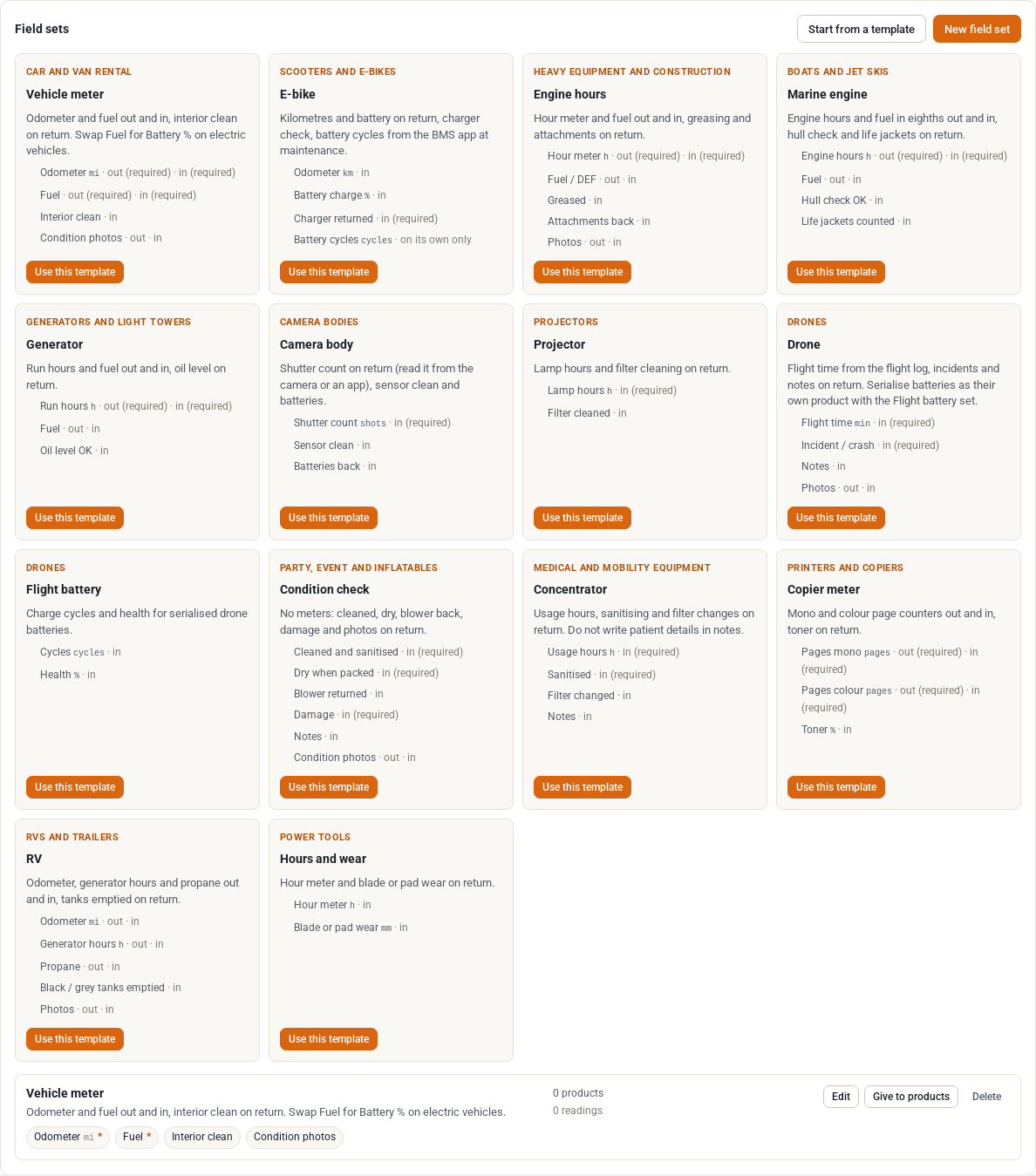
Use this template makes a set of your own and opens it so you can adjust it. Nothing stays linked to the template, so change anything you like. New field set starts from nothing.
Edit a field set #
Give the set a Name and an optional Description, then add a row for each thing staff should record.
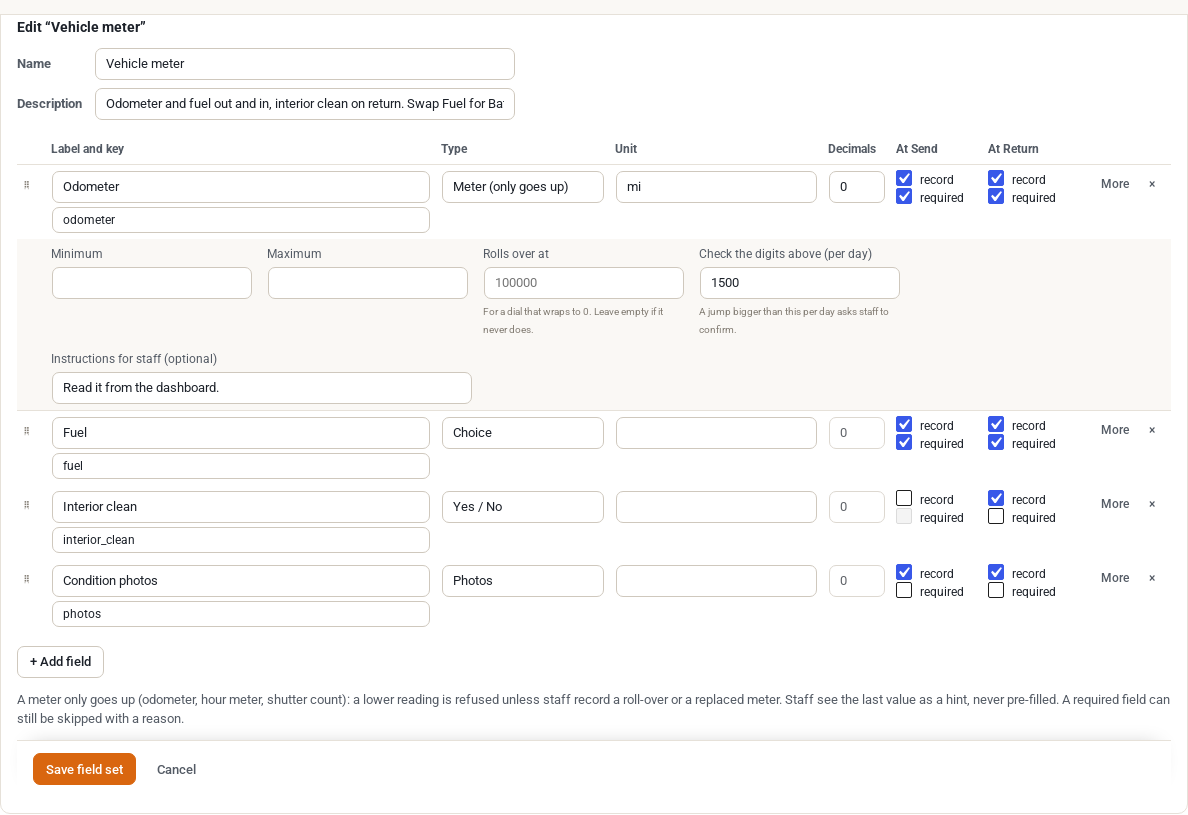
| Column | What it does |
|---|---|
| Label and key | The label staff see, and a short key used by the REST API and exports. The key fills in from the label. |
| Type | What kind of value it is (see below). |
| Unit | For meters and numbers: mi, km, h, min, cycles, shots, pages, %, L, gal, kWh, or your own (up to 20 characters). |
| Decimals | 0 to 3, for meters and numbers. |
| At Send, At Return | Tick record to ask for the field at that step, and required to make staff answer it. |
| More | The limits and instructions for the field (see below). |
Drag the handle at the start of a row to reorder the fields. Remove field takes out a field that has no readings. A field that already has readings is archived instead, so its history stays, and its type, unit and key are locked.
Field types #
| Type | Use it for | How it behaves |
|---|---|---|
| Meter (only goes up) | Odometer, hour meter, shutter count, page counter | A reading lower than the last one is refused unless staff say the meter rolled over or was replaced. The Usage Report adds up how far it moved on each rental. |
| Number | Fuel %, tread depth, battery health | Any value within the limits you set. |
| Choice | Fuel level from E to F, a condition grade | Staff pick one of the options you list, one per line, in order. The order matters: the report can tell “went down two steps”. |
| Yes / No | Cleaned, charger returned, keys returned | Two buttons. |
| Text | Attachments returned, anything else | A short note of up to 500 characters. |
| Photos | Condition photos, the dashboard at return | Staff add photos from the camera or the device. |
More settings #
- Minimum and Maximum: the values the field accepts.
- Rolls over at: for a dial that wraps to 0, such as 100000. Leave empty if it never does.
- Check the digits above (per day): a jump bigger than this per day asks staff to confirm. It catches an extra digit. It warns; it does not refuse.
- At least this many photos when required: for Photos fields.
- Instructions for staff: a line shown with the field, such as “Read it from the dashboard”.
Click Save field set when you are done.
Give a field set to products #
A set does nothing until a product carries it. Under Give a field set to products, choose the Field set, then pick Products one by one, or whole categories, and click Add to these products. Remove from these products does the opposite.
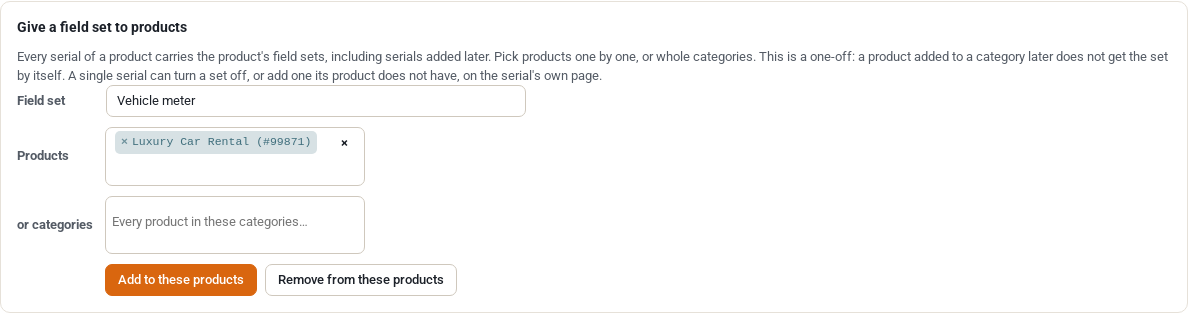
Every serial of a product carries the product’s field sets, including serials you add later. Giving a set to a category is a one-off: a product added to the category afterwards does not get it. On a serial’s own page you can turn a set off for that serial, or add a set the product does not have (The serial page).
Archive and delete #
Archive a set you no longer use and staff stop being asked for it, but everything recorded stays in the history. You can restore it later. Delete is only possible for a set that has never been used.
Who can use it #
Staff need no special permission to fill the fields in at Send and Return beyond the usual one for those screens. Setting up field sets needs the same access as the Rentals settings. By default it is the store administrators and shop managers who manage WooCommerce. Customers never see readings or photos.


