
Once customers start subscribing, you manage everything from Subscriptions in the admin menu and from the WooCommerce order screen. This page walks through the subscriptions list, editing a subscription, renewals, and what customers can do themselves.
The Subscriptions list #
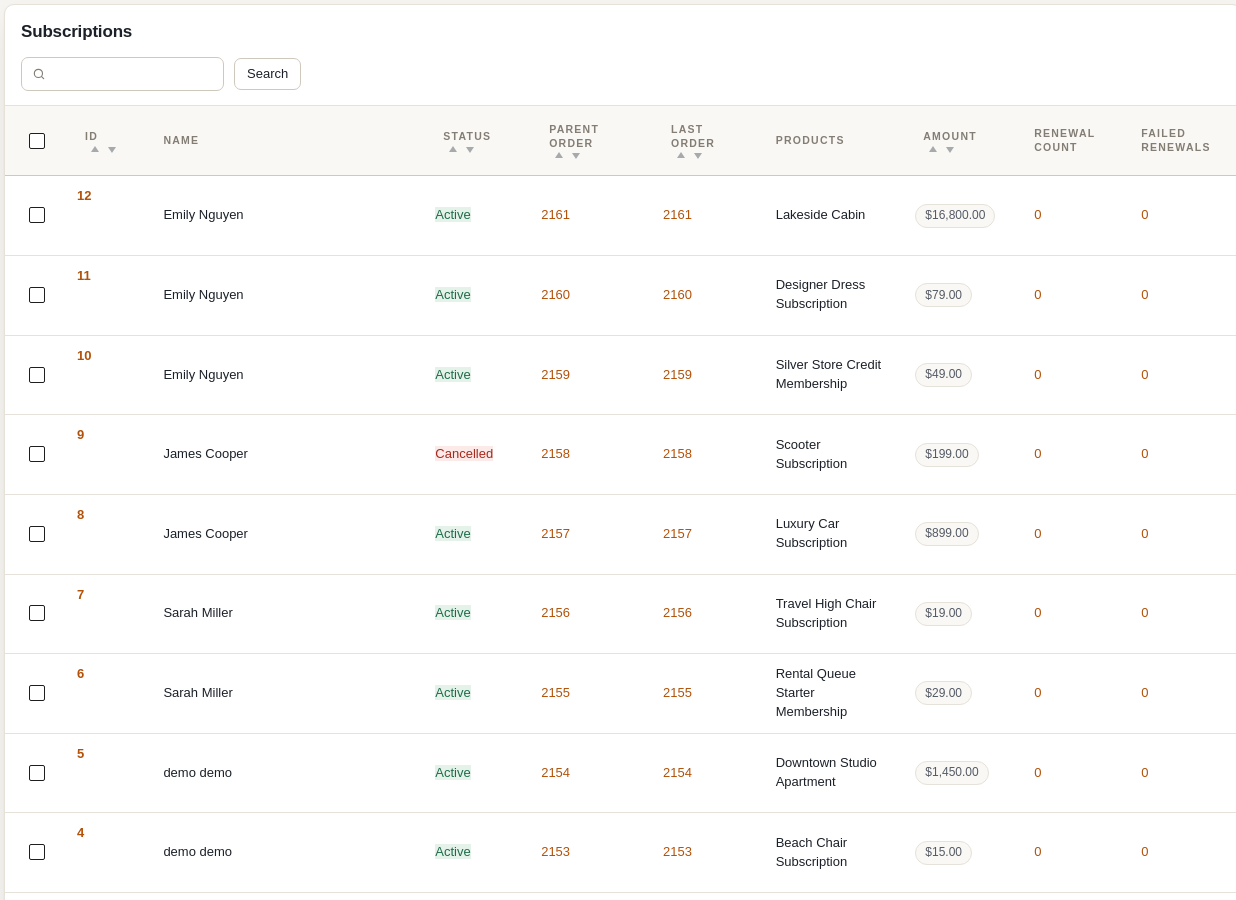
| Column | Meaning |
|---|---|
| ID | The subscription number. Hover for Edit (opens the parent order, where the subscription is edited) and Delete. |
| Name | The customer. |
| Status | Active – renewing normally. Paused – kept but not billed until resumed. Cancelled – stopped by the customer or you; its rental bookings are released. Expired – reached its “Stop renewing after” limit. Pending – created but the first payment has not completed. On Hold – three renewal payments in a row failed; it is not charged again until the customer pays the failed renewal order, which makes it active again. |
| Parent Order | The original checkout order. Its payment method is what renewals charge. |
| Last Order | The most recent renewal order (or the parent order if there have been none). |
| Products | The subscribed products. |
| amount | The recurring amount charged each billing period. Renewal orders never include shipping, so this can be lower than the parent order total. |
| Renewal Count | Number of successfully paid renewal orders. Click it to see those orders in the WooCommerce orders list. |
| Manual Renewals | Renewal orders sitting On hold waiting for you to take payment (manual gateways). The column only appears when at least one subscription has one. |
| Failed Renewals | Renewal orders that did not get paid – failed card charges, or orders stuck pending. Click through to see them with a Failure Reason column. |
Use the search box to find subscriptions by customer, and the Bulk actions > Delete option to remove several at once. Deleting a subscription removes the recurring billing record only; existing orders are untouched.
Editing a subscription from the order #
Subscriptions are edited from their parent order. Open the order (click Edit in the list, or the parent order number) and find the Subscription Management box:
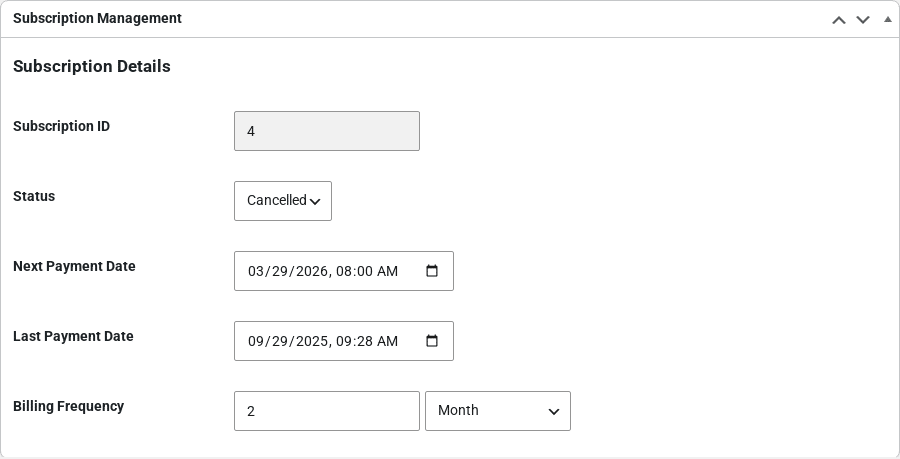
- Status – change it to Active, Paused, Cancelled, Expired or Pending. Setting a subscription to Cancelled also cancels its rental bookings so the inventory frees up.
- Next Payment Date – when the next renewal will be created and charged. Move it forward to give a customer extra time, or backwards to bill sooner.
- Last Payment Date – the date of the last successful payment. For store credit memberships this is also the start of the current credit period.
- Billing Frequency – the interval and period (for example every 2 months).
Click Update on the order to save. On an order that is not yet a subscription, the box offers Add Subscription Settings so you can attach recurring billing to an order created by hand.
Renewal orders show a note in this box instead of the fields – This is a subscription renewal order. To modify the subscription please edit the parent order – with a link to the parent.
Finding subscription orders #
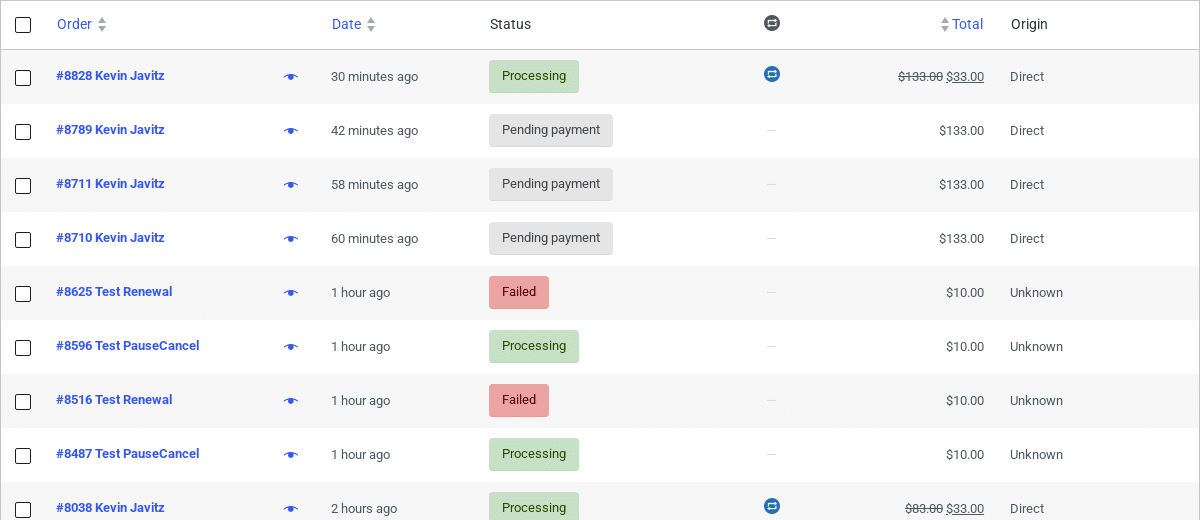
In WooCommerce > Orders a subscription icon column marks every order that belongs to a subscription, both parent orders and renewals, so they are easy to spot among normal bookings:
Renewals #
Renewals are processed automatically once a day. For each active subscription whose next payment date has been reached, the plugin creates a renewal order (a copy of the parent order’s subscription items, with the booking dates moved forward by one billing period and no shipping), charges the saved payment method, and then:
- Payment succeeds – the order becomes Processing/Completed, the subscription’s next payment date moves forward one billing period, the rental reservation is extended, and any store credit membership on it is topped up.
- Payment fails – the order is marked Failed and the customer receives the Subscription renewal payment failed email, with the reason and an Update Payment Method button (it opens My Account > Payment methods). The subscription stays active and the same order is charged again 24 hours later. After the third failed attempt in a row, the subscription is put On Hold and no more attempts are made. When the customer pays the failed order (My Account > Orders), the subscription moves on to its next period, and an on-hold one becomes active again. You can also retry it manually (below).
- Manual payment method – the order is left On hold for you to collect payment.
Manual renewal processing #
Subscriptions > Renewals > Manual processing lets you run renewals without waiting for the cron:
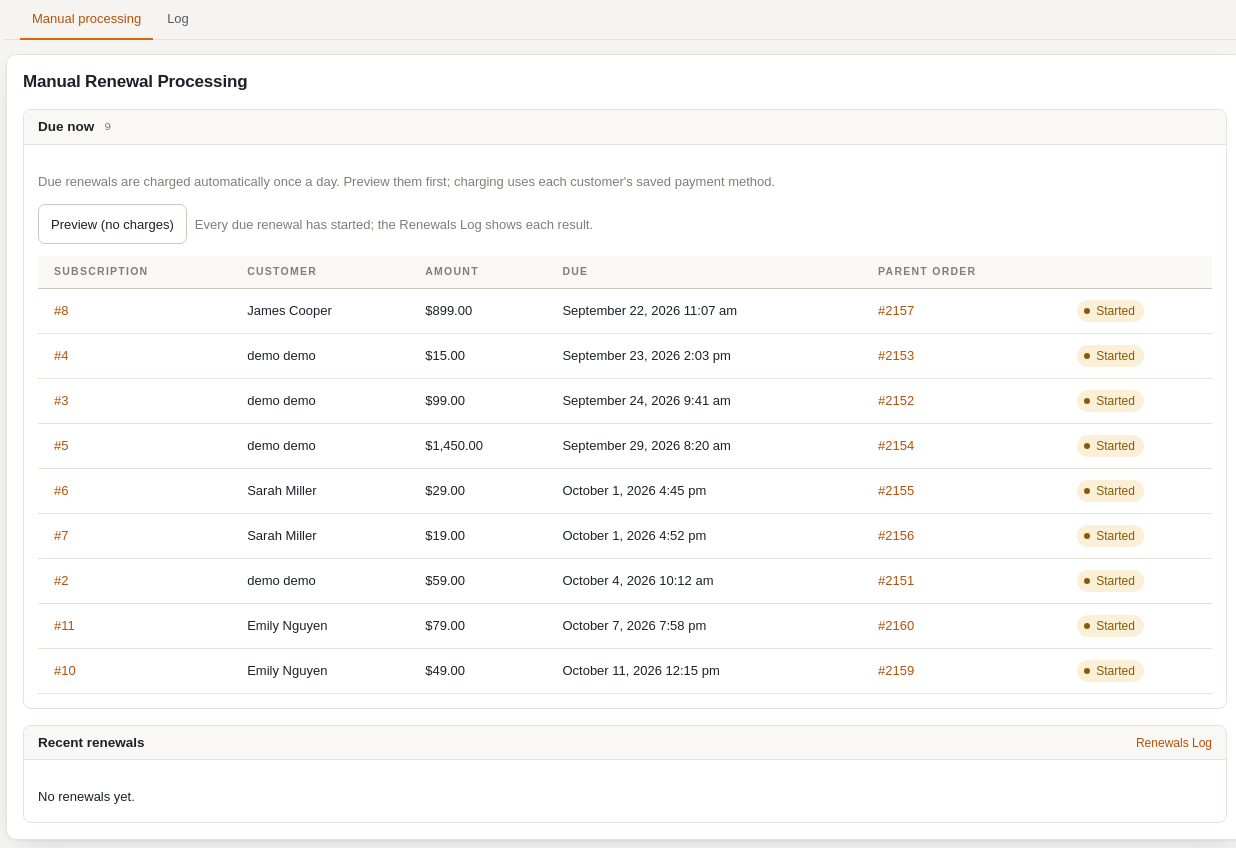
- Test Renewal Process – checks that the renewal system is working without creating or charging anything.
- Process Due Renewals – runs the same job the daily cron runs, right now.
- Due for Renewal – every subscription whose next payment date has passed, each with a Process Now button to renew just that one (useful for retrying a failed card after the customer updated it).
- Recent Renewal Actions – the last few renewal attempts with their result.
A warning is shown at the top of this page if the daily renewal event is not scheduled, which usually means WordPress cron is disabled on the server.
Renewals Log #
Subscriptions > Renewals > Log is the full history of every renewal attempt. Filter by subscription, customer, order number, status, note text or date range to trace exactly what happened to a specific renewal.
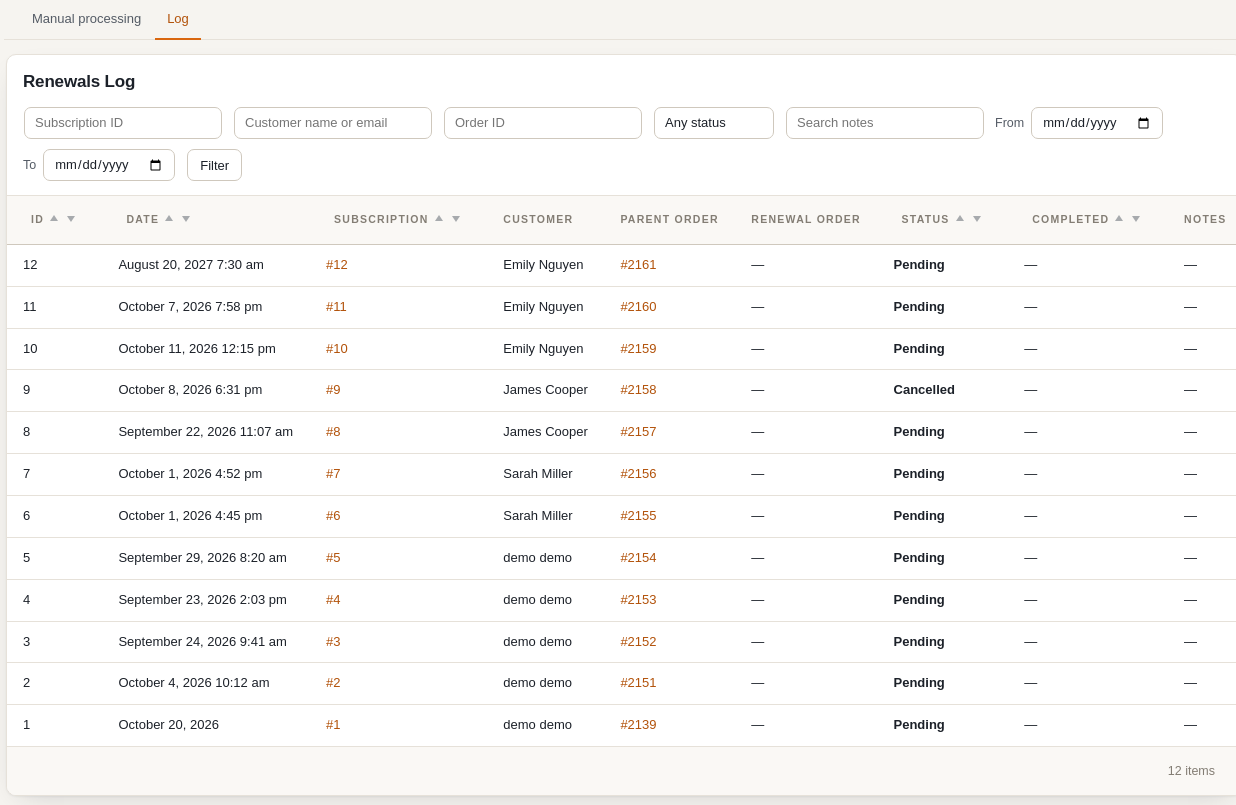
| Status | Meaning |
|---|---|
| Pending | Scheduled for the date shown; nothing has been charged yet. |
| Completed | The renewal order was created and paid. The Renewal Order column links to it. |
| Failed | The attempt did not succeed; the Notes column has the reason (for example the gateway’s decline message, or “Subscription not found or not active” when the subscription was cancelled or deleted before the scheduled date). |
What customers can do #
Under My Account > Subscriptions customers see each subscription with its status, next payment date, frequency and total. Clicking the subscription number expands its details – creation date, last payment, original order, payment method and the items:
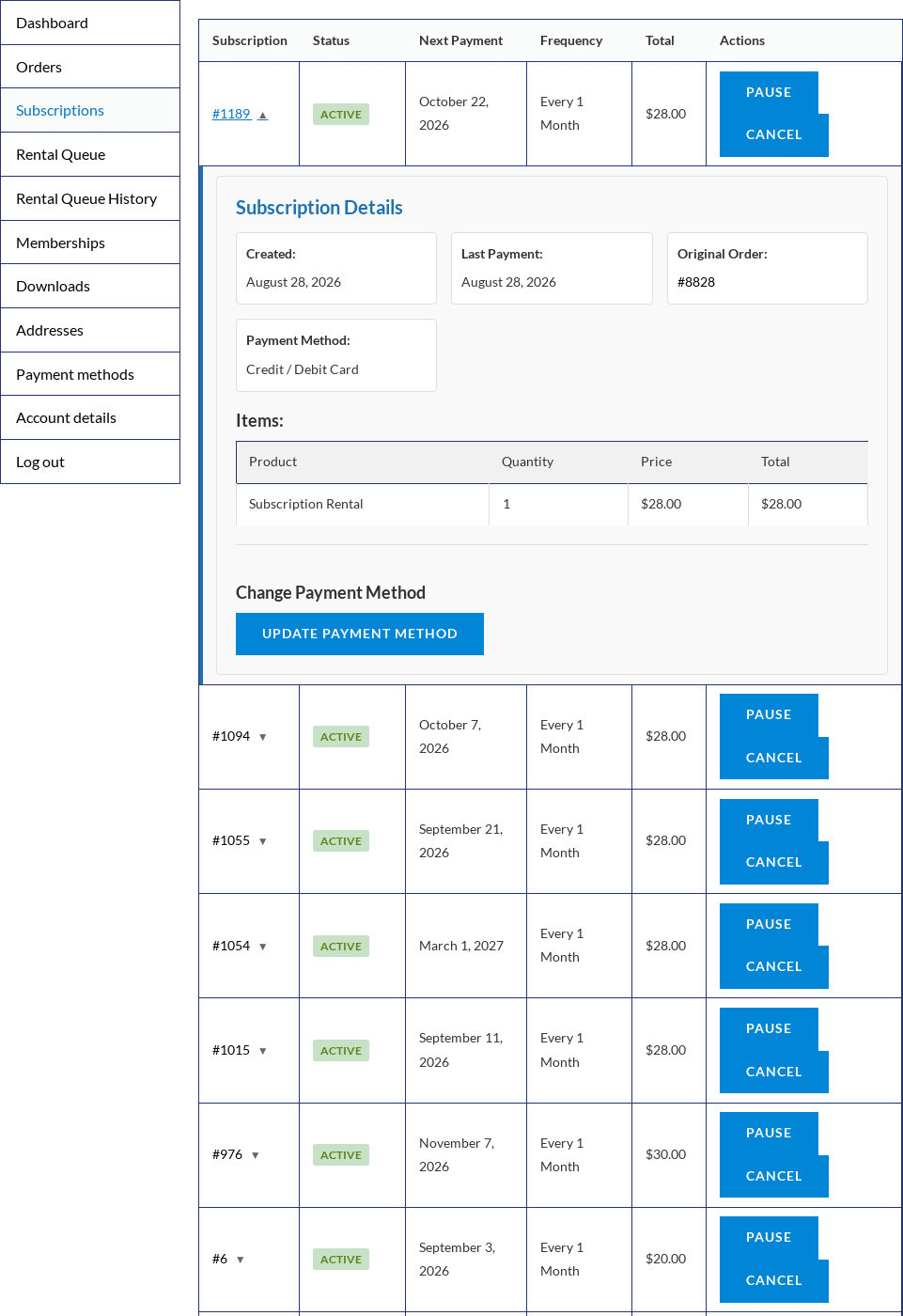
- Pause / Resume – stops renewals until the customer resumes. Paused memberships lose their benefits while paused.
- Cancel – ends the subscription. The change is recorded as a note on the parent order.
- Update Payment Method – how this works depends on the gateway that paid the original order (see below).
- Stripe: an inline card form; the new card is saved to the customer and used for all future renewals.
- Braintree: a drop-down of the cards the customer has saved under My Account > Payment methods.
- PayPal Payments: renewals always use the customer’s current saved PayPal payment method, so a Manage Payment Methods button links to My Account > Payment methods, where they can add or change it.
- Authorize.net: renewals charge the customer’s default saved Authorize.net card, so a Manage Payment Methods button links to My Account > Payment methods, where they can add a card and make it the default. Paying a failed renewal order with a new card also makes that card the default.
- Manual methods (Check, Bank Transfer, COD): no payment method to update; nothing is shown.
If you would rather customers could not change anything themselves, use the [sisubscriptions_customer_subscriptions] shortcode on a page: it can render the same table read-only.


