
Sales Igniter Security Deposits collects a refundable security deposit when a customer orders a product, holds it as a separate line on the order, and lets you refund it – by hand from the order screen, or automatically when the order is completed. Deposits can be set per product (a fixed amount or a percentage of the price, optionally multiplied by quantity, with per-variation overrides) or as one deposit per order.
Requirements #
- WordPress and WooCommerce 8.0 or newer. Both order storage modes are supported (the plugin declares High-Performance Order Storage compatibility).
- Sales Igniter Rentals & Bookings is not required – the plugin works with any WooCommerce product, but it pairs naturally with rental products.
- For refunds to reach the customer’s card automatically, a payment gateway that supports WooCommerce refunds: Stripe, PayPal (WooCommerce PayPal Payments), Braintree and Authorize.net all do. With a gateway that does not (Check, Bank Transfer, Cash on Delivery) the refund is recorded in WooCommerce and you return the money outside the system.
Install the plugin #
- Download
sisecuritydeposits.zipfrom your account on rentalbookingsoftware.com. - Go to Plugins > Add New > Upload Plugin, choose the zip file and click Install Now.
- Click Activate.
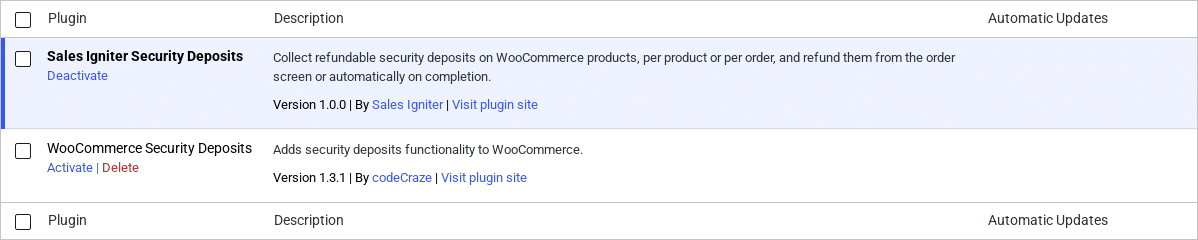
If you are replacing another security deposit plugin (for example “WooCommerce Security Deposits” by codeCraze, shown above), deactivate it first. Running two deposit plugins at once would add two deposit fees to every order. Existing orders keep their old deposit lines; only new orders use Sales Igniter Security Deposits.
What activation adds #
- A Security Deposits tab under WooCommerce > Settings – see Settings.
- A Security Deposit tab in the Product data box of every product, plus override fields on each variation of a variable product – see Product Settings.
- A deposit notice on the product page, deposit fee lines in the cart, at checkout and on the order.
- On the order edit screen: deposit status and a Refund Security Deposit button under each item, and a Security Deposits Summary box in the sidebar with Refund All – see How to Refund Deposits.
- Two emails under WooCommerce > Settings > Emails, sent when a deposit is refunded:

- Security Deposit Refunded – to the customer, with the order details showing the refund.
- Security Deposit Refunded – Admin copy – to the shop admin (the recipient can be changed in the email’s settings).
Activation also schedules a twice-daily WordPress cron event used for delayed automatic refunds (see the Days to delay automatic refunds setting). If your site has WP-Cron disabled, make sure a server cron requests wp-cron.php regularly, otherwise delayed refunds will not run.
Next steps #
- Review the global options under WooCommerce > Settings > Security Deposits – Settings.
- Turn on Collect security deposit on the products that need one – Product Settings.
- Place a test order and refund the deposit from the order screen – How to Refund Deposits.


