
Once a product carries serial custom fields (Serial custom fields and field sets), the Send and Return screens ask for them as units go out and come back. Sending and returning otherwise work as before.
At send #
Go to Rentals > Send. Choose the units in the row’s Serials box, as usual. A panel opens under the row with the fields of every unit you chose, and the row is ticked for you.
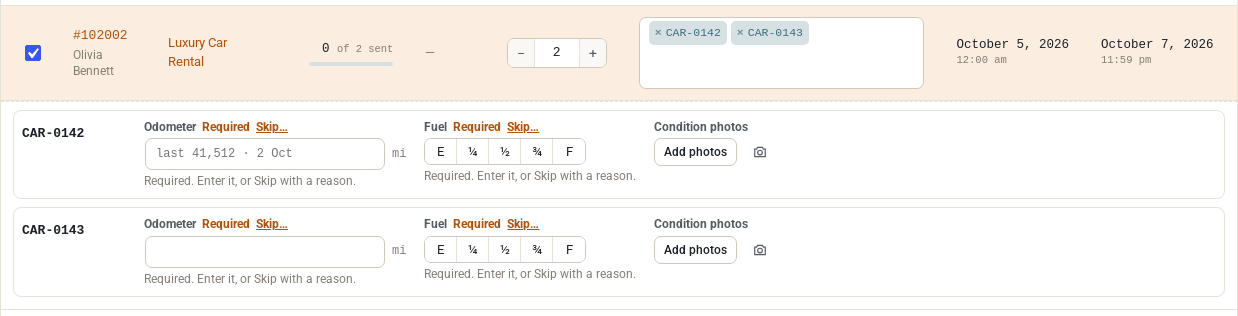
Enter what each unit reads. Under a meter you see the last reading as a hint, such as “last 41,512 · 2 Oct”. It is never filled in for you, so a meter value is never submitted unread. Click Send selected when the row is complete.
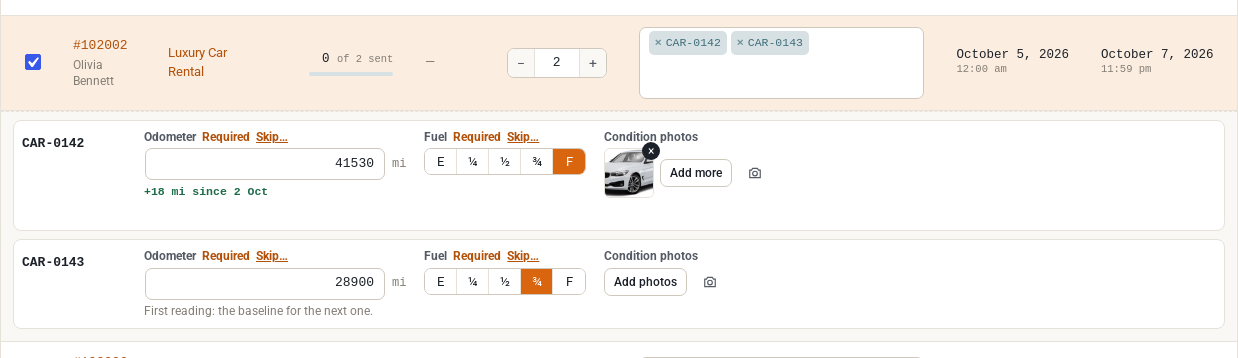
The send and its readings are saved together. If anything is refused, nothing is sent, so a unit is never out without the readings you asked for. The button stays off until the required fields are right, and the message beside the row says what is missing. If you change the units in the row afterwards, check the panel again: the values belong to the units they were entered for.
At return #
Rentals > Return works the same way, with a little more help:
- The units that are out on the booking are picked for you when they fit the quantity still to return.
- Under each box is what the unit read when it went out, as a reminder. It is never filled in for you.
- A meter shows how far the unit went on this rental as you type, for example “+312 mi this rental”.
- A choice field marks the value the unit went out with (“out” over the F), so staff can see at a glance that it came back with half a tank instead of a full one.

Click Return selected. The serial goes back to Available. The panel’s last line, when you tick a row, reminds you that Enter moves to the next field and Ctrl+Enter returns the selected rows.
Scan to return #
The Scan to return box on the Return screen takes a serial code from a barcode or QR label. It finds the booking the unit is out on, opens it and puts the cursor in the unit’s first field.
A meter reading lower than last time #
A meter only goes up, so a lower reading is refused and the box says what the last reading was. It is usually a typing mistake.
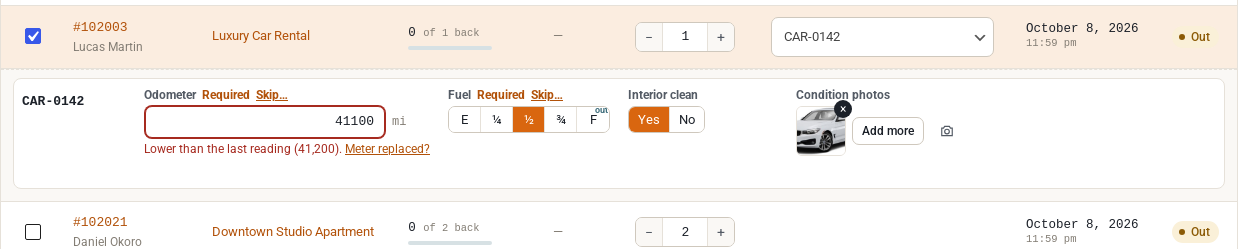
If the meter really did go back, open Meter replaced? (it reads Meter replaced or rolled over? when the field has a roll-over value) and say which it is. It rolled over: usage is worked out across the wrap. The meter was replaced: you can give the old meter’s final reading and what the new one started at, and the usage counts from the new meter instead of going negative.
A jump larger than the field’s “check the digits” limit asks staff to confirm. It is a warning, not a refusal.
Skipping a field #
When a required value cannot be read, a broken gauge for example, click Skip… beside the field and give a reason. That satisfies the required field, and the reason is kept in the unit’s history. A field that is not required can simply be left empty.
Photos #
Add photos picks files from the device. Take photo opens the camera on a phone or tablet. A photo uploads straight away, two at a time, with progress and a retry. It is attached when the send or return is saved. One that never gets attached is removed after a day.
JPEG, PNG and WebP photos are accepted. The browser scales each photo to 2048 pixels on its long edge before uploading, and the server re-encodes it, corrects its orientation and drops the rest of its metadata. A Photos field can require a minimum number of photos, and Skip… applies to it like any other required field.
Photos are private: they are never in the Media Library and never at a public address. See The serial page for where they are kept and how to look at them.
If a send or return is refused #
Everything you typed stays in the form, photos included. Fix what the message names and try again.
What staff need #
Staff need only their usual permission to send and return. Everything else here comes from the Send and Return screens themselves.


