
Every ticket can carry its costs: the parts used, the time spent, the vendor’s invoice and anything else. The ticket shows two totals, what the repair cost you and what you may bill the customer, and the reports add the costs up per product and unit.
The Costs card #
Open a ticket and find Costs. Its header reads “Our cost … · Billable …”.
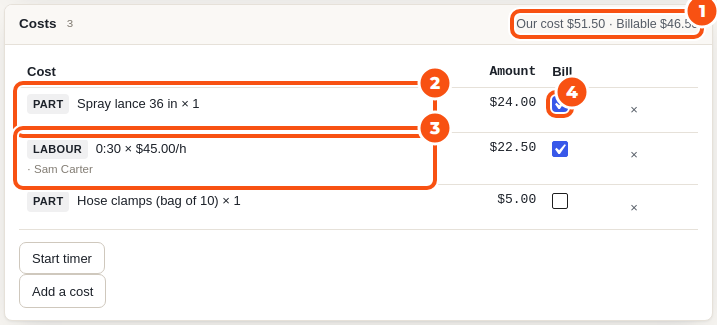
Click Add a cost and choose the Kind:
| Kind | What you enter |
|---|---|
| Part | A part from your parts list (its unit cost fills in, and the stock count goes down), or Not on the list and type it. Quantity and unit cost. |
| Labour | The minutes and the Hourly rate (it starts at the labour rate from the settings). |
| Vendor | The vendor and the amount of their invoice. Attach the invoice as a PDF or photo. |
| Other | A description and an amount. |
Each line can belong to The whole ticket or to one unit, and has a Bill to customer tick. Only users with the costs capability tick it; the billable total is where a damage charge starts.
Start timer logs labour while you work: stop it when you finish and the time is added as a labour line. Closing the ticket stops a running timer. A closed ticket takes no more time until you reopen it.
Technicians can add costs to their own tickets and edit the lines they entered. Users with the costs capability see and edit every line.
The parts list #
Go to Maintenance › Settings › Parts.
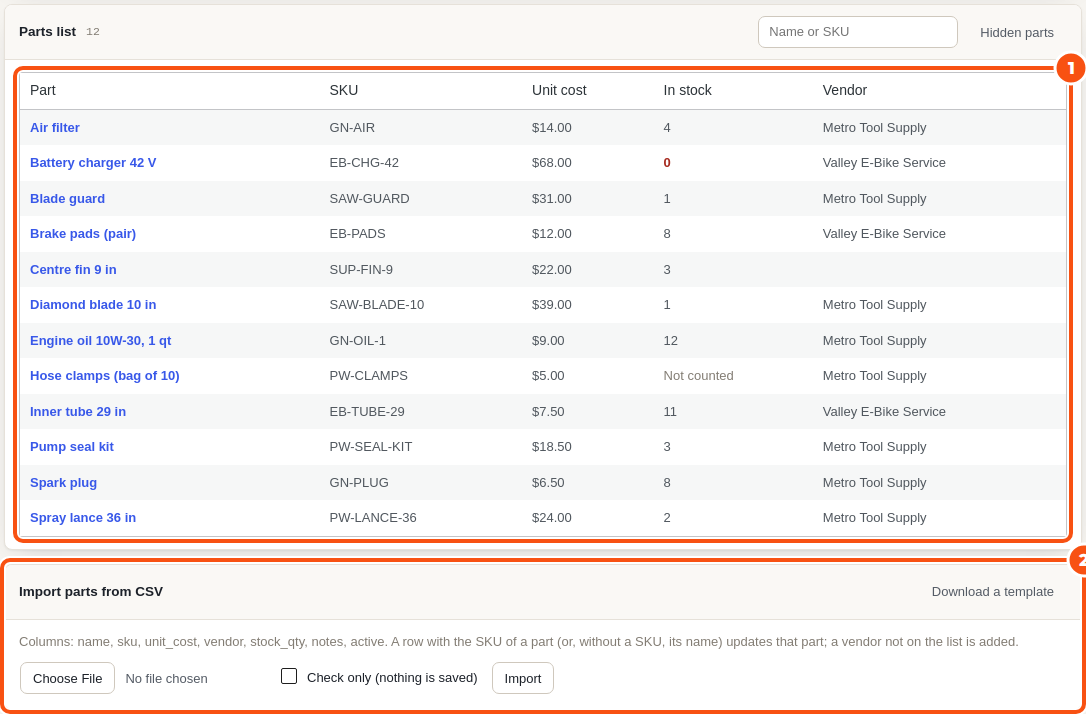
For each part enter the Name, SKU, Unit cost (what one costs you), a Preferred vendor, Notes and, if you count it, In stock. A counted part goes down when a ticket uses one and back up when that line is removed. Leave the count empty for parts you do not count. Untick Active to stop offering a part on tickets.
Removing a part that tickets used hides it instead, so their costs keep its name.
Import parts from CSV takes the columns name, sku, unit_cost, vendor, stock_qty, notes and active. A row with the SKU of a part (or, without a SKU, its name) updates that part; a vendor not on the list is added. Tick Check only first to see what would change.
Vendors #
Go to Maintenance › Settings › Vendors and add the workshops you send units to and the suppliers you buy parts from: name, contact, email, phone and notes. The list shows which units are At this vendor now.
On a ticket, the Vendor card records who has the unit: the vendor, Their reference, when it was Sent, when it is Due back and their Quote. A vendor that is late is flagged on the card. Move the ticket to At vendor while it is away and click Back from vendor on the board when it returns.
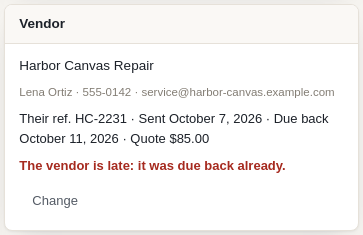
A vendor that tickets or parts use is hidden instead of removed.


