
These choices are on the Settings tab of WooCommerce > QuickBooks, and in step 2 of the set-up.
When and as what #
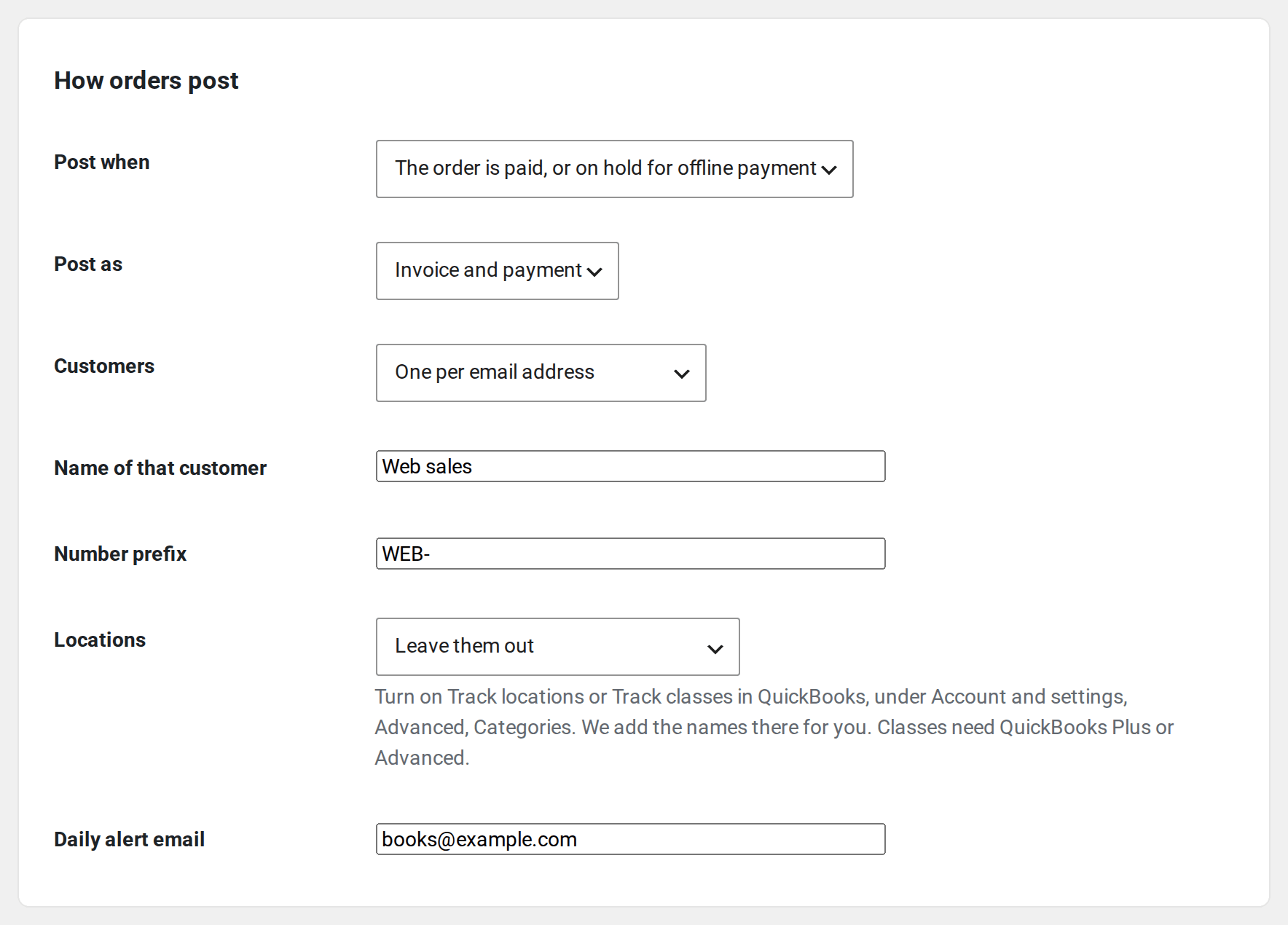
- Post when: the order is paid, or on hold for an offline payment such as a bank transfer. Or wait until the order is completed.
- Post as: an invoice with its payment, or a sales receipt, which is the sale and the payment in one document.
- Customers: one QuickBooks customer per email address, or one customer for all web sales under a name you choose. An existing customer with the same email is used, not copied.
- Number prefix: goes in front of your order number, such as WEB-1042, so web orders never clash with numbers you use in QuickBooks.
QuickBooks has its own setting for numbers. With Custom transaction numbers on (in QuickBooks under Settings, Account and settings, Sales) each document carries your order number. With it off, QuickBooks numbers documents itself and your order number appears only in the private note. The screen tells you which way your company is set.
Each line #
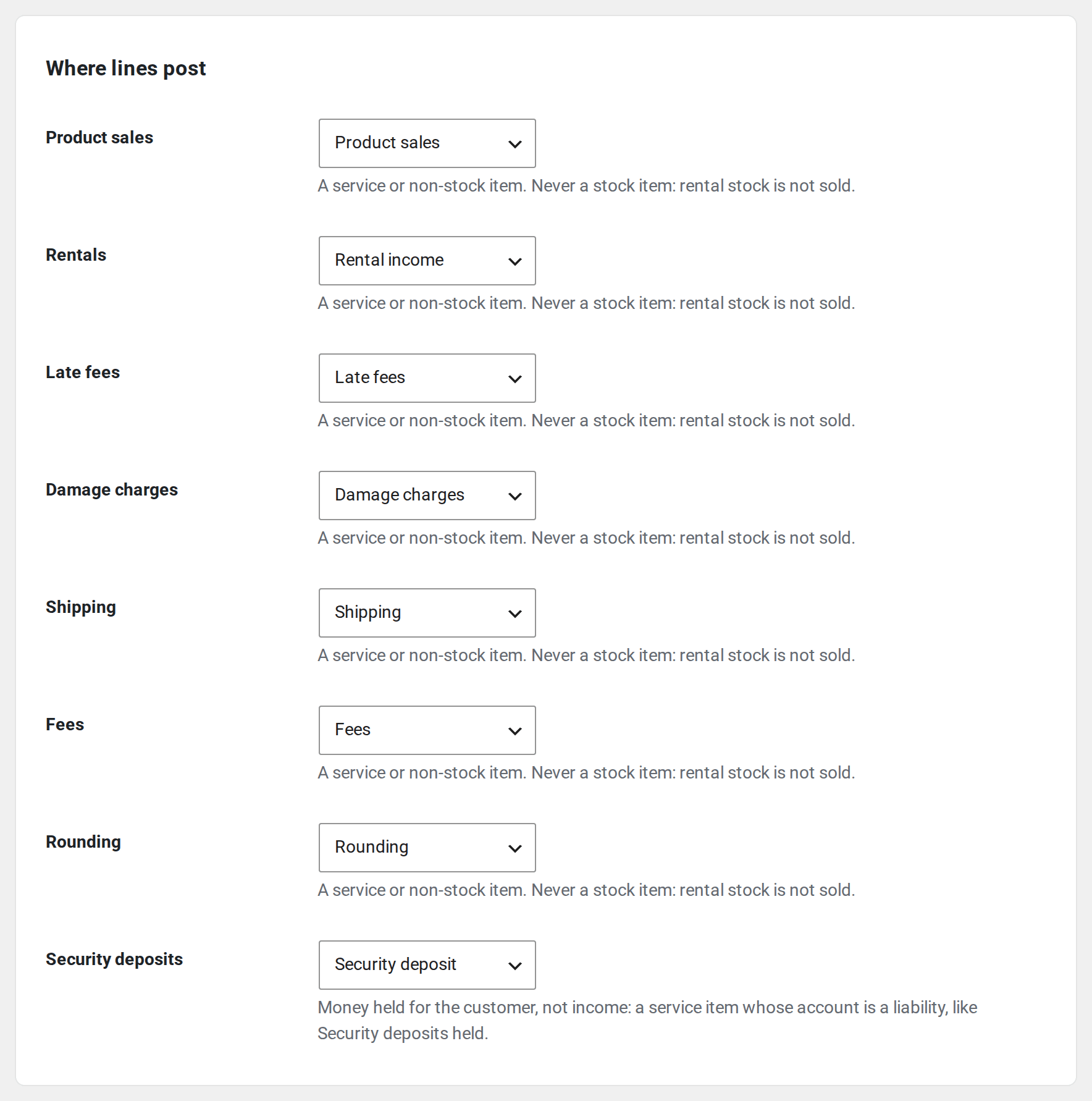
Products, shipping, fees and rounding each post to the item you picked in Where lines post. The tax sent is the order’s own tax amount, as WooCommerce worked it out, and it stands even where QuickBooks’ rate would work out a different amount. So the total in QuickBooks matches the order.
What we’ve tested: a US company on QuickBooks’ older sales tax, with one rate and with several. What we haven’t: US companies on QuickBooks’ automated sales tax (most US companies made since late 2017) and companies outside the US, because no test company can show them. Intuit’s notes say the order’s tax amount is kept there too, but we haven’t run it.

When WooCommerce and QuickBooks round a cent differently, the cent goes on a Rounding line. A gap too big to be rounding stops the order with a message instead, so you can check it.
Changes after posting #
- An edited order updates its document while nothing has been paid on it. Ten edits in a minute make one update. Once an invoice has a payment on it, a change to the order waits under Needs attention: change the invoice in QuickBooks by hand. A sales receipt is updated.
- A refund posts by itself. When money goes back, a refund receipt records it in one document. On an unpaid invoice, a credit memo lowers what’s owed. A refund that names no order lines shares its tax out in proportion to the order.
- A cancelled order voids its document. An order that was never posted has nothing to void. An order refunded in full stays as it is, because the refunds are already in the books. A cancelled order with a payment in the books waits under Needs attention, asking you to refund it in WooCommerce, so the money going back is recorded. Nothing is credited on a guess.
- A document deleted in QuickBooks is never posted again by itself. Press Post again on the order if you want it back.
When an order can’t post #
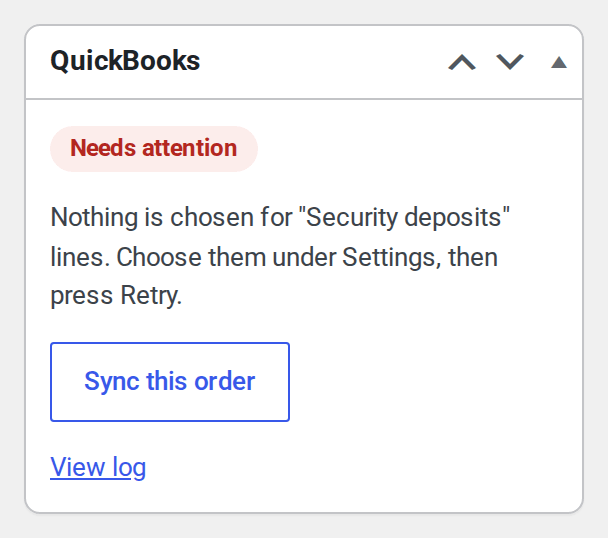
The order waits under Needs attention with a message saying what to fix, then Retry. The usual ones:
- The order is dated in a period you closed in QuickBooks. Move the closing date there if it should post.
- The order has sales tax but sales tax isn’t set up in your QuickBooks company, so the tax would be lost.
- A document with the same number is already in QuickBooks. If it’s this order, link it from the Import tab. If not, set a number prefix.
- The number with its prefix is longer than QuickBooks allows. Shorten the prefix.
- The order is in a currency other than your books’. Orders in other currencies aren’t posted yet.
Daily alert email #
Enter an address under Daily alert email and you get one email a day when something needs attention or the connection was lost, with a link to the Activity tab. Nothing is sent on a day when all is well.


