
Every serial has its own page with its details, its photos, the current value of each of its serial custom fields and a full history of what was recorded at each send and return. Go to Rentals > Serials and click a serial’s code, or follow its link from the product’s serial list or from an order.
The history can be corrected but never silently overwritten: a correction is a new entry that supersedes the old one, and a voided entry stays visible with who voided it and why. That makes a reading usable as evidence in a damage or overage dispute.
Current values and history #
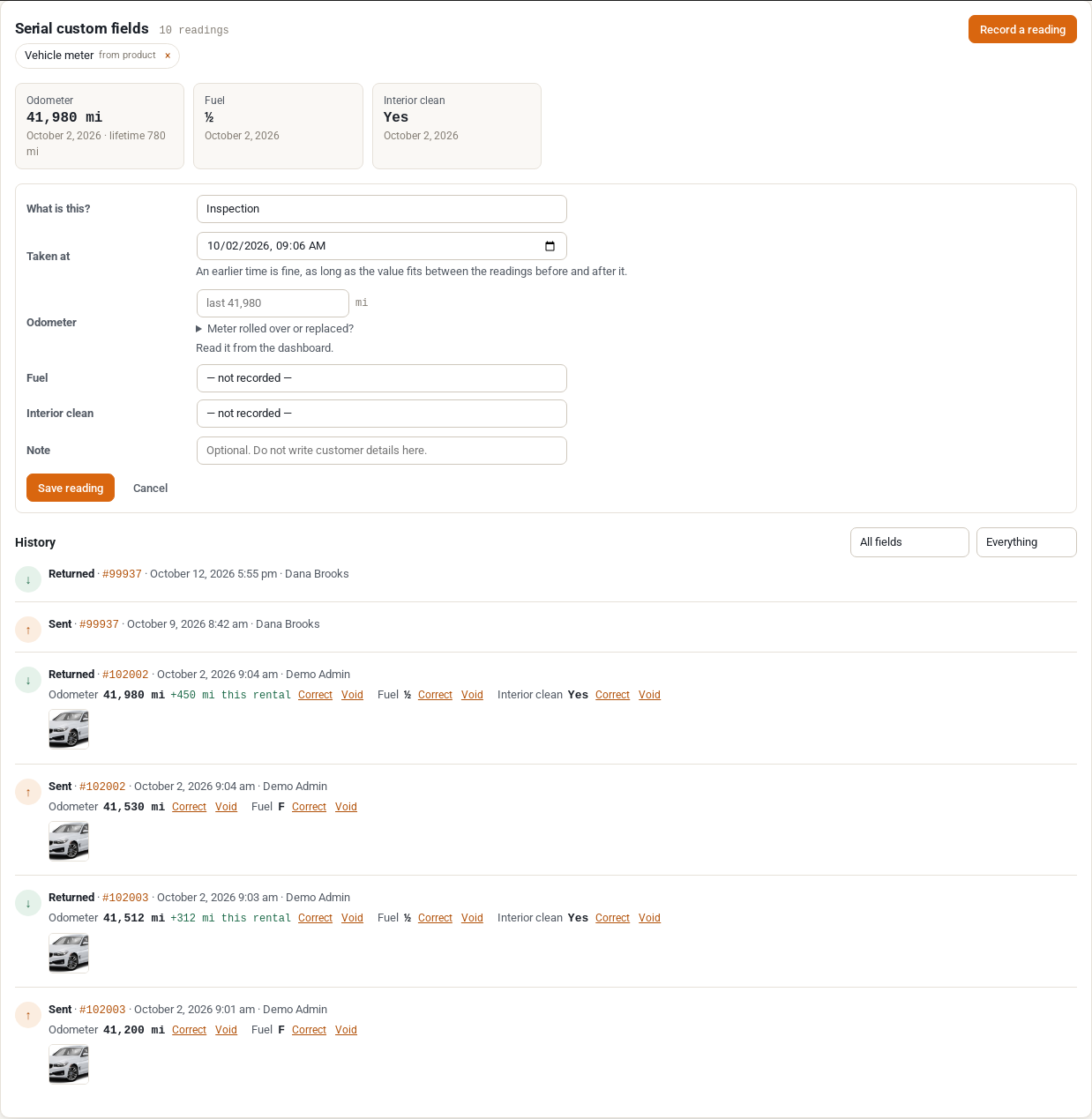
Under Serial custom fields the page shows the field sets the serial carries and where each one comes from (“from product”, or added to this unit). Under them, the current value of each field. A meter also shows its lifetime usage.
History lists every send and return with the booking, the date, who recorded it and the values entered, with the photos taken at that step and, for a meter, how far it went on that rental. Filter it by field or by kind of entry.
Record a reading at any time #
Click Record a reading for a value that is not part of a send or return: an inspection, a service, a fuel stop. Choose What is this?, set Taken at (an earlier time is fine, as long as the value fits between the readings before and after it), fill in any of the fields and add a note. Do not write customer details in notes. A meter reading that is lower than the last one asks whether the meter rolled over or was replaced, as at Return.
Correct or void a reading #
Next to each recorded value are Correct and Void.
- Correct takes the right value and a reason, for example “digits swapped”. The old value stays in the history, marked as corrected.
- Void takes a reason and removes the value from the totals. It stays in the history, with who voided it and when.
Corrections and voids change the usage figures on the Usage Report and the order screen straight away.
Turn a field set off for one unit #
The page shows which field sets the serial carries. Click x on a set to turn it off for this unit only, or Add a field set to this product’s serial to add one the product does not have. The product itself is not changed.
Photos #
The Photos card shows the serial’s photos, filtered by All, At send and At return. Take photo and Choose photos add more, with a kind (Condition, Damage, Service or Other) and an optional note.
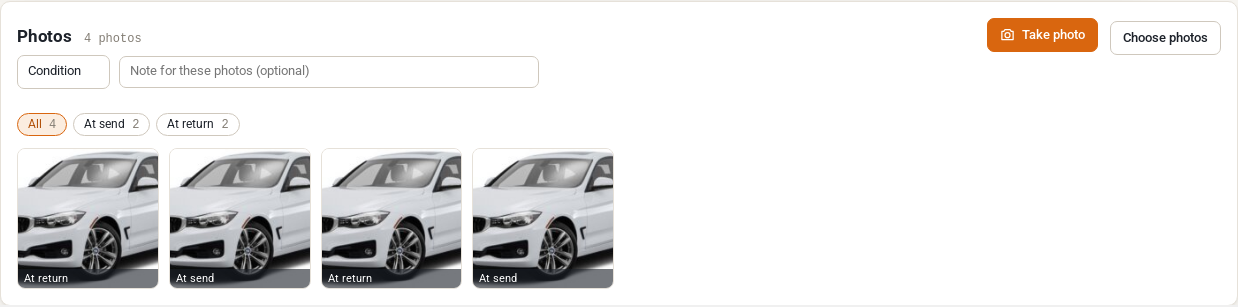
Click a photo to open it. From there:
- Save note adds a note to it.
- Keep as evidence stops the retention setting from ever deleting it.
- Move to trash removes it from view. A photo in the trash can be restored, or deleted permanently with a reason. The trash is emptied after 30 days.
Only staff can see photos, and they are checked for permission on every request. Customers never see them. Photos are not in the WordPress Media Library and are not at a public address: they are shown through signed links that expire.
Where photos are kept #
Under Rentals > Settings > Serials > Photos:
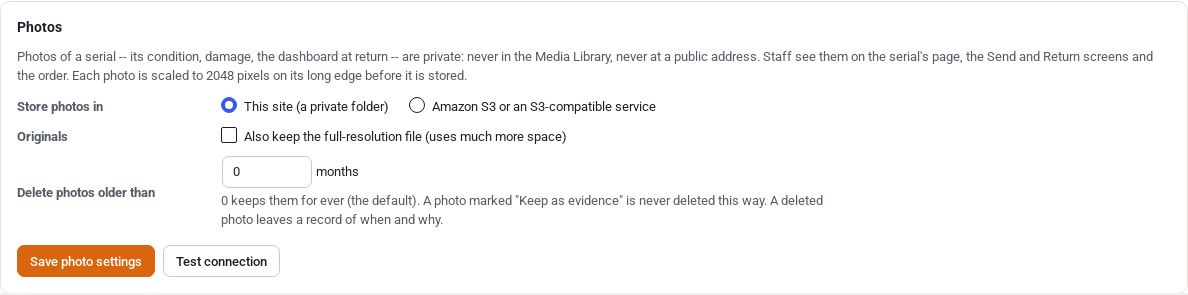
- Store photos in: This site (a private folder) under your uploads folder, protected from direct access, or Amazon S3 or an S3-compatible service. For S3 enter the bucket, region, access key ID, secret access key and, for Cloudflare R2, Backblaze B2, Wasabi, DigitalOcean Spaces or MinIO, the endpoint, a folder in the bucket and path-style addresses. Use a private bucket and an access key limited to it (PutObject, GetObject, DeleteObject). The secret is saved once and never shown again. Test connection writes, reads and deletes a test file. Photos already stored stay where they are when you switch.
- Originals: tick to also keep the full-resolution file. It uses much more space. Off by default.
- Delete photos older than a number of months: 0 keeps them for ever (the default). A photo marked Keep as evidence is never deleted this way. A deleted photo leaves a record of when and why.
On nginx the random folder name is what protects a local folder, so never share a photo’s address by hand. Use the signed links the screens give.
Deleting a serial #
A serial that has history cannot be deleted without confirming, because its readings and photos go with it. The usual action is to set it to Damaged or leave it as it is.


