
Sales Igniter Multi Location Inventory lets one WooCommerce shop rent and sell from several places: stores, depots, a desk at a hotel or an airport, or a city you deliver in. Each location keeps its own stock, opening hours, contact details, order emails and staff. Customers choose where they pick up, and the calendar shows what that location has free.
This page explains what the add-on does, what you need, and the main steps to get going. Each step links to a page with the details.
Who it is for #
- Rental shops with more than one store, such as baby gear, beach gear, bikes, party rental or tools.
- Shops that deliver from depots in different cities.
- Car, van, bike and scooter hire where customers may return somewhere else (one-way rentals).
- Franchise brands, where each store is owned by a franchisee.
Multi Location Inventory also works for products you sell outright, such as sunscreen, towels or consumables. Each location sells from its own count.
With only one location, nothing changes for your customers. You can install the add-on first and add your second location when you are ready.
What you need #
- Sales Igniter Rentals & Bookings for WooCommerce Regular 1.0.74 or newer (it includes Lite 1.0.10). Regular includes the Lite base plugin. Multi Location Inventory is a separate add-on and does not run on Lite alone.
- WooCommerce 8.0 or newer, WordPress 6.6 or newer and PHP 8.1 or newer.
See Installing and Licensing Multi Location Inventory.
The ideas in one minute #
- A location is a place with an address, map pin, opening hours, phone, email and order email settings. It is a branch (customers come to it), a depot (it holds stock and delivers) or a hand-over point (a desk with no stock of its own, served from a branch).
- The default location is where everything counts that has no location of its own, including all your bookings and stock from before you installed the add-on. It starts from your WooCommerce store address.
- A product is either offered at every location from one shared stock (the default, so nothing changes until you decide), or offered at the locations you choose, each with its own stock.
- Availability is worked out per location. Five strollers in Tampa and ten in Orlando are two separate calendars.
- Staff can be given one or more locations. They see the bookings, orders and hand-overs of those locations only.
Get started in six steps #
1. Add your locations #
Go to Locations > Locations. The first time, the screen asks how your customers get their rentals (at a counter, by delivery, by courier, one-way, or through franchises). Your answer only fills in sensible settings; you can change every one later. Then click Add location for each store.
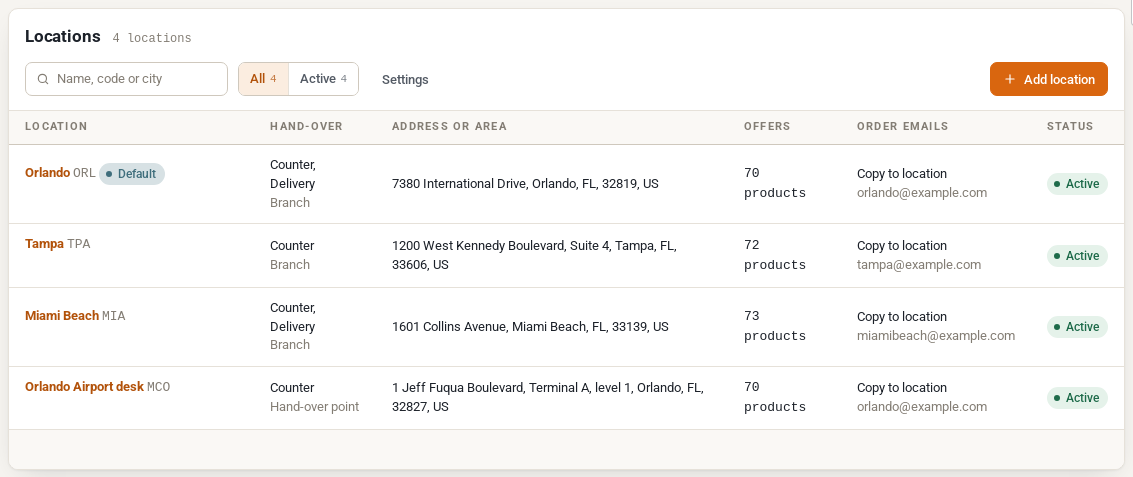
See Setting Up Locations.
2. Give a product stock at each location #
Open a product and go to its Inventory tab. Under Stock by location, choose The locations below, each with its own stock, tick where it is offered and enter the units at each location. The product’s stock becomes the total.
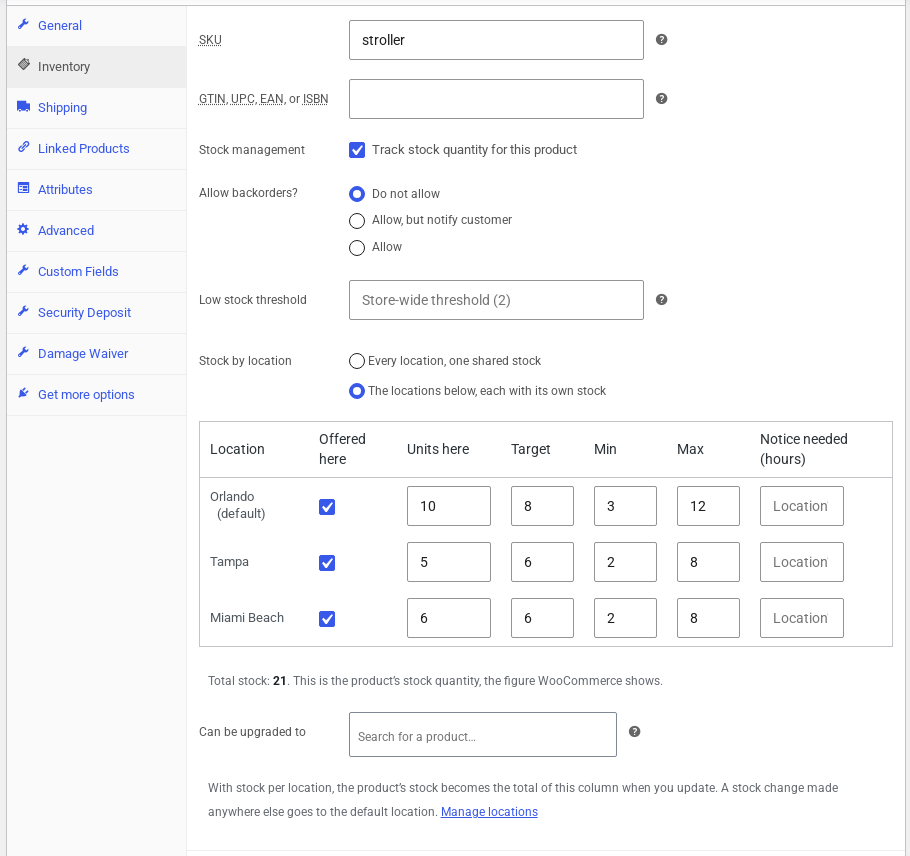
See Stock by Location on the Product Inventory Tab.
3. Let customers choose a location #
Add the location picker to a page with the shortcode [sibooking_location_picker], or add “Shopping in” to your menu under Location settings. Once a customer chooses a store, the shop shows only what that store offers.
See What Customers See and Location Settings.
4. Check a product page #
Rental products now ask Pick-up at above the calendar. The calendar and the price follow the chosen location.
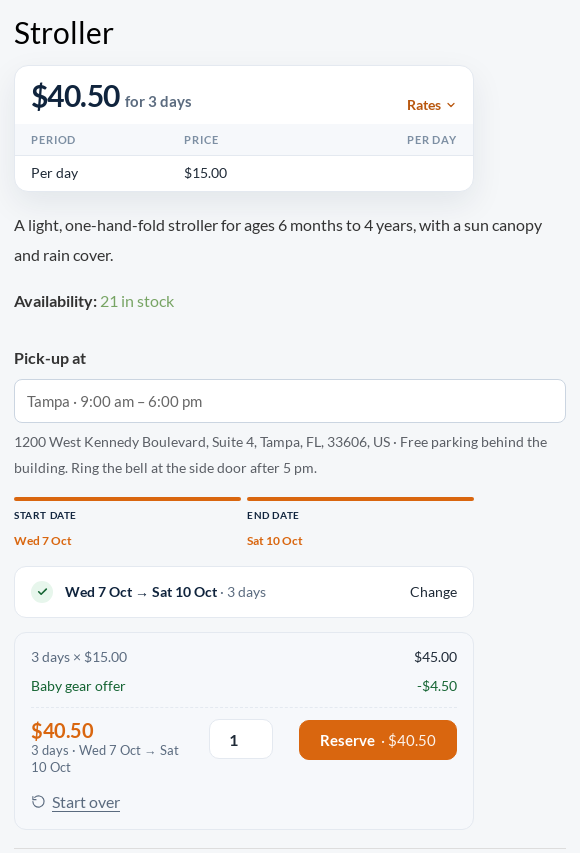
5. Take orders #
Each order line remembers its location. It shows on the cart, the checkout, the order screen and the emails, and the new order email can go to the store as well. Staff can move a line to another location from the order screen.
See Orders, Emails and Moving a Line.
6. Watch your stock by location #
Locations > Stock by location shows every product at every location: what is on hand now, what is spare, and which locations will run short. It suggests transfers, and Locations > Transfers moves units between stores.
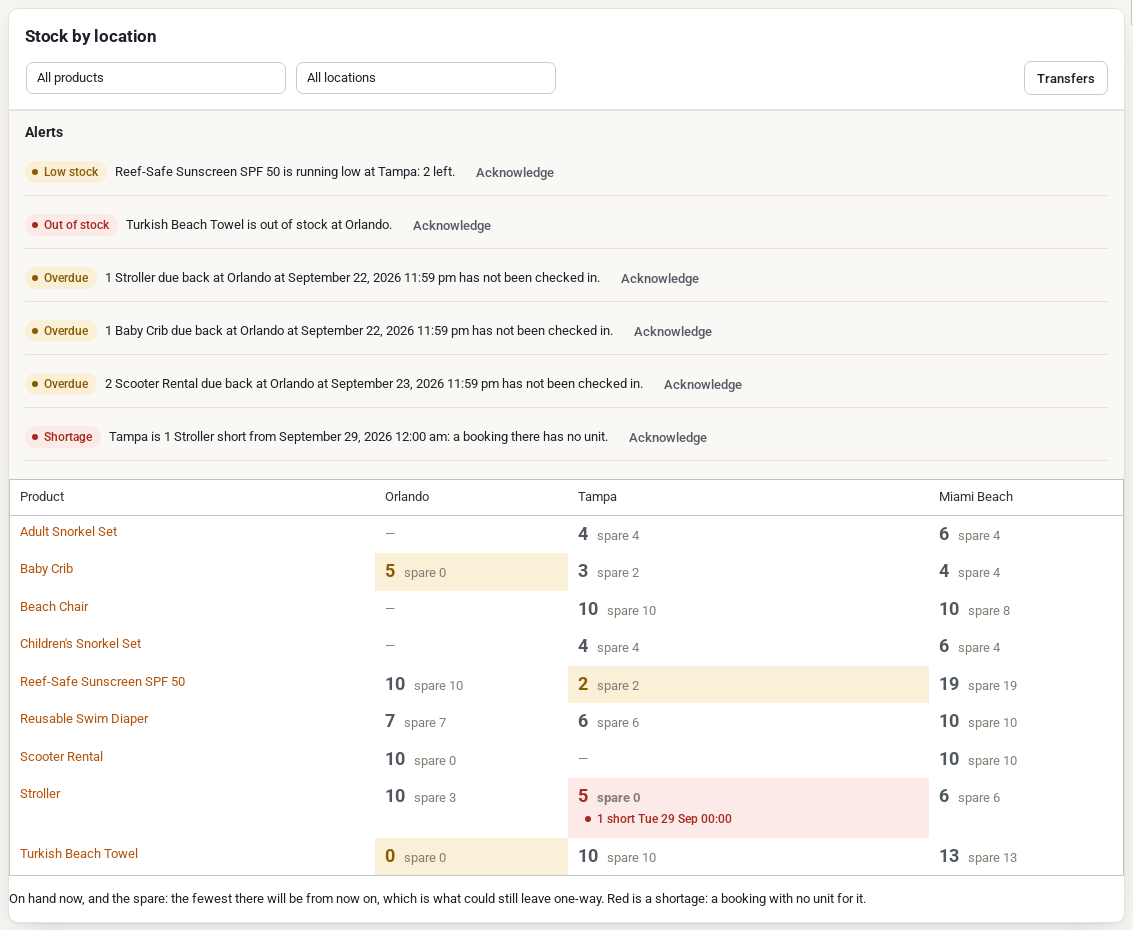
See Stock by Location, Alerts and Transfers.
Everything in this section #
- Installing and Licensing Multi Location Inventory
- Setting Up Locations
- Location Settings
- Stock by Location on the Product Inventory Tab
- What Customers See
- Pricing by Location
- Orders, Emails and Moving a Line
- Stock by Location, Alerts and Transfers
- Location Staff and Permissions
- Location Reports and the Stock Journal
- One-Way Rentals and Fees
- Franchises and Settlement
- Multi Location Inventory REST API
- Multi Location Inventory Limitations and FAQ


