
Tell Rentals & Bookings who works for you and what they use (guides, captains, drivers, boats, vehicles, rooms) and what each product needs. Every paid booking then becomes a job, and the staff screens show who is free, who is missing and where there is a clash.
Nothing changes for a store without staff: no new notices and no new required fields, and prices and availability stay as they were. The product’s Staff & resources tab and the Staff schedule appear once you add your first staff member or resource.
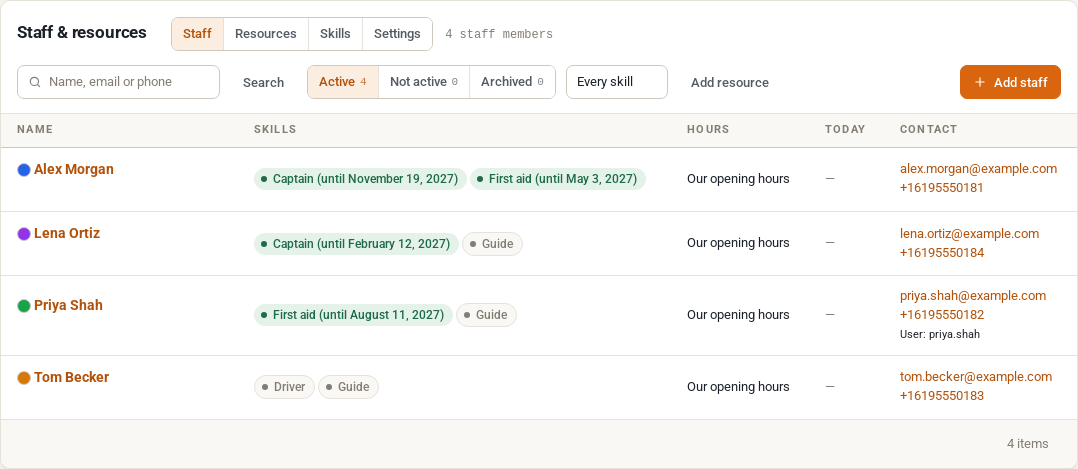
Add your staff #
- Open Rentals › Staff & resources. The Staff tab lists your staff.
- Click Add staff and fill in:
| Field | What it is for |
|---|---|
| Name | How the team calls them. |
| Email, Phone | An email or a phone number is enough. Give the phone with the country code (+1 555 …). |
| Skills | What they can do (“Captain”, “First aid”). A skill that is a certificate asks for its expiry date: after that day they are no longer suggested for it. Edit the skills opens the skill list. |
| Works at | With Multi Location Inventory: their home location and any other they work at. None: every location. |
| Hours | Our opening hours, or Their own hours per weekday (leave a day empty when they don’t work). A job outside their hours is allowed with a warning. |
| Most hours a day | More is allowed with a warning. Empty: no limit. |
| Color | Their color on the staff schedule. |
| Signs in as | Optional: the WordPress user who is this person, so they can see their own jobs on My Account › My schedule. |
| Status | Active, or Not active: gets no new jobs. |
| Notes | For you. |
- Click Add staff.
On a staff member’s page, Time off and Extra hours add a period (From, Until, an optional Reason), and Jobs this week lists their coming jobs. Archive removes someone from the lists; their past jobs stay on record and Restore brings them back.
Add your resources #
Resources are what a booking holds while it runs: a boat, a vehicle, a room.
- On Rentals › Staff & resources, open Resources and click Add resource.
- Fill in:
| Field | What it is for |
|---|---|
| Name | “Boat 1”, “Van with trailer”. |
| Type | A product asks for a type (“a boat”), and any free one of that type is suggested. Choose one or Another type…. A van for deliveries is the type Vehicle. |
| Seats | How many guests it takes. 0: it has no seats (a tool, a room for staff). |
| Also rented as | When customers can also rent it on its own (a boat hired bare). See Limit sales and resources also rented on their own. |
| Location | With Multi Location Inventory. |
| Available | Always, or Only these hours per weekday. |
| Color, Status (In use or Out of use: never suggested), Notes |
- Click Add resource. Blocked time on its page takes it out of use for a period (a repair).
Counted resources: 12 kayaks #
Available from Rentals & Bookings 1.0.84.
Some resources are not one thing but a stock of units: 12 kayaks, 20 bikes. Add them as one resource with a count, instead of twelve resources.
- Open Rentals > Staff & resources, open Resources and click Add resource.
- Name it (“Kayak”) and set Seats (how many guests one unit takes, for example 1).
- Next to How many, choose Several, counted (a job takes one per guest, or as the product says; the rest stay free).
- Type How many you have (12), or link it to a rental product in Also rented as. Then the count is that product’s stock, read live.
- Click Add resource.
A tour that needs “a Kayak for every guest” takes one unit per guest. The units it does not take stay free for other tours and for customers who rent kayaks on their own. A 12-kayak stock shared by a tour with 8 guests and a rental of 3 leaves 1.
On the Staff board, the manifest and My schedule, a job shows the units it holds, such as “Kayak × 8”. A departure’s seats follow the units left: when kayaks are what limits the sale, the Departures page and the manifest say Limited by Kayak.
Set the requirement on the product to Limit sales so the shop stops selling when the units run out. A requirement that only tracks holds nothing at the time of sale. See Limit sales and resources also rented on their own.
Skills and settings #
- Skills: Add a skill, and tick It has an expiry date (a certificate) for a certificate. A skill can be renamed or archived.
- Settings: Staff confirm their jobs. On: new jobs wait for the staff member to accept or decline them on My schedule. Off (the default): jobs are confirmed when they are assigned, and staff only check in and add notes.
Say what a product needs #
Edit the product and open its Staff & resources tab. Click Add a requirement for each person or thing a booking needs:
| Field | What it is for |
|---|---|
| How many | 1, 2 … |
| Who or what | Any staff member, a skill (“Captain”), Any resource or a resource type (“Boat”). |
| For | each booking, every … guests or every … items booked, with How many guests or items (“1 guide for every 12 guests”). |
| Seats | For a resource: Any size, or A seat for every guest. |
| When nobody is free | Track: sell anyway, the staff screens show what is missing. Limit sales: stops online sales when nobody qualified is free (staff can still book from the admin). See Limit sales. |
Under More options:
- Prep time before: minutes the staff and resources are needed before the booking starts (getting the boat ready). Customers don’t see it.
- Time after: minutes they stay busy after it ends (travel back, cleaning).
- Fill staff: Suggest who is free; nothing is assigned until you apply it, Assign automatically when a booking comes in, or By hand only.
The tab shows what a booking needs, for example “A booking with 14 guests needs: 1 × Captain, 2 × Guide, 1 × Boat with a seat for every guest”.
A tour sold by departure has one job per departure, not one per booking: its seats are the guests booked on it, and it moves or is cancelled with the departure.


