
Rentals › Staff schedule is a board of the day or week: who works which job, and what is still missing. Your staff see their own jobs on their phone under My Account › My schedule.
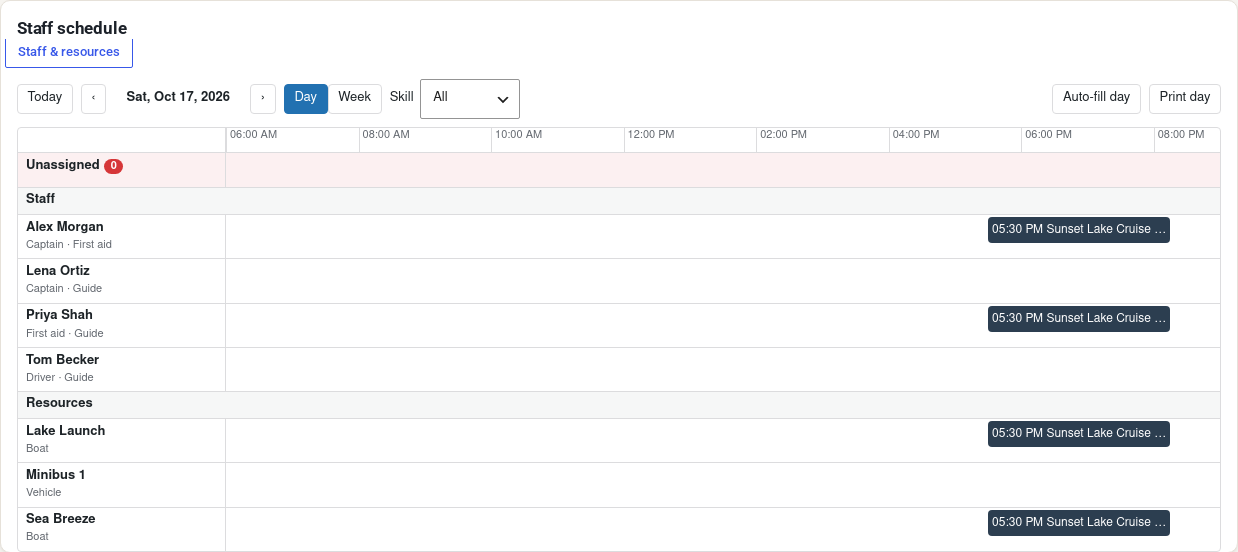
The staff schedule #
- Today, Previous, Next, and Day or Week to move around.
- Location and Skill narrow the rows.
- The Unassigned column holds the jobs that still need someone (“needs Guide 1/2”).
- Each staff member and resource has a row with their jobs, time off and blocked time.
To assign someone, drag a job onto their row, or open the job and click Assign next to a suggested name (“free from 9:00”). Drag a job between rows to hand it over, or onto Unassigned to take someone off. Arrow keys move between jobs and Enter opens one.
When someone can’t take a job, the board says why: busy with another job, off, blocked, rented out, outside working hours, missing the skill, certificate expired, works at another location, over the daily maximum, or too few seats. A dispatcher can still Assign anyway with a reason.
Auto-fill day and Auto-fill week suggest who takes each job still missing someone. Check the list and click Apply. Print day prints a day sheet.
Two people can use the board at once: changes made by someone else show up with “Changed by … just now”.
Who can do what #
| Capability | What it allows |
|---|---|
sibooking_manage_staff | Edit staff, skills, resources, hours and time off. |
sibooking_dispatch | Assign anyone, Assign anyway past a clash, and Auto-fill. |
sibooking_view_schedule | See the board, the departures and the lists, change nothing. |
sibooking_own_schedule | See their own jobs only, on My Account › My schedule. |
Administrators and shop managers have all four. Managing or dispatching includes viewing. Give a guide or driver the Rental staff role: they can sign in and see their own schedule, nothing else, and they land on My schedule instead of the dashboard. Any other user linked to a staff profile (Signs in as) sees their own schedule too.
My schedule (for your staff) #
Staff open My Account › My schedule on their phone.
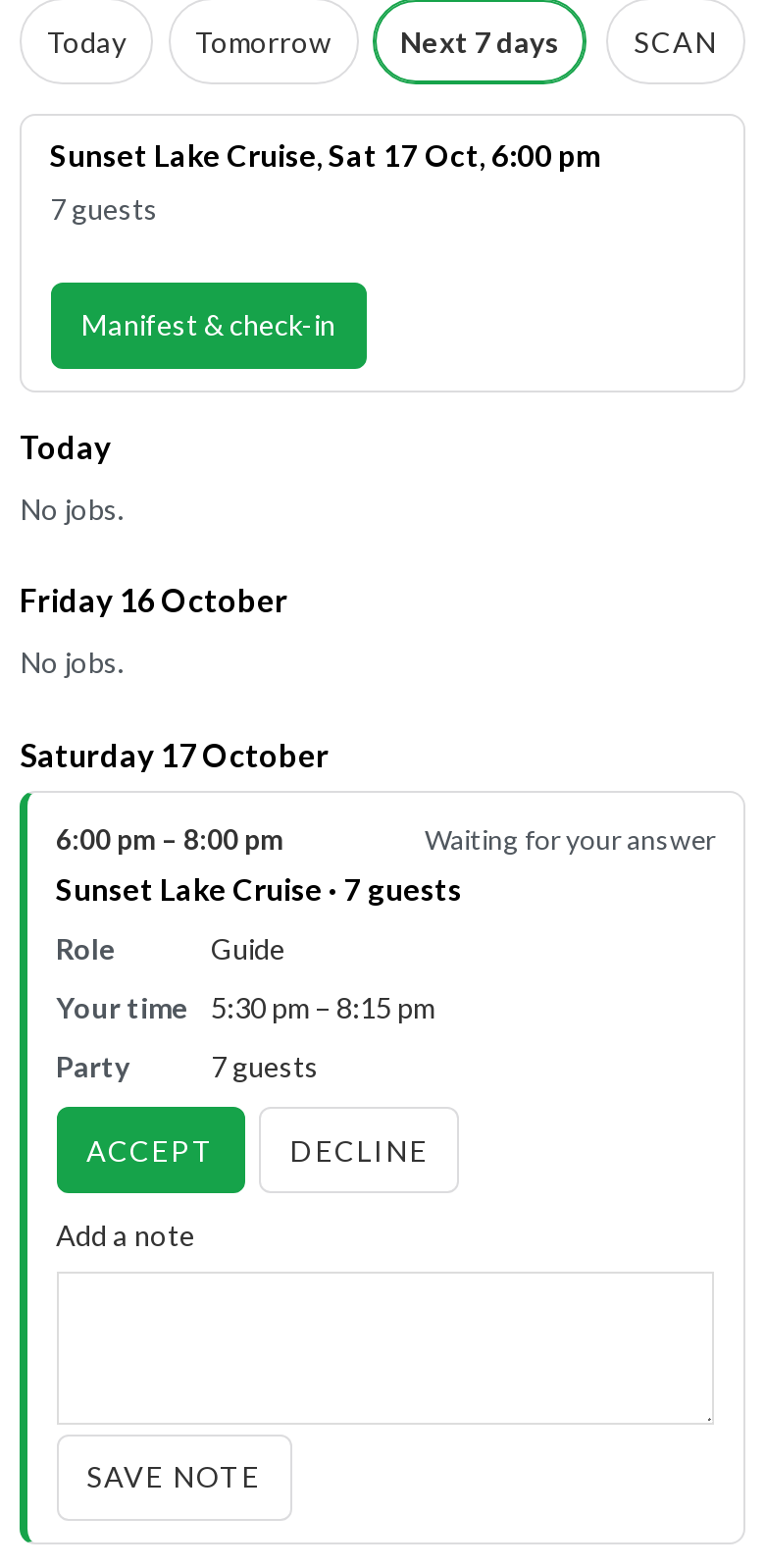
- Today, Tomorrow and Next 7 days.
- Each job shows Your time, Where (with a map link), the Role, the Customer‘s first name and Phone, the Party and the Pickup.
- Check in when they start, and Add a note for the office.
- With Staff confirm their jobs on, a new job shows Waiting for your answer with Accept and Decline. Declining asks “Why can’t you take this job? Your manager sees the reason.”
- Scan a ticket checks a tour booking in from its QR code (see Manifest, check-in and QR tickets), and a departure’s card opens its Manifest & check-in.
Staff see only their own jobs. A user who isn’t linked to a staff profile yet is asked to ask their manager to link it.


