
This page covers WhatsApp via Meta — WhatsApp reminders sent directly from a Meta app that belongs to your business, with no reseller in between. It assumes you have read SMS and WhatsApp rental reminders, which explains what rental reminders are, when they fire, how the three routes compare and what they cost. For the other WhatsApp route, see Twilio, and WhatsApp via Twilio.
This route is WhatsApp only. There is no SMS on Meta’s Cloud API, so a shop that also wants SMS — or the WhatsApp, then SMS if it cannot be delivered channel — keeps a Twilio account alongside it for the SMS half. It is also the longer setup of the two: budget 30 to 60 minutes. That is a statement of effort, not a reason to avoid it; what you get for the hour is that the WhatsApp Business Account, the number and the templates are yours.
Quick setup #
Quick setup: WhatsApp via Meta #
About 30 to 60 minutes, plus template approval — usually minutes, occasionally a business day. Budget the full hour the first time. Steps 4 and 5 happen in Business Settings, which is a different console from the one steps 2 and 3 are in, and that is where people stall. A System User given the wrong assets produces a token that signs in perfectly and then fails on the first send.
- Create a Meta business portfolio, if your shop has not got one.
- Create a Meta app and add the WhatsApp product to it.
- Add the phone number you will send from and let Meta verify it by SMS or call. It must not be in use in the ordinary WhatsApp or WhatsApp Business app.
- In Business Settings › Users › System users, create a System User and give it access to both the app and the WhatsApp Business Account.
- Generate its token with Token expiration set to Never, ticking
whatsapp_business_messaging,whatsapp_business_managementandbusiness_management. - In Rentals › Settings › Text messages, set Send WhatsApp through to WhatsApp (direct from Meta).
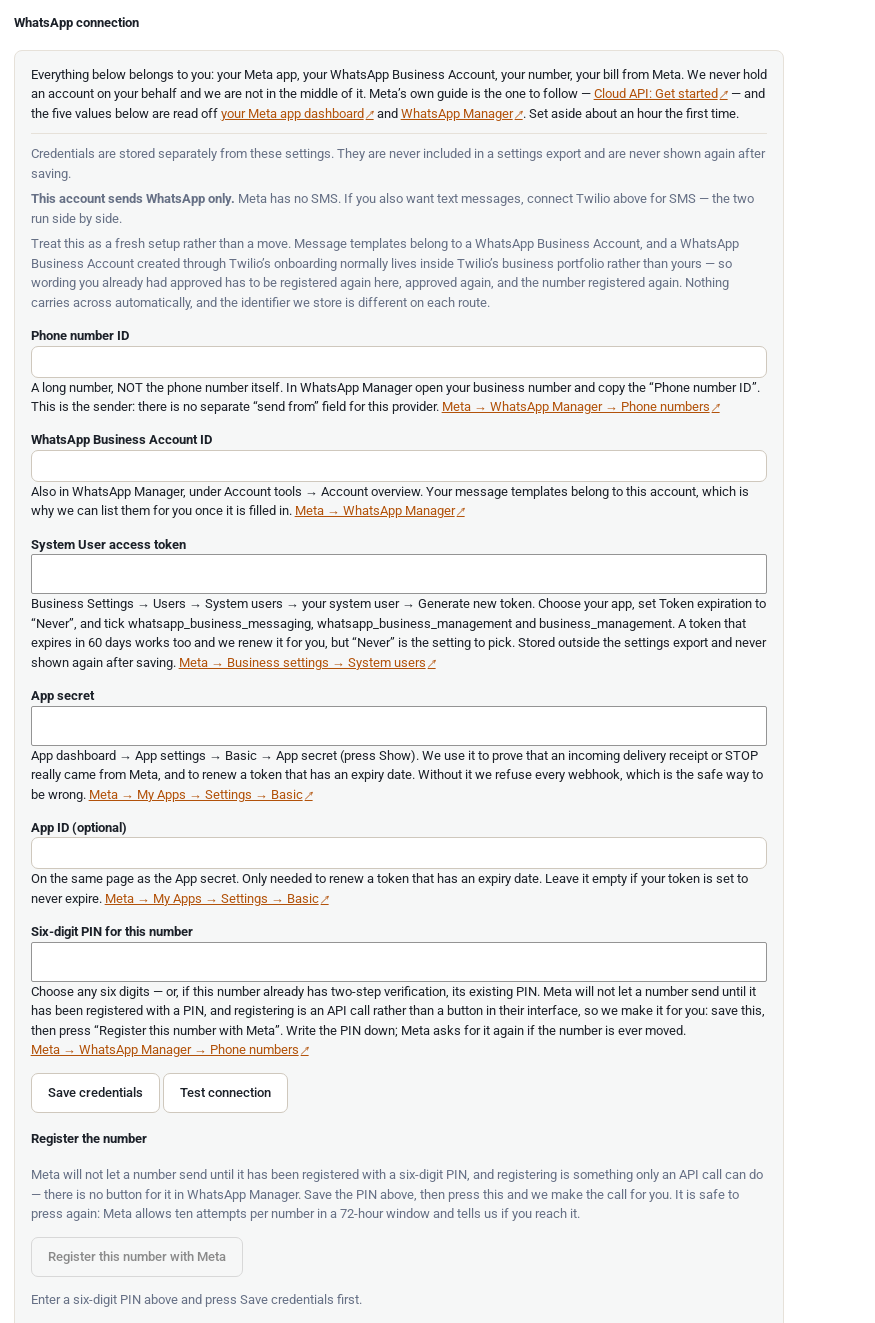
- Paste Phone number ID, WhatsApp Business Account ID, System User access token and App secret. Fill in App ID (optional) only if your token has an expiry date. There is no separate send-from field on this route: the Phone number ID is the sender.
- Put six digits in Six-digit PIN for this number, save, then press Register this number with Meta. Registering is an API call rather than a button in Meta’s own interface, so the plugin makes that call for you. Write the PIN down.
- In Meta’s WhatsApp Manager, submit a utility template for each reminder and each language, then pick it here and map each numbered variable to a merge tag.
- Set each reminder’s Channel to WhatsApp, leave Dry run on, and send yourself a test.

Stuck on a step? Setting up the direct route, The access token and Templates belong to the WhatsApp Business Account, below, cover the whole of it. What WhatsApp requires and WhatsApp Setup Tips, below, cover what Meta asks of every sender.
Setting up the direct route #
These steps are Meta’s rather than ours, and they are written for a shop owner rather than a developer. You are not writing any code and you are not submitting an app for review. Set aside an hour the first time, and expect to move between two separate Meta consoles — that is the part that catches people out.
- Create a Meta business portfolio, if your shop does not already have one. This is the container your WhatsApp assets live in, and it is what makes them yours rather than somebody else’s.
- Create a Meta app and add the WhatsApp product to it, in Meta’s developer console. The app is only a wrapper around the connection; nothing about it is published or reviewed.
- Add and verify the phone number you will send from. It has to be a number that is not in use in the ordinary WhatsApp or WhatsApp Business app — once it is attached here it stops working there. Meta confirms it by SMS or voice call.
- Create a System User and give it access to the app and to the WhatsApp Business Account. This lives in Business Settings, which is a different console from the one you were just in, and it is the hardest screen in the whole process. Take the extra minute: a System User with the wrong assets attached produces a token that signs in perfectly and then fails the moment you try to send something. When you save the token our settings screen checks which permissions it actually carries and tells you if one is missing, rather than letting you find out on a customer’s reminder.
- Generate the access token for that System User, and set its expiry to Never. There is a 60-day option on the same dialog. Read the next section before you choose — this is the one decision here that can quietly switch your reminders off two months later.
- Paste the five values — Phone number ID, WhatsApp Business Account ID, System User access token, App secret, and App ID only if your token expires — into Rentals › Settings › Text messages. The App secret is what lets us prove that an incoming delivery receipt or opt-out really came from Meta; without it we refuse every webhook. Then put six digits in Six-digit PIN for this number, save, and press Register this number with Meta. That call is one the plugin makes for you — Meta has no button for it, only an API request, which is not a reasonable thing to ask a shop owner to make. Write the PIN down: Meta asks for it again if you ever move the number.
- Create and submit your message templates in WhatsApp Manager, then come back and pick them on the settings tab. This part is the same on both routes — everything under What WhatsApp requires below still applies, including registering them as utility templates rather than marketing ones.
Then send yourself a real WhatsApp message from the finished configuration before you turn dry run off, exactly as you would for SMS. A template can be approved and still fail if the variable count does not match.
The access token, and what happens if it stops working #
Meta issues access tokens with an expiry, and the expiry is a choice you make when you create one. Create a System User access token with its expiry set to Never. The alternative on the same dialog is 60 days. A 60-day token does work — the plugin renews it for you before it lapses, which is what the App ID and App secret fields are for — but a token set to Never needs no renewal at all, and a renewal that cannot happen is one more thing that can quietly stop your reminders. The choice is a dropdown on the token dialog rather than something Meta’s written documentation spells out, so read the screen rather than skimming it.
“Never” is not the same as “cannot be revoked.” A token that never expires can still stop working: someone changes the Meta account password, the app secret is regenerated, the System User’s access to an asset is altered, or Meta forces a re-authentication. None of that is predictable, so the plugin does not assume the token is permanent:
- We check the token once a day and record whether Meta still accepts it — and whether it still carries every permission sending needs, which is what catches a mis-assigned System User before it costs you a reminder.
- If it stops being valid you get an email at your store’s admin address, saying which account, what happened, that rental reminders are affected and where to fix it. One email when the state changes, not one a day — and one more when it starts working again, because a shop that has fixed something deserves to be told it worked.
- A notice appears in your WordPress admin and stays there, undismissable, for as long as reminders are actually blocked. A warning you can dismiss is a warning you will dismiss.
- Reminders held up for this reason say so in plain words on the Reminders screen and can be retried once the token is replaced, rather than being thrown away.
The same watch applies to Twilio credentials. An auth token rotated in the Twilio console, or a suspended account, produces exactly the same silence, and gets exactly the same email and notice.
Templates belong to the WhatsApp Business Account #
An approved template is owned by the WhatsApp Business Account it was created under, not by whoever sends through it. Templates are written and approved in Meta’s WhatsApp Manager on both routes — Twilio’s console sends you to the same place. What differs is whose account they land in: Twilio’s sign-up normally creates the WhatsApp Business Account inside Twilio’s business portfolio, so the templates are approved under an account your shop does not own.
That is why moving from Twilio to the direct route is not a migration, and you should not plan it as one. Treat it as a fresh setup: a new WhatsApp Business Account inside your own business portfolio, the number registered again, and the templates written and submitted for approval again. Even where an approval does carry across, the identifier we store for a template registered through Twilio is Twilio’s own and means nothing to Meta, so it has to be chosen again on the settings tab. Budget the same hour you would have budgeted the first time, and do it when you are not about to go into a busy season.

What WhatsApp requires #
WhatsApp is not “SMS but cheaper”. It is a different channel with its own gatekeeper, and a reminder is by definition a message you start — the customer has not messaged you first — so Meta’s rules for business-initiated messages apply in full. Meta is the gatekeeper whichever route you use. On this route you need:
- A WhatsApp Business Account connected to a Meta Business Portfolio, with business verification (legal name, address, a verifiable web presence). On this route you create it inside your own business portfolio, which is what makes the account and its templates yours.
- A dedicated phone number for it. Once a number is attached to a WhatsApp Business Account it stops working in the normal WhatsApp app.
- A message template approved by Meta for each reminder and each language, written and submitted in Meta’s WhatsApp Manager. You reach that screen directly; the form and the review are the same ones Twilio’s customers see. Review is usually within a day. Register them as utility templates, not marketing ones.
WhatsApp wording cannot be edited in our settings, and that is not a limitation we can remove. The words are registered with Meta and Meta does the substitution; all we send is the template’s name, the language and the values that fill its variables. If you want to change a word, you change it in your WhatsApp Business Account and wait for another review. The settings screen gives you suggested wording and the variable order to paste into Meta’s form, and lets you say which merge tag fills each variable — and nothing else, because nothing else is ours to give.
One hard limit worth knowing before you plan around WhatsApp: Meta has blocked WhatsApp marketing templates to US numbers since 1 April 2025. Utility templates — which is what a pickup or return reminder is — still work to US numbers and are unaffected. But it does mean WhatsApp can never carry anything promotional to a US customer, and a reminder with an offer in it counts as promotional.
WhatsApp Setup Tips #
You do not have to wait for business verification before you can try it. Meta’s documentation says a newly created business portfolio starts with a messaging limit of 250 unique recipients per 24 hours outside a customer service window, and lists business verification as one of three ways to raise that to 2,000 — not as a condition of sending at all. On this route there is no reseller in the middle, so Meta’s own limit ladder is what governs you. The practical order is: sign up, register the sender, send yourself a test, and start verification on day one as a background task rather than treating it as a gate.
Check Meta’s template library before you write a template from scratch. The library is a catalogue of pre-written utility templates whose wording Meta has already settled. Meta’s own page says “Library templates contain fixed content that cannot be edited and parameters you can adapt”, and that “If you choose Customize template, your template will have to go through review before you are able to send messages” — so a library template used as written is the fast path, and editing one puts you back in the queue.
How that maps onto the three reminders this plugin sends, honestly:
- Before pickup — the library entry to look at is
ORDER_PICK_UP, which is the closest thing in it to “your rental is ready to collect”. Meta does not publish the library’s wording in its documentation, so open the library in WhatsApp Manager and read whatORDER_PICK_UPactually says. If it works for your shop, use it as it stands and you skip the review; if it does not, register our pickup wording as a custom utility template instead. - Before return and overdue — there is no library entry for these. The library’s documented ground is e-commerce and financial services: order management, delivery, payments, account updates. Returning a hired item is not in it, and
PAYMENT_DUE_REMINDERis about money owed, not about bringing a kayak back. Register these two as custom utility templates using the suggested wording the settings screen gives you. One aside while you are here: overdue is the one reminder the free edition does not have. Nothing there records that a rental came back, so nothing there can know a rental is late, and its overdue timings are locked rather than left to chase customers who returned on time. It needs Send & Return, which is part of Regular alongside text reminders — so on this route you do have it, and there is an overdue template to register. See Email Reminders. - Languages — a template is approved per language, so each language you send in is its own template. Meta’s library requires a language code and says it supports a list of them, but that list is not published on the library page, so we cannot tell you which of the nineteen languages this plugin ships wording for the library covers. Assume you may have to register custom templates for some languages even if the English one comes from the library.
Either way, a custom utility template is not the multi-week wait that 10DLC registration is. Meta reviews most templates within minutes; Twilio’s guidance is that approvals typically come back within the hour and sometimes take up to a business day. The one thing that reliably causes a rejection is a variable with no explanation of what it contains, which is why the settings screen hands you the wording and the variable order to paste in.
Finally, and plainly: do not send business messages through the ordinary WhatsApp or WhatsApp Business app, or through an unofficial API. It breaches Meta’s terms and numbers used that way get permanently banned — along with the number your customers already have for your shop. The route described on this page is an official one; nothing outside it is worth using.
Meta’s Embedded Signup, messaging-limit and template-library documentation and Twilio’s WhatsApp self sign-up guide were read on 21 September 2026. Meta does not state anywhere we could find that library templates are approved instantly; what its documentation does say is that customising one sends it to review, which is the basis for the advice above. Both companies change these rules regularly.
Your account, and who processes the data #
You pay Meta directly. Sales Igniter never resells messaging, never holds a balance and never appears in the chain — your business portfolio, your app, your access token, your card. When a message fails you can open your own Meta account and see exactly what we saw, and the phone numbers never touch our servers, so if a customer asks who processes their data the answer is you and Meta — and you will want a data processing agreement with Meta if you are in the EU or UK.
When Meta returns an error #
Start at Rentals › Reminders and find the row. The reasons that are nothing to do with Meta — no phone number on the order, quiet hours, the daily cap, dry run — are on SMS and WhatsApp rental reminders. This is the Meta half:
- “The WhatsApp credentials are no longer valid.” On WhatsApp via Meta, this means the access token has been revoked or has expired. Create a fresh System User token, paste it in, and retry the rows — they are kept rather than discarded. You should already have had an email about it; see The access token above.
- A template error. The commonest is a template that does not exist in the language being sent, or that has not been approved yet — the language on the reminder row has to match the language you registered with Meta. The next commonest is a variable count that does not match the template you approved; we refuse to send rather than deliver a message with a gap in it.
- The number was never registered. Meta will not let a number send until it has been registered with a six-digit PIN. If you pasted your credentials but never pressed Register this number with Meta, do that now.

Related pages #
- SMS and WhatsApp rental reminders — what reminders are, when they fire, the comparison of all three routes, costs, consent and STOP, quiet hours and the Reminders screen.
- Twilio, and WhatsApp via Twilio — the other WhatsApp route, and the only route that carries SMS.


