
Locations > Reports compares your locations: how busy each one is, where one-way rentals go, how transfers run, and where each serial-numbered unit spent its time. Behind the reports is the stock journal, a record of every unit that moved.
Open the reports #
Go to Locations > Reports. Choose a Period (or your own From and To dates) and a Location, and click Show. Download CSV saves the table you are looking at.
Location managers see their own locations only.
Usage by location #
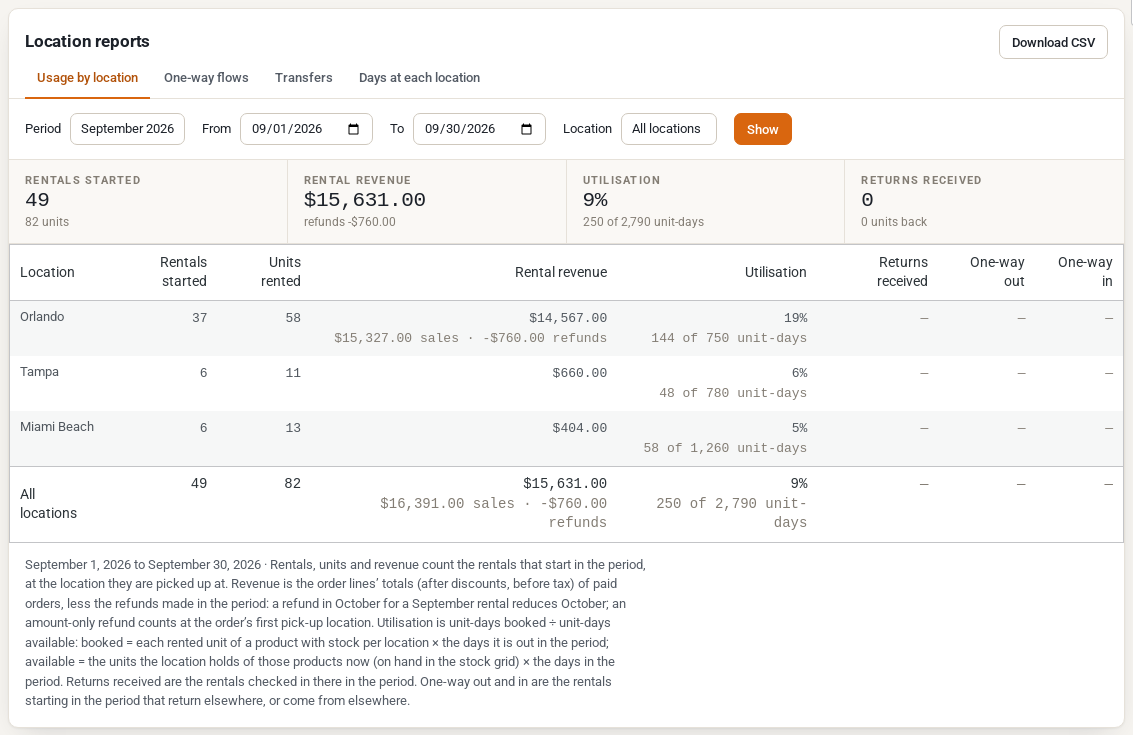
| Column | What it counts |
|---|---|
| Rentals started and Units rented | Rentals that start in the period, at the location they are picked up at |
| Rental revenue | The order lines’ totals (after discounts, before tax) of paid orders, less refunds made in the period. A refund in October for a September rental reduces October. |
| Utilisation | Unit-days booked divided by unit-days available. Available is the units the location holds now, times the days in the period. |
| Returns received | Rentals checked in at that location on the Return screen in the period |
| One-way out and One-way in | Rentals starting in the period that return elsewhere, or come from elsewhere |
Utilisation and the other rental figures count products with stock per location. Products you sell outright are not in these reports.
One-way flows #
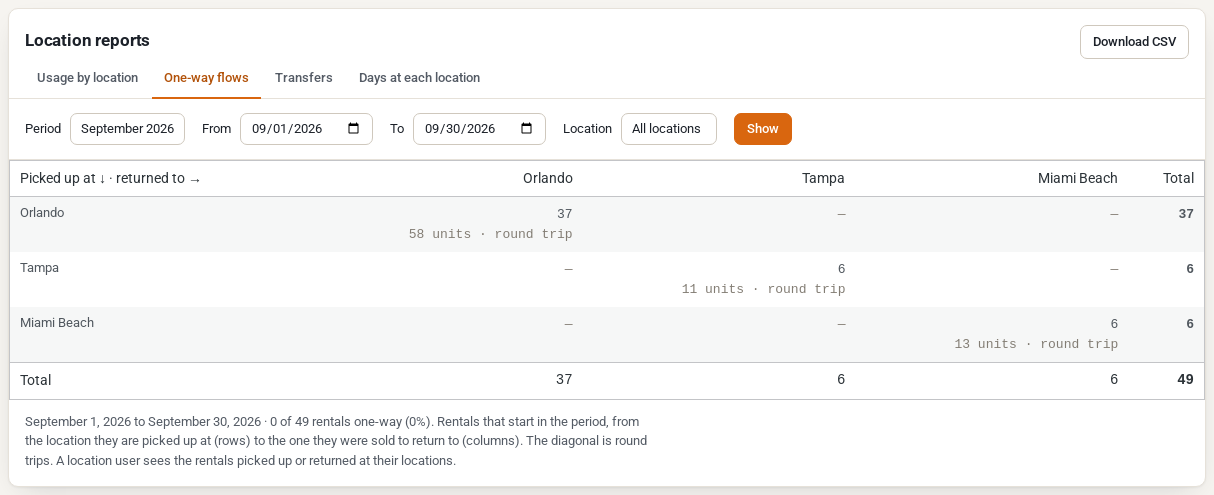
A table of where rentals are picked up (rows) and where they come back (columns). The diagonal is round trips; everything else is one-way.
Transfers #
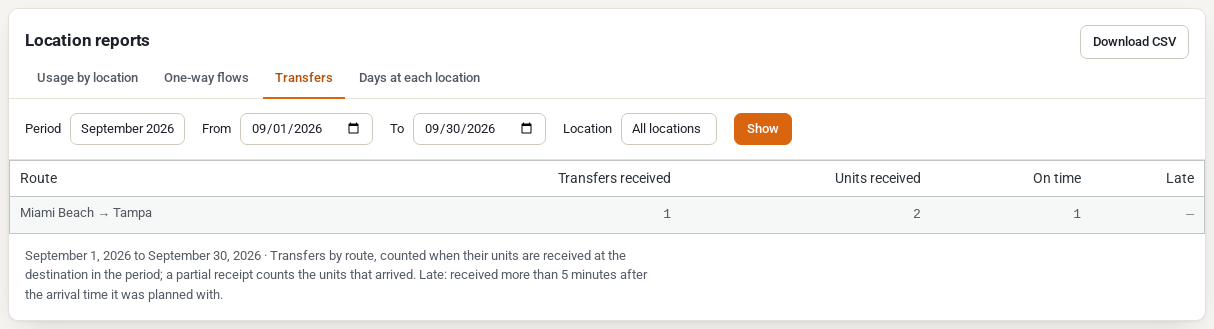
Transfers received in the period, by route, with the units received and how many were on time. A transfer is late when it is received more than five minutes after its planned arrival.
Days at each location #
For a product with serial numbers, how many days each unit spent at each location, on hire, in transit and out of service in the period. Not tracked is time before the unit’s first recorded move. Days after today are not counted.
The stock journal #
Every change to where a unit is, is written to the stock journal and never changed afterwards:
| Entry | Written when |
|---|---|
| Initial and Adjust | You set or change a location’s units (the product grid, the location’s Stock tab, the REST API), or a stock change without a location goes to the default location |
| Rental out and Rental in | Staff send and return a rental (or, with automatic hand-overs, at the booked times) |
| Transfer out and Transfer in | A transfer is dispatched and received |
| Out of service and In service | A unit is taken out of service and put back |
| Sold and Restocked | An order takes units of a product sold outright, and a cancellation or refund puts them back |
The units on each location’s shelves, and the position of each serial-numbered unit, are worked out from the journal. That is why Stock by location, the calendars and the reports always agree.
You can read the journal through the REST API (GET /wp-json/wc-simultilocation/v1/moves, filtered by product, location, unit, booking, transfer, kind and dates). See Multi Location Inventory REST API.
If the numbers ever look wrong #
Two WP-CLI commands check and rebuild the units from the journal:
wp simultilocation check [--product=<id>]compares each location’s units with the journal and changes nothing.wp simultilocation rebuild [--product=<id>]works the units and the serial positions out again from the journal.
Calendar feeds for each location #
Each location’s Calendar feeds (on the location screen) give staff a calendar of every pick-up and return there, and channel managers a busy-times feed for each product split per location. See Setting Up Locations.


