
A chat nobody hears about is a lost booking. Live Chat & AI Agent tells your team about new chats in the browser, on their phones by push, and by email when a chat waits too long. Push uses the browser’s own Web Push: no third-party service, no app to install from a store.
For the whole team: Settings › Notifications #
An administrator sets what is allowed under Live chat › Settings › Notifications.
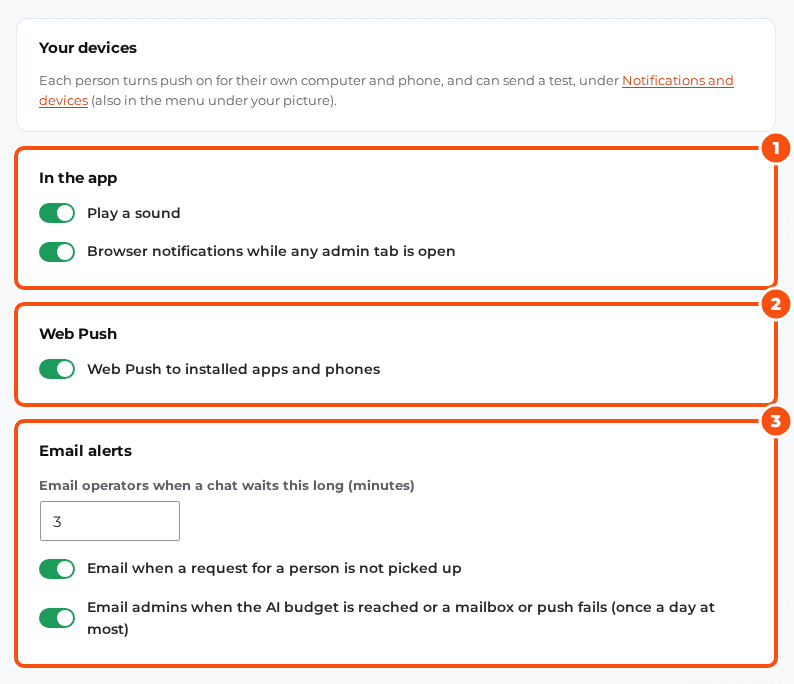
| Setting | Default |
|---|---|
| Play a sound | On |
| Browser notifications while any admin tab is open | On |
| Web Push to installed apps and phones | On |
| Email operators when a chat waits this long (minutes) | 3 |
| Email when a request for a person is not picked up | On |
| Email admins when the AI budget is reached or a mailbox or push fails (once a day at most) | On |
Notifications go to the operator a chat is assigned to. A chat nobody has yet goes first to the group its routing rule chose, then to the rest of the team.
For each operator: Notifications and devices #
Each operator turns notifications on for themselves: click your picture at the bottom of the rail, then Notifications and devices.
- In this browser: a sound for new messages, and browser notifications while the live chat is open in a tab you are not looking at. Click Allow notifications once.
- Push on this device: new chats reach this device even when the live chat is closed. Click Turn on push, then Send test notification to check it.
- Your devices: every device that gets push, with when it last got one and a delivery log. Remove a device you no longer use; devices the push service no longer knows are removed on their own.
Push works in Chrome, Edge and Firefox, on Android, and on iPhone and iPad (iOS 16.4 or later) once the live chat is on the Home Screen: on iPhone or iPad, tap Share, then Add to Home Screen, open the live chat from the new icon and turn push on there.


