
Decide who answers which chats, when you are open, and what happens when nobody is: a person, the AI agent or email. It is all on one screen, Live chat › Routing and hours. At the end of a chat, visitors can rate it.
Who answers #
Under Who answers:
| Setting | Default | Choices |
|---|---|---|
| Default rule | A person if one is online, else the AI, else email | The AI first; a person when asked. A person if one is online, else email (no AI). Email only |
| Share chats between operators | Round robin | Least busy. Nobody: operators pick chats up |
| Wait for a person (minutes) | 5 | After that, the visitor is told the reply comes by email |
| Move a chat to the next operator after (minutes) | 5 | When its operator went away or offline and the visitor is still waiting. 0: never |
| Let the AI step in when nobody replies within | 1 minute | Off, 30 seconds, 2 or 5 minutes. See below |
| Also after an operator has replied | Off | On: the AI also steps in later in the chat when a reply takes too long |
The AI steps in. When someone is online but has not answered yet, the AI helps the visitor in the meantime and says a person can still join. The operator’s first reply takes over, and the inbox marks the chat AI stepped in. It also steps in when a visitor asked for a person and nobody picked the chat up. It needs the AI agent, and a routing rule can turn it off for its chats.
Routing rules #
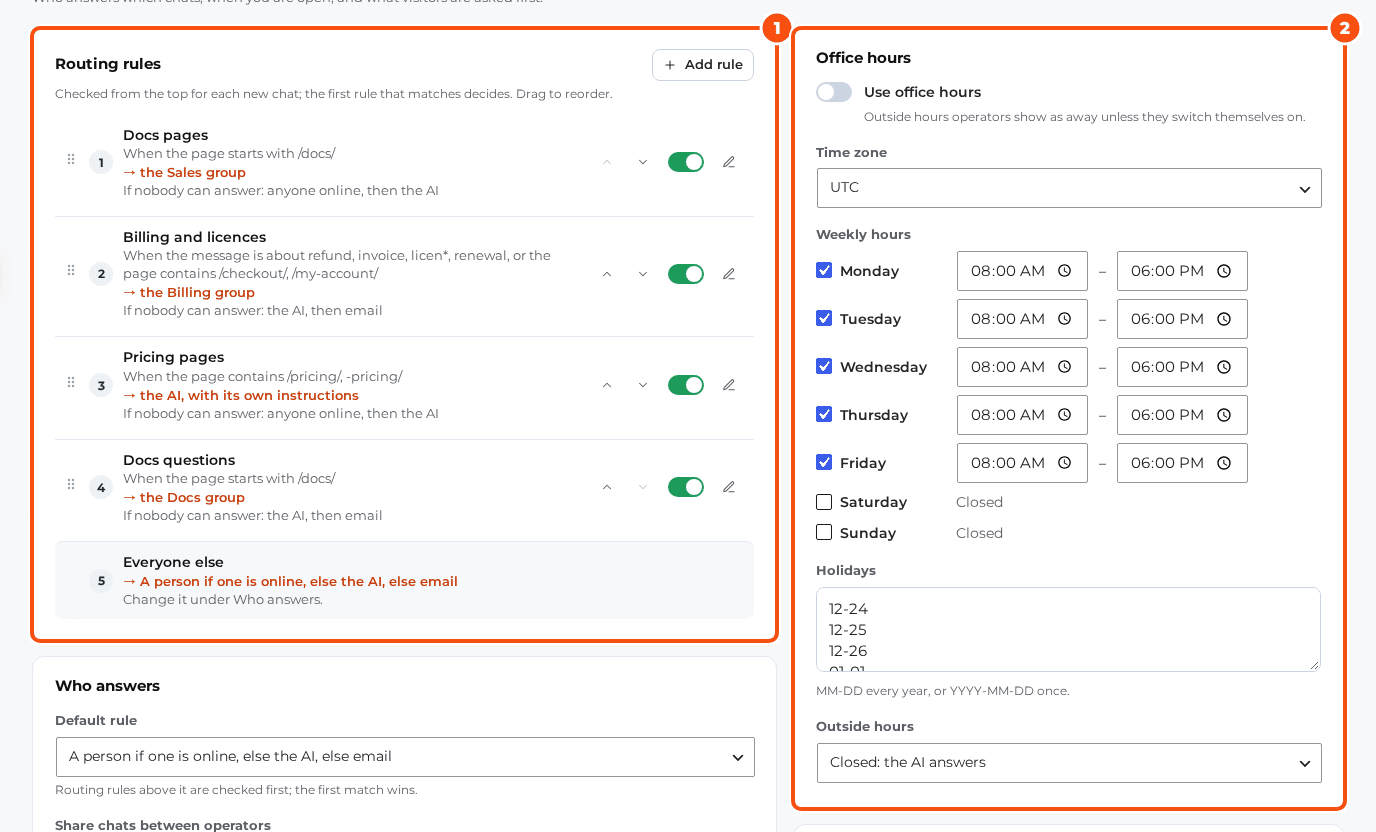
Rules send some chats somewhere else than the default. Click Add rule, give it a name, add conditions and choose who gets it. Each new chat is checked against the rules from the top; the first rule that matches decides, and Everyone else (the default rule) catches the rest. Drag the rules to reorder them, and switch one off without deleting it.
Conditions (a rule can match all of them or any of them):
| Condition | Example |
|---|---|
| Page address | contains, starts with, is exactly, or does not contain /pricing/ |
| The message mentions | refund, invoice, licen* (whole words; end a word with * for any ending) |
| The page is about | A product |
| Customer | Has an active licence, has bought before, or has not bought |
| Logged in | Yes or No |
| Country | is, or is not, US, GB, DE |
| Browser language | is, or is not, en, de |
| Office hours | Open or Closed |
Who gets it: anyone on the team, the least busy person, a group of operators, the AI assistant (with Extra instructions for the AI for chats like these, for example “On pricing pages, mention the yearly plan”), or email (no live chat). If nobody can answer says what happens when the chosen people are not online, for example anyone online then the AI, or the AI then email.
Groups are set per operator under Operators and presence, comma separated (for example Sales, Billing).
Office hours #
| Setting | Default |
|---|---|
| Use office hours | On |
| Time zone | The site’s time zone |
| Weekly hours | Monday to Friday, 08:00 to 18:00 |
| Holidays | 12-24, 12-25, 12-26 and 01-01 (MM-DD every year, or YYYY-MM-DD once) |
| Outside hours | Closed: the AI answers (or Closed: ask for an email) |
Inside hours, an operator with the app open is available. Outside hours operators show as away, unless one switches themselves on by hand.
Questions before the chat, and when the visitor leaves #
The same screen holds Questions before the chat (name, email, “What is it about?”, and a privacy line, “We use your email only to reply.” by default) and When the visitor leaves: one email goes out with the unread replies and a Continue in chat button, and their email reply lands in the same conversation, marked “via email”. See Email replies.
Operators and presence #
Under Operators and presence each operator gets their groups and the most chats they take at once. Under Settings › Operators:
- Away after no activity (minutes): 5.
- Default maximum chats per operator: 0, no limit.
- Ask before replying when someone else is replying: on.
Manage operators (WordPress users) opens the Users screen: give team members the Chat operator role.
Chat ratings #
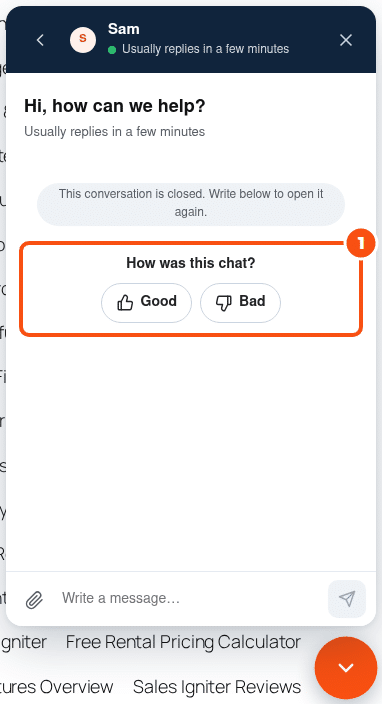
With Ask visitors to rate the chat when it is resolved on (the default, under Widget), the visitor is asked “How was this chat?” (you can change the question) and answers Good or Bad, with an optional comment. Ratings show in the conversation, and the inbox’s Rated good view lists the chats that went well.


