
Once a customer accepts an offer, the plugin turns it into a normal WooCommerce order at the quoted prices. There are two ways to pay, and you can choose per quote.
Choosing how customers pay #
Go to WooCommerce › Settings › Quotes › Payment.
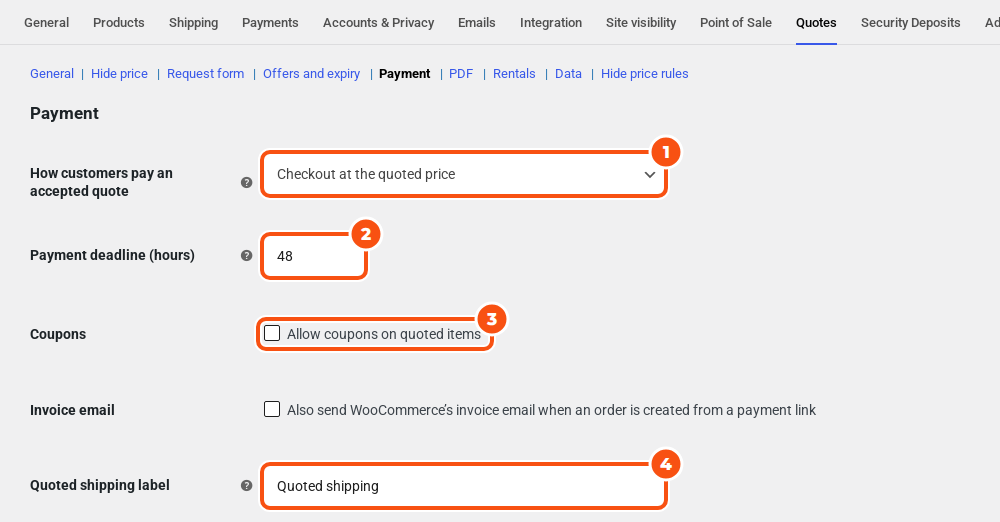
- How customers pay an accepted quote: Checkout at the quoted price (the default) or Payment link for an order created for the customer. You can choose differently on each quote with How the customer pays in the editor.
- Payment deadline (hours): 48 by default. How long the customer has to pay after accepting.
- Coupons: “Allow coupons on quoted items”, off by default.
- Invoice email: “Also send WooCommerce’s invoice email when an order is created from a payment link”, off by default.
- Quoted shipping label: “Quoted shipping” by default. Used when a quote has a shipping fee without a label.
Checkout at the quoted price #
- The customer clicks Accept and pay on the quote page. The quote becomes Accepted and gets a Pay by date.
- The customer lands on your normal WooCommerce checkout, classic or block. The cart already holds the quoted items at the quoted prices, after any discount on the whole quote.
- The customer pays with any of your payment methods.
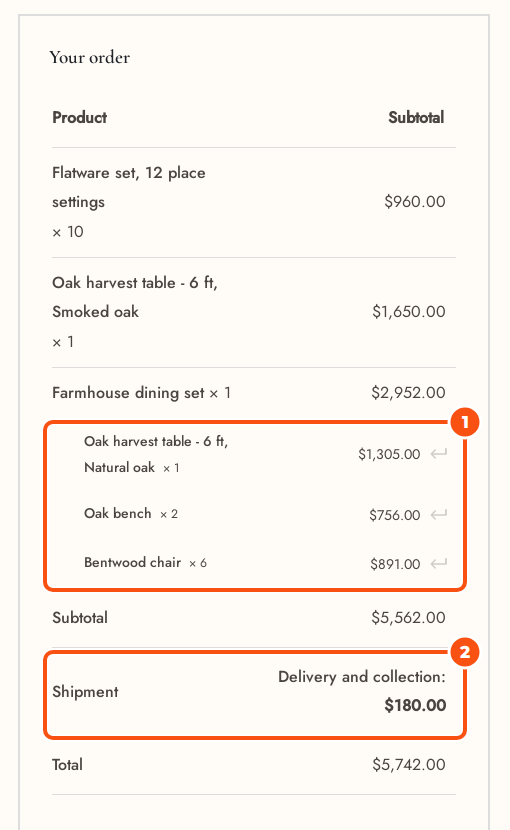
Because the cart is built from the quote, it behaves differently from an ordinary cart:
- Prices are locked. Each quoted item costs its quoted price.
- Quantities are locked. A customer who tries to change one sees “The quantity of a quoted item cannot be changed. Ask for a new offer on the quote instead.”
- Coupons don’t apply to quoted items unless you tick Coupons. A cart that holds only quoted items refuses them with “Coupons cannot be used on a quoted price.”
- A quote is bought as a whole. Removing one of its items removes the rest of that quote’s items, and the customer is told.
- Shipping. If the offer has a shipping cost, checkout charges it. For a cart holding only quoted items it replaces your shipping rates, under your label or “Quoted shipping”. With other items in the cart it is added to each rate. Leave the cost empty in the offer to use your normal rates. If you ticked The customer may change shipping at checkout in the offer, your quoted shipping is offered first and chosen by default, and the customer may pick one of your store’s own shipping methods instead. A payment-link order always keeps the quoted shipping.
- Bundles, composites and variations keep the configuration the customer asked for.
If the quote can no longer be paid, for example because the offer expired, its items are taken out of the cart with a notice that sends the customer back to the quote.
Several quotes in one cart #
A customer can accept more than one quote and pay for them together. Each quote’s items, fees and shipping stay tied to that quote, and one order links all of them. Removing an item takes only its own quote out of the cart.
When the quote becomes Ordered #
The quote moves to Ordered when the order reaches a paid status, or goes on hold (for example a bank transfer). If the payment fails or the order is cancelled, the quote stays Accepted and the customer can try again until the deadline.
Payment link #
With this path the plugin creates the WooCommerce order for the customer, who pays it on WooCommerce’s order payment page.
- When the customer accepts, Accept and pay creates the order and opens its payment page. Later, Pay now on the quote page does the same.
- You can also click Create order and send payment link in the editor’s Status box. If the quote is still Sent, it is accepted on the customer’s behalf and the customer is emailed the payment link. If it was already accepted, the order is created without an email: send the customer the Payment link shown in the Status box.
- The order note reads, for example, “Order created from quote Q-1042.”
- A guest who starts payment from the quote page does not have to type their email again.
- With the invoice email setting on, WooCommerce’s invoice email also goes out when you create the order with Create order and send payment link.
Some items have to go through checkout, so the Payment link (order created for the customer) choice is greyed out on that quote, with the reason shown under it. Most come from rental add-ons, such as a security deposit, a damage waiver, ID verification, contract signing or part payment, plus checkout fields that must be filled in. See Rental quotes: staff tools, deposits and bookings.
The deadline and expiry #
- Offer expiry ends an offer the customer has not accepted. The default validity is 30 days, and one reminder goes out 3 days before.
- Payment deadline starts when the customer accepts. If it passes unpaid, the quote becomes Expired, the customer is emailed, and any unpaid order the plugin made for the quote is cancelled with the note “Quote Q-1042 expired before it was paid.” No reminder goes out before a payment deadline.
- To give a customer more time, open the quote and use Extend expiry with a New payment deadline. The bulk action Extend expiry gives several quotes a fresh deadline, the Payment deadline hours from now.
Expiry is checked every 15 minutes, so it is not to the minute.
Checking the order #
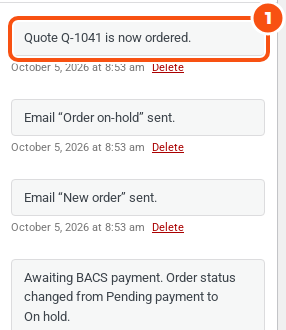
The order notes name the quote, for example “Quote Q-1041 is now ordered.”, and the quote’s Order row links to the order. Each order line remembers which quote line it came from: in the order editor the items, shipping and fees from a quote show “Quote Q-1041” underneath, linked to the quote.
If a second order is placed for a quote whose earlier plugin-made order is still unpaid, the earlier order is cancelled (“Replaced by order … for the same quote.”). If the quote is already paid, the new order gets the note “Quote … is already linked to order …” and you refund it yourself.
Quote-only mode #
If you don’t want some customers to pay online, tick Quote-only mode in General (“Customers cannot pay online: they accept the offer, and you create the order or mark the quote as ordered”). Choose roles in Quote-only for, or leave it empty for everyone.
Those customers see Accept quote instead of Accept and pay: “Accept this quote to go ahead, or reply below with any questions. You don’t pay online: we will arrange the order with you.” Accepting takes no payment. The quote becomes Accepted with no payment deadline, the customer sees “You accepted this quote. We will contact you to arrange the order.”, and your staff get the “Quote accepted (staff)” email, which says the customer does not pay online.
Then either:
- Create order and send payment link, to take the order in your store (rental items need this, so they are booked); or
- Mark as ordered, when you took the order outside the store. The quote closes as Ordered without a WooCommerce order. The customer gets the “Order placed from quote” email when that email is on (it is off by default). REST:
POST /wp-json/wc-sirfq/v1/quotes/{id}/mark-ordered.


