
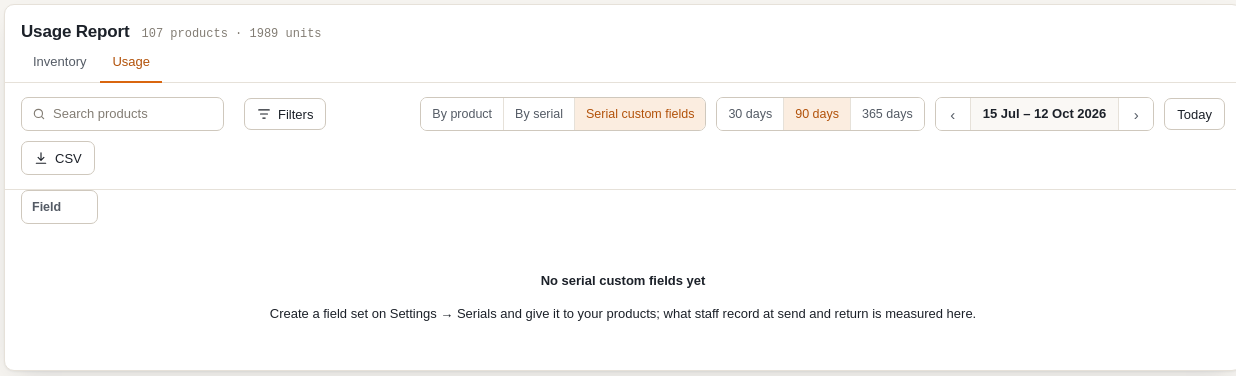
The Usage Report adds up what staff recorded: how far each unit travelled, how many hours it ran, how often a choice was a certain value. Go to Rentals > Reports > Usage and choose Serial custom fields. The other two views, By product and By serial, are about utilisation and revenue and are described in the Serials guide.
Pick a field #
Choose a Field from the list at the top, such as Odometer (mi). The report is then about that field only, for the dates you choose with the buttons (30, 90 or 365 days) and the arrows.
Meters #
For a meter the report shows:
- Usage on rentals: the total for hires that start in the window.
- Per rental and Per day on hire: the average distance or hours.
- Serials measured: how many serials had a rental measured.
- A bar for each serial, with the most used first.
- A table, Per serial or Per product, with Rentals, Usage, Per rental, Per day on hire, All movement, Lifetime, Current and a small line for each rental.
Usage is counted on the hires that start in the window, whole, from each serial’s send reading to its return reading. It is the same rule the report uses for hires and revenue. Where no send reading was taken, it is estimated from the previous reading and marked “est.”. All movement is every change recorded in the window, including a van driven to the workshop between hires, and Lifetime is everything since the first reading. Movement between hires is lifetime usage, not rental usage. Product rows are the sums of their serials.
Click a serial’s code to open its page.
Numbers, choices and yes / no #
- A number shows the average, minimum, maximum and the latest value.
- A choice shows how many times each option was recorded.
- A yes / no field shows the counts of Yes and No.
Export #
Export CSV downloads the same rows as the report shows for the field and dates you chose.
On the order #
The order screen has a Rental usage and photos box. For each serial on the booking it shows the readings at send and return, how far each meter went on this rental (for example “+312 mi this rental, 41,200 mi to 41,512 mi”), the choices that changed (“Fuel F to ½”), and the thumbnails of the photos taken. Under them is the Order total per meter. It is for staff: nothing here is shown to the customer.
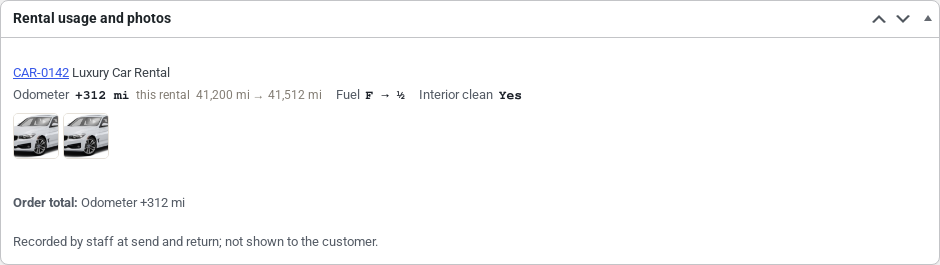
This is the evidence for a mileage or hours overage: what the unit read going out and coming back, and what it looked like. Charging for the overage is done by you, outside the booking.
For developers #
Serial custom fields, readings and photos are in the REST API under wc-sibooking/v1: field sets and fields (/reading-sets), templates, which sets a product or serial carries, a serial’s readings and current values, usage for a booking (/bookings/{id}/usage) and photos. The send and return routes take readings and photos; add strict_readings: true to enforce the required fields. Hooks include sibooking_reading_recorded, sibooking_reading_corrected, sibooking_reading_voided and sibooking_photo_uploaded.


