
Move the bundles you made with the Product Bundles plugin to Sales Igniter Bundles & Composites. Same products, same URLs, same prices. You can undo it.
Product Bundles and Composite Products are trademarks of their owner. This plugin is not affiliated with, endorsed by or sponsored by them; the names are used only to say which data the importer reads.
What stays the same #
The import changes each bundle in place:
- the product ID, URL, slug, SKU, pictures, reviews, categories and stock do not move;
- the bundle’s price, items, quantities, discounts, visibility, layout, grouping, shipping and size limits are copied;
- the old plugin’s data is never changed or deleted, so a rollback is possible at any time;
- past orders are never rewritten. They keep reading the way they were written, in My Account, in the admin, in emails and in reports.
Before you start #
- Work on a staging copy of the store first.
- Keep the Product Bundles plugin active while you test. Both plugins can run side by side.
- Do not delete the old plugin until a month has passed with no rollback.
- Choose a quiet hour for the live import (see “Carts in progress”).
Step 1. Look at what the store holds #
- Install and activate Sales Igniter Bundles & Composites.
- Go to WooCommerce > Bundles > Import.
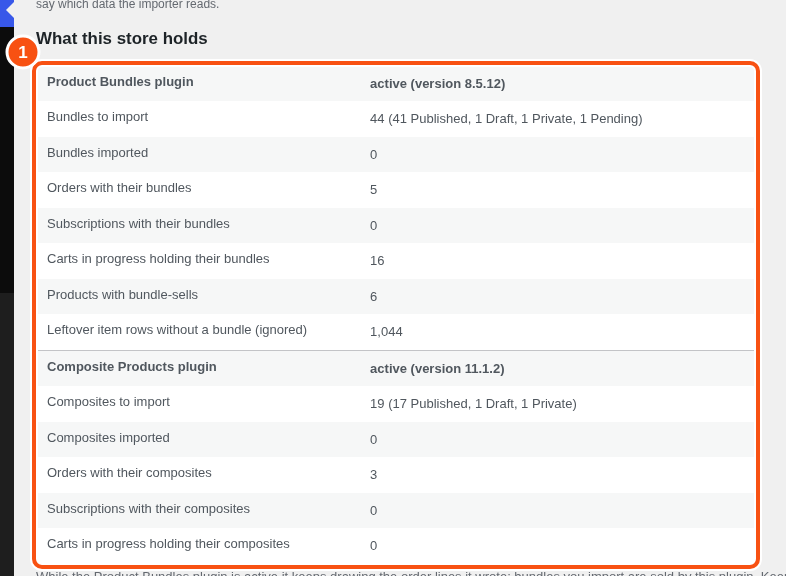
- The “What this store holds” box counts, for the Product Bundles plugin: bundles to import, bundles imported, orders with their bundles, subscriptions with their bundles, carts in progress holding their bundles, and products with bundle-sells. It says if the old plugin is active (with its version) or not.
The importer reads the stored data, not the old plugin’s code. It works when the old plugin is switched off, deleted, or has an expired licence.
WP-CLI: wp sibundles migrate --detect prints the counts and lists the theme and code findings.
Step 2. Run a dry run #
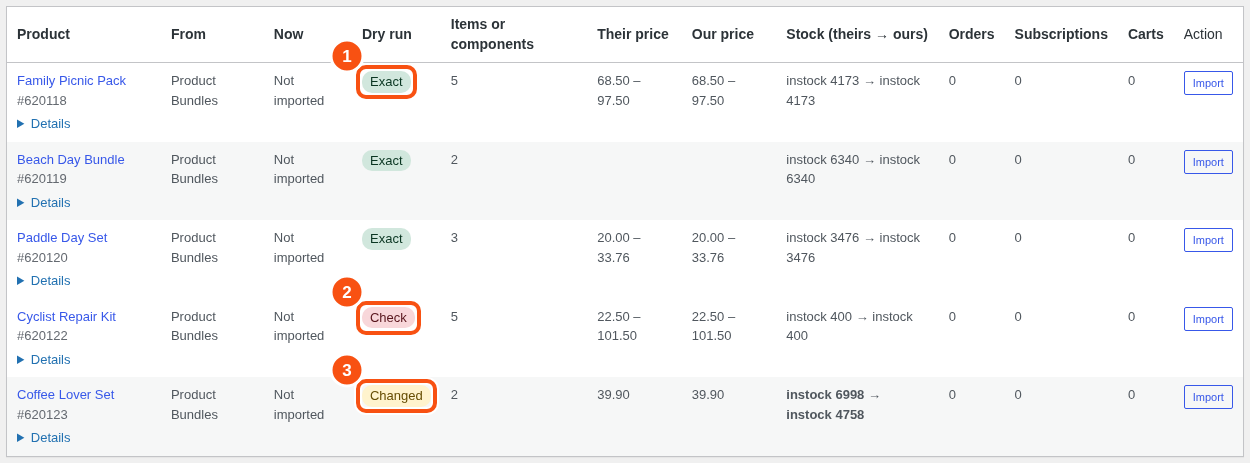
A dry run writes nothing except its report.
- Click Run a dry run.
- Wait for the progress bar. The page loads the results when it is done.
For each bundle the report shows: the product, what it is now and from what, the number of items, their price and our price, stock (theirs → ours), and how many orders, subscriptions and carts touch it. The Action column holds the Import button (and Roll back for an imported one).
How to read it #
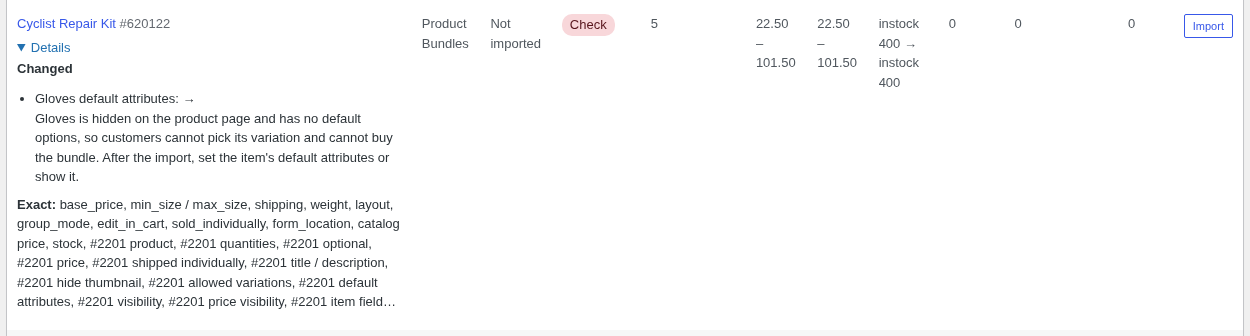
Each bundle gets one of three marks:
- Exact: everything maps one to one.
- Changed: it maps with a visible change. Open Details to see which. Typical ones: a custom layout or grouping added by other code becomes List or Grouped; a variation that was deleted is dropped from the allowed list; the old plugin’s cached stock figure was stale and ours is counted from the items now.
- Check: something needs your look before you import. Typical: an item whose product is gone (the item is kept, and the bundle cannot be bought until you replace it), a hidden item with variations but no default options (customers can’t pick its variation, so set its default attributes or show it), or a catalog price that differs.
Details also show:
- Sample prices: for up to 20 sample sets per bundle, the price by their rule and by ours, listed as “Sample prices that match” and “Sample prices that differ”. Any difference is worth a look.
- Stock: theirs and ours.
- Not migrated: theme files and code that change how the old plugin draws its bundles. The table “Theme files and code that change their bundles or composites” gives Kind (Template override or Code), File, Line and what was found. These stop acting once the products are imported. Redo what you still need on this plugin’s templates (a
sibundles/folder in your theme) or hooks. - Subscriptions that hold bundle lines: the dry run counts them and notes that switching the configuration inside a subscription is not supported. Renewals work.
Download the full report with Download CSV or Download JSON. The screen lists the first 500 products; the downloads have all of them.
WP-CLI:
wp sibundles migrate --dry-run --all --source=pb
wp sibundles migrate --dry-run --product=123,456 --format=csv
Step 3. Import #
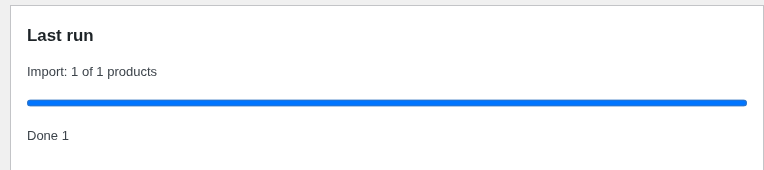
When you click Import, your browser asks you to confirm because carts in progress may be affected. Then a progress bar shows the run.
- Fix what the dry run flagged (replace gone products, set a price on a bundle that needs one).
- Optional: import one bundle first. Click Import on its row, then look at it (see “Check the result”).
- When you are ready, click Import everything. Confirm: “Import now? Carts in progress that hold these products lose them, with a notice asking the customer to add them again.”
- Two options sit above the button:
- Add orders placed before the import to Analytics: on by default. It fills Analytics > Bundles with your whole history.
- Also rebuild products imported before, from their data: for a second run. Changes made here since are lost.
- The run goes on in the background, in batches of 25. The page shows progress. Cancel the run stops it; what is done stays done.
Running it again is safe. A bundle that was imported is skipped.
WP-CLI:
wp sibundles migrate --all --source=pb
wp sibundles migrate --product=123,456
wp sibundles migrate --all --source=pb --reimport
wp sibundles migrate --backfill
--no-backfill skips the Analytics backfill. --backfill runs only the backfill.
Things you should know #
- Bundle-sells on ordinary products are copied to this plugin’s fields, only on products that have none of ours.
- Quantity discounts from the old companion extension are read into this plugin’s Quantity discounts table.
- A bundle the old plugin did not sell (no price of its own, every item included: its product page showed no price and no button) stays off sale after the import. It shows a note “Not for sale” on the edit screen until you give it a price (0 for a free bundle) or charge an item on its own.
- Carts in progress that hold an imported bundle lose it, with a notice asking the customer to add it again. Choose a quiet hour.
- Translations (WPML, Polylang): each translated product is imported as its own bundle.
Step 4. Check the result #
- Open an imported bundle’s product page. Compare it with the old one on the staging copy.
- Click through a few configurations. The price, stock message and add-to-cart should match.
- Place a test order with classic checkout and with block checkout.
- Open an old order that holds a bundle. It reads as before.
- Open Analytics > Bundles. Past sales are there.
Side by side #
While the Product Bundles plugin is active it keeps drawing the order lines it wrote. Bundles you have imported are sold by this plugin. Only one of the two draws any given line, so nothing is shown twice. Keep the old plugin active until you are happy with the import: a rollback needs it. Then you can switch it off; the old plugin’s lines are then drawn by this plugin’s reader. Keep it installed, not deleted, until you are sure.
Roll back #
- Make sure the Product Bundles plugin is active. While it is off, the Roll back buttons are disabled and say so: a product rolled back without it would be sold as an empty product.
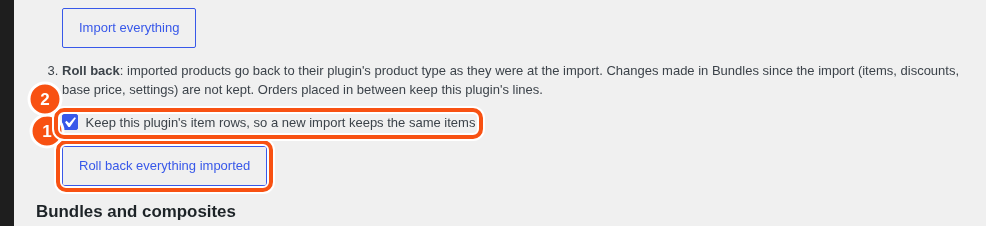
- On WooCommerce > Bundles > Import, click Roll back on a bundle’s row, or Roll back everything imported.
- A box “Keep this plugin’s item rows” is ticked by default. Leave it ticked and a later import is instant and reuses the same item IDs. Untick it to delete the rows.
- The product goes back to its old type, as it was at the import, and the old plugin sells it as before, because its data was never touched. Changes made in Bundles since the import (items, discounts, base price, settings) are not kept.
Orders placed while the bundle was ours keep this plugin’s lines. This plugin still groups them while it is active. With only the old plugin left they show as separate lines, with a “Part of” row on each item.
WP-CLI:
wp sibundles rollback --all --source=pb
wp sibundles rollback --product=123 --delete-rows
Going live #
- On a staging copy: install this plugin, run the dry run, fix what it lists, redo any theme override on this plugin’s templates.
- Import on staging. Click through sample configurations. Place test orders.
- On the live store: install this plugin, run the dry run again, import at a quiet hour. Keep the old plugin active for a week.
- Switch the old plugin off once you are happy (switch it back on before any rollback).
- Delete it only after a month with no rollback.
What is not migrated #
- Theme template overrides and code on the old plugin’s hooks. The dry run lists them with file and line.
- The old plugin’s own housekeeping options.
- Carts in progress.
- Changing the configuration inside an existing subscription.
- Third-party plugins that read the old plugin’s order meta directly. For new orders, this plugin writes its own meta plus a visible “Part of” row, and offers compatibility for the common shipping and invoice plugins. If you have an ERP or automation reading the old REST field names, turn on Previous REST field names in WooCommerce > Bundles > Settings. It is on automatically after an import.


