
Stock by location for every store, branch and warehouse
Multi Location Inventory lets one WooCommerce shop rent and sell from several places: stores and branches, warehouses and delivery centers, a desk at a hotel or an airport, or a city you deliver in. Each location keeps its own stock, opening hours, contact details, order emails and staff. Customers choose their pick-up location, and the calendar shows what that location has free.
| Product | Orlando | Tampa | Miami Beach |
|---|---|---|---|
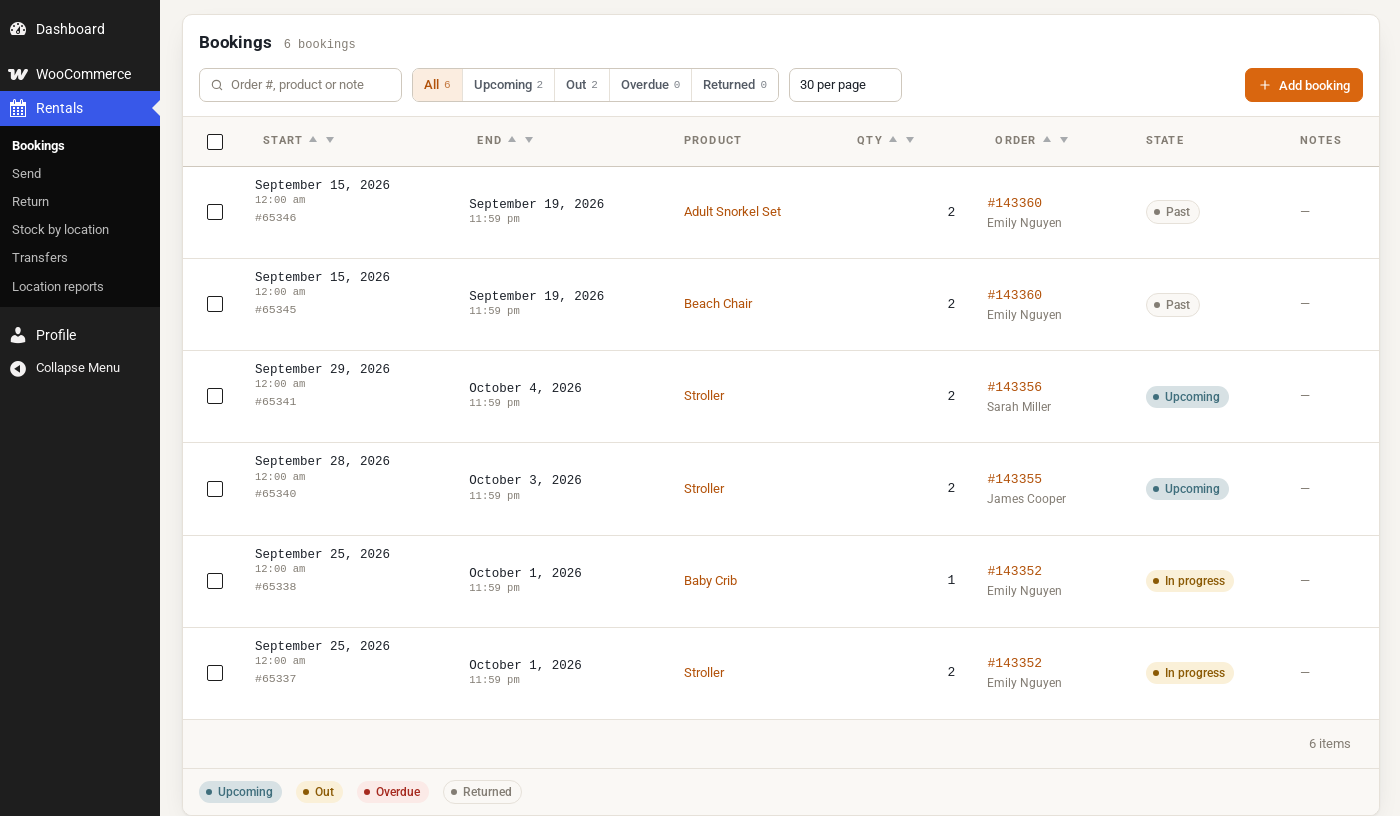
| Stroller | 10spare 3 | 5spare 01 short Tue 29 Sep | 6spare 6 |
| Baby Crib | 5spare 0 | 3spare 2 | 4spare 4 |
| Beach Chair | — | 10spare 10 | 10spare 8 |
| Reef-Safe Sunscreen | 10spare 10 | 2spare 2 | 19spare 19 |
One shared count can’t tell you what’s on the shelf in Tampa
Without locations, WooCommerce keeps one stock figure for each product. A multi-store shop needs stock by location: a count for each store, branch or warehouse, and each one needs its own hours, emails and staff.
One shared stock
- Every store sells from one count, so a unit in another city can still look free
- Opening hours and closed days are the shop’s, not the store’s
- New order emails go to the shop admin, not the store that hands the rental over
- Staff who work at one store see every store’s orders
Stock at each location
- Each location keeps its own stock, and the calendar shows what that store has free
- Each store has its own hours, closed days, notice needed and turnover
- Every order line remembers its store, and the new order email can go to it
- Location staff see the bookings, hand-overs and orders of their own stores only
Up and running in six steps
Install the add-on on a shop running Rentals & Bookings Regular. Every product starts on one shared stock, so nothing changes until you decide.
Add your locations
Locations › Locations asks how customers get their rentals, then you add each store, depot or hand-over desk.
Split a product’s stock
On its Inventory tab, tick where it is offered and enter the units at each location.
Let customers choose
Add the location picker to a page, or “Shopping in” to your menu.
Check a product page
“Pick-up at” appears above the calendar. The calendar and the price follow the store.
Take orders
Each line remembers its location on the cart, the order screen and the emails.
Watch stock by location
See what is on hand and spare at every store, and move units before one runs short.
With only one location, nothing changes for your customers. You can install the add-on first and add your second location when you are ready.
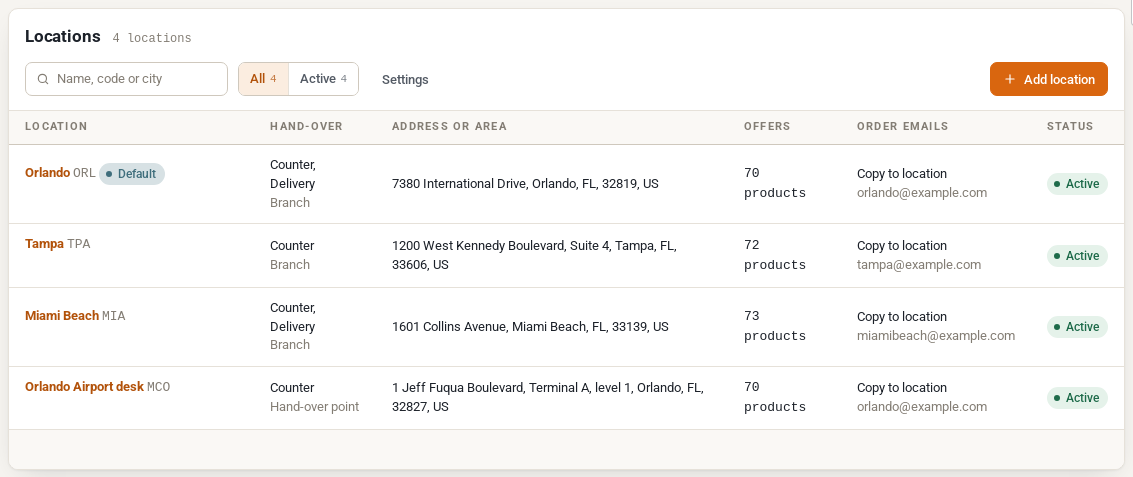
Branches, warehouses and hand-over desks
Every store, branch, warehouse or inventory center is a location, with an address, map pin, opening hours, phone, email and its own order email settings. Your existing stock and bookings start at a default location made from your store address.
Three kinds of location
A branch customers come to; a depot, such as a warehouse or delivery center, that holds stock and delivers; or a hand-over point, such as an airport desk or a hotel lobby, served from a branch.
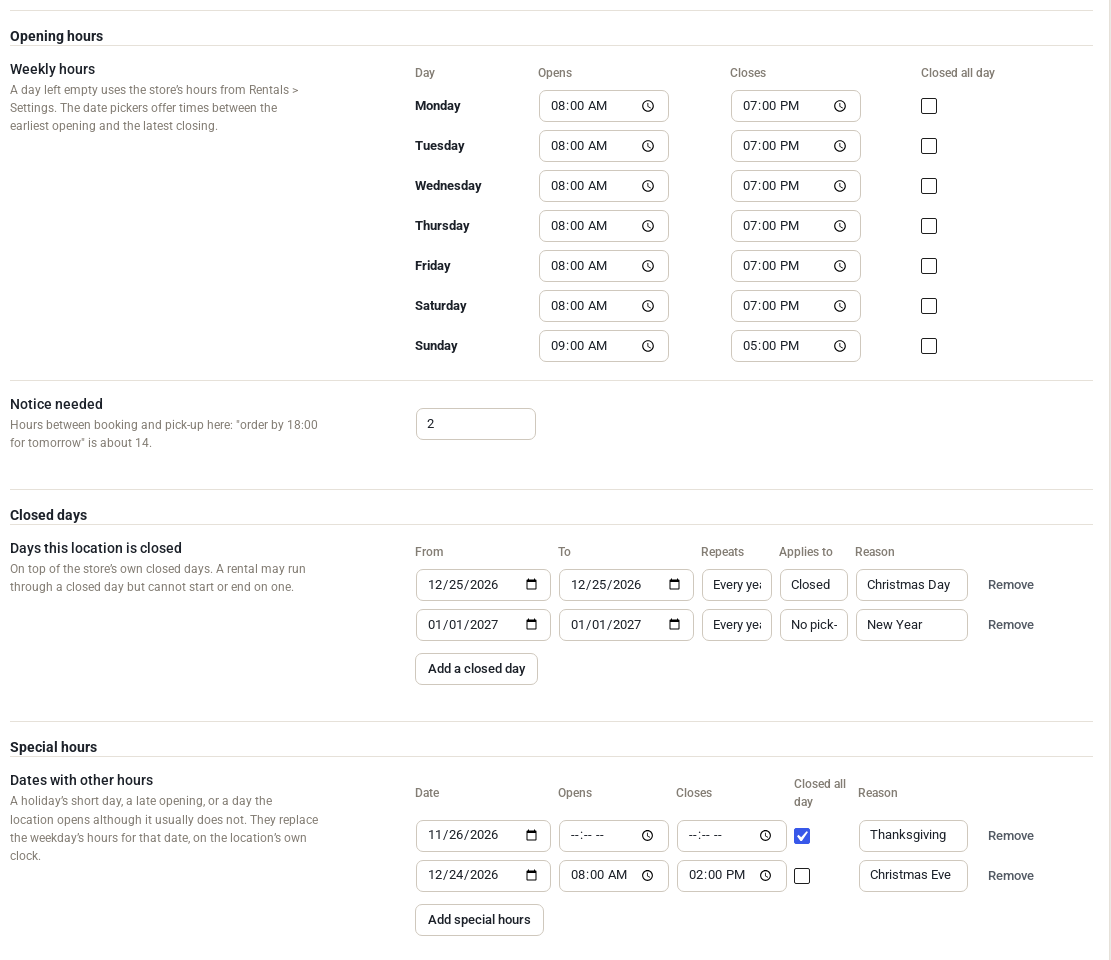
Hours of its own
Weekly hours, closed days, special hours, notice needed, and a time zone for a store in another one. Pick-ups and returns fall inside them, unless you allow after-hours hand-overs.
Delivery areas and windows
A distance from the store or a list of postcodes, windows such as 08:00–12:00, and a limit on hand-overs per window.
Tax by location
Rentals collected at a counter can be taxed at that store’s address, as WooCommerce does for local pickup.
Your own words
Call a location a Store, a Branch or a City, and change the “Pick-up at” and “Return to” labels customers read.
Stock kept at each location, for rentals and for what you sell
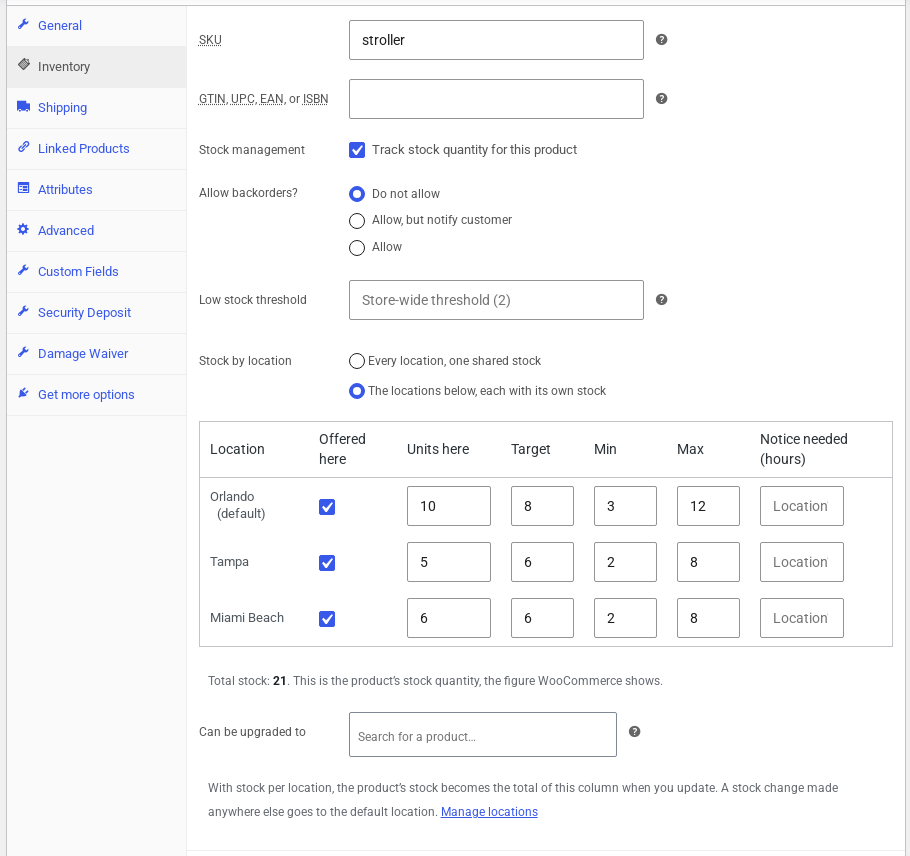
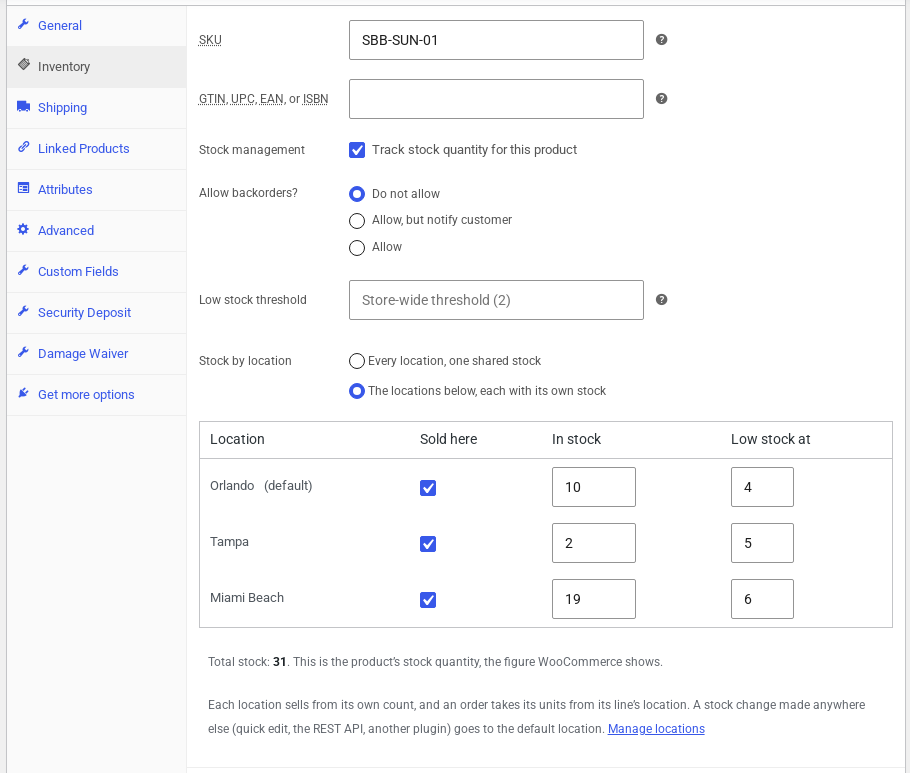
The Stock by location grid sits on the product’s Inventory tab, with a count for each store or inventory center. WooCommerce’s stock becomes the total of the grid, so your reports and WooCommerce itself still add up.
Only where it’s offered
Tick the stores that offer a product. When a customer shops at another store, it isn’t listed.
Target, min and max
Stock by location suggests transfers back to each store’s target, and marks a store below its minimum or above its maximum.
Products you sell, too
Each store sells from its own count. A cancellation or refund that restocks puts the units back at that store.
Nothing changes until you split
Every product starts on one shared stock, and bookings from before stay at the default location.
Can be upgraded to
Name a product that can stand in when this one runs short, such as a bigger stroller. It is only ever a suggestion.
One store’s stock in one table
Each location’s Stock tab lists every split product there, for a count or a correction.
Customers pick a store, and the calendar follows
Customers choose a pick-up location, and a return location for one-way rentals. The choice is remembered for 30 days and carried in the page address, so links and page caches show the right store.
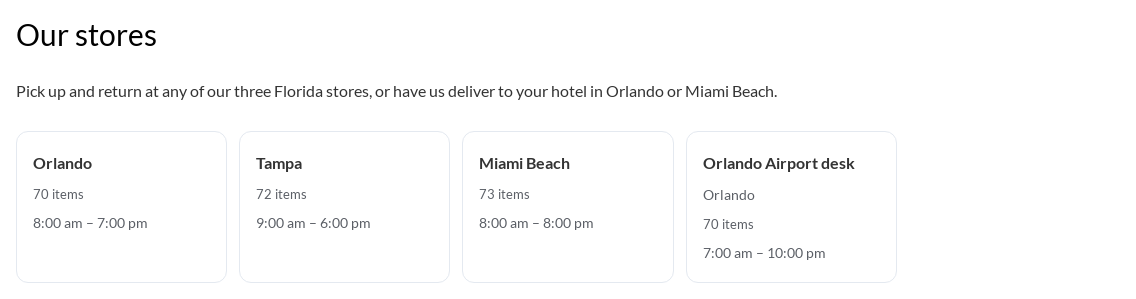
A picker, or a search
Cards, a list, a dropdown, or a “Where are you staying?” search that finds the store whose delivery area covers a hotel, an address or a postcode.
“Shopping in” in the menu
Customers switch store from any page. The shop, categories and search then list only what that store offers.
“Pick-up at” on the product page
The store’s address, instructions and today’s hours show under the choice, and the calendar redraws with its availability, closed days and notice needed.
Products you sell
“Available at” shows the units at each store, and says where else it is in stock when this store has none.
Checked again at checkout
Every line is checked at its own location, so two customers can’t book the last unit at the same store at the same time.
A page for each location
Each location can have its own page, with LocalBusiness structured data that helps search engines show its address and hours.
Can each location have its own design?
All locations share your store’s theme, stock and orders. Each one gets its own pages, prices and availability, and a franchise’s emails go out in its name with its own logo. A completely different look per location would mean separate stores or custom styling work.
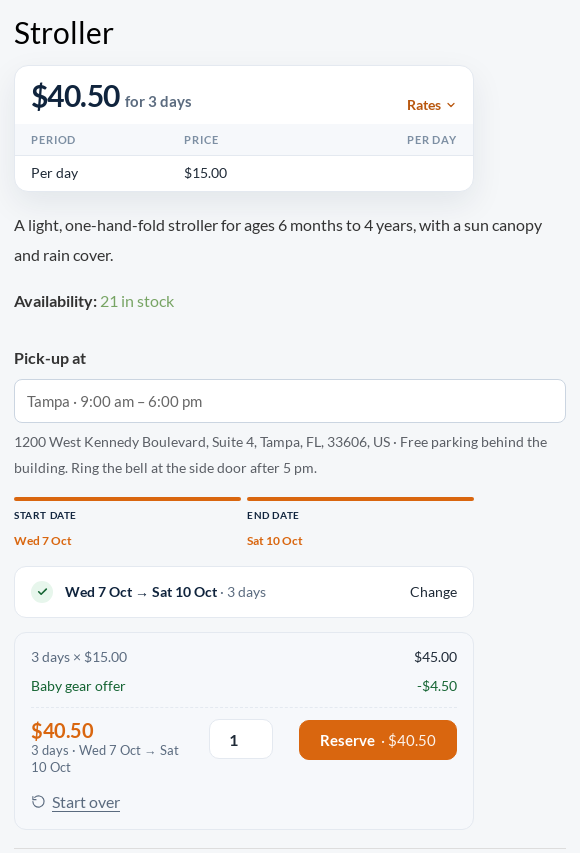
Charge what each location needs to
Price rules live on each location’s Prices tab. A rule can cover every product, a category or one product, all year or for a season. Your seasonal and length-based pricing from Regular still applies.
| Price here is | Fill in | Example |
|---|---|---|
| A percentage up or down | 15 for 15% more, -10 for 10% less | A beachfront store charges 15% more |
| An amount added to each rental | An amount per rental, negative to take something off | A $5 charging fee on scooters |
| Its own rates | Per day, per hour and fixed rates for this location | An airport desk with its own day rate |
The most specific rule wins
A product rule beats a category rule, which beats one for every product. A seasonal rule beats an all-year one.
Its own line on the bill
The rule shows in the price breakdown under the name you give it. The same price goes into the cart and the order.
Shortest rental here
Set a minimum at a location, such as at least 2 days at an airport desk, for every product, a category or one product.
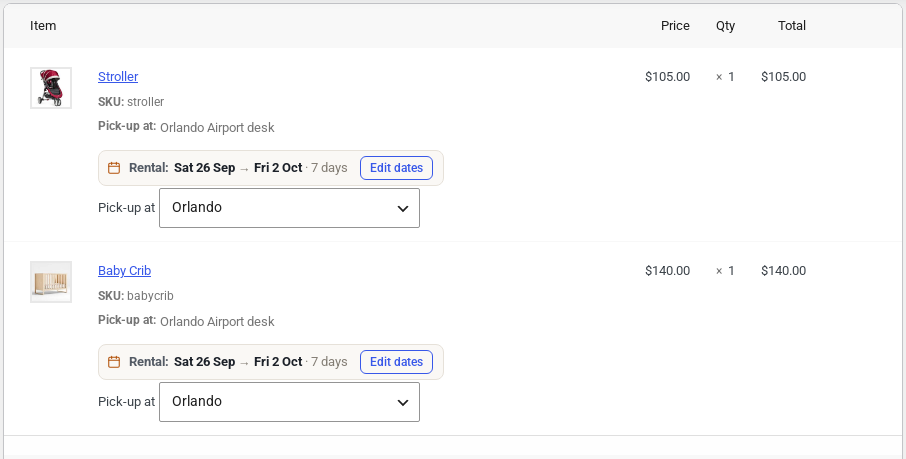
Every order line knows its store
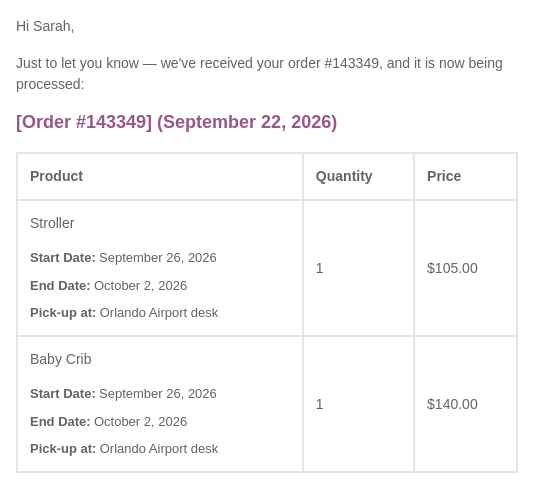
The location shows on the cart, the checkout, the order screen, the customer’s account and the emails.
Move a line to another store
Choose the new location under the line and click Update. The booking moves with it, and a note records who moved it and from where.
Order emails for each location
New, cancelled and failed order emails can go to the location as well as the store admin, or instead of the admin. An order is never emailed to nobody.
Reminders that name the store
Merge tags such as {pickup_location}, {pickup_hours} and {pickup_map_link} for reminder emails and texts. Templates you already have keep working.
Send and Return for each store
A row of location buttons on the Send and Return screens, and each hand-over is recorded at the store where it happens.
Shipped rentals
For products that only ship, the shop picks the location that can transport the rental in time: fewest days in transport, then the most units free.
See which store will run short, and move stock in time
Locations › Stock by location shows every product at every store: the units on hand now, the spare, and red where a booking has no unit. It suggests transfers between branches and warehouses, and nothing moves until you plan one.
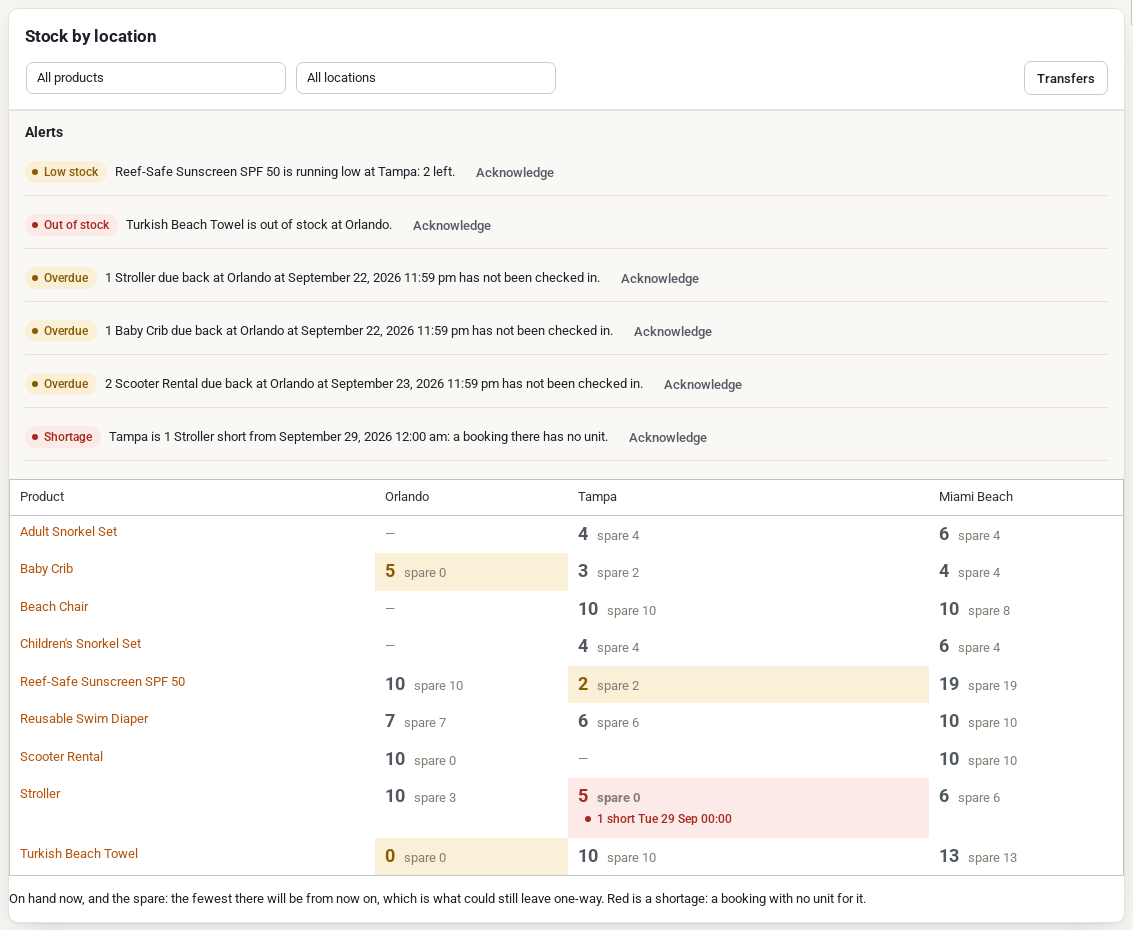
A booking at a location has no unit for it.
Dispatched, but not received by its arrival time.
A rental due back at a location has not been checked in.
A product you sell falls to its low stock figure at a location.
A product you sell has none left at a location.
The shop checks every hour. New alerts show on Stock by location and are emailed once to the people who look after that location.
Plan
From a suggestion or by hand. It counts at once in both stores’ availability.
Dispatch
When the van leaves, the units stop counting at the origin.
In transit
A transfer not received by its arrival time is flagged as late.
Receive
The units count at the destination. Receive part of it and the rest stays in transit.
For a van run happening right now, Move units now sends and receives in one step. Serial-numbered units can be scanned on dispatch and receipt through the REST API.
Staff see their own store, and nothing of the others
Three roles and an access level for each location. Administrators and shop managers keep full access to everything.
Location manager
At their locations: bookings, Send and Return, transfers, serial numbers, Stock by location, location reports and the WooCommerce orders.
Manager accessLocation staff
At their locations: bookings, Send and Return, transfers and Stock by location. Orders open read-only, without prices.
Staff accessInventory manager
A location manager at every location. Low and out of stock alerts reach them too.
Every locationInvite from the store’s Staff tab
Enter a name, an email and a role. They get WordPress’s email to set a password, and see that location only.
A different level at each store
Manager, Staff, Viewer or “Does not work here”, for each person and each location.
The day sheet
Every morning at 6:00, an email with today’s pick-ups and returns at their locations, with one-way rentals named.
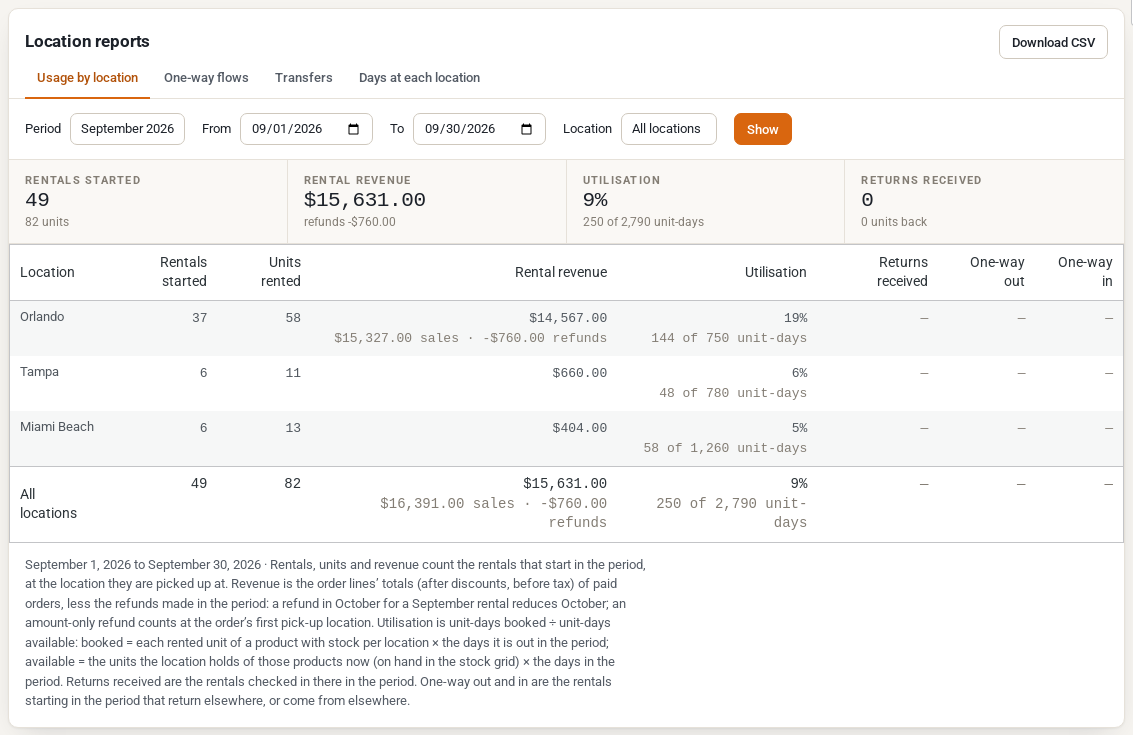
Compare your locations, and trust the numbers
Locations › Reports shows how busy each store is, where one-way rentals go and how transfers run. Download CSV saves the table you are looking at.
Usage by location
Rentals started, units rented, rental revenue after refunds, utilisation and returns received, for each store.
One-way flows and transfers
Where rentals are picked up and where they come back, and which transfers arrived on time, by route.
Days at each location
For serial-numbered units: days at each store, on hire, in transit and out of service.
The stock journal
Every move of a unit is written once and never changed. Stock by location, the calendars and the reports are all worked out from it, so they agree.
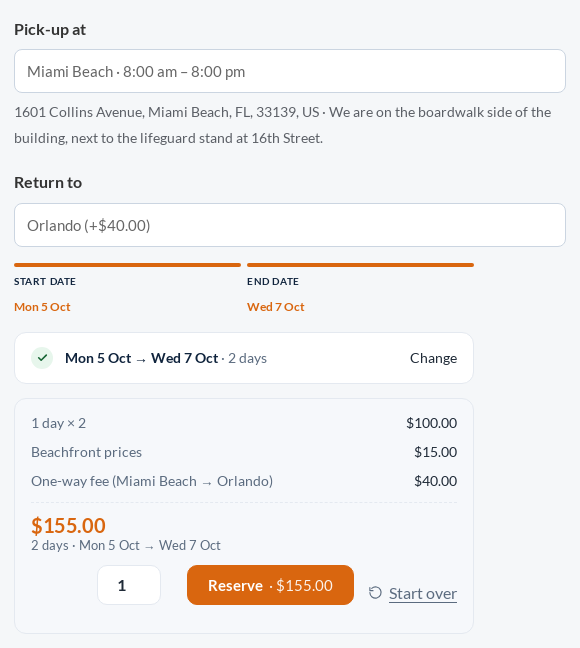
Pick up here, return there, with a fee per route
A scooter taken on the beach and dropped off downtown, a van collected at the airport and returned in the city. Multi Location Inventory works out whether each location can spare the unit.
| Returning to another location | When a one-way rental is allowed |
|---|---|
| Off | Never. Rentals come back where they left. |
| Strict | When the pick-up location can spare the unit: it never lets a unit go that a later booking there needs. |
| Pooled | Within a pool of locations that share their stock. The pool must have the unit for the whole rental. |
| Accept and rebalance | When total stock covers it and a transfer can bring the pick-up location back in time. |
A fee for each route
A grid of pick-up and return locations: an amount for a route, 0 to make it free, or Not allowed.
Flat or per kilometre
Any other route can be free, a flat fee or a fee per kilometre between the two map pins, with a minimum and a maximum.
Rules for a product, category or season
A summer fee, or a different fee for one product, on top of the route grid.
Returned to the wrong store
Staff record where it really came back, and the order gets a note for a manager to decide. Nothing is charged automatically.
Franchise stores under your brand, settled every month
Each franchise runs its own locations, products, pages and staff, and Multi Location Inventory works out what each one owes you. If all your stores are your own, you can skip this part.
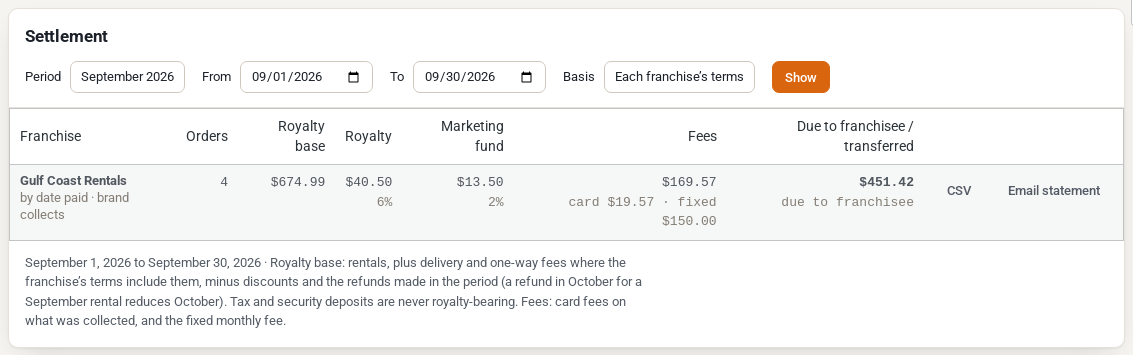
Royalty terms
Royalty and marketing fund as a percentage of net rental revenue, a fixed monthly fee, and card fees passed on.
Who takes the payment
The brand collects and pays out from the settlement, or the franchisee is the merchant through a Stripe Connect gateway, a separate plugin that Multi Location Inventory provides the hooks for.
Their name on the emails
Emails about the franchise’s orders carry its From name, reply address, header image and footer line. The statement goes out on the 1st.
Owner and accountant
The owner runs the franchise’s locations and staff; the accountant sees the settlement only. Neither can refund an order or see other franchises.
Stock stays with its owner
A transfer between the brand’s stores and a franchise’s is refused, because that would be a sale or a loan between businesses.
A checklist for each new franchise
Details and royalty, its locations, range and stock, the owner invited, and its location pages.
Connect your POS, scanner app or channel manager
Multi Location Inventory adds its own REST API next to the Rentals & Bookings API. Store endpoints use WooCommerce REST API keys, and the public endpoints are read-only.
Stock by location
Read and change a product’s units at each location. Every change is written to the stock journal.
/stock/products/{id}
Availability and quotes
What a location has free for given dates, and the price with its location rule and any one-way fee.
/availability /pricing/quote
Transfers
Plan, dispatch and receive transfers, or move units now. Dispatch and receive by scanning serial codes.
/transfers
Locations and price rules
Create and change locations, the products they offer, their staff and their price rules.
/locations
Franchises and settlement
Franchises, their owners and locations, and the settlement for a period as JSON or CSV.
/franchises
Public locations feed
Active locations with today’s hours and delivery area, for a picker of your own, plus calendar feeds.
/simultilocation/v1/locations
For multi-store shops, delivery centers and franchises
The first time you open Locations › Locations, it asks how your customers get their rentals. Your answer fills in starting settings, and every one stays editable. It works for products you sell outright too, such as sunscreen, towels or consumables.
Multi-store rental shops
Baby gear, beach gear, bikes, party rental or tools, collected and returned at the counter of one of your stores.
Counters, round tripWarehouses and delivery centers
Deliver from depots in different cities and collect afterwards, in delivery windows customers choose.
DeliveryRentals sent by courier
The shop picks the branch that can transport the rental in time, and the days in transport are held as turnover.
ShippingCar and van hire
Different pick-up and return locations: collect at the airport, return in the city. The calendar only offers start days the pick-up location can spare a unit.
Car and vanBikes and scooters
Take a scooter on the beach and drop it off downtown, with a fee per route or per kilometre.
Bikes and scootersFranchise brands
Each store owned by a franchisee, running under your brand, with a royalty settlement every month.
FranchiseRegular on its own, and with Multi Location Inventory
| Capability | Rentals & Bookings Regular | + Multi Location Inventory |
|---|---|---|
| Stock | One shared count per product | A count at each location, with the total in WooCommerce |
| Availability | The whole shop’s | Each location’s own calendar |
| Opening hours and closed days | The shop’s | Each location’s, with special hours and time zones |
| Prices | The product’s | Location price rules and shortest rentals on top |
| Order emails | The store admin | The location as well, or instead |
| Staff | Shop managers see every order | Location roles see their own stores only |
| Returning somewhere else | Not available | One-way rentals with a fee per route |
| Reports | Shop-wide | By location, with a stock journal |
| Franchises | Not available | Royalty settlement every month |
Buy the add-on, or get it with everything in Pro
A one-time purchase. The add-on installs as Sales Igniter Multi Location Inventory and needs Rentals & Bookings Regular 1.0.74 or newer, which includes Lite.
Multi Location Inventory add-on
For a shop that already runs Rentals & Bookings Regular.
- Everything on this page: stock by location, pricing, staff, transfers, one-way rentals, franchises and the REST API
- 1 year of support and updates, then $299/year if you want them
- Needs Rentals & Bookings Regular 1.0.74 or newer
- Your products and bookings stay as they are until you split a product’s stock
- Switch it off and the shop goes back to one shared stock, with your locations kept for next time
Pro + Multi Location Inventory
Everything in Pro, plus Multi Location Inventory.
- Rentals & Bookings Regular, with all 60+ features
- Multi Location Inventory $299 value
- Refundable Security Deposits $199 value
- PDF Rental Contract Signing $199 value
- Subscriptions, Memberships & Recurring Billing $299 value
- Custom Fields, Damage Waiver & ID Verification $99 value
- Free installation, and priority for new feature requests
- 1 year of support and updates, then $299/year if you want them
- One bundle licence key covers Regular and Multi Location Inventory
Bought one by one, Regular, Multi Location Inventory and the four Pro add-ons come to $1,294. Needs WooCommerce 8.0, WordPress 6.6 and PHP 8.1 or newer. The plugins keep working whether or not you renew support. Limitations and FAQ
Read the guide before you buy
Fifteen pages walk through setup and every feature, with screenshots from a working shop.
Ready for your second location?
With one location nothing changes for your customers, so you can install it now and add the next store when you are ready.