
If you collect guests from hotels or meeting points, list them on the tour. Customers choose one when they book, and everyone (the guest, the manifest and your driver) knows where and when.
Add pickup points #
- Edit the tour product. Below the date rows, find Pickup points.
- Click Add a pickup point and fill in:
- Name: “Hotel Plaza”;
- Address (for the map);
- Minutes before: how long before the departure you pick up there, for example 45.
- Add each point, then click Update.
Leave Pickup points empty to meet at the start.
What customers see #
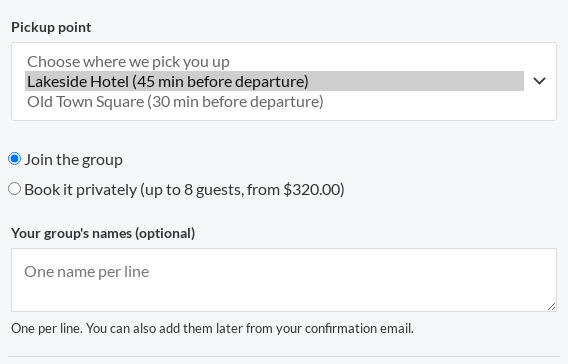
With any point listed, the product page asks for a Pickup point: “Choose where we pick you up”, each listed as “Hotel Plaza (45 min before departure)”. A customer can’t add the tour to the cart without choosing one: “Please choose a pickup point.”
The chosen point and its time (“Hotel Plaza, 9:15”) show on the order line as Pickup, on the ticket and in the emails.
What staff see #
- The manifest shows each booking’s pickup and is sorted by pickup time. The CSV has a Pickup column.
- On My Account › My schedule, the departure’s Manifest & check-in starts with the Pickups in time order, each with the guests to collect there and a Map link.
If you change a point’s minutes later, bookings already made keep the point as it was when they booked.
Meet at the start #
Available from Rentals & Bookings 1.0.84.
When a tour lists pickup points, you can also let guests skip them. Tick Offer Meet at the start under Pickup points on the product. A Meet at the start choice is added after your points and is chosen by default. Existing pickup choices keep their place, so nothing booked before changes.
Guests who choose it are not picked up, so they get no pickup reminder.
Fixed pickup times for one departure #
Available from Rentals & Bookings 1.0.84.
Normally a pickup time is the departure’s start minus the point’s minutes. For one departure you can set the exact times instead, for example when the coach has to leave earlier that day.
- Open Rentals > Departures and click the departure.
- Find Pickup times for this departure and type a date and time for each point. The time must be within the 24 hours before the departure (in your store’s time zone).
- Save.
Empty times go back to the product’s minutes. A fixed time follows the departure’s date but keeps its clock time if the departure is moved or delayed, and bookings keep the pickup point their guests chose. If a move would put a pickup after the departure, or more than 24 hours before it, the move is refused until you adjust the pickup.


