
This page covers taking sold items back, giving the money back, exchanges, and looking up what a customer has bought or still owes. Rentals do not come back through refunds: they come back through Pick up / return, which works out late fees and the deposit. See Rentals at the counter.
Refunds need the refund permission. Staff without it do not see the Return / refund button. See Who can do what.
Start a return #
There are three ways to start:
- Tap Return / refund in the header, then scan the receipt’s QR code or type the order number in the box, and tap Find order.
- Scan the QR code of a receipt that was printed on a receipt printer. It opens that order’s return sheet at once. A receipt printed through the browser has no QR code, so type the order number.
- Open a customer’s History and tap Return / refund next to one of their orders.
Choose what comes back #
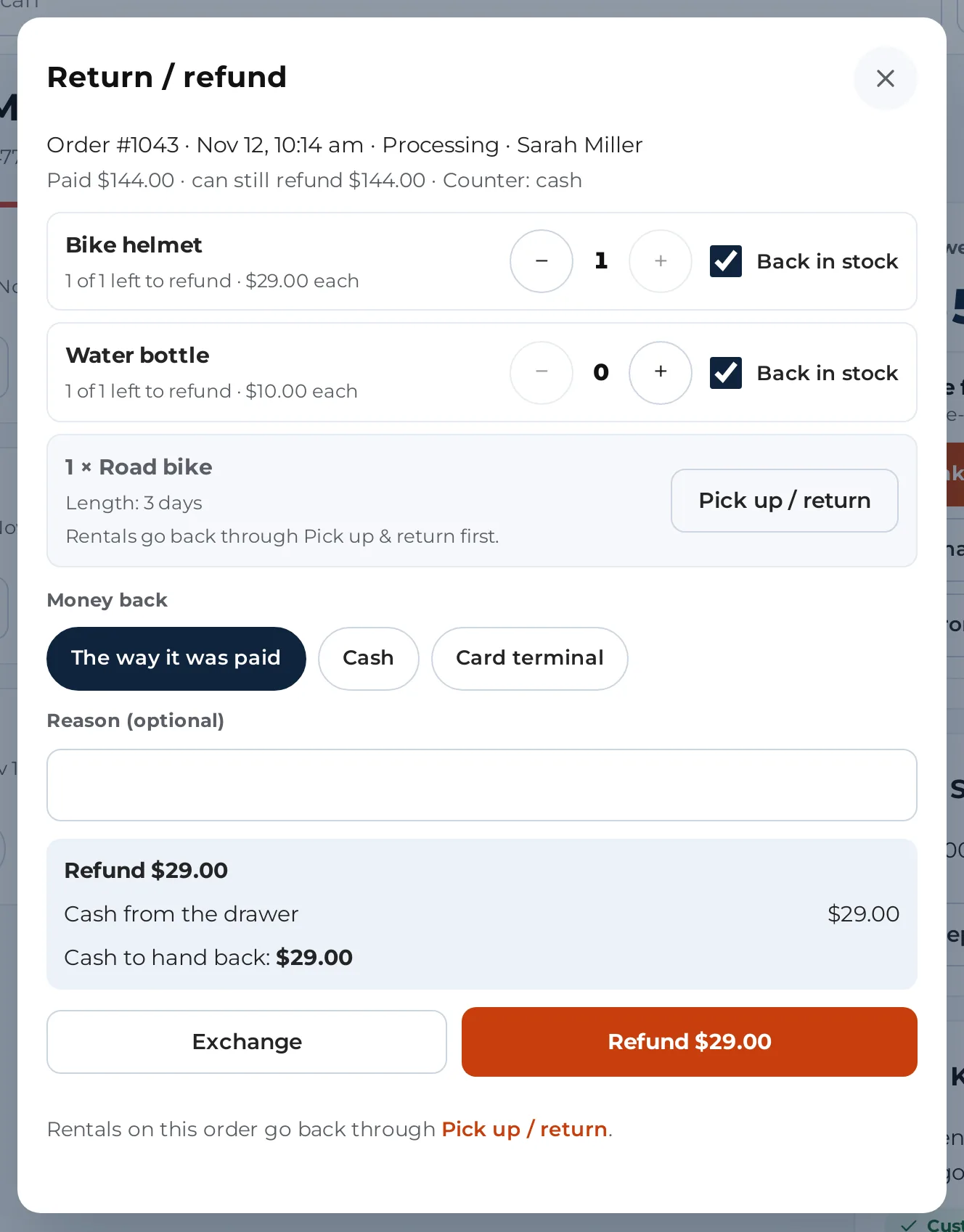
The sheet shows the order number, date, status and customer, then how much was paid, how much was refunded already, and how much can still be refunded.
For each item you see how many are left to refund and the price of each.
- Use the − and + on a line to choose how many come back.
- Tick Back in stock if the item goes back on the shelf. This tick only appears for products whose stock WooCommerce tracks. Otherwise the line says “Stock not tracked”.
- A bundle comes back as a whole: its parts return with it.
Some lines cannot be refunded here, and the line says why:
- A rental: “take it back with Pick up / return”. The button Pick up / return opens it.
- A security deposit: Security Deposits refunds it, on the order screen or with the rental return.
- A booking deposit or balance: it is refunded with the booking, from the rentals admin.
- Fees: “Fees are not refunded at the counter. Refund them from the order screen.” They are listed under Fees on this order.
- Something already refunded: “Already refunded.”
Choose how the money goes back #
Under Money back pick one:
- The way it was paid: the Counter sends each part back the way it came. A card goes back to the card, cash goes back as cash, a terminal payment goes back to the terminal.
- Cash: you hand cash from the drawer. The register needs an open shift, or you see “Open a shift on this register to give cash back.” The sheet shows how much of the order was paid in cash. Staff can give back up to that amount. A manager can give more.
- Card terminal: refund the card on your own terminal, then record it here. Type the Terminal slip or reference (optional). Staff can refund up to what was paid on the terminal, and a manager can refund more.
- Card: only shown when a card paid for the order that can take money back. If more than one card paid, pick the Card. One refund goes back to one card. To refund another card, make a second refund.
Add a Reason (optional).
Tap Check refund (with an estimate in brackets). The sheet shows the exact plan: the total, each way the money goes, and any cash to hand back. Check it, then tap Refund with the amount.
A refund is safe to retry. If it was already made you see “This refund was already made: nothing more was refunded.”
After the refund #
The sheet says Hand back followed by the amount in cash when cash is due, or Refunded followed by the amount. If cash is due and the register has a cash drawer, the drawer opens. Tap:
- Print slip for the refund slip,
- Refund more to refund more from the same order,
- Done to close the sheet.
The slip shows your store, the order, the items (with “Back in stock” where it applies), the refund total, how it went back, and “Cash handed back”. Earlier refunds are listed under Earlier refunds, each with a Slip link to print it again.
Cash refunds count in the shift: they come off the expected cash in the drawer. See Shifts and the cash drawer. The receipt of the order lists each refund as “Refunded” with its date.
Exchanges #
An exchange gives the customer credit for the items they bring back, to use on a new sale.
- On the return sheet choose the items, and the way any change goes back.
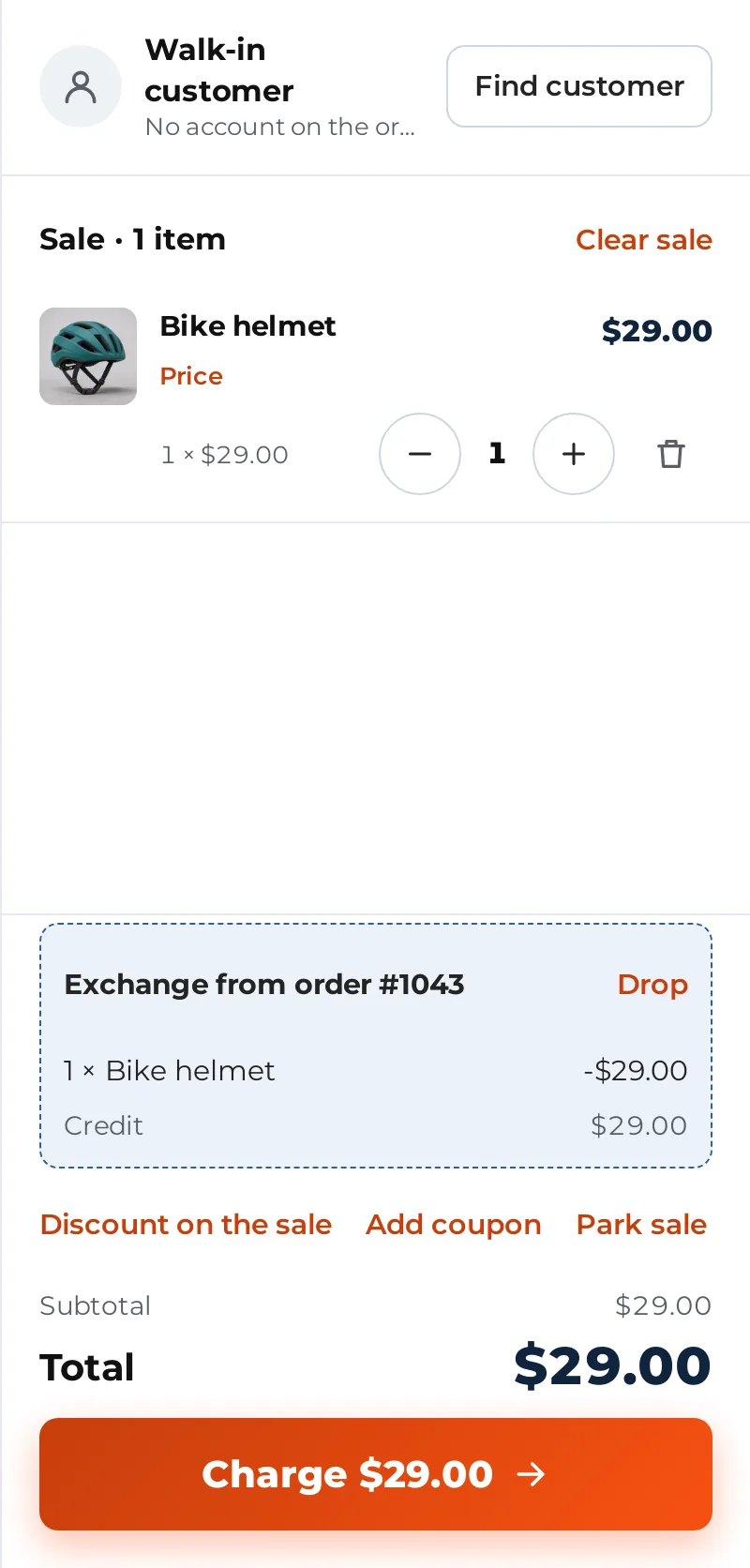
- Tap Exchange. You are taken back to the sell screen. A message says “Exchange started: add the new items to the sale.”
- The sale shows a block, Exchange from order # and the number, with the returned items, the Credit, and then Customer pays or Give back.
- Add the new items. The button under the sale asks only for the difference: Charge and the amount still to pay when the new items cost more, Give back and the amount when they cost less, or Finish the exchange when they cost the same. Tap it. The credit is applied to the new order and the old order is refunded. If something is left to pay, the payment screen opens. When money goes back, The rest goes back in the block lets you choose The way it was paid, In cash, On the card terminal or To the card.
- Tap Drop in the block to cancel the exchange.
The receipt of the new order says “Exchange” with the credit and the order it came from, with a Return slip link.
If the old order cannot be refunded after the new order is made, the Counter tells you and the new order stays unpaid, so you take the full payment. The order note names what went wrong.
Customer history #
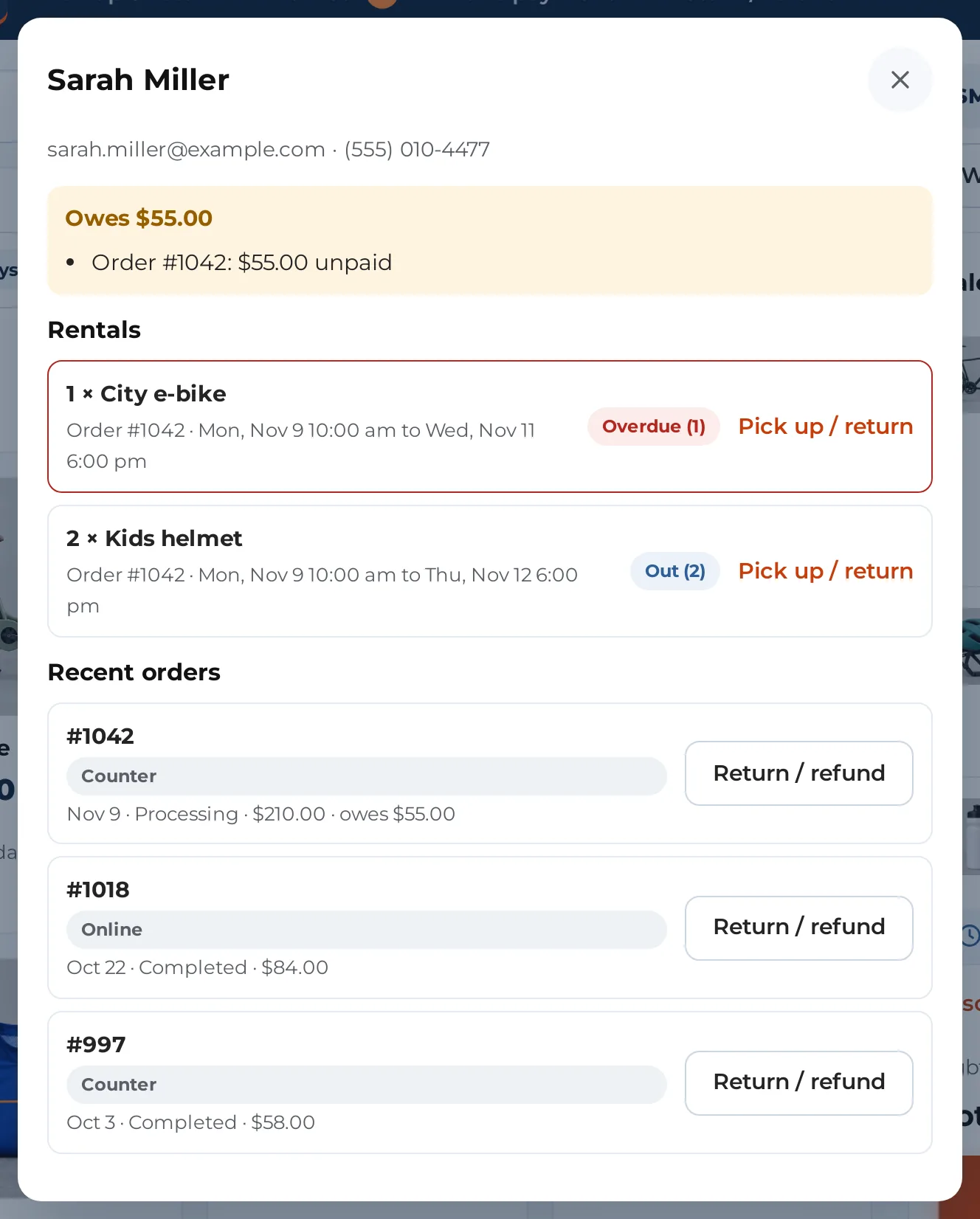
With a customer on the sale, tap History on the customer bar. The sheet shows:
- their name, email and phone,
- Owes with the amount, or Nothing owed, with the orders behind it (for example a booking balance and its due date),
- Rentals: what is out, overdue or still to hand over, each with a tag and a Pick up / return button,
- Recent orders: each marked Counter or Online, with its date, status, total, anything refunded or owed, and a Return / refund button.
Refunds made outside the Counter #
A counter order is a normal WooCommerce order. You can still refund it from the WooCommerce order screen. The Counter’s payment method there is called Counter payment, and it refunds the order’s cash and terminal payments newest first. Cash can only be refunded from there while the register that took it has an open shift.


