
With a rental queue membership, customers build a wish-list of products and you send them out one after another – like a rental-by-mail service. This page covers the whole cycle: the customer’s queue, sending items with serial numbers, pick lists, returns and history. For creating the membership and queue products see Setting up Memberships.
The cycle at a glance #
- The customer clicks Add to Queue on rental queue products and orders their queue by priority.
- You open Rental queue > Send, pick the customer, choose serial numbers and send the top items. Each send is an open-ended booking, so regular inventory sees the unit as out.
- Print the day’s Send Pick List for the warehouse.
- When items come back, use Rental queue > Return (scan or paste serials) or By customer.
- The returned allowance frees up and the next queued item can go out.
The customer is emailed at steps 2 and 4 (Rental Queue Item Sent / Rental Queue Item Returned, editable under WooCommerce > Settings > Emails).
The customer’s queue #
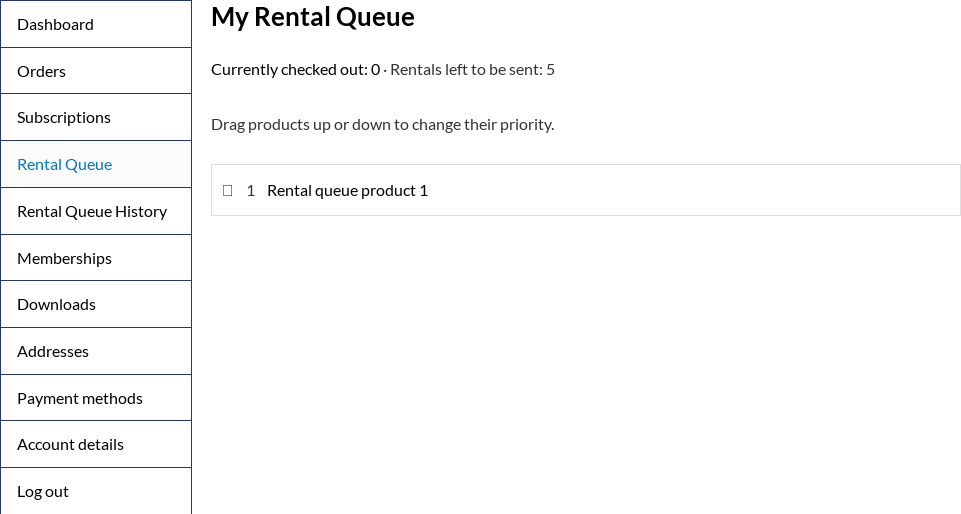
Members manage their queue under My Account > Rental Queue. It shows how many items they currently have out and how many more can be sent, and they drag products up or down to change the order in which they want to receive them. A product can only be in a queue once.
My Account > Rental Queue History shows what they currently have checked out (with the date it was sent) and everything they have received in the past:
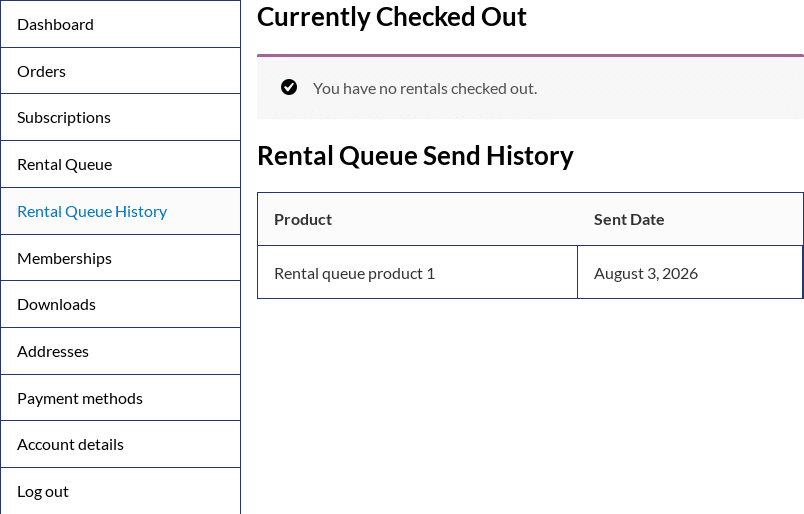
Both views are also available as shortcodes – [sisubscriptions_rental_queue] and [sisubscriptions_rental_queue_history].
Sending items #
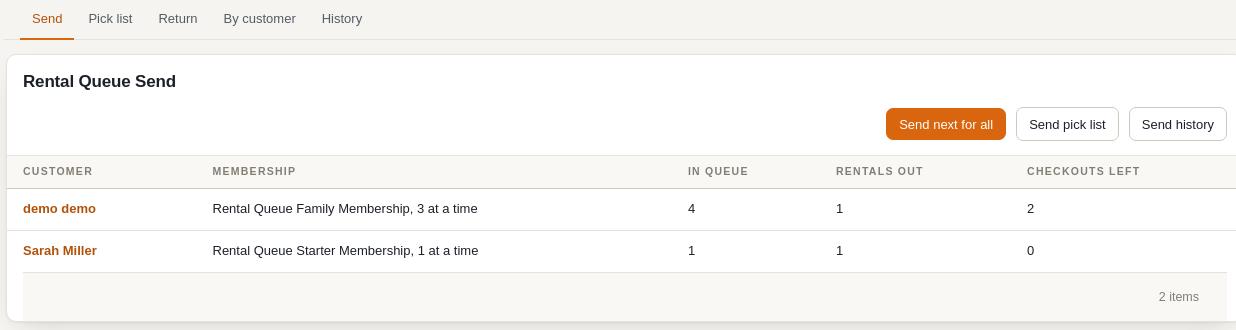
Subscriptions > Rental queue > Send starts with the list of customers who hold a rental queue membership, showing for each how many items are in their queue, how many they have out and how many more they may receive (Checkouts Left):
Click a customer to open their queue:
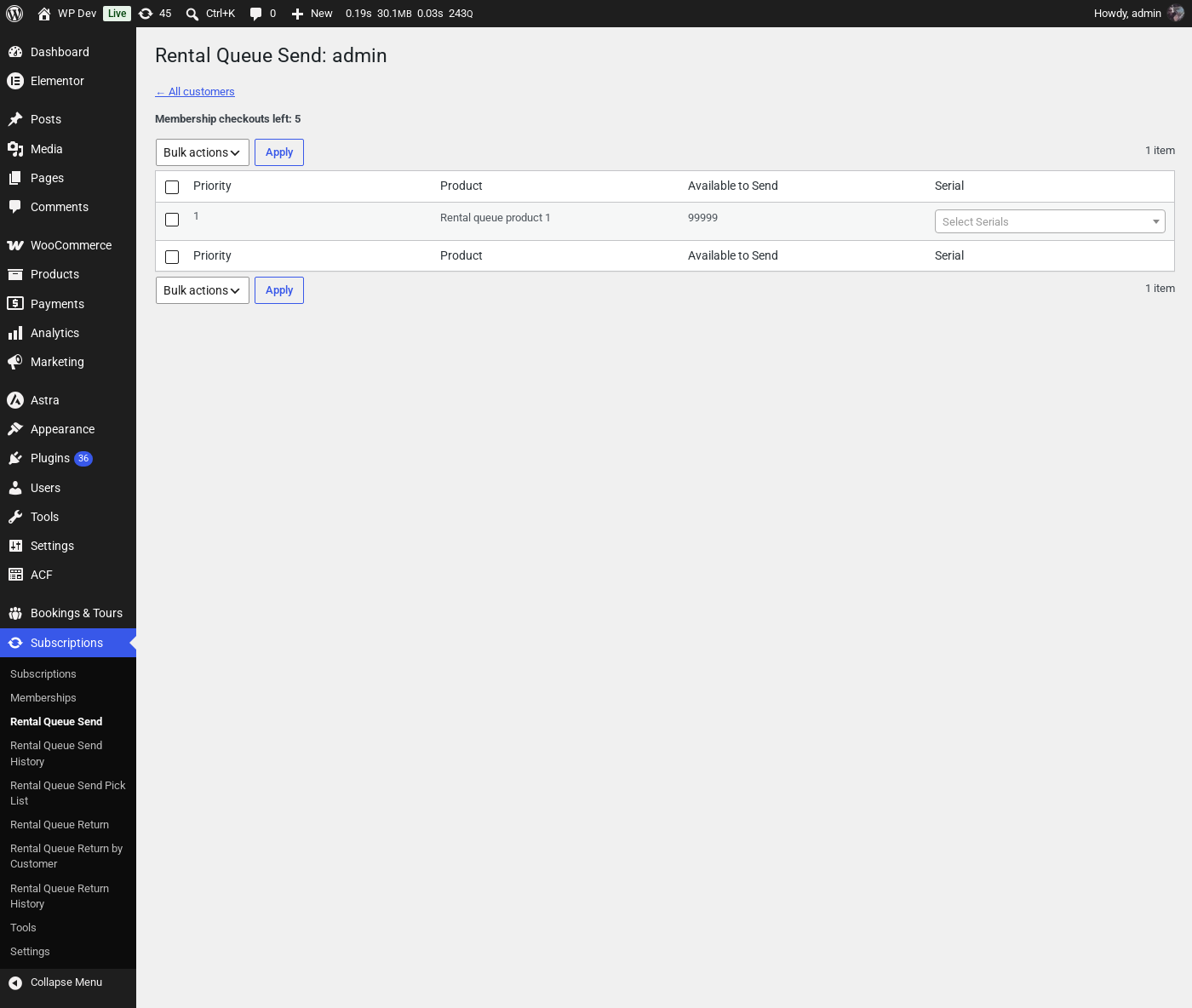
- Priority – the order the customer wants items in; send from the top down.
- Available to Send – units of the product that are free right now and have no upcoming regular booking. If it is 0 the item cannot be sent yet; move on to the next one.
- Serial – pick the serial number(s) of the unit(s) you are shipping, from the serials set up for the product in Rentals > Serials. Serials already out are not offered.
Tick the rows to send, choose Send from Bulk actions and click Apply. For each item the plugin creates an open-ended booking for the customer, records the send in the Rentals & Bookings send history, marks the serials as out, removes the item from the queue (the rest move up) and emails the customer. The number of items you can send is limited by Membership checkouts left at the top of the page.
Send Pick List #
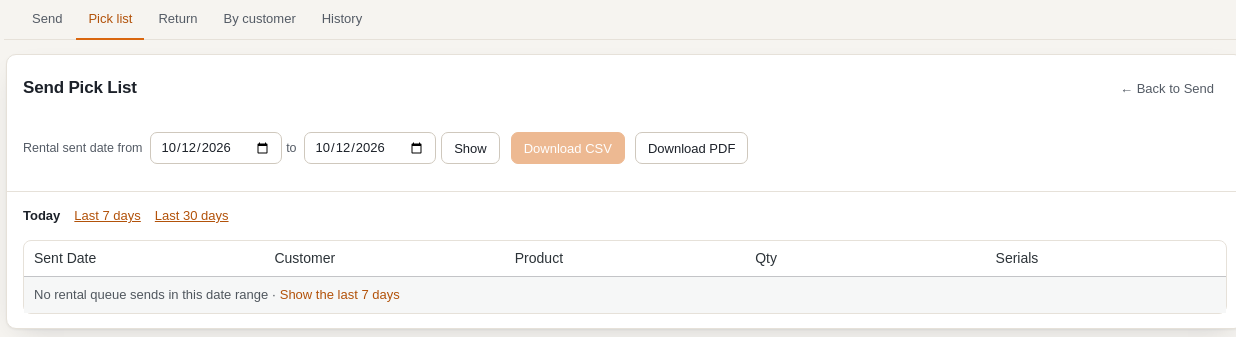
Subscriptions > Rental queue > Pick list lists every queue send in a date range – customer, product, quantity and serials – and can be downloaded as CSV or PDF to hand to whoever packs the shipments.
Returning items #
Rental Queue Return (all customers) #
Subscriptions > Rental queue > Return shows every queue item that is currently out, across all customers, and is the fastest way to process a batch of returns:
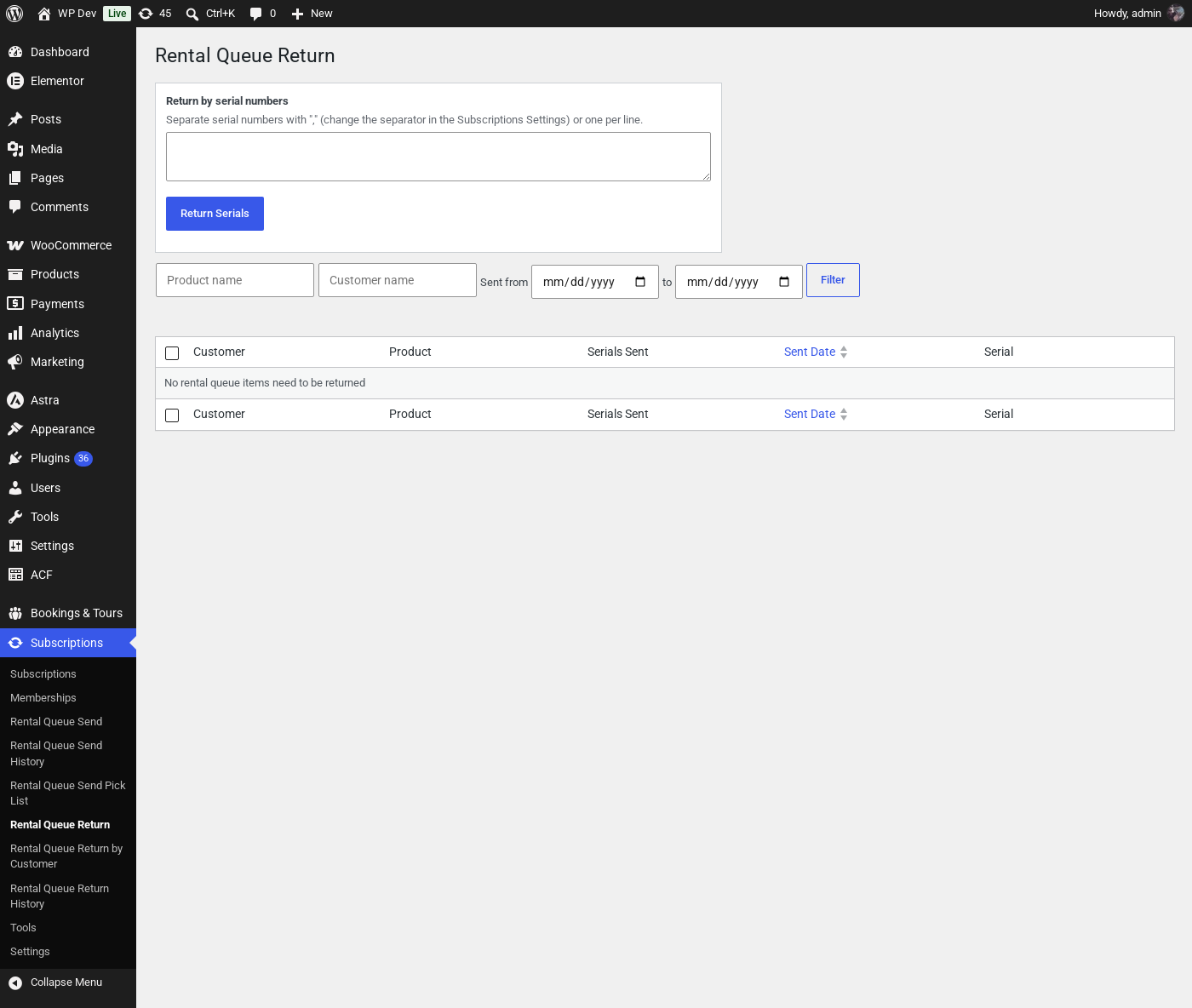
- Return by serial numbers – scan or paste the serials of everything that came back today, separated by commas or one per line, and click Return Serials. Each serial is matched to the rental it belongs to and returned.
- Filters – narrow the list by product name, customer name or the date range the items were sent.
- Bulk return – tick rows, pick the serial being returned where a row has several, choose Return from Bulk actions and click Apply.
Rental Queue Return by Customer #
Subscriptions > Rental queue > By customer lists the customers who have items out; click one to see just their checked-out items and return them with the Return bulk action. Use this when a customer brings items back in person.
Whichever way an item is returned, its booking is closed (so the unit is available to rent again), the serial is marked back in stock, the customer’s allowance is freed and the Rental Queue Item Returned email is sent.
History #
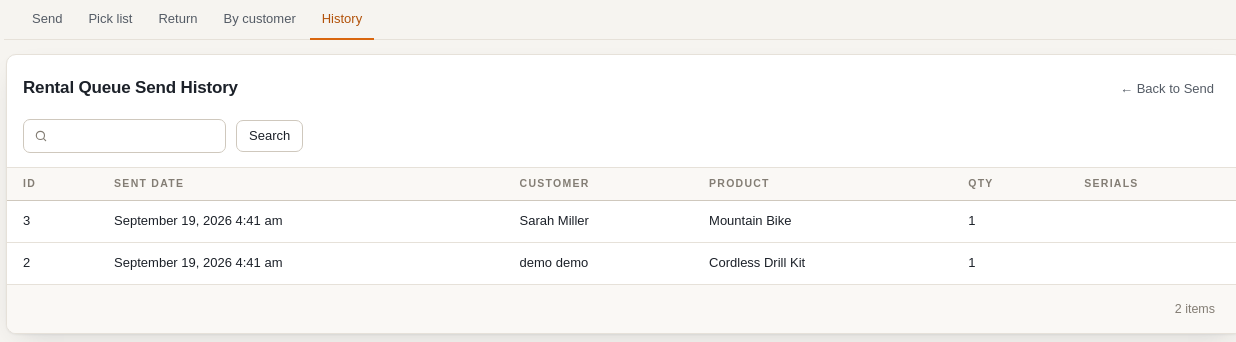
The History tab of Rental queue (send history and return history) are the Rentals & Bookings send/return logs filtered down to rental queue checkouts, with the customer’s name added, so you can look up when a given item went out or came back. The per-membership view of the same information is on the membership details page under Subscriptions > Memberships.
Tips #
- Set up serial numbers for every queue product in Rentals > Serials first – returns by serial are far quicker than picking rows by hand.
- Keep some units of popular products unassigned to regular bookings; a unit with a future booking cannot be sent to a member because the return date is open-ended.
- If a member’s subscription is paused or cancelled, they keep the items they have until you return them, but no new items can be sent.


