
- What it does
- Adding the search to a page
- Building the form: Rentals > Settings > Search Builder
- How visitors pick their dates
- The results
- Search settings: Rentals > Settings > Search
- Product pages remember the dates
- How "not available" is worked out
- Shortcode options
- Links you can share
- Questions and troubleshooting
Let visitors pick their dates first and see what is actually free, instead of opening product after product to find out. Put a date search on your home page, in a sidebar or on a landing page. A visitor chooses a pick-up and a return, presses one button, and lands on your shop page with every rental judged against those dates. Anything already booked out is marked (or hidden, if you prefer), and a product they open next already has the dates filled in.
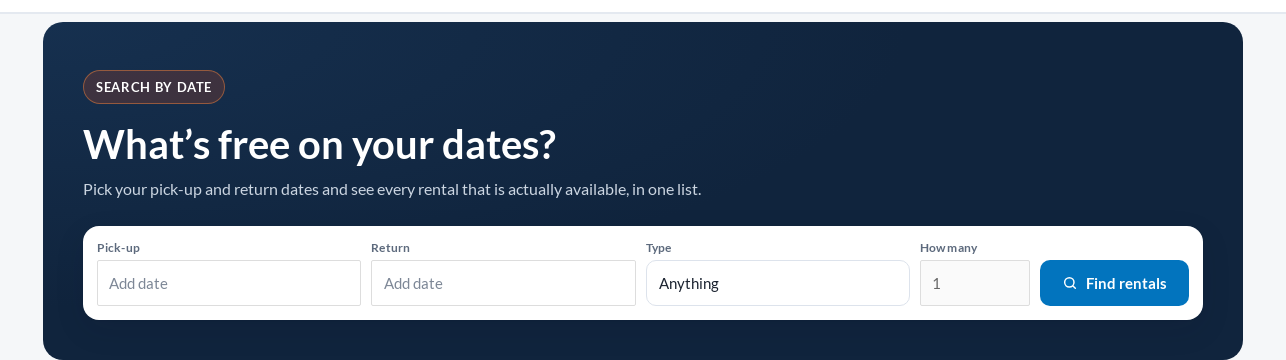
This is part of Rentals & Bookings Regular (and Pro). It is not in the free Lite plugin.
What it does #
- A search form for any page, with the
[sibooking_search]shortcode: dates, and optionally times, how many, a product type and a keyword. - Dates and times are picked in the same guided panel as your product pages, in the same style and colours.
- The search sends visitors to your shop page (or a page you choose), where products that are not available for their dates are marked or left out.
- A bar above the listing says which dates it is showing, with a Clear dates link.
- Product pages open with the searched dates already filled in and priced.
- Every search is an ordinary link, so it can be bookmarked, shared or sent to a customer, and the back button works.
Adding the search to a page #
Add a Shortcode block wherever you want the form and enter:
[sibooking_search]It works the same in a widget area (a Shortcode block in Appearance > Widgets) and in page builders such as Elementor (their Shortcode element). What the form looks like, and which fields it shows, is set once in the Search Builder below, so every form on your site matches.
Already using the older [sicalendar_widget] shortcode? You do not need to change anything. On Regular and Pro it now shows this search form in its place, stacked for a sidebar.
Building the form: Rentals > Settings > Search Builder #
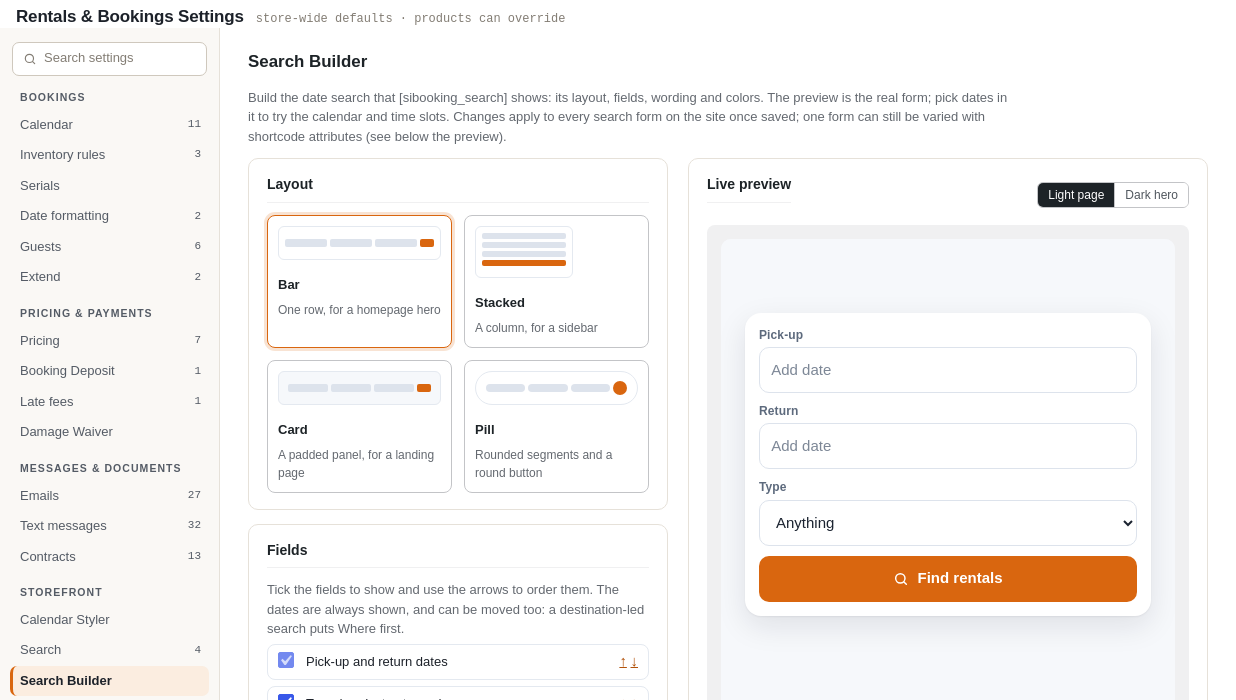
The Search Builder tab works like the Calendar Styler: choices on the left, the real form on the right, updating as you change things. You can click into the preview and pick dates to try it. Nothing changes on your site until you press Save search form.
| Section | What you set |
|---|---|
| Layout | Bar (one row, for a home page banner), Stacked (a column, for a sidebar) or Card (a padded panel for a landing page). On a phone the bar folds into a column by itself. |
| Fields | Which fields show and in what order: pick-up and return dates (always first), times, how many, type (product category) and keyword. Only the dates are on to begin with. Also the Time slot interval for the time choices (60 minutes to begin with); see below. |
| Products | Rentals only: when on (the default), a search lists only products with Enable rental ticked. Categories never searched: for what is not rented by the date, such as memberships, a rental queue or subscriptions; products in these categories are left out of search results and never offered as a Type. Categories the Type field offers: tick the ones to show; tick none to offer every category that has at least one rental product on show. |
| Wording | A heading above the form, the button text, and every label and placeholder: Pick-up, Return, Pick-up time, Return time, Type, Anything, How many, Keyword, Add date, Any time. Leave a box empty to use the standard wording, which follows your site language. |
| Look | The Date and time picker (see the next section), the calendar skin (or follow the Calendar Styler), the corner radius, and the shadow under the bar. |
| Colours | Button and focus colour, button text, panel background, field background, field text, labels and field borders. Empty colours follow the Calendar Styler and your theme. |
| Place it | The shortcode to copy, plus a version with your current choices written into it, for when one page should stay different from the rest. |
Where the pick-up and return times come from #
When the times field is on, the choices run from the Store Open Time to the Store Close Time in Rentals > Settings > Calendar, in steps of the Search Builder’s Time slot interval (60 minutes unless you change it). The product pages keep their own interval, which is set in the Calendar Styler.
How visitors pick their dates #
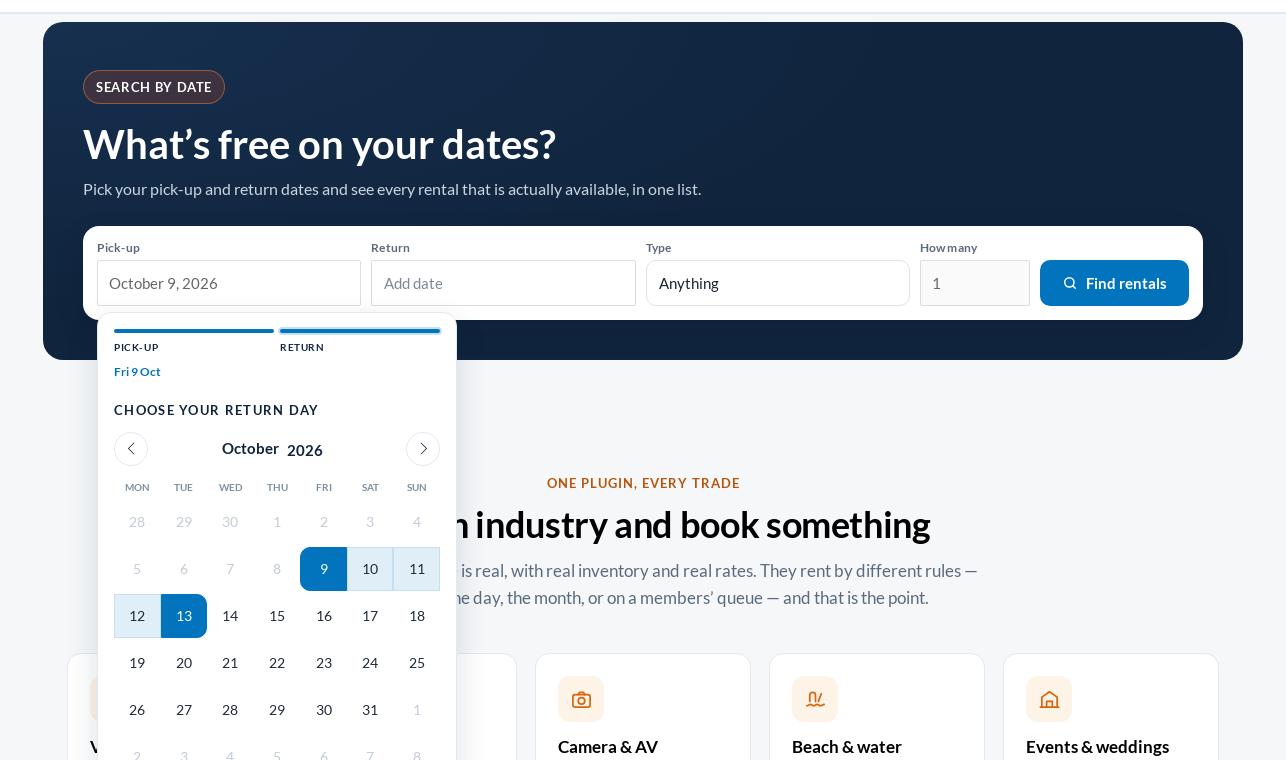
Clicking Pick-up or Return opens one panel, the same guided picker your product pages use. It walks through the pick-up day, the pick-up time, the return day and the return time, moving on by itself after each choice. The progress row along the top shows what has been chosen, and any finished step can be clicked to change it. While the visitor chooses a return day, the stay is shaded as the pointer moves over the calendar.
With times switched on, the time step shows your opening hours as a grid grouped into Morning, Afternoon and Evening. A return time on the same day as the pick-up cannot be earlier than the pick-up time.
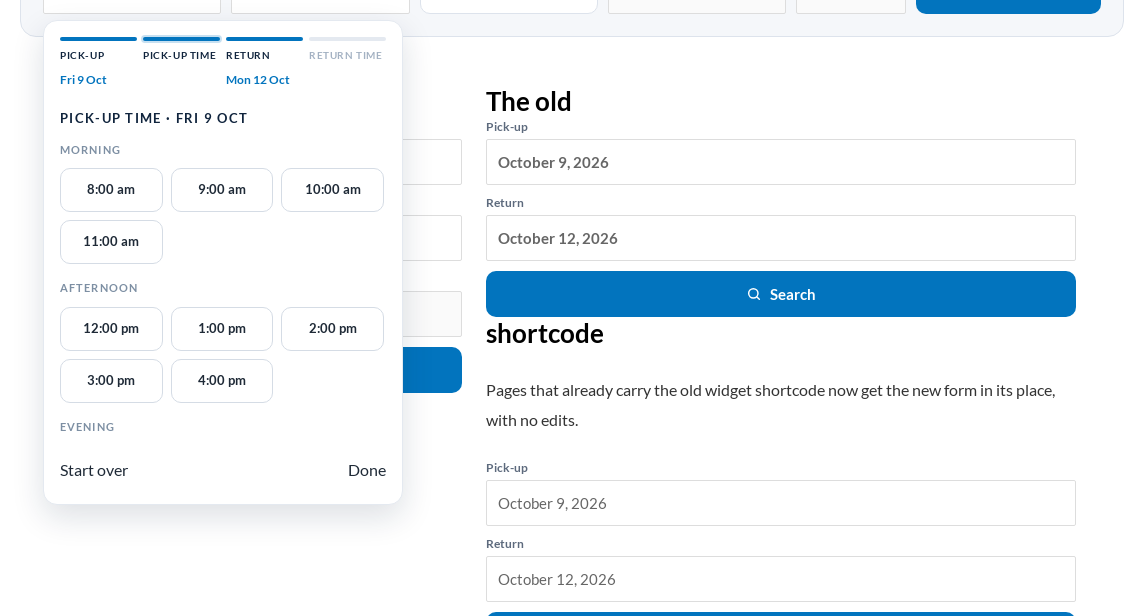
Once the last step is chosen the panel closes and the fields show the dates (and times) in your store’s date format. On a phone the panel opens as a sheet from the bottom of the screen.
If you prefer a separate calendar for each field, choose Separate pickers under Look > Date and time picker. The default, Same as the product page, follows your Calendar Styler: a store that uses the Separate Date Pickers on its product pages gets them in the search too.
The results #
The search sends visitors to your WooCommerce shop page, keeping your theme’s product grid, sorting and pagination. A bar above the products says which dates the listing is showing and has a Clear dates link. A product with nothing left on those dates is greyed and labelled Not available for your dates.
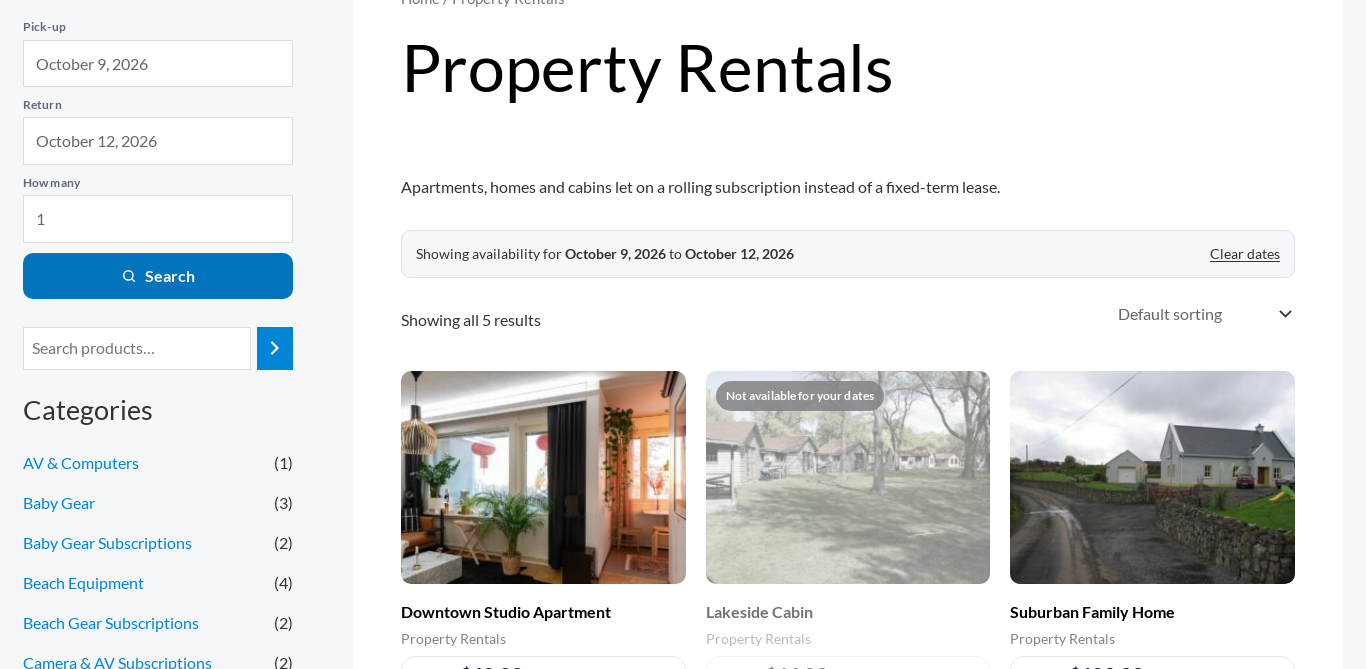
The Type field narrows the listing to that category and the Keyword field searches it, whatever the other settings. With Rentals only on, products that are only for sale are left out of a search.
Search settings: Rentals > Settings > Search #
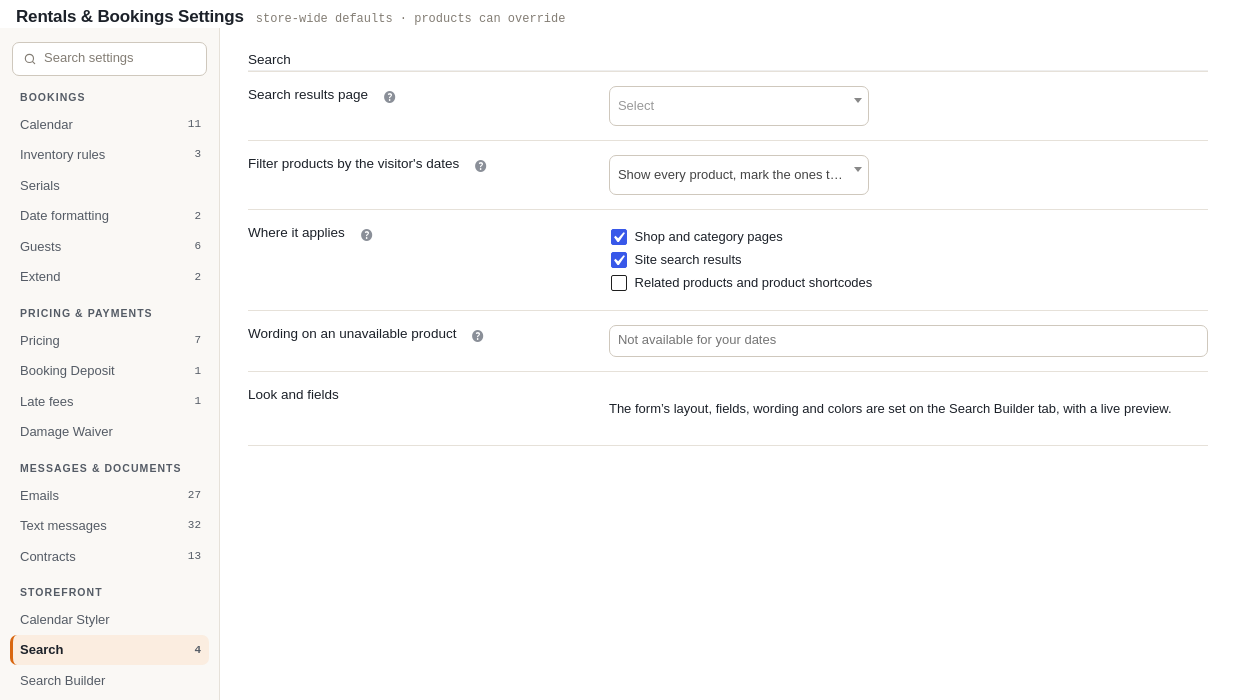
| Setting | What it does |
|---|---|
| Search results page | Where the form sends visitors. Leave it empty to use the WooCommerce shop page (recommended). To use a page of your own, put a WooCommerce product listing on it, for example [products limit="12" columns="3" paginate="true"], and tick Related products and product shortcodes under Where it applies. |
| Filter products by the visitor’s dates | Show every product, mark the ones that are not available (the default), Hide products that are not available, or Off. Marking keeps your full range on screen and shows the visitor that the dates are the problem; hiding suits a pure availability search. |
| Where it applies | Shop and category pages, site search results, and related products and product shortcodes. Related products are off by default, because they sit under a product the visitor is already looking at. |
| Wording on an unavailable product | The label on a marked product. Empty uses Not available for your dates, in your site language. |
Nothing is filtered until a visitor has dates, so a store where nobody searches looks exactly as before.
Product pages remember the dates #
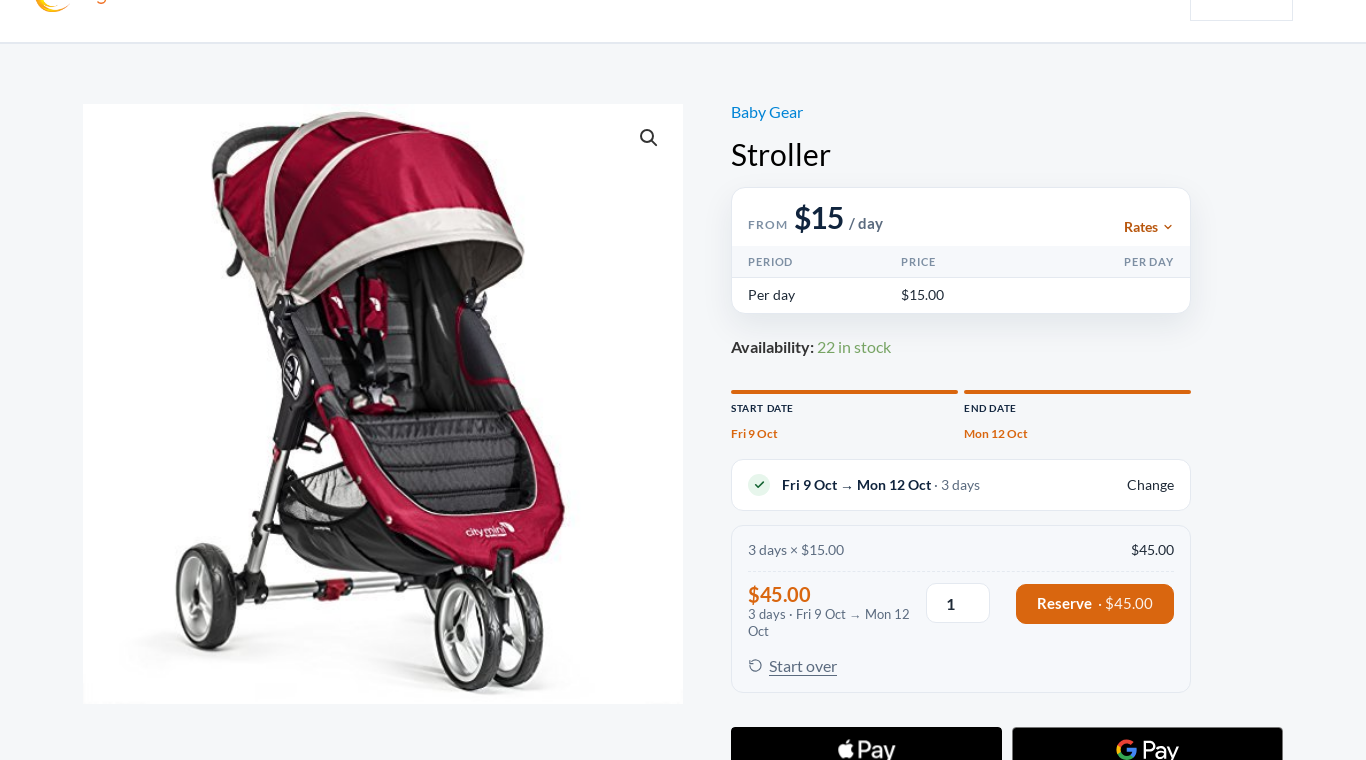
A product opened from the results already has the searched dates in its calendar, with the price for them, so the visitor can reserve straight away or change them. It works the other way too: dates a visitor finishes choosing on one product page carry over to the next product they open and to the date-filtered listings.
How “not available” is worked out #
- A product is unavailable when the units already booked at the busiest moment of the searched dates leave fewer than the visitor asked for (How many, or one).
- Turnaround time before and after bookings counts, exactly as on the product page.
- Two bookings that do not overlap each other use one unit between them, not two.
- A product that does not manage stock is never marked unavailable.
- A product’s own closed days and its minimum and maximum rental length are checked on the product page, not in the listing. A product can therefore show as available in the results and still refuse a date on its own page; the product page always has the final say.
Shortcode options #
A bare [sibooking_search] uses the Search Builder’s settings. Add any of these to one placement to change it there only:
| Option | Values | Example |
|---|---|---|
layout | bar, stacked, card | [sibooking_search layout="stacked"] |
fields | Any of dates, times, qty, category, search, in the order you want them | [sibooking_search fields="dates,times,category"] |
button | The button text | [sibooking_search button="Find rentals"] |
heading | A heading above the form | [sibooking_search heading="Plan your trip"] |
category | Category slugs the Type field offers, comma separated | [sibooking_search fields="dates,category" category="cars,vans"] |
style | airy, card, bold, classic | [sibooking_search style="bold"] |
picker | guided or separate | [sibooking_search picker="separate"] |
action | The page to send visitors to, if not the one set in Search settings | [sibooking_search action="/cars/"] |
open | true opens the date panel as the page loads | [sibooking_search open="true"] |
Links you can share #
Every search is a plain web address, for example:
https://yourstore.com/shop/?sib_from=2026-10-09&sib_to=2026-10-12&sib_qty=2&sib_cat=carsYou can put a link like this in an email, an ad or a menu to open your catalogue already checked for those dates. Dates are always written year-month-day, so a link means the same thing in every country.
| Part | Meaning |
|---|---|
sib_from, sib_to | Pick-up and return date, YYYY-MM-DD. Both are needed. |
sib_from_time, sib_to_time | Pick-up and return time, HH:MM (optional) |
sib_qty | How many (optional, default 1) |
sib_cat | A product category slug (optional) |
sib_q | A keyword (optional) |
sib_clear=1 | Forgets the visitor’s dates (this is what Clear dates does) |
Questions and troubleshooting #
Nothing is marked as unavailable #
Check that the listing shows the “Showing availability for…” bar; without it the visitor has no dates. If the bar is there, check Filter products by the visitor’s dates is not Off, and that the page type is ticked under Where it applies. A product that does not manage stock is never marked.
The Type field is missing #
It only appears when there is at least one category to offer. Tick some under Search Builder > Products, or give your rental products a category.
The times start or end at the wrong hour #
They follow Store Open Time and Store Close Time in Rentals > Settings > Calendar. The steps between them are the Search Builder’s Time slot interval.
Does it work with page caching? #
Yes. Each search is its own address, so a cache stores each one separately and never shows one visitor another visitor’s results.
Can visitors still browse without dates? #
Yes. Without dates the shop is exactly the shop. Clear dates returns to it at any time.


