
A rental theme starts your shop off for one kind of rental business, such as boats, stays or party rentals. It can bring calendar settings in that business’s words, sample categories and products with their rental settings, page sections, and colours and fonts for your WordPress theme.
You choose what to import. Importing the same theme again does not duplicate anything. Removing a theme only removes what you have not changed.
Go to Rentals > Settings, and in the Advanced group open Theme Import / Export. (In the Rentals bar it is under Tools.)
Import a theme #
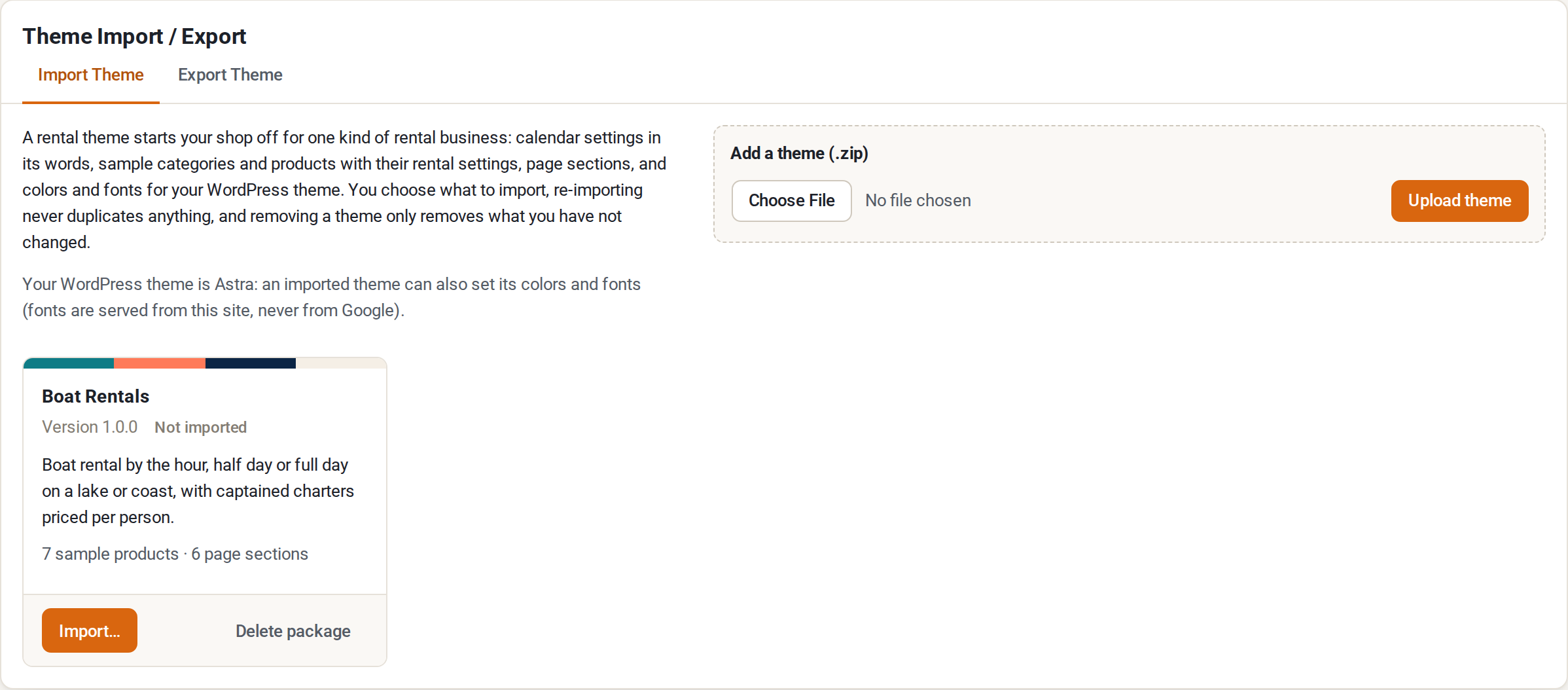
The first tab is Import Theme.
- Click Add a theme (.zip) and upload the theme file. A theme is a .zip file. Each theme is one kind of rental business.
- The theme appears in the list with its version. Click Import….
- Under What to import, tick what you want. Items that do not apply to your WordPress theme are greyed out, with the reason. Possible items:
- Calendar settings: colours and labels of the date picker, in this industry’s words.
- Content: its categories and sample products, with prices and rental settings, and their photos.
- Patterns: homepage and section patterns in the block inserter, under “Rental theme sections”. Works with any WordPress theme.
- Homepage: a page built from the homepage pattern, ready to edit. Tick “Also make it my homepage (Settings > Reading)” if you want it to be your front page.
- WordPress theme colours and fonts: for Astra, the theme’s nine colours, heading and body fonts and the button shape (free Astra settings only). For a block theme, the colours and fonts are added as a style you can pick in Appearance > Editor > Styles, and you can have it applied for you. Fonts are served from your own site, never from Google.
- Click Import theme. A report shows what happened: “The theme added 7 products, 3 pages, 12 images and 3 categories to this site.” If anything went wrong it says “The import finished with errors; see below.”
Which options you see depends on your WordPress theme. The page tells you which theme you have: with a block theme it adds the style to Appearance > Editor > Styles. With another theme it brings the settings, products and page sections, and leaves colours and fonts to your WordPress theme.
Importing again and updating #
A theme that was imported before shows its version and, if the file is newer, “Update available”. Importing again updates only what you have not changed, and lists everything else.
Remove a theme’s content #
Remove theme content… takes out what the theme added. Only what you have not edited since the import is deleted. Everything else stays and is listed. Products with orders or bookings always stay. Calendar and theme settings go back to what they were, unless you changed them since. If you applied the theme’s style to a block theme, removing the content also undoes it (or use Styles > Revisions).
Delete package deletes the theme file from your site. Content you already imported stays.
Export your own theme #
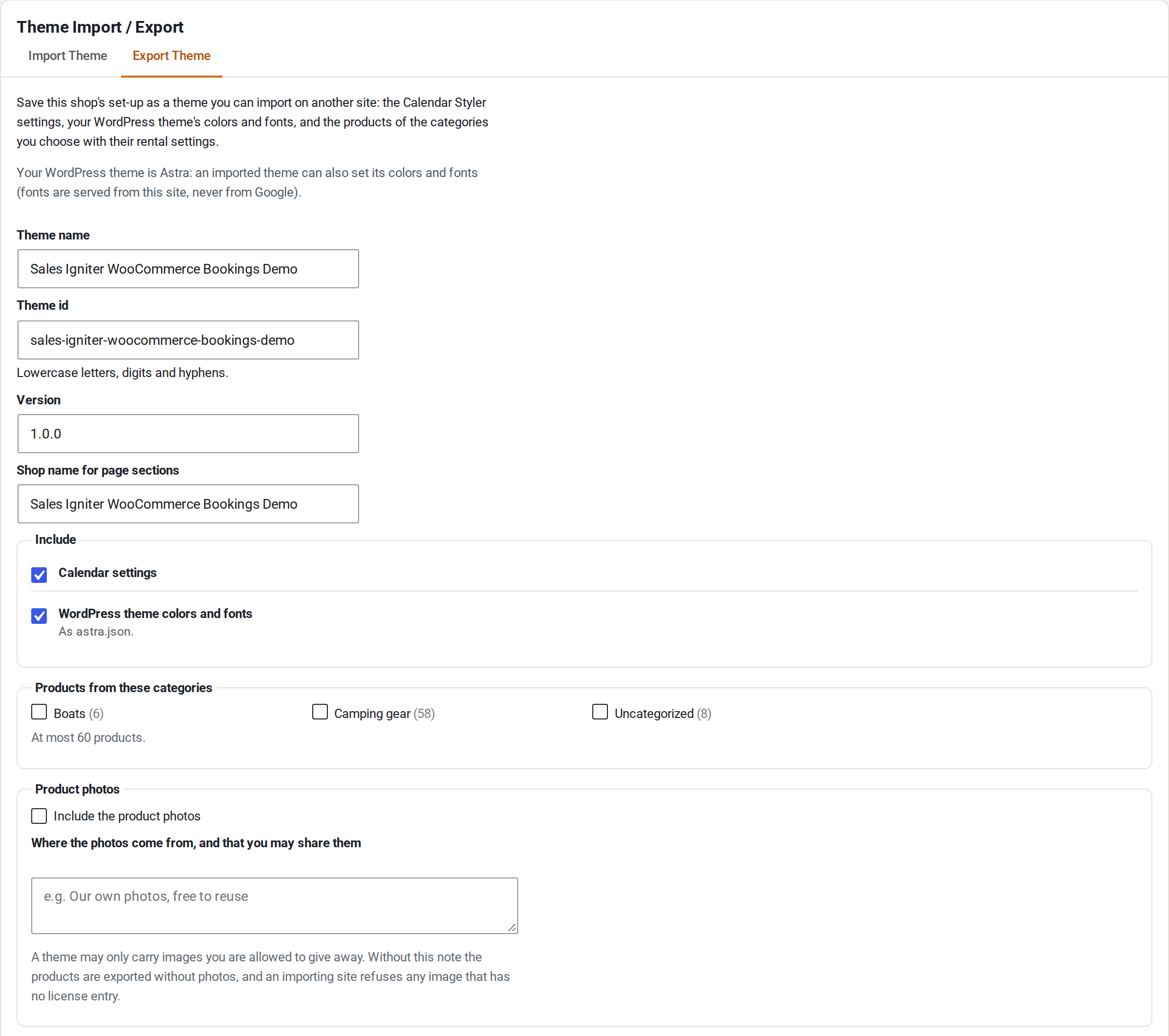
The second tab, Export Theme, saves this site’s setup as a theme zip you can import on another site.
Give the theme a name, an id (lowercase letters, digits and hyphens), a version and a shop name for the page sections. Under Include, choose:
- Calendar settings.
- WordPress theme colours and fonts: as astra.json for Astra, or as a block theme style (style.json). If your WordPress theme has neither, the page says “Nothing to export for this WordPress theme.”
- Products from these categories, at most a set number of products.
- Product photos: tick “Include the product photos”. A theme may only carry images you are allowed to give away, so you must say where the photos come from and that you may share them (for example “Our own photos, free to reuse”). Without that note the products are exported without photos, and an importing site refuses any image that has no licence entry.
- Homepage pattern from a page (optional).
Click Download theme (.zip).
Good to know #
- Only an administrator can use this screen.
- Nothing from a theme overwrites what you changed.
- The words in the screen say “theme”. Files inside the zip still use “kit” (for example
kit.json), so older zips keep working.


