
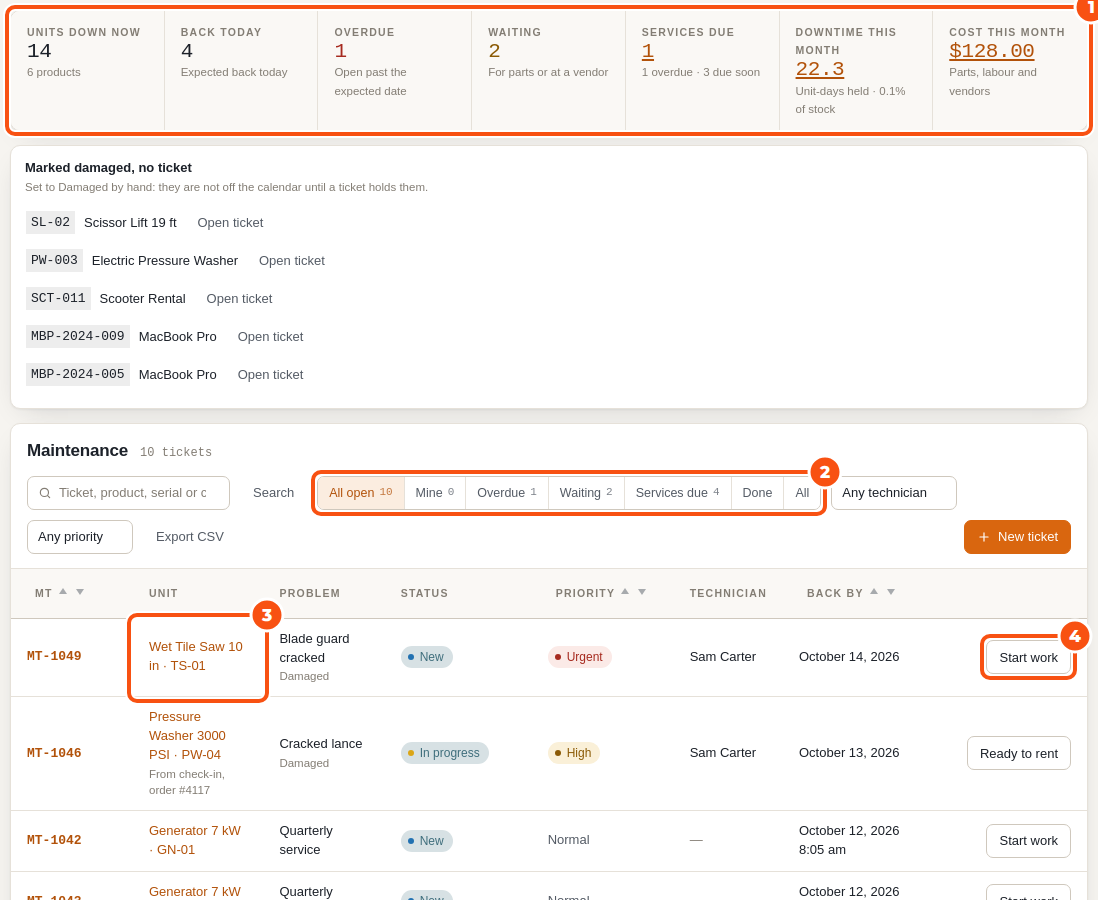
Maintenance & Inspections keeps track of the repairs and services of your rental stock. When a unit comes back damaged, you tick Needs service on the Return screen: the unit is checked in straight into maintenance and stays out of stock until its ticket is done. Every repair, service and cost is on one board, under Maintenance › Tickets.
It also plans services by days, rentals or meter hours, asks checklists at check-out and check-in, records parts, labour and vendor costs, and lets you charge a customer for damage they caused, from the security deposit, the card saved at checkout or a pay link.
What you need #
| Item | Requirement |
|---|---|
| WordPress | 6.6 or newer |
| PHP | 8.1 or newer |
| WooCommerce | Active |
| Rentals & Bookings | Sales Igniter Rentals & Bookings for WooCommerce Regular 1.0.79 or newer (it includes the Lite base plugin). The plugin does not run with Lite alone. |
| Optional | Refundable Security Deposits, to take a damage charge from a held deposit. Custom Fields, Damage Waiver & ID Verification, so a damage waiver the customer bought lowers the charge. Multi Location Inventory, for the location filter in the reports. |
Install and activate #
- Install and activate Sales Igniter Rentals & Bookings for WooCommerce Regular (1.0.79 or newer).
- Go to Plugins › Add Plugin › Upload Plugin, choose the Maintenance & Inspections zip file, then click Install Now and Activate Plugin.
- On the Plugins screen, click Licence under the plugin’s name and enter your licence key, or leave it empty to use the Regular edition’s key. Updates then arrive in Dashboard › Updates.
On activation the plugin:
- creates its own database tables, so tickets are not stored as bookings, orders or posts;
- gives the Administrator and Shop manager roles the maintenance capabilities (see the table below);
- adds a top-level Maintenance menu, right after Rentals, with a bubble that counts the tickets that need you.
Nothing changes for your customers until a ticket keeps a unit out of stock.
Who can do what #
| Capability | What it allows | Given to |
|---|---|---|
sibooking_maintenance_view | See tickets, the board and the reports | Administrator, Shop manager |
sibooking_maintenance_manage | Open, edit, assign and close tickets | Administrator, Shop manager |
sibooking_maintenance_work | Be a technician: be assigned tickets and see Mine | Administrator |
sibooking_maintenance_costs | See and edit every cost, tick “Bill to customer” | Administrator, Shop manager |
sibooking_maintenance_charge | Charge a customer for damage | Administrator, Shop manager |
manage_woocommerce | The settings and the statuses | WooCommerce’s own |
A technician is anyone who holds the work capability. Assign to me on a ticket gives it to the user who clicks it, so the technician list is never empty. A technician who only holds the work capability sees the board narrowed to My maintenance jobs, and can add costs to their own tickets. The plugin only ever adds capabilities to a role once: if you take one away, it stays away.
The screens #
| Screen | Where | What it is for |
|---|---|---|
| The board | Maintenance › Tickets | Every ticket, with tabs, search, filters and Export CSV |
| A ticket | Click a ticket on the board | Stock, details, technician, timeline, photos, checklists, costs, vendor and customer |
| New ticket | New ticket on the board (Maintenance › Tickets) | Open a ticket by hand |
| Services | Maintenance › Services | Service schedules and the units due for a service |
| Checklists | Maintenance › Settings › Checklists | Serial custom field sets used as checklists, and the latest inspections |
| Parts and Vendors | Maintenance › Settings › Parts and Maintenance › Settings › Vendors | Your parts list and the workshops you send units to |
| Reports | Maintenance › Reports | Cost, downtime, utilisation, service compliance and problems |
| Settings | Maintenance › Settings | Tabs: General (blocking, the problem list, emails, customer reports, labour rate, damage charges, ticket numbers), Checklists, Parts, Vendors, Technicians and Statuses |
First steps #
- Open Maintenance › Settings. Check Managers (the email addresses that receive maintenance emails; empty means the site’s admin email) and edit the Problem list to match your stock: one problem per line, offered at check-in and on new tickets.
- If units you rent need regular servicing, add a schedule on Maintenance › Services (see Service schedules).
- The next time a unit comes back damaged, tick Needs service on the Return screen (see Needs service at check-in).
How a ticket keeps stock out #
A ticket that keeps stock out holds its units from the moment it is opened (or from a planned start) until it reaches Ready to rent. While it holds them they are not offered on the calendar, the product page or the cart, and a serial shows In maintenance. With an Expected back date, the block ends on that date; if the ticket is still open by then, it keeps blocking one day at a time and shows Overdue. A ticket never cancels a booking: if the held units leave future bookings short, the ticket lists those bookings so you can swap units or contact the customers.
A ticket can also be set to Don’t block (log only): the unit stays rentable while you track the work. More in Tickets and the board.


