
Delivery & pickup lets your customers choose how they get a rental and how it comes back: they pick it up at your store, you deliver it to their door, or you transport it. The calendar then holds the days a rental spends on the road, the checkout charges the right shipping option, and with Smart Routing your team sees every hand-over on Rentals › Schedule.
This page walks through switching it on, each of the three ways, the product settings and what your customers see. The pages after it cover delivery areas, fees and capacity, transported rentals and Delivery by Distance; Smart Routing adds the Schedule, route planning and the driver app.
Delivery & pickup is part of Rentals & Bookings Regular 1.0.80 (with its bundled Lite 1.0.17); your own wording for each way came in 1.0.84. It is off until you switch it on, so nothing changes for a store that doesn’t use it.
Shops that only sell: Smart Routing 1.1.0 brings the same delivery without Regular: the day and slot at checkout, delivery areas and fees, and the Schedule. Its settings are under Deliveries › Settings (or Rentals › Delivery settings with the free Lite plugin). Pick-up at the shop and collections need Regular.
Switch it on #
- Go to Rentals › Settings › Delivery & pickup.
- Tick Customers choose how they get their rental.
- Under Ways offered, tick the ways you offer: Pick up, Delivery and Transport.
- Under Preselected, choose the way the product page starts on, or None: customers choose.
- Fill in each way’s box (below) and click Update.

Each way has its own box with the same building blocks: the name customers see, its days, its notice and order cut-off, its time slots, how the rental comes back and its own blackout dates. Under the boxes, a summary line shows what the calendar blocks for each way, for example “Delivery: 1 day blocked before each rental, and 1 day after”, added to each product’s turnover time.
Pick up #
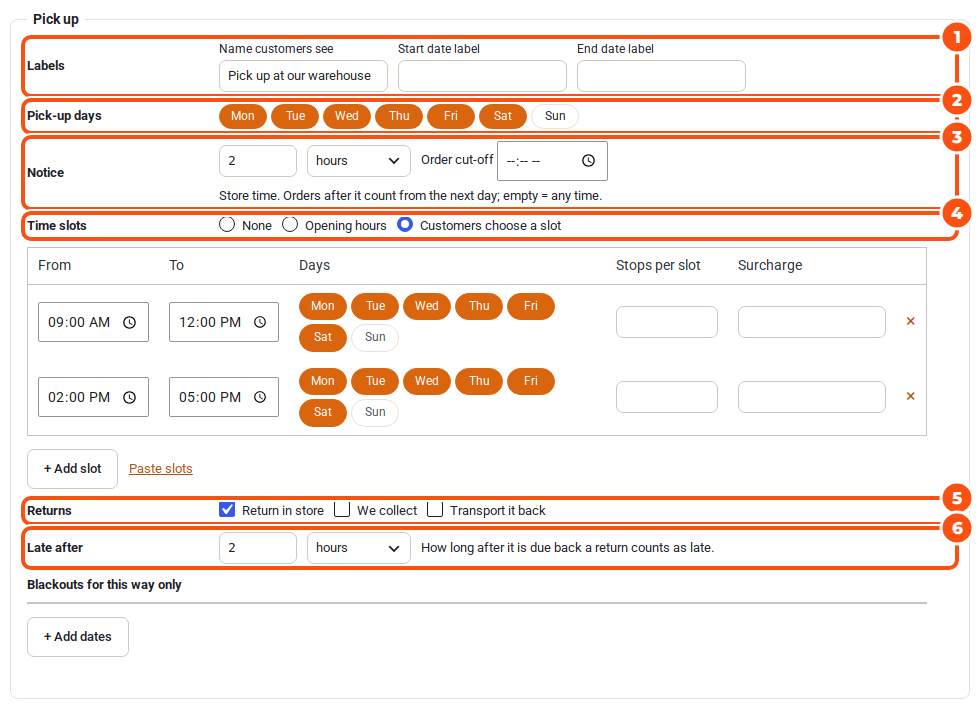
- Labels: the Name customers see (“Pick up at our warehouse”) and, if you like, your own words for this way’s dates, time slots, way back and cart rows. An empty box keeps the standard wording, shown greyed in the box. See Your own wording below.
- Pick-up days: the days customers can collect. The store’s closed days always apply (see Closed days at the bottom of the tab).
- Notice and Order cut-off: how far ahead a booking must be made. The cut-off is in store time; an order after it counts from the next day. Empty means any time.
- Time slots: None, Opening hours, or Customers choose a slot. With slots, each row has a From and To time, its Days, an optional Stops per slot limit and an optional Surcharge. + Add slot adds a row; Paste slots takes one slot per line, such as
mon-fri 08:00-10:00 x4 +5(x = stops per slot, + = surcharge). - Returns: how a rental handed over this way may come back: Return in store, We collect or Transport it back.
- Late after: how long after it is due back a return counts as late (in hours or days). Late fees and overdue reminders count from here.
- Blackouts for this way only: + Add dates blocks dates for this way alone, with an optional reason.
Delivery #
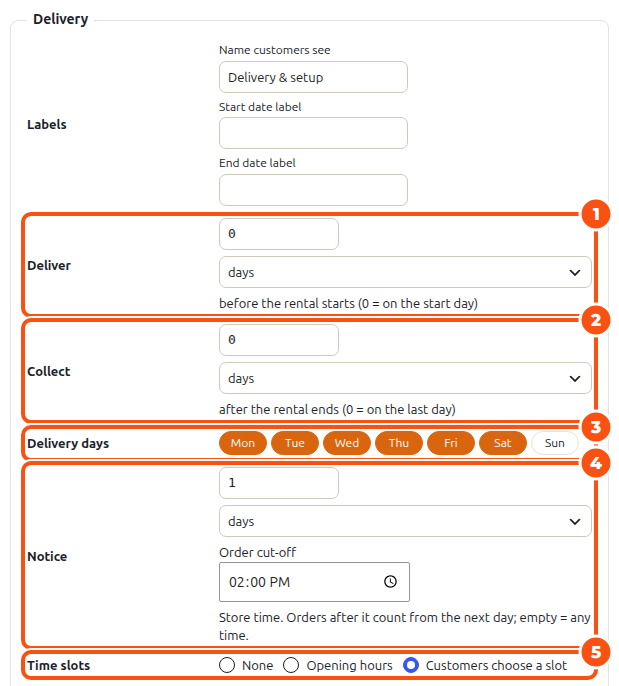
Deliver and Collect are the days (or hours) the rental is on the road: a bounce house delivered the evening before is “1 day before the rental starts”. The calendar holds those days, so the unit can’t be rented to someone else while it is out.
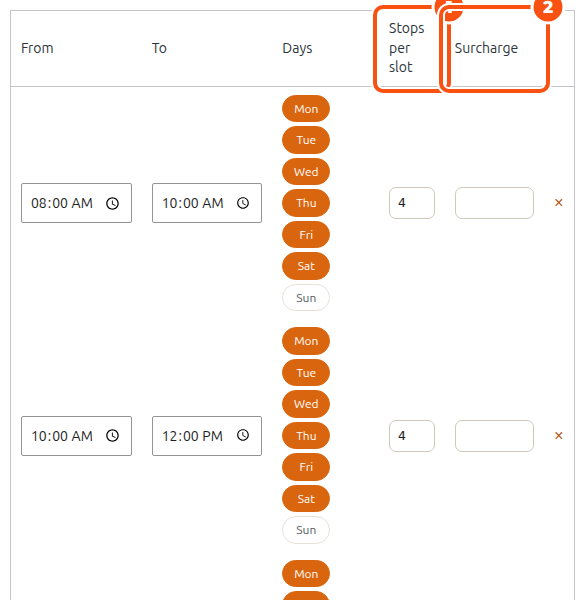
A slot with Stops per slot fills up: when it is full the product page greys it out, and “1 left” shows on a slot that is nearly full. The places are held while a customer checks out.
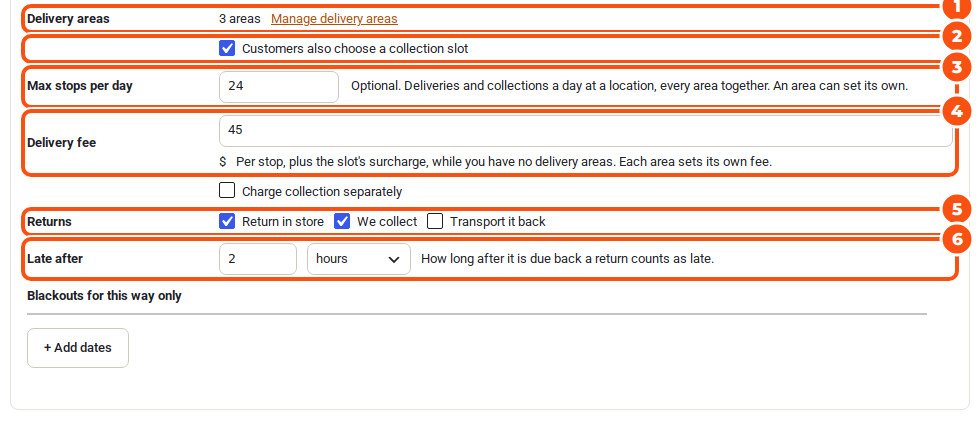
- Delivery areas: where you deliver, each with its own postcodes or radius, days, slots and fee. Without areas every address gets the fee below. See Delivery areas, fees and capacity.
- Customers also choose a collection slot: the product page asks for a slot for the collection too.
- Max stops per day: optional; all deliveries and collections at a location on one day, every area together. An area can set its own.
- Delivery fee: per stop, plus the slot’s surcharge. Charge collection separately charges the collection as a second stop.
Transport #
Transported rentals spend days in transport each way. The calendar holds the days out and back, and the checkout offers your own WooCommerce shipping options. The Transport box has its own page: Transported rentals: days in transport.
Your own wording #
Each way’s Labels row holds the words customers read for that way, from the product page to the order emails. Leave a box empty to keep the standard wording, shown greyed in the box. A label takes up to 40 characters, the note up to 120.
- Name customers see: the way’s name on the product page, in the cart and at checkout. Standard: Pick up, Delivery, Transport.
- Start date label and End date label: the names of the two dates in the date picker while this way is chosen, such as “Delivery day” and “Collection day”. They work in every calendar layout and change as soon as the customer picks another way. Empty keeps your calendar’s own labels (Settings › Calendar Styler).
- Time slot label and Return time slot label (Pick up and Delivery): the captions over the time slots. Standard: “Pick-up time slot” and “Return time slot” for Pick up, “Delivery time slot” and “Collection time slot” for Delivery.
- Way back name: the choice under How will it come back?. Standard: Return in store (Pick up), We collect (Delivery), Transport it back (Transport).
- Cart row, out and Cart row, back: the names of the hand-over rows on cart lines, orders, emails and the Send and Return lists. Standard: Pick-up, Delivery or Shipping, and Return.
- Note under the name (Pick up and Delivery): your own line under the way’s name on the product page, in place of the automatic one (when it is ready, or the delivery fee).
The words for the way back belong to the way it comes back by. The Pick up box’s End date label, Return time slot label, Way back name and Cart row, back apply whenever a rental comes back in store, even one that went out by delivery. Delivery’s apply whenever you collect it, and Transport’s whenever it is transported back.
Product page wording, under Preselected at the top of the tab, holds the words the product page uses for every way: the Ways heading (“How do you want it?”), the Ways back heading (“How will it come back?”), and the Postcode label (“Your postcode”) and Postcode button (“Check”) of the delivery areas’ postcode box.
On a store in more than one language, each label you write appears in WPML’s String Translation or Polylang’s Strings translations, named “Delivery label: …”, for you to translate. The standard wording comes translated with the plugin.
Day sheet #
With Smart Routing, Day sheet at the bottom of the tab emails the day’s Schedule every morning: the routes and stops in order, the counter’s pick-ups and returns, and the parcels to transport. Choose the hour (Send at, store time) and the email addresses (Send to, separated by commas). With Multi Location Inventory each location’s staff get their own location’s sheet.
A product’s own settings #
Every product uses the store’s settings until you change them. Edit the product and open the Delivery & pickup tab in the Rentals & Bookings box.
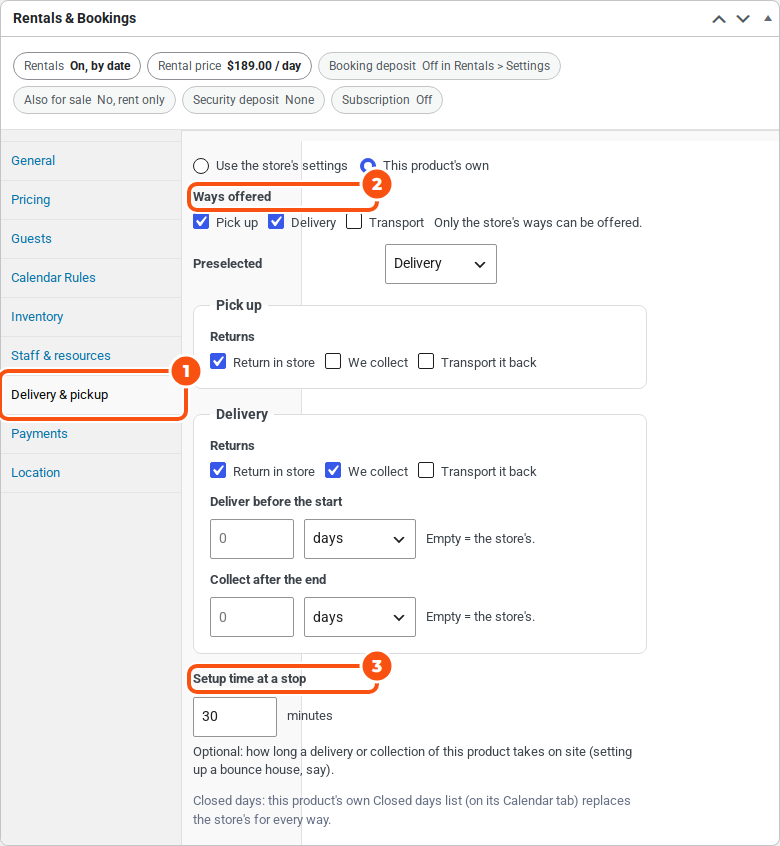
- Use the store’s settings or This product’s own.
- Ways offered: fewer ways than the store (only the store’s ways can be offered). A bounce house you never transport leaves Transport unticked.
- Preselected: As the store, or the way this product starts on.
- For each way: its Returns, and its own Deliver before the start and Collect after the end (or Days in transport, out and back). Empty means the store’s.
- Setup time at a stop: minutes on site for a delivery or collection of this product (setting up a bounce house, say). Smart Routing’s Schedule and planner add it to the stop.
- The product’s own Closed days list (on its Calendar tab) replaces the store’s for every way.
To change many products at once, use Bulk edit on the Products list: its Delivery & pickup field sets Only the ways ticked or — No change —.
What your customers see #
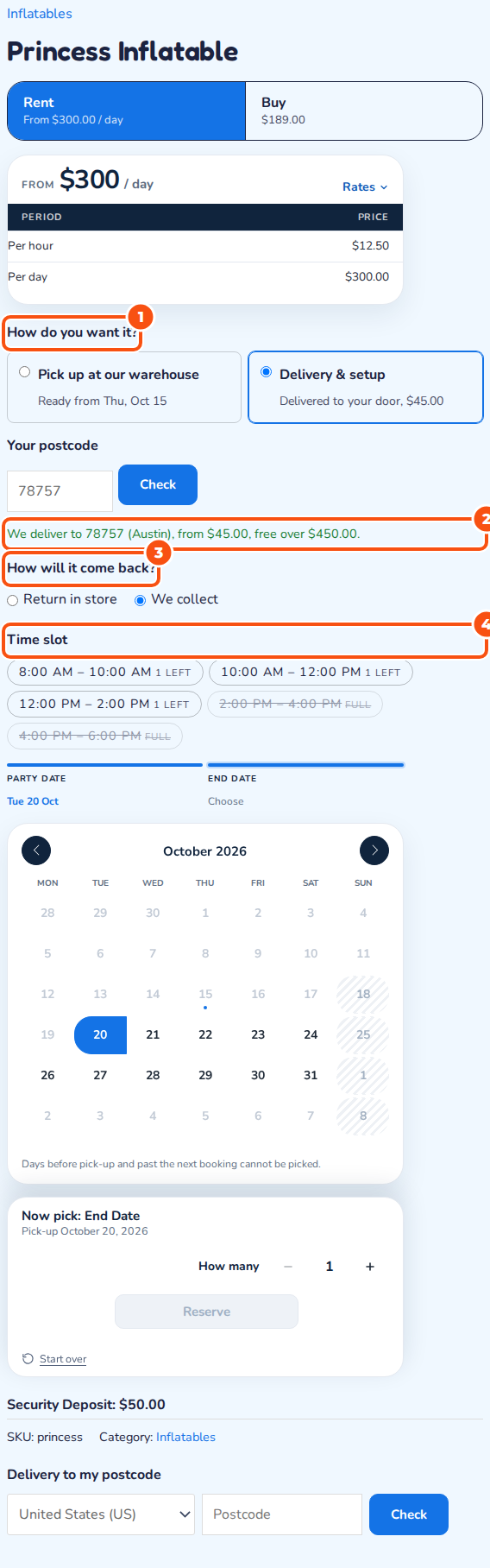
On the product page the customer answers How do you want it? before choosing dates. For delivery they enter their postcode and click Check (“We deliver to 78757 (Austin), from $45.00, free over $450.00.”). They choose how it comes back, then the dates, then a time slot. Full slots are crossed out and nearly full ones show “1 left”. The headings, the names of the dates and the slot captions use your own wording when you have set it.
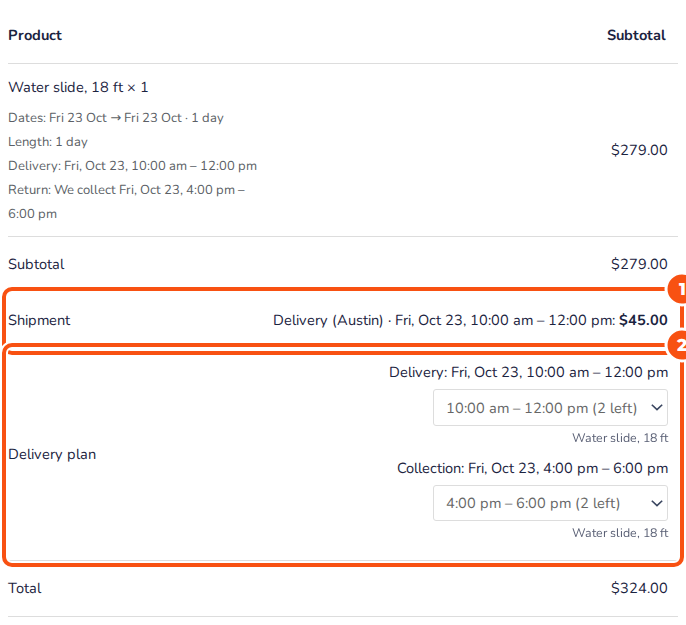
The cart and checkout show the Delivery plan: when each rental goes out and comes back, with a Change slot menu per stop. The shipping options follow the way: your local pickup (or a free “Pick up” option), the delivery fee per stop plus the slot’s surcharge, or your own shipping rates for transported rentals. An order uses one way.
After the order, the confirmation emails, the order and My Account say when the rental goes out and comes back. Send and Return list rentals by those days, reminders count from the hand-over, and late fees count from when it is due back by its way back.
On the order screen #
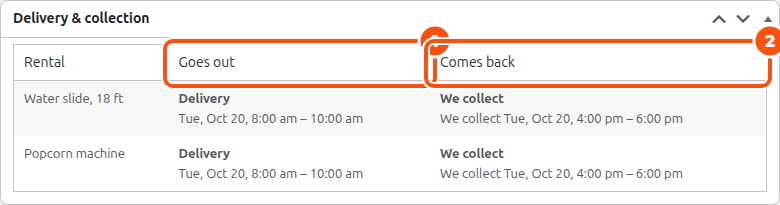
The order screen has a Delivery & collection box: each rental, when it Goes out, when it Comes back, whether it is Late, and the Return tracking number of a transported return.
For developers #
The REST API has /handover/windows, /handover/ways, /settings/delivery and PATCH /bookings/{id}/handover; delivery areas add /delivery-zones and /delivery/check, and Smart Routing the Schedule’s /schedule, /stops and /routes. The sibooking_delivery_label filter changes any of the labels above in code: it gets the label, its key and the way.


